Native HTML Accessibility: The 2026 Industry Shift

Sidharth Nayyar
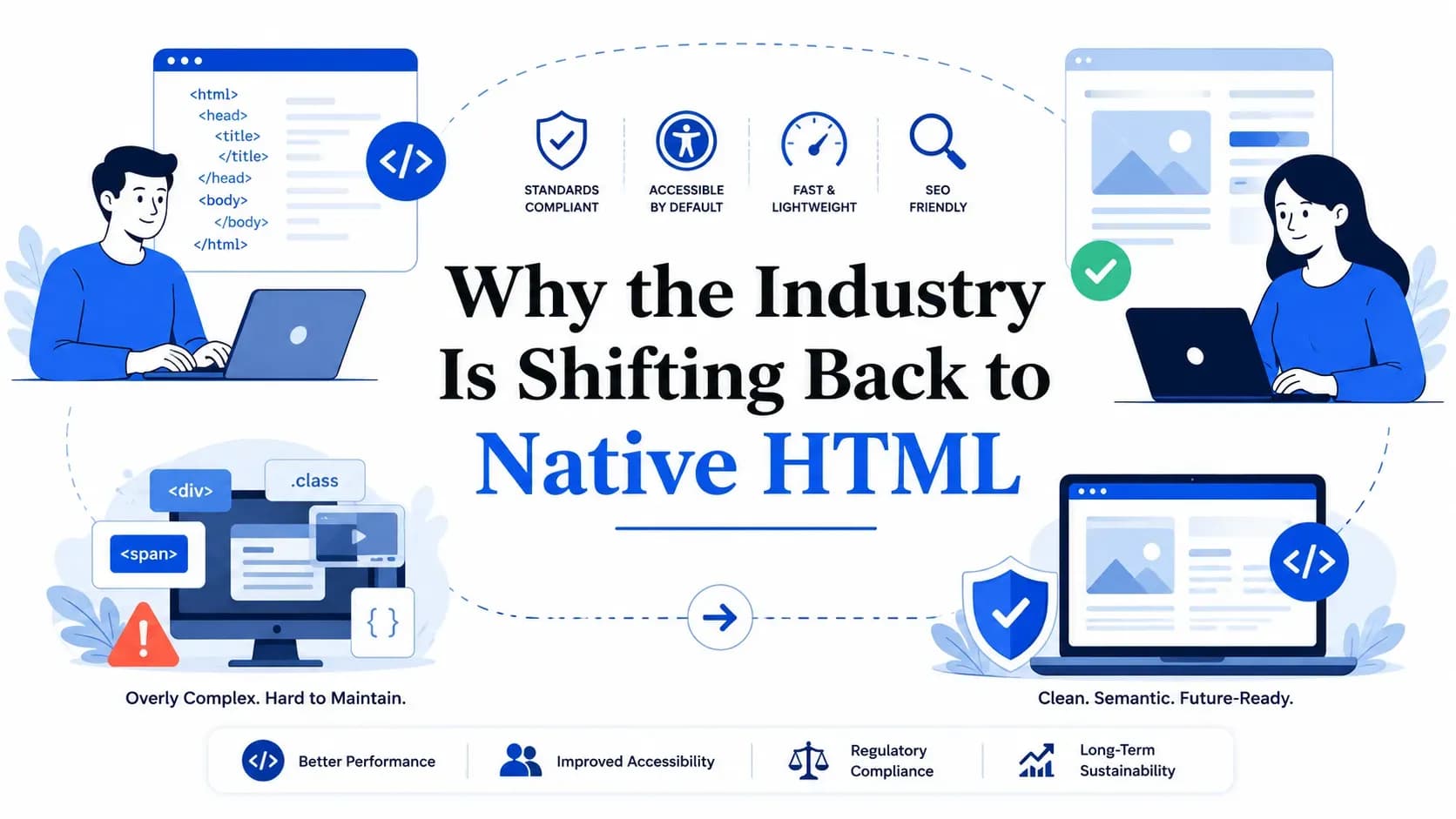
Native HTML Accessibility: Why the Industry Is Shifting Back in 2026
The web development industry is moving away from JavaScript-heavy, ARIA-laden custom widgets and returning to native HTML elements for accessibility. Native HTML elements like<button>, <dialog>, <details>, and <select> ship with built-in keyboard support, screen reader compatibility, and focus management that custom ARIA widgets struggle to replicate. According to the 2026 WebAIM Million report, pages using ARIA average 59.1 detectable errors compared to just 42 on pages without ARIA — a 41% increase. This shift is not a step backward. It is a correction toward more reliable, maintainable, and genuinely accessible web experiences.
Introduction
You have probably built — or inherited — a codebase packed with custom dropdown menus, hand-rolled modal dialogs, and JavaScript-powered tabs. Each one required dozens of ARIA attributes, keyboard event listeners, and focus-trapping logic to work for assistive technology users. And despite all that effort, accessibility audits still flagged errors.
You are not alone. The 2026 WebAIM Million report analyzed one million home pages and found that 95.9% fail basic WCAG 2 standards. The average page now contains 56.1 detectable accessibility errors — a 10.1% increase from the previous year. Page complexity is up 22.5%, driven largely by JavaScript frameworks and excessive ARIA markup.
But something is changing. Developers and accessibility professionals are recognizing that the solution is not more ARIA — it is less. The industry is shifting back to native HTML elements that browsers have spent decades optimizing for accessibility. In this guide, you will learn what native HTML accessibility means, why this shift is happening now, how to migrate your codebase, and what it means for your compliance obligations under the ADA, WCAG, and the European Accessibility Act.
What Is Native HTML Accessibility?
Native HTML accessibility refers to the built-in accessibility features that standard HTML elements provide without any additional JavaScript, ARIA attributes, or custom code. When you use a <button> element, the browser automatically makes it keyboard focusable, announces it as a button to screen readers, and handles click events from both mouse and keyboard. You get all of this for free.
Compare that to a <div> styled to look like a button. To make it accessible, you need to add role="button", tabindex="0", a keydown event listener for Enter and Space keys, and potentially aria-pressed or aria-expanded states. Miss any one of these, and you have created a barrier for users who rely on assistive technology.
The W3C codified this principle as the first rule of ARIA use: "If you can use a native HTML element or attribute with the semantics and behavior you require already built in, instead of re-purposing an element and adding an ARIA role, state or property to make it accessible, then do so." This is not a suggestion. It is the foundational guidance from the organization that created both HTML and ARIA.
Native HTML elements get their semantics, keyboard behavior, focus management, validation feedback, and accessibility-tree mappings baked into the browser's rendering engine. ARIA, by contrast, is a set of hints that the browser must retrofit onto generic elements like <div> and <span>. When those hints are incomplete or incorrect — which happens frequently — the result is worse than having no ARIA at all.
This is why WebAIM's analysis consistently shows that pages with ARIA have more errors than pages without it. ARIA is a powerful tool for complex, custom interfaces that have no native equivalent. But when developers reach for ARIA to rebuild something the browser already provides, they introduce unnecessary risk. Running your site through a web accessibility checker can reveal exactly where ARIA misuse is creating barriers.
Why the Industry Is Shifting Back to Native HTML
The Data Is Unmistakable
The 2026 WebAIM Million report provides the clearest evidence yet. Of the one million home pages analyzed, 82.7% used ARIA (excluding landmark roles), up from 79.4% in 2025. But increased ARIA usage correlated directly with increased errors. Pages with ARIA present averaged 59.1 errors compared to 42 errors on pages without ARIA. The more ARIA attributes on a page, the more errors detected.
This does not mean ARIA causes errors. It means ARIA is frequently misused — applied to elements that should be native, implemented incompletely, or left in conflicting states. The WebAIM report also found that 5.7% of home pages used role="menu", and 22% of those ARIA menus introduced accessibility barriers due to missing required markup and interactions.
Browser Capabilities Have Caught Up
Five years ago, developers had legitimate reasons to build custom widgets. The <dialog> element lacked cross-browser support. There was no native popover mechanism. Accordion patterns required JavaScript. Today, the landscape is different. The <dialog> element has full cross-browser support since 2022. The Popover API reached Baseline Widely Available in April 2025, working across Chrome, Firefox, Safari, and Edge. The <details> and <summary> elements now support the name attribute for exclusive accordion behavior. These are not experimental features. They are production-ready, stable, and accessible by default.
The Smashing Magazine 2026 guide to the Popover API notes that the browser now handles click-outside detection, focus management, keyboard navigation, and z-index stacking automatically — eliminating hundreds of lines of JavaScript that developers previously wrote and debugged. This represents a significant reduction in accessibility testing effort.
Legal Pressure Is Increasing
Web accessibility lawsuits surpassed 5,000 in the United States in 2025, with e-commerce sites accounting for 78% of cases. The European Accessibility Act passed its first anniversary of enforcement in June 2026. The DOJ's ADA Title II compliance deadline for web accessibility is approaching. Organizations using custom ARIA widgets face higher remediation costs when issues are found because fixing a custom widget requires both design and engineering effort, whereas switching to a native element often resolves multiple issues at once. Understanding the legal landscape of website accessibility lawsuits is critical for risk management.
Development Velocity Improves
Teams that embrace native HTML patterns ship faster. There is no custom keyboard handling to write. No ARIA state management to maintain. No cross-browser testing for focus trapping logic. When a developer uses <dialog>, the browser handles returning focus to the trigger element on close. When they use <details>, toggle animations and state management come built in. This means fewer bugs, shorter code reviews, and less time spent on accessibility audits.
How to Shift Your Codebase to Native HTML: A Step-by-Step Guide
1Audit Your Current ARIA Usage
Start by scanning your codebase for all ARIA attributes. Use your browser's developer tools or an accessibility checker to identify every role, aria-* attribute, and custom widget. Create an inventory categorized by component type: buttons, dialogs, menus, tabs, accordions, tooltips, and dropdowns.
Identify Native HTML Replacements
For each custom widget, determine whether a native HTML element can replace it. The comparison table below maps common ARIA patterns to their native equivalents. Prioritize replacements that eliminate the most ARIA attributes and JavaScript.
3Replace Custom Buttons and Links
This is the easiest win. Search for role="button" on non-button elements and <div> or <span> elements with click handlers. Replace each with a semantic <button> or <a> element. Remove the associated tabindex, role, and keydown event listeners. Test with a screen reader to confirm the element is announced correctly.
Migrate Dialogs and Modals
Replace custom modal implementations with the native <dialog> element. Use showModal() for modal behavior and show() for non-modal. The browser handles focus trapping, Escape key dismissal, and backdrop rendering. Remove your custom focus-trap library and overlay JavaScript.
Convert Accordions to Details/Summary
Replace ARIA accordion patterns (role="tablist", aria-expanded, toggle JavaScript) with <details> and <summary> elements. Use the name attribute to create exclusive accordion groups where only one section opens at a time. CSS can style these elements to match your design system.
Adopt the Popover API for Tooltips and Dropdowns
For tooltips, dropdown menus, and non-modal overlays, use the Popover API. Add popover to the overlay element and popovertarget to the trigger. The browser handles positioning, dismissal on outside click, Escape key behavior, and stacking order. No JavaScript required for basic patterns.
Test with Assistive Technology
After each migration, test with at least two screen readers (NVDA on Windows, VoiceOver on macOS) and keyboard-only navigation. Verify that the element is announced correctly, that focus order is logical, and that all interactive states are communicated. Use the WebAbility color contrast checker to ensure visual accessibility is maintained during the redesign.
Native HTML vs ARIA: A Comparison
| Feature | Native HTML | ARIA Custom Widget | Winner |
|---|---|---|---|
| Keyboard support | Built-in (focus, Enter, Space, Escape) | Must be manually coded | Native HTML |
| Screen reader announcement | Automatic role and state | Requires correct role, aria-* attributes | Native HTML |
| Browser updates | Automatically improved | May break with browser changes | Native HTML |
| Code complexity | Minimal (single element) | High (JS + ARIA + CSS) | Native HTML |
| Error rate (WebAIM 2026) | 42 avg errors/page | 59.1 avg errors/page | Native HTML |
| Styling flexibility | Fully stylable with CSS | Fully stylable with CSS | Tie |
| Complex custom patterns | Limited to available elements | Can create any pattern | ARIA |
Key Distinctions: When to Use Native HTML vs ARIA
Use Native HTML When:
You need a button, link, form input, dialog, accordion, disclosure, or dropdown. These patterns have mature, well-tested native equivalents. The browser handles keyboard interaction, focus management, and assistive technology announcements. Always prefer the native element.
Use ARIA When:
You need a pattern that has no native HTML equivalent — such as a tree view, a live region for dynamic content updates, a complex data grid with cell-level navigation, or a custom combobox with asynchronous suggestions. ARIA exists to fill gaps in the platform, not to replace what the platform already provides.
Use Both When:
You are enhancing a native element with additional context. For example, aria-label on a <button> whose visible text is ambiguous, or aria-describedby linking a form input to its help text. ARIA supplements native HTML; it should not replace it.
Avoid ARIA When:
You are tempted to add role="button" to a <div>, role="link" to a <span>, or role="menu" to a <ul> of navigation links. These are the patterns driving the error increases in the WebAIM Million data. Use the correct native element instead.
Understanding these distinctions is essential for meeting WCAG success criteria and avoiding common compliance pitfalls.
Accessibility Standards and Legal Requirements
| Region | Law / Regulation | WCAG Level Required | Native HTML Impact |
|---|---|---|---|
| United States | ADA Title II & III | WCAG 2.1 AA | Reduces litigation risk |
| European Union | European Accessibility Act | EN 301 549 / WCAG 2.1 AA | Mandatory since June 2025 |
| Canada | AODA | WCAG 2.0 AA | Simplifies compliance |
| United Kingdom | Equality Act / PSBAR | WCAG 2.2 AA (public sector) | Native patterns increasingly required |
| Global | WCAG 2.2 | AA (industry standard) | More criteria satisfied by default |
| Future | WCAG 3.0 (draft) | Bronze/Silver scoring | Outcome-based approach favors native elements |
All of these frameworks share a common thread: they reward semantic, predictable, interoperable interfaces. Native HTML elements deliver this by default. Explore your compliance obligations for ADA, Section 508, AODA, and the EAA on WebAbility.
Common Mistakes When Using ARIA (and How Native HTML Fixes Them)
1. Adding role="button" to a <div> instead of using <button>. The <div> is not keyboard focusable, not announced as interactive, and does not respond to Enter or Space. Fix: Use <button>. One element, zero ARIA needed.
2. Using role="menu" for site navigation. The menu role implies specific keyboard patterns (arrow key navigation, single tab stop) that most nav menus do not implement. The 2026 WebAIM data shows 22% of ARIA menus create barriers. Fix: Use <nav> with a list of <a> elements.
3. Forgetting aria-expanded on toggle controls. When a custom disclosure widget lacks this attribute, screen reader users cannot tell whether content is visible. Fix: Use <details> and <summary> — the expanded/collapsed state is communicated automatically.
4. Conflicting ARIA roles and native semantics. Adding role="link" to an <a> element is redundant. Adding role="button" to an <a> element is contradictory. Fix: Choose the correct native element for the job.
5. Incomplete ARIA widget implementation. A role="tablist" with role="tab" children but no aria-selected, aria-controls, or arrow key navigation is worse than a styled list of links. Fix: If you cannot implement the full ARIA pattern, use simpler native alternatives like anchor links or <details>.
6. Using aria-label to override visible text. When aria-label differs from the visible button text, voice control users cannot activate the element by speaking its visible name. This violates WCAG 2.5.3 (Label in Name). Fix: Ensure aria-label starts with or matches the visible text, or remove it entirely if the visible text is sufficient.
Use the WebAbility accessibility checker and AI color contrast tool to catch these issues before they reach production.
How to Track Your Native HTML Migration Progress
Run baseline accessibility scans. Use an automated accessibility testing tool to measure your current error count, ARIA attribute count, and WCAG conformance level before starting any migration.
Track ARIA attribute reduction. Monitor the total number of ARIA attributes across your codebase. Each native HTML replacement should reduce this count. Set a target reduction percentage per sprint.
Measure error rate changes. After each component migration, rescan and compare error counts. Native HTML replacements should produce measurable reductions in detectable errors.
Monitor screen reader compatibility. Maintain a test matrix covering NVDA, JAWS, and VoiceOver. Native elements should pass with fewer workarounds than custom widgets.
Calculate development time savings. Track the time spent on accessibility-related bug fixes before and after migration. Native elements require less maintenance, which should show in your sprint velocity. Use the accessibility cost calculator to estimate total remediation savings.
Frequently Asked Questions
What does native HTML accessibility mean?Native HTML accessibility refers to the built-in accessibility features that standard HTML elements provide without any additional code. Elements like <button>, <a>, <input>, <select>, <dialog>, <details>, and <summary> come with keyboard support, screen reader announcements, focus management, and form validation built into the browser. Using these elements correctly means your interface works for assistive technology users by default, without requiring ARIA attributes or JavaScript.
ARIA itself is not bad — it is essential for complex patterns that have no native HTML equivalent. However, ARIA is frequently misused. The 2026 WebAIM Million report found that pages with ARIA averaged 59.1 detectable errors compared to 42 on pages without ARIA. The problem is not the specification; it is that developers apply ARIA to elements that should be native, implement it incompletely, or create conflicting states. The saying "no ARIA is better than bad ARIA" captures this reality.
What is the first rule of ARIA use?The W3C's first rule of ARIA use states: "If you can use a native HTML element or attribute with the semantics and behavior you require already built in, instead of re-purposing an element and adding an ARIA role, state or property to make it accessible, then do so." This means you should always prefer <button> over <div role="button">, <a href> over <span role="link">, and <select> over a custom dropdown with role="listbox".
Replace role="button" with <button>. Replace custom modals with <dialog>. Replace ARIA accordions with <details> and <summary>. Replace custom tooltips and dropdowns with the Popover API. Replace role="navigation" with <nav>. Replace role="main" with <main>. Replace role="complementary" with <aside>. Replace role="contentinfo" with <footer>. Each replacement eliminates ARIA attributes and the JavaScript required to make them functional.
Yes. Semantic HTML helps search engines understand your content structure. Proper use of headings (<h1>–<h6>), lists (<ul>, <ol>), navigation (<nav>), and article structure (<article>, <section>) provides clear signals about content hierarchy and relationships. Google has explicitly stated that accessible websites tend to rank better because they provide better user experience. Learn more about the connection between SEO and accessibility.
Native HTML elements automatically satisfy multiple WCAG success criteria. A <button> satisfies 2.1.1 (Keyboard), 4.1.2 (Name, Role, Value), and 2.5.3 (Label in Name) without any additional work. A <dialog> with showModal() satisfies 2.4.3 (Focus Order) by trapping focus, and 3.2.1 (On Focus) by providing predictable behavior. Using native elements reduces the number of criteria you need to manually verify and test. Check your compliance status with the WebAbility accessibility checker.
Yes. The Popover API reached Baseline Widely Available status in April 2025, meaning it works across Chrome, Firefox, Safari, and Edge. It handles focus management, Escape key dismissal, click-outside detection, and z-index stacking automatically. Edge cases from early implementations have been resolved, and the API is stable for production use in tooltips, dropdown menus, notification panels, and non-modal overlays.
What industries are most affected by accessibility requirements?Industries with the highest regulatory exposure include healthcare, finance, education, and government. E-commerce accounted for 78% of ADA web accessibility lawsuits in 2025. However, the European Accessibility Act applies broadly to all digital services in the EU, making accessibility a requirement for virtually every industry. Using native HTML elements is one of the most cost-effective ways to reduce compliance risk across all sectors. Explore managed accessibility services for ongoing compliance support.
Start Your Native HTML Migration Today
Your website deserves an accessibility foundation built on native HTML — not a patchwork of ARIA attributes hoping the browser gets it right.
Scan Your Website Free View Pricing Plans Generate Accessibility Statement Compare Accessibility ToolsRelated Reading
Web Accessibility Audit: The Complete 2026 Guide Website Accessibility Lawsuits: What You Need to Know SEO and Accessibility: How They Work Together Automated Accessibility Testing: Tools and Best Practices WCAG Success Criteria: A Complete Breakdown ADA Compliance: What It Means for Your Website European Accessibility Act: Your Compliance Guide WCAG Meaning and Requirements ExplainedQuick Questions
Tap to ask AI about this article