Loading
Documentation
Docs > 👋 Getting Started
Getting Started with The WebAbility Widget
Welcome to our accessibility widget solution! This guide will walk you through the process of implementing our powerful webability widget on your website, boosting your conversions, and enhancing user experience.
Widget Installation Overview
- Sign up for an account
- Add a Domain
- Opt for a Free Trial or Skip Trial and Buy a Plan
- Install our webability widget
Complete Installation Guide
1. Sign Up for an Account
Visit our signup page to create your account. You'll need to provide:
- Your name
- Email address
- Password
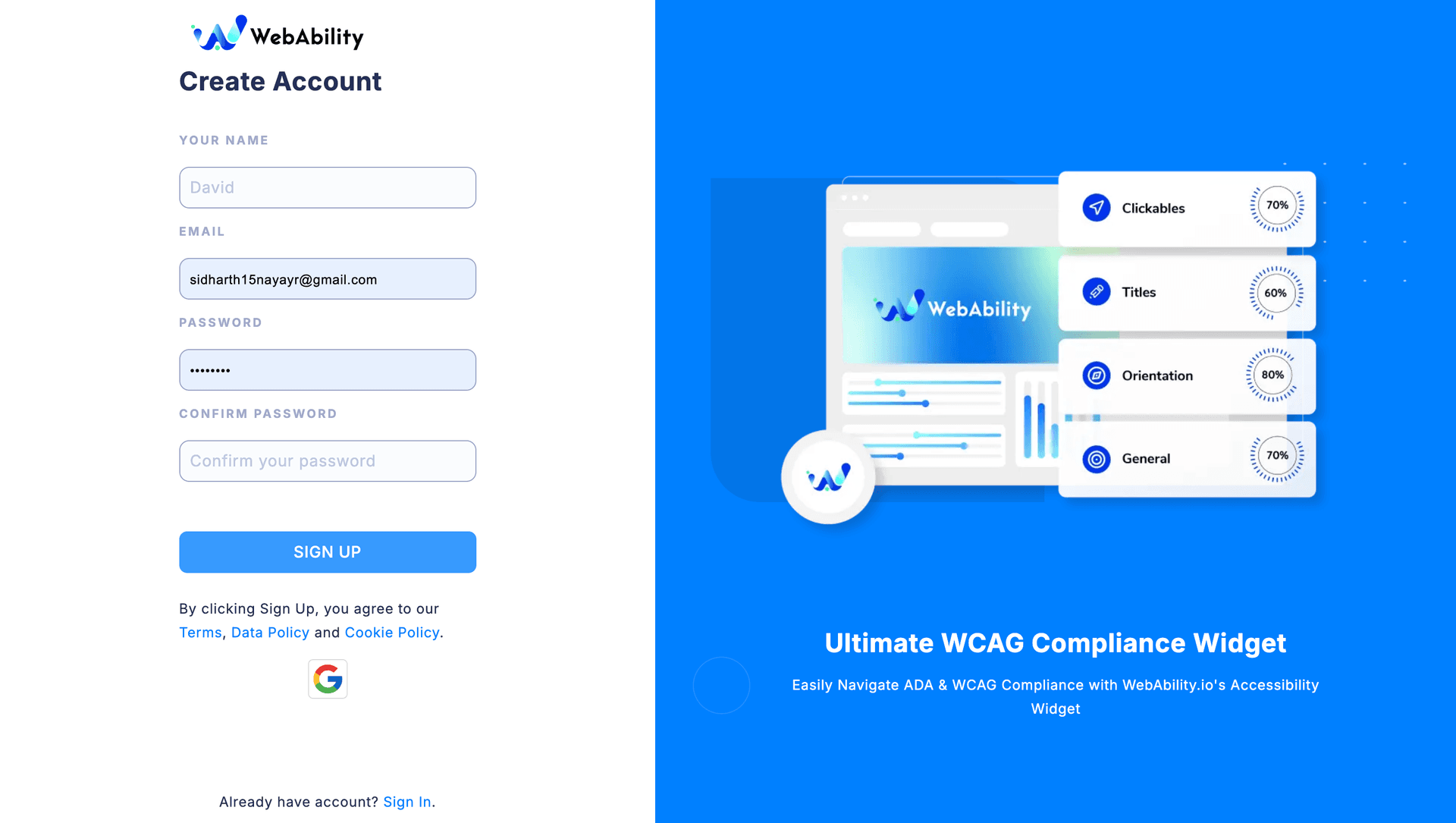
2. Add a Domain
Once you have logged In you can start by adding a domain:
- Click on the Start a 7 Day Trial Button on the Dashboard or the Add a Domain page
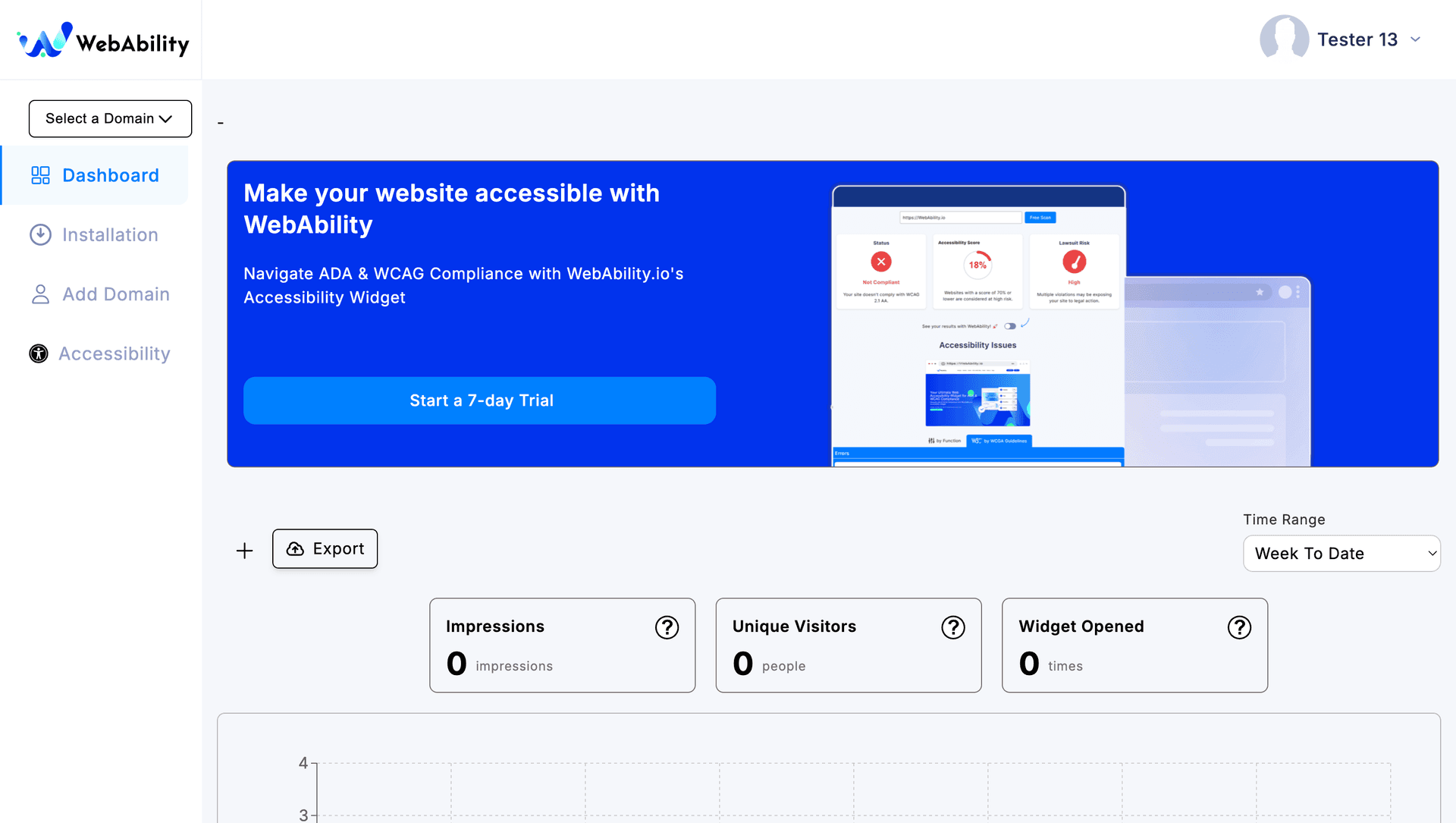
- Type your Domain and Choose to get a Trial or Buy a Plan
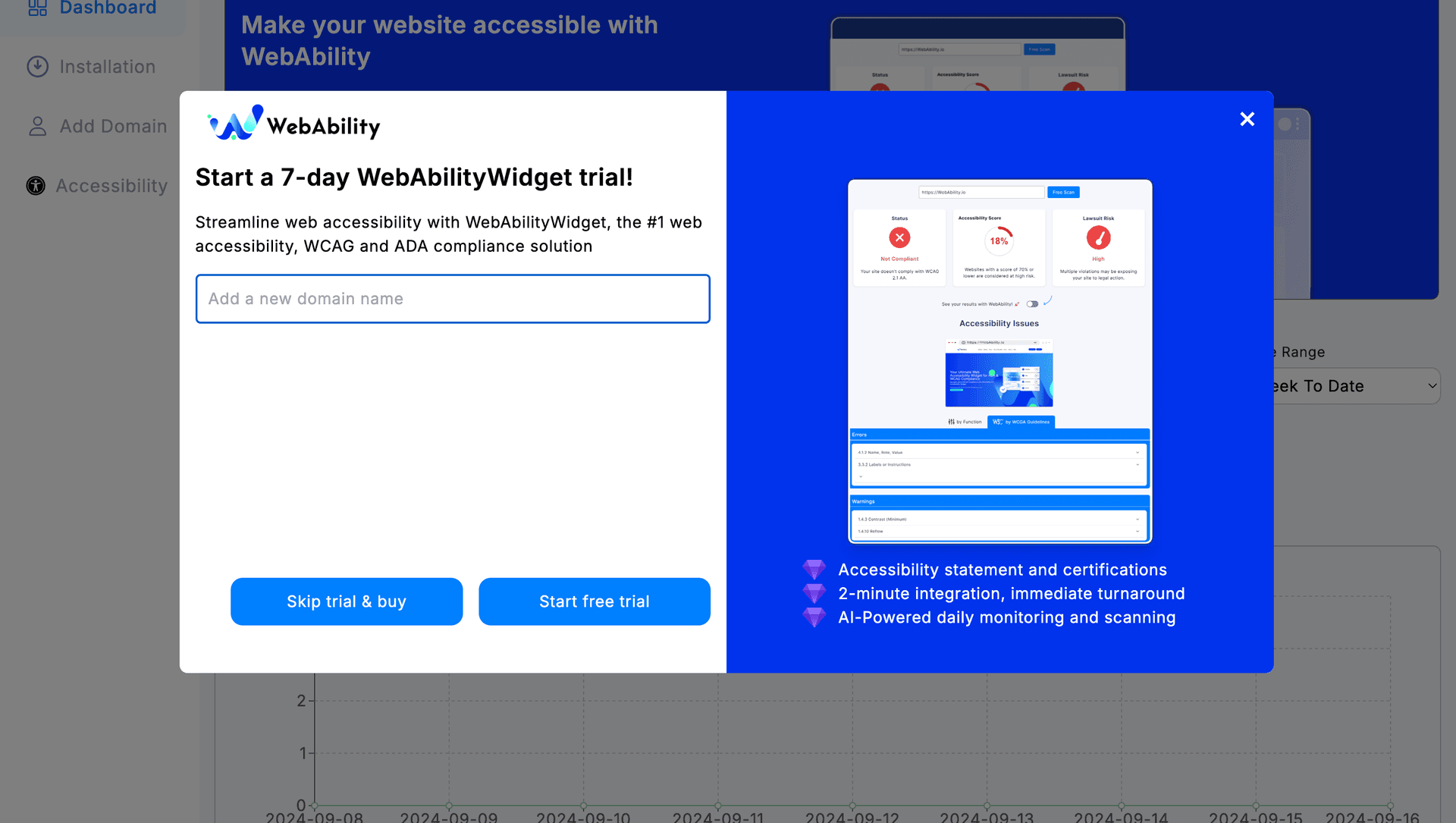
3.Opt for a Free Trial or Skip Trial and Buy a Plan
If you choose to go for a Free Trial the Site is automatically activated for a 7-day Trial
If you choose to buy a plan, your Site is added and then you are given a chance to choose your desired plan
- Choose a plan and click on Checkout. Wait to be redirected to our payment portal
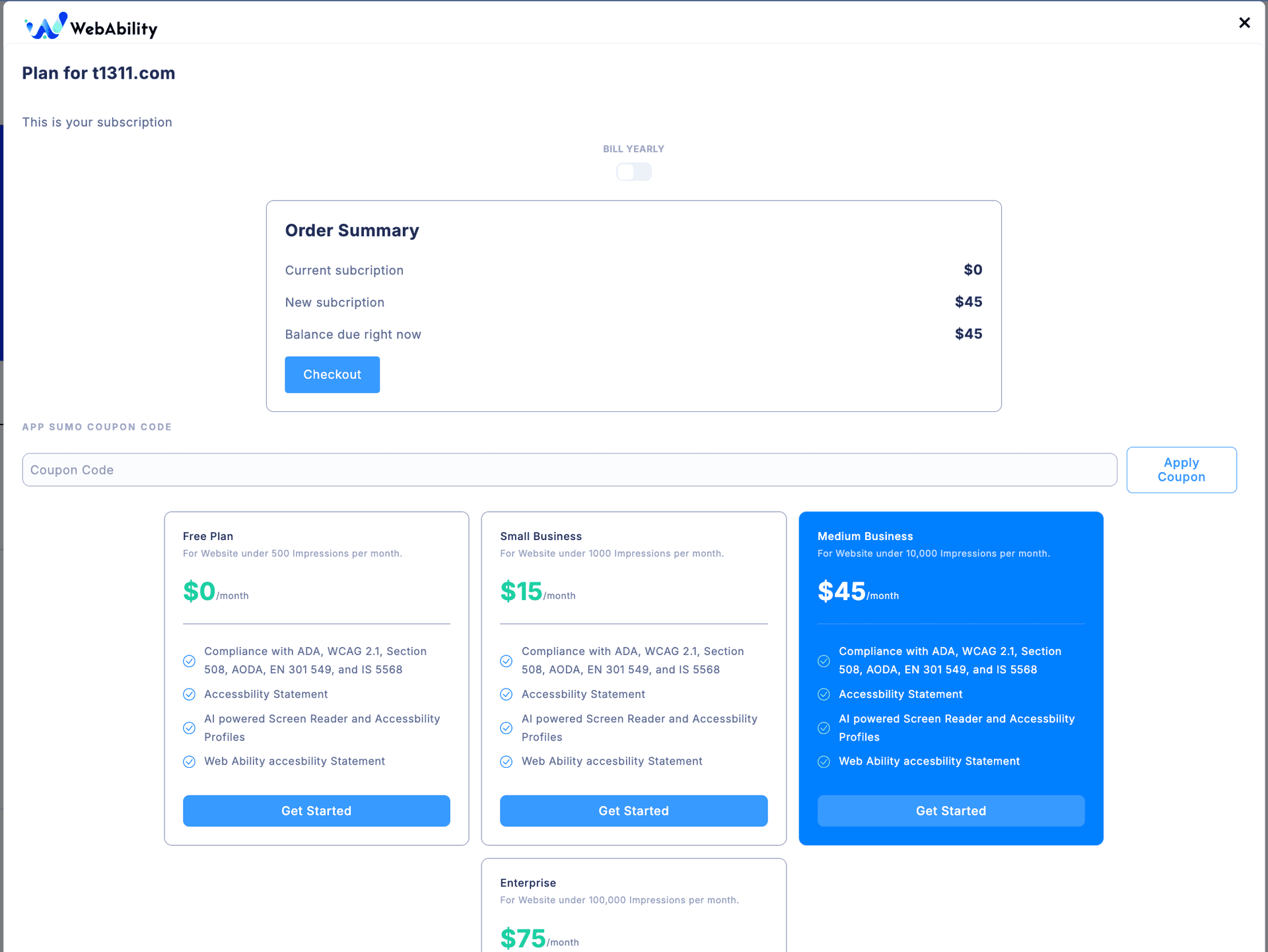
- Enter your payment Details to complete the purchase
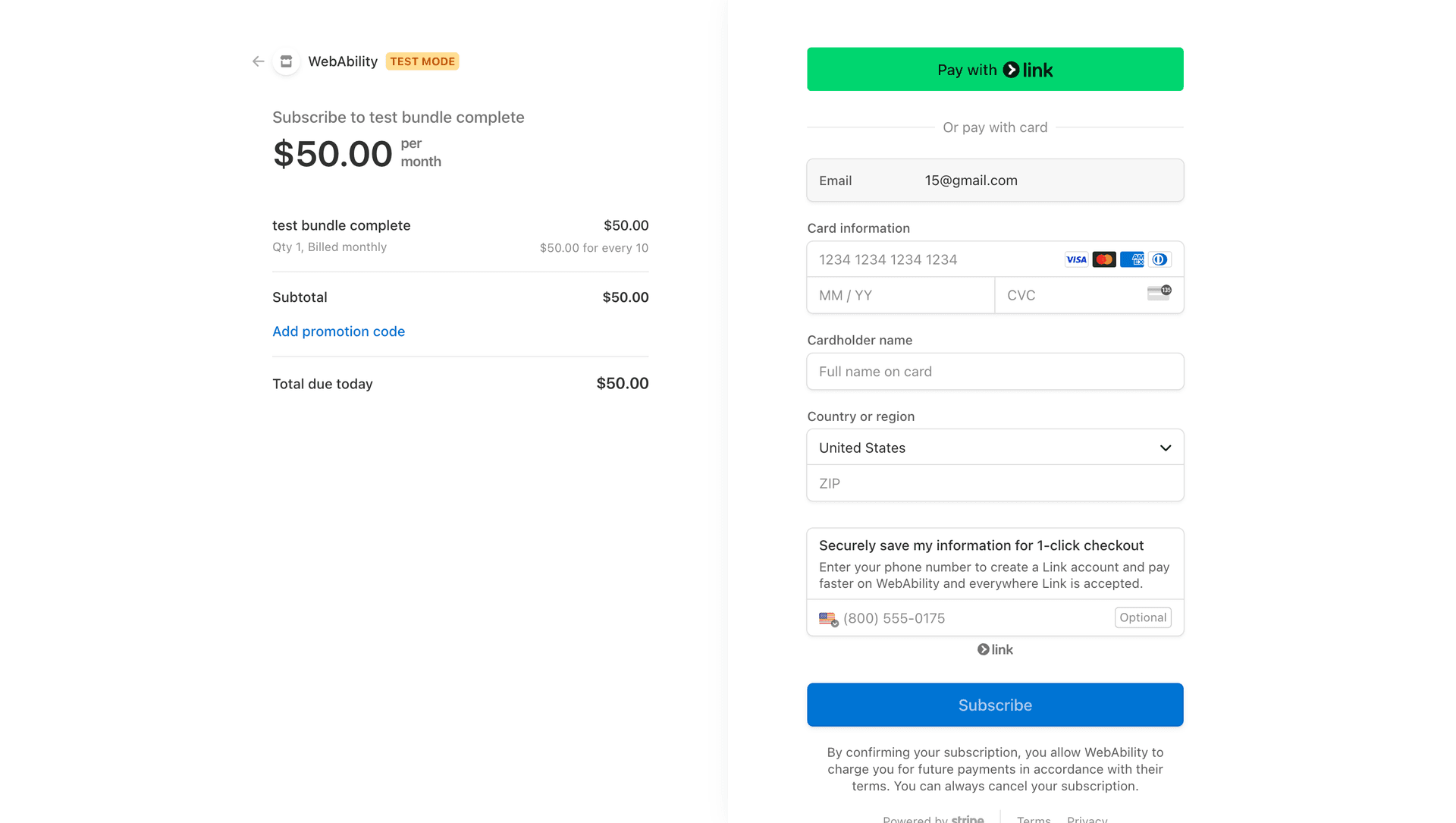
- After you complete your purchase you will be redirected back to the site.
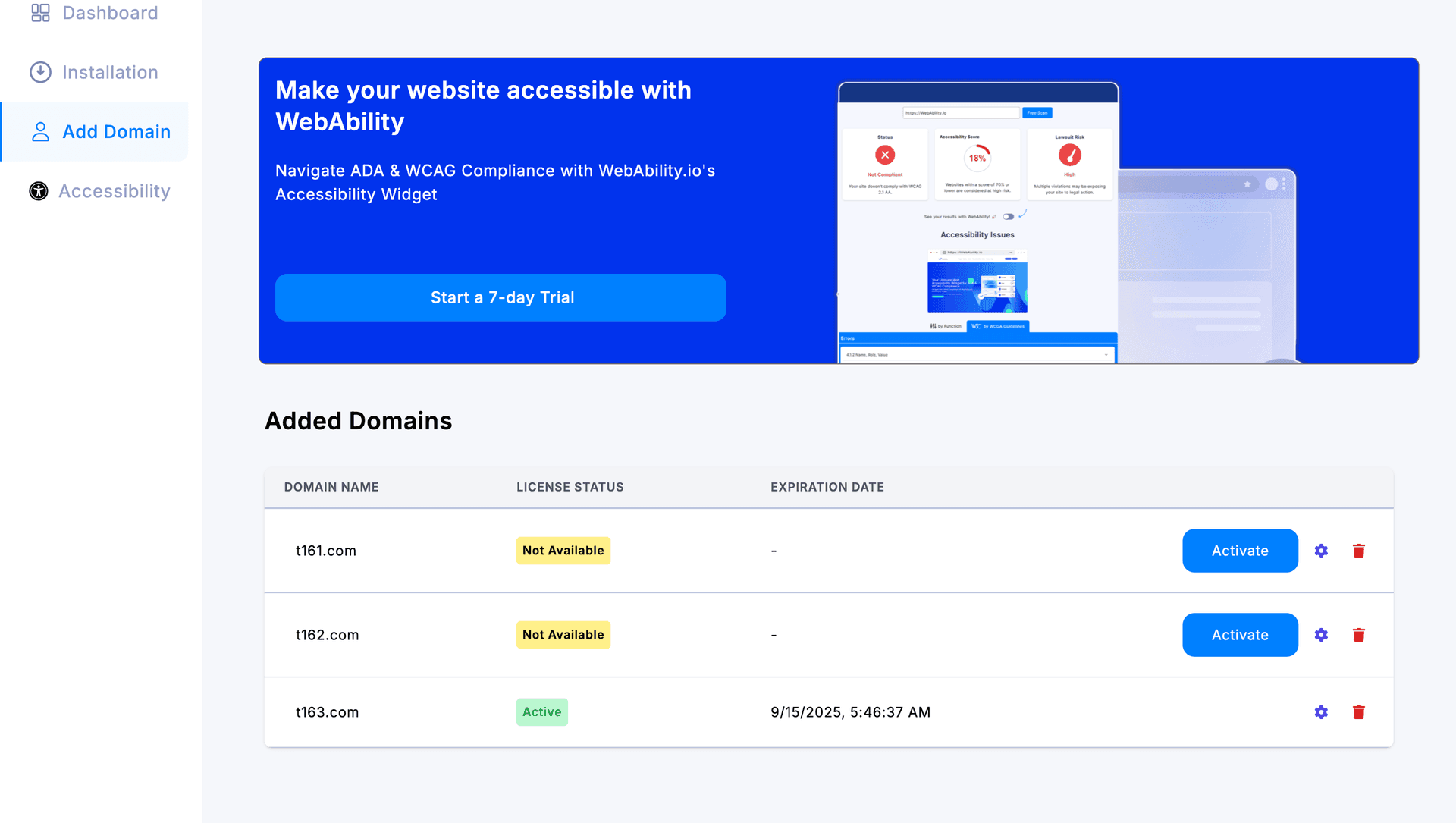
- Now you will see your activated domain. You can choose to add other domains to your bundle aswell.
4.Install our webability widget
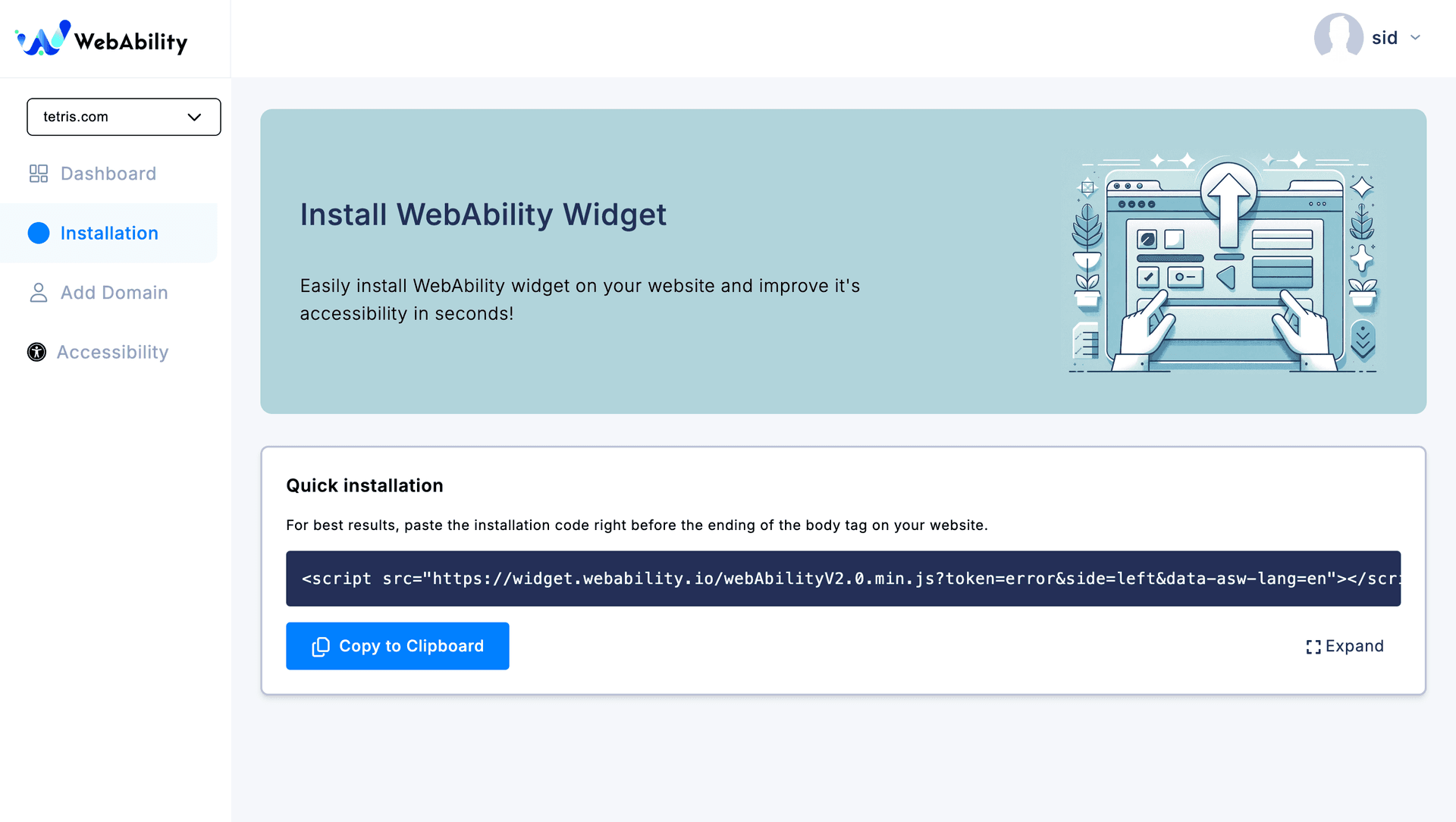
Finally, you can add the web ability widget to your site by copying the code given on the installation page.
For more information on installation checkout our Guide: How to Pages
Building with an AI coding agent? See the WebAbility MCP Server docs — run accessibility scans and AI fixes from Cursor, Claude Code, Copilot, Windsurf, or VS Code.
Integrating with the WebAbility API? See the API reference for endpoints, OAuth 2.0 authentication and request examples.
Prefer the terminal? See the CLI reference for scans, CI checks and pull request review.
All documentation:
- Accessibility statement
- AppSumo
- Billing
- Go High Level
- White-label email
- MCP server
- API reference
- CLI reference
Popular Platform Guides:
- Volusion Installation Guide
- Duda Installation Guide
- Go High Level Installation Guide
- Brilliant Directories Installation Guide
- Custom CMS Installation Guide
Load timing
By default the widget loads with the page. The fixes and the launcher button are in place before the page is interactive. If you want the widget to start later, add the data-asw-init attribute to the embed script. The attribute takes one of three values: immediate, idle or interaction.
You do not need to edit the snippet by hand. In the dashboard, go to Sites, select your site and open the Install tab. Under Customize Script, choose a value for Load timing. The snippet updates as you change it.
immediate (default)
The widget loads with the page. Fixes and the launcher are in place before the page is interactive. Omitting the attribute gives the same result.
<script src="https://widget-v2.webability.io/widget.min.js" data-asw-init="immediate" defer></script>idle
The widget waits until the browser has finished loading the page and is idle. It uses requestIdleCallback after the load event, with a 3 second cap. Browsers without requestIdleCallback wait 1.5 seconds after load instead. A visitor who interacts with the page before that starts the widget at once.
<script src="https://widget-v2.webability.io/widget.min.js" data-asw-init="idle" defer></script>interaction
The widget waits for the first real keypress, tap, click or mouse-wheel scroll. Scripted focus or scrolling does not count. If none happens, it starts 10 seconds after load. Keyboard and screen reader users get the launcher on their first Tab press: that Tab lands on a small "Accessibility menu is loading" button, and focus moves to the "Open Accessibility Widget" link as soon as the widget is ready.
<script src="https://widget-v2.webability.io/widget.min.js" data-asw-init="interaction" defer></script>What is delayed
The browser downloads the embed script with the page in every mode. The defer attribute delays when the script runs, not the download, and the widget cannot read data-asw-init before it runs. In both lazy modes, that one download is all that happens before the trigger. The widget does not fetch the fix manifest or its own code, sends no telemetry, and applies no fixes. The launcher is not shown either. This delays the widget's work, not the script download.
The trade-off: lazy modes reduce the widget's share of the page load score, and they delay the accessibility fixes by the same amount. A visitor who needs the fixes waits for them. For that reason the default stays immediate.
Verify in devtools
The widget fires an asw:init event on window when it starts. The event detail is { mode, trigger }. Add a listener before the embed script to see which mode ran and what started it:
<script>
  window.addEventListener("asw:init", (e) => console.log("asw:init", e.detail));
</script>
<script src="https://widget-v2.webability.io/widget.min.js" data-asw-init="idle" defer></script>
Exclude content from the page summary
The widget sends a summary of each page to WebAbility so we can find and fix accessibility issues. To keep part of a page out of that summary, mark it with one of these:
- the
data-webability-no-captureattribute - the
wa-no-captureclass - the
ph-no-captureclass. This is the PostHog marker, so areas you already mark for PostHog are covered.
The marker applies to the element and everything inside it. In that area, text, HTML snippets and attribute values are replaced with asterisks before the summary leaves the browser: each character becomes *. Tag names and structural attributes (id, class, role, type, tabindex and ARIA state) are kept, so we can still check the structure, for example that a button has a name.
<!-- Attribute form -->
<div data-webability-no-capture>
  <p>Account holder: Jane Doe</p>
</div>

<!-- Class form -->
<section class="wa-no-capture">
  <h2>Order history</h2>
</section>
Masked without a marker
- Email addresses and phone numbers are always masked in the browser. A
mailto:ortel:prefix stays. - Text a visitor types or selects is never sent. This covers form field values, textarea text, the chosen option of a select, contenteditable regions, and elements with the role textbox, searchbox or combobox.
- The page URL in the summary keeps only the origin, the path and the query parameters that select page content, for example
?p=42. The fragment is removed, and so are tracking, session and token parameters and parameters whose value is an email address or an opaque ID.
See The Accessibility Widget in our privacy policy for what we keep.