Understanding what is accessible pdf: A Guide to Truly Inclusive Documents

Sidharth Nayyar
TL;DR: An accessible PDF is a document structured to work with assistive technologies like screen readers. Unlike a standard PDF which can be like a flat image, an accessible PDF contains a hidden layer of "tags" that define headings, paragraphs, images, and reading order. This ensures people with disabilities can access and navigate the content effectively. Creating them involves following standards like WCAG and PDF/UA, benefits your business by expanding reach and ensuring legal compliance, and is a cornerstone of digital inclusion.
The short version? An accessible PDF is a document built so that everyone can use it, especially people who rely on assistive technologies like screen readers.
A standard PDF might just be a flat image of text to a screen reader—basically, a digital wall. An accessible PDF, on the other hand, has a hidden structure of tags that acts like a tour guide, leading the technology through the content in a logical, understandable way.
What Makes a PDF Truly Accessible?
Let's dig a little deeper. Think of a standard PDF as a photograph of a page. It looks right to the eye, but to a machine, it's just a collection of pixels with no real structure. An accessible PDF is more like an intelligently designed webpage.
It has an invisible layer of code—a "tag tree"—that defines every single element. This structure is what makes the document make sense to assistive technology. This is a core concept of digital inclusion, which you can explore further in our guide on what is web accessibility.
This underlying map tells a screen reader what is a heading versus a paragraph, how to read a list, and what information an image is trying to convey through its alt text.
An accessible PDF is a document designed to be read by screen readers, navigated with a keyboard, and compliant with key accessibility standards. This ensures people with visual impairments, dyslexia, or motor challenges can access and understand the information just like anyone else.
The goal is to provide an equivalent experience for all users, regardless of ability.
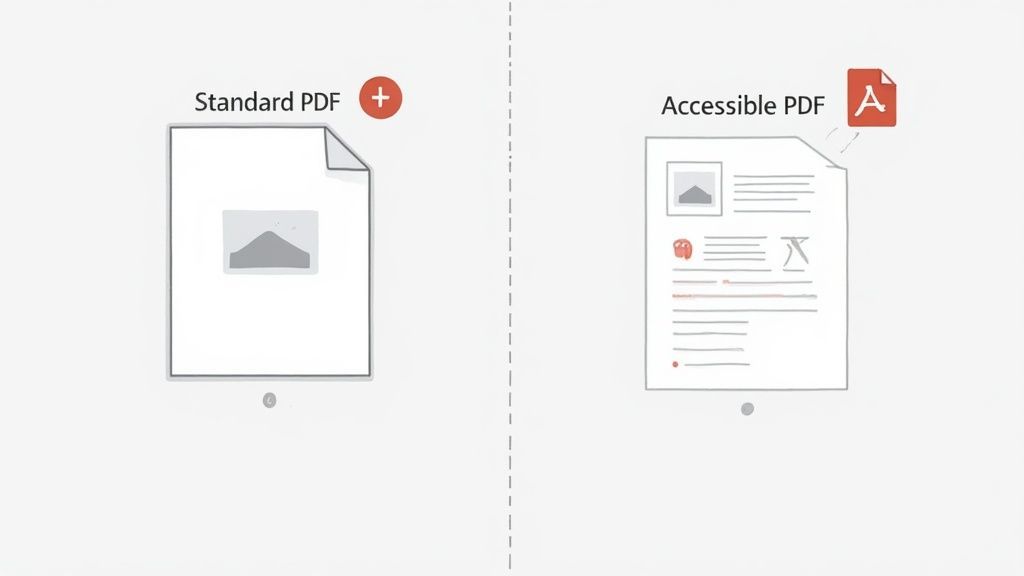
Standard PDF vs Accessible PDF at a Glance
The differences might not be visible on the surface, but they create a night-and-day difference for users of assistive technology. Here’s a quick breakdown.
| Feature | Standard PDF (Inaccessible) | Accessible PDF |
|---|---|---|
| Structure | Flat, like an image; no logical reading order for machines. | Tagged structure with headings, paragraphs, lists, and tables defined. |
| Screen Reader | Often reads content out of order, or not at all. | Reads content logically and announces headings, lists, and links. |
| Navigation | Requires a mouse; keyboard navigation is unreliable. | Fully navigable with a keyboard, including links and form fields. |
| Images | No alternative text; images are invisible to screen readers. | Includes descriptive alt text to explain the content of images. |
| Language | Document language is not defined. | Primary language is set, ensuring correct pronunciation by screen readers. |
| User Experience | Frustrating, confusing, or completely unusable. | Inclusive and provides an equivalent experience for all users. |
In short, while a standard PDF delivers visual information, an accessible PDF delivers the same information in a structured format that both humans and machines can understand.
Why Document Accessibility Is a Modern Necessity
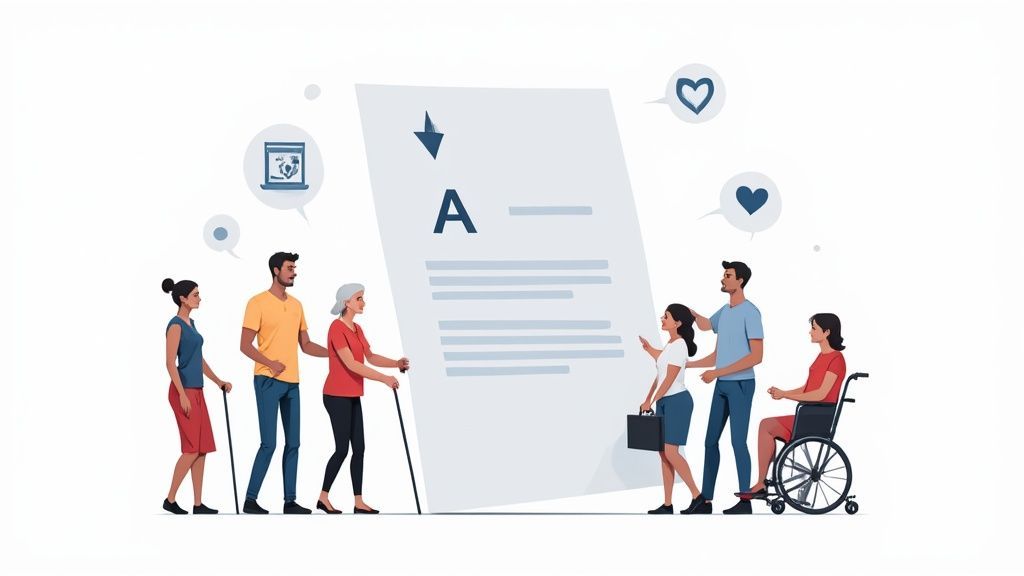
Creating an accessible PDF isn't just a technical box to check; it’s a fundamental business decision that touches on everything from ethics to your bottom line. At its heart, this is about people.
We're talking about ensuring the one billion people worldwide living with a disability can access your information, engage with your ideas, and connect with your brand just like anyone else. That kind of inclusivity builds real loyalty and shows you’re a company that cares.
Think about it this way: every time you publish an inaccessible report, form, or brochure, you're essentially closing the door on a massive segment of the population. Making those documents accessible opens that door right back up, creating new opportunities for growth and connection.
The Legal and Financial Case
Let's be clear: ignoring accessibility comes with serious legal and financial risks. With laws like the Americans with Disabilities Act (ADA) and various EU directives in place, we’ve seen a huge spike in digital accessibility lawsuits.
In 2023 alone, there were over 11,000 of these cases. A staggering 40% of them involved inaccessible PDFs, and the price tag for a single incident often lands between $25,000 and $75,000. That’s a risk no business should be willing to take.
The good news is that technology is catching up. New AI-powered tools can now automatically fix up to 80% of common PDF issues, which can cut the manual work needed by as much as 60%. If you're curious about these trends, it's worth taking a deeper look at the data on the digital accessibility market.
Ultimately, creating an accessible PDF is more than just a defensive move to avoid fines. It's a proactive strategy that protects your brand, expands your audience, and proves your commitment to making information available to everyone.
Understanding WCAG and PDF/UA Standards
To really get what makes a PDF accessible, you have to know about the two main rulebooks we follow: the Web Content Accessibility Guidelines (WCAG) and PDF/Universal Accessibility (PDF/UA).
Think of them as a team. They aren’t competing against each other; they just have different, complementary roles in making sure digital information is open to everyone.
WCAG lays down the big-picture principles for all digital content, not just PDFs. It's the "what" of accessibility. It gives us the universal benchmarks for things like making sure colors have enough contrast, allowing users to navigate with a keyboard, and providing text alternatives for images. These rules are the bedrock of any inclusive digital experience, no matter the format.
The Role of PDF/UA
So, if WCAG tells you what accessibility goals to hit, PDF/UA tells you how to hit them specifically within a PDF file. It’s the official technical standard (an ISO standard, in fact) that translates WCAG’s broad principles into the technical language of PDFs. It gets into the nitty-gritty of the document's tag structure, metadata, and other PDF-specific elements.
Here’s a practical example: WCAG demands a logical reading order so the content makes sense. PDF/UA then shows you exactly how to arrange the PDF's tag tree to create that logical flow, ensuring a screen reader can navigate it correctly. You absolutely need both to build a document that’s not just technically compliant but genuinely usable for people.
In essence, WCAG sets the accessibility goals for your content, while PDF/UA provides the technical map to achieve those goals within the PDF file itself.
Getting to this point has been quite a journey. While Adobe launched the PDF back in 1993, true, standardized accessibility really took shape in 2006 with PDF/UA-1 (Universal Accessibility). This was the first ISO standard built specifically for screen reader compatibility.
It was later updated to PDF/UA-2 in 2016 to better align with WCAG 2.0, showing how these two standards continue to evolve side-by-side. If you're curious, you can get more insights on the growth of digital accessibility platforms.
For a deeper dive, I'd recommend exploring the various WCAG success criteria that form the foundation of these efforts.
The Building Blocks of an Accessible PDF
So, what actually makes a PDF accessible in practice? To really get it, think about building a house. A standard PDF is like having all the bricks, windows, and doors just dumped on the lot. All the pieces are there, but it's a chaotic mess. An accessible PDF, on the other hand, is built using a blueprint that gives every single one of those pieces a specific purpose and place.
That blueprint is what we call the logical tag structure. It’s basically an invisible layer of code that acts as a map for the document. It tells assistive technology what each piece of content is—this is a main heading, that's a paragraph, this is a list, and so on. This structure is without a doubt the most critical element, creating a clear, predictable path for screen readers to follow. Without it, the reader might just jump around, reading things completely out of order.
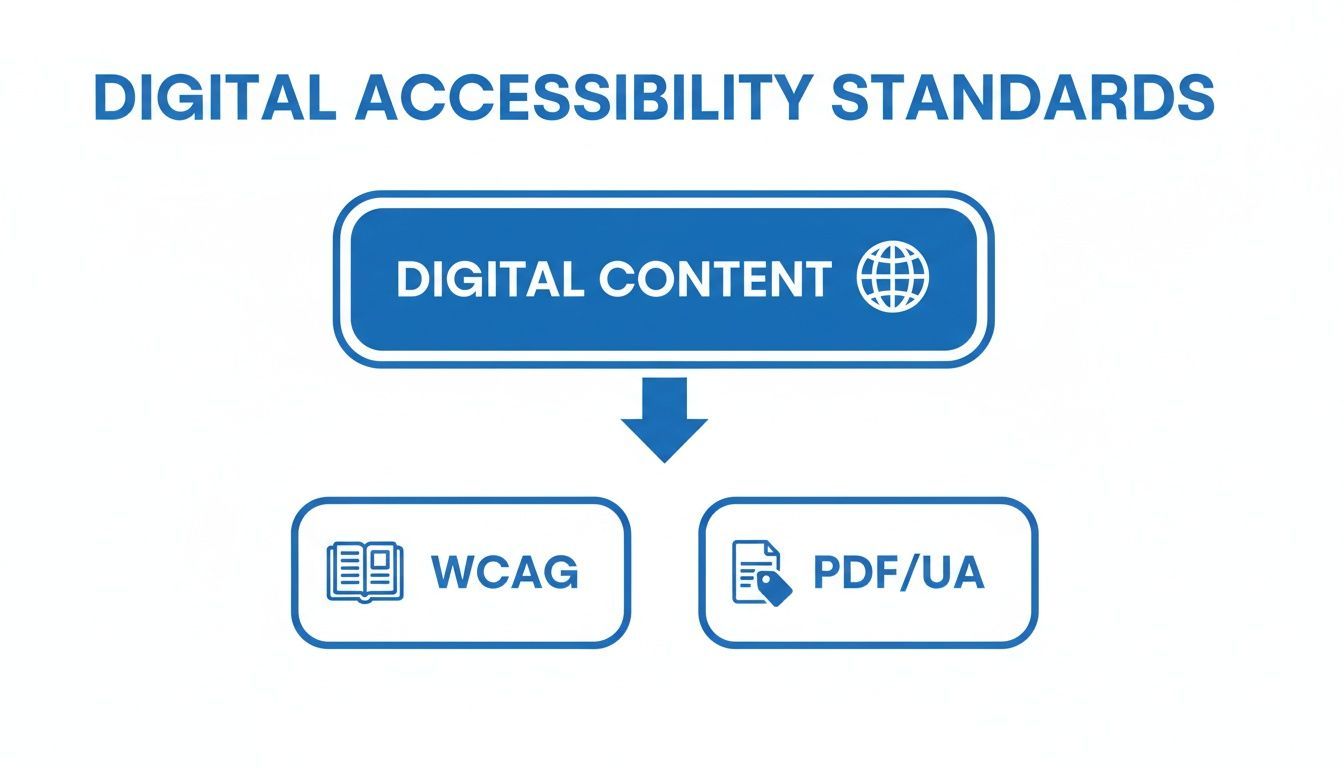
As you can see, PDF/UA (PDF/Universal Accessibility) isn't some rogue standard. It's the specific, technical instruction manual for applying the broader principles of the Web Content Accessibility Guidelines (WCAG) directly to the unique world of PDFs.
Key Structural Elements
Beyond that main tag structure, a few other components are absolutely essential for a truly usable document. Each one solves a specific problem and ensures information gets across to everyone, regardless of how they access it. A well-built accessible PDF must have:
Alternative Text (Alt Text) for Images: This is simply a short, descriptive text that explains what an image shows. For someone who can't see the image, the alt text delivers its meaning and keeps them from missing crucial information.
Proper Heading Levels (H1, H2, H3): Just like on a website, headings create a scannable outline. They let a screen reader user quickly grasp the document's layout and jump right to the section they need, instead of having to listen to everything from the top.
Structured Tables with Headers: A table without defined headers is just a confusing grid of data. When you properly tag the row and column headers, a screen reader can provide context for each cell, announcing something like, "Row: Q3, Column: Sales, Value: $125,000."
Defined Document Language: This one is simple but powerful. Setting the document’s language (e.g., English or Spanish) tells the screen reader which pronunciation engine to use. It's the difference between a clear reading and a garbled, robotic mess.
Building an accessible PDF isn't about bolting on features at the end. It's about structuring your content with meaning from the very beginning, so that both people and technology can understand it.
Every one of these elements contributes to an experience that feels coherent and easy to navigate. If you skip even one, you can create a major roadblock, turning a helpful document into a source of frustration for anyone relying on assistive technology. By focusing on these fundamental building blocks, you’re creating a PDF that’s solid, well-organized, and truly open to all.
How to Create and Check Accessible PDFs
So, how do you actually make a PDF accessible? It really boils down to a three-part process: start with accessibility in mind, fix documents that weren't, and always, always check your work.
The easiest and most efficient way is to build accessibility right into your source document. When you're working in a program like Microsoft Word or Adobe InDesign, you're already using the tools you need. Use proper heading styles, create lists with the bullet or number features, and add alt text to your images as you go. This groundwork embeds the necessary structure directly into the file, making the final export to PDF a much cleaner process.
Remediation and Validation
Of course, we don't always get to start from scratch. You'll often inherit PDFs that were created without a thought for accessibility. This is where remediation comes in.
Remediation is the process of fixing an existing PDF. Using a tool like Adobe Acrobat Pro, you'll manually add or correct the document's tags, set a logical reading order, and add any other missing accessibility features.
This is a critical skill, especially for large organizations that are expected to hold a 52.45% revenue share in the digital accessibility market by 2025. These companies, particularly in sensitive industries like banking and defense, often need to fix confidential documents in-house. You can learn more about PDF market trends on PDF Reader Pro.
No matter how you create your document, validation is the final, non-negotiable step. You can't just assume a PDF is accessible; you must verify it.
The final step is validation. This is where you test your PDF against the standards we’ve talked about, like WCAG and PDF/UA. A few key tools will become your best friends here:
Adobe Acrobat Pro Accessibility Checker: This is built right into Acrobat and is your first line of defense. It runs an automated check and flags issues that need a closer, manual look.
PAC (PDF Accessibility Checker): This free tool from the PDF/UA Foundation is the gold standard. It provides a much more rigorous and detailed analysis, specifically for confirming PDF/UA compliance.
By following this loop—create correctly, fix what you must, and always validate—you can be confident that your documents are truly accessible. To see how this fits into the bigger compliance picture, check out our guide on how to check for 508 compliance.
Answering Your Top Questions About Accessible PDFs
As you get the hang of accessible PDFs, you'll probably run into a few common questions. Getting these details right can clear up a lot of confusion and really solidify your understanding.
Let's dive into some of the questions I hear most often from people just starting out.
Can a Scanned Document Be an Accessible PDF?
This is a big one. A lot of people think that if you can scan a document and save it as a PDF, you're good to go. But a standard scan is really just a picture of a page. To a screen reader, it’s a blank wall—a single image with no text to read.
To get started, that scanned image needs to go through Optical Character Recognition (OCR). This is the magic that turns the picture of words into actual, machine-readable text. But OCR is just the first step. After that, a real person needs to go in and add the proper tag structure, check the reading order, and write alt text for any important images. Without that human touch, it's still not accessible.
Is a Tagged PDF Automatically an Accessible PDF?
Tagging a PDF is probably the single most important thing you can do for accessibility, but it doesn't instantly solve everything. Think of tags like the frame of a house—absolutely essential, but you still need the rest of the structure to make it a home.
For a PDF to be truly accessible, those tags have to be arranged in a logical reading order.
A properly tagged PDF is like a good tour guide, leading a screen reader through the content exactly as intended—from the main title down to the footnotes. If the order is jumbled, the experience is chaotic and confusing, which defeats the whole purpose.
On top of a logical tag structure, you still need a few other key ingredients:
Descriptive alt text for any images that convey meaning.
Clearly defined headers for data tables so the information makes sense.
The correct language setting so screen readers can pronounce the words properly.
What Is the Difference Between PDF/A and PDF/UA?
It’s really easy to get these two standards mixed up. They sound similar and both deal with PDF formats, but they’re designed for completely different jobs.
PDF/A (Archiving) is all about long-term preservation. It’s an ISO standard created to make sure a document you create today will open and look exactly the same decades from now, no matter what new software or hardware comes along. It's for the history books.
PDF/UA (Universal Accessibility), on the other hand, is the ISO standard built specifically for accessibility. Its entire focus is on making sure documents work with assistive technologies. It lays out the rules for things like tag structures, navigation, and semantic information. While a document can be both, their goals are distinct: one is for preservation, the other is for people.
Ready to ensure all your digital documents are fully compliant and accessible to everyone? The WebAbility.io platform provides end-to-end solutions, from AI-powered remediation to real-time monitoring, helping you meet and maintain WCAG and ADA standards with confidence. Learn more and start your free trial at https://www.webability.io.
Quick Questions
Tap to ask AI about this article