PDF Accessibility Checker A Complete How-To Guide (2026)

Sidharth Nayyar
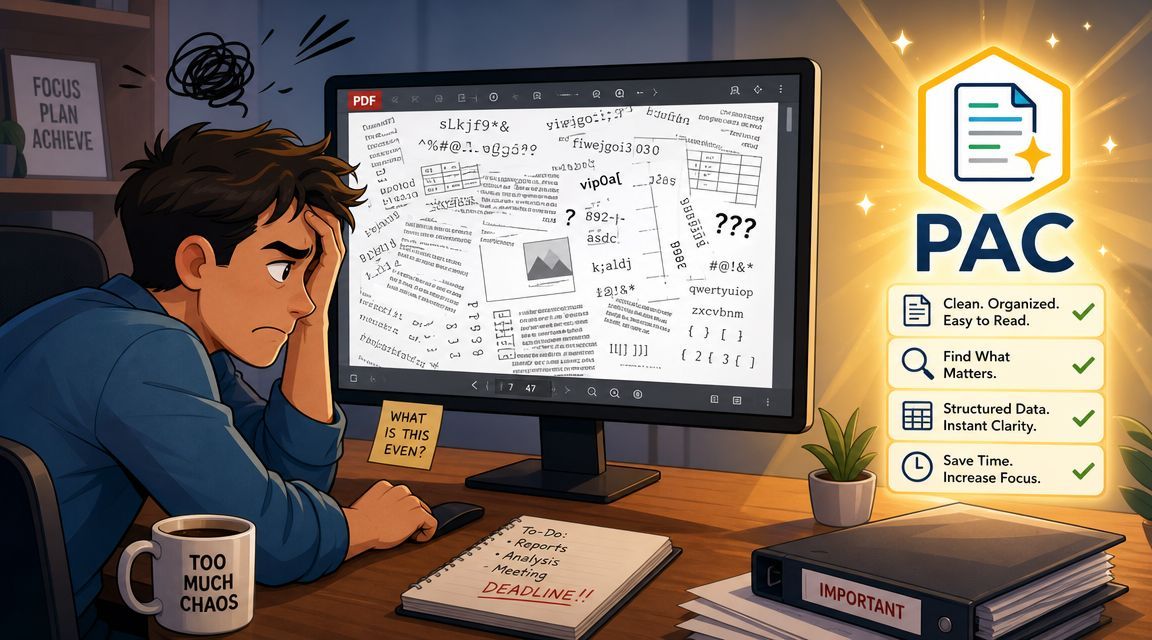
You open a PDF to audit it, run one checker, and get a green result on half the items and a pile of warnings on the rest. Then a key question arises: is this file truly usable for someone on a screen reader, or did the tool just confirm that the easy machine checks passed?
This is often where the process stalls. A pdf accessibility checker is necessary, but it's only the first layer of a real audit. PAC helps you validate technical requirements quickly. Adobe Acrobat Pro helps you repair many of the issues PAC finds. A broader workflow helps you stop fixing the same classes of defects over and over again.
If your team is doing its first full PDF audit, treat this like software QA. You need a repeatable process, not a one-off scan.
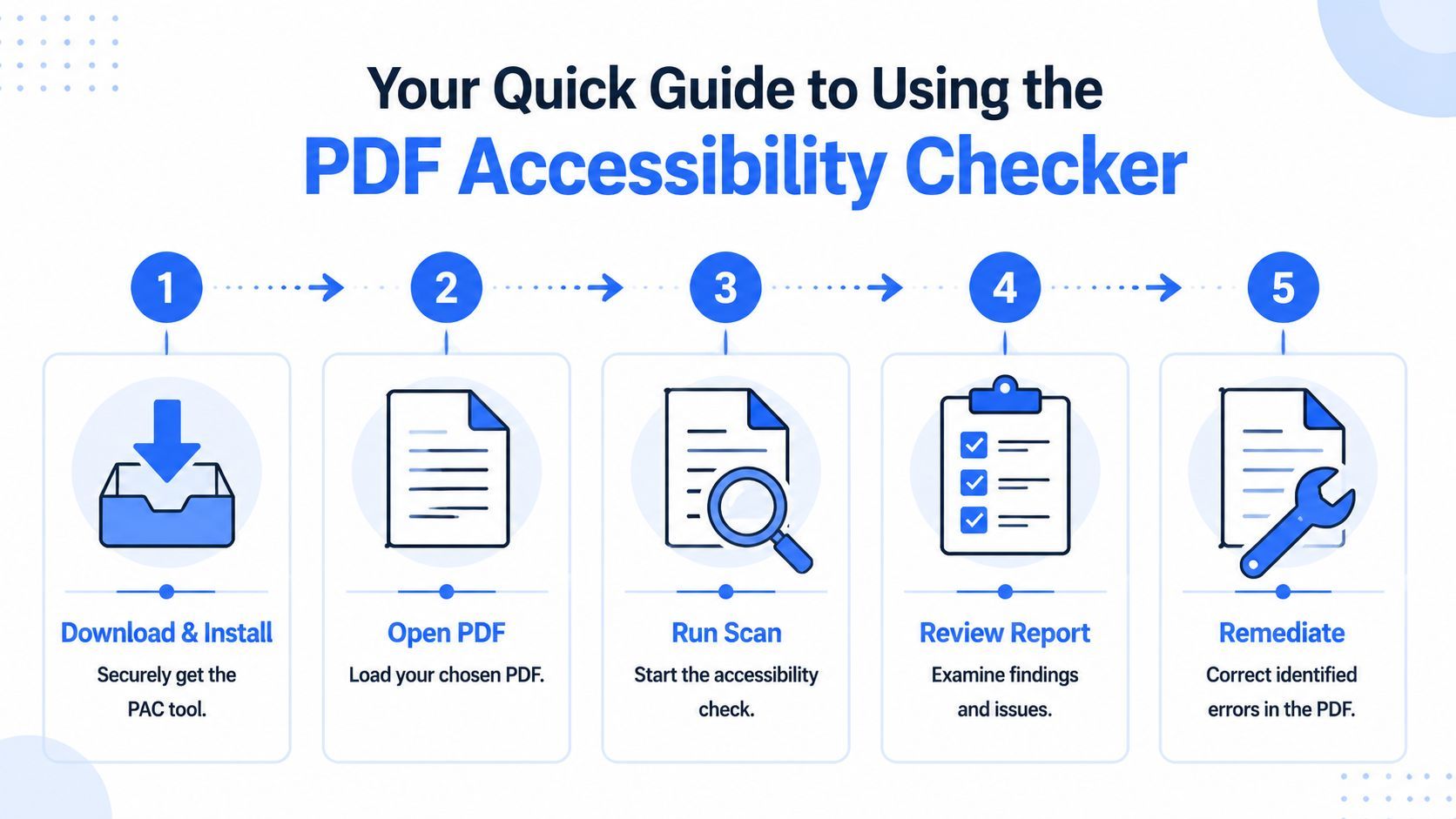
Your Quick Guide to Using the PDF Accessibility Checker
If you need the short version, use this workflow:
Start with the right expectation
PAC is a free, Windows-only tool that's widely used to validate machine-verifiable PDF accessibility requirements, especially around PDF/UA and related checks described in institutional guidance and vendor documentation. It's strong at surfacing structural problems. It won't tell you whether every accessibility decision is correct in context.
That's why the fastest reliable workflow is:
- Install PAC on a Windows machine
- Open the PDF
- Run the test
- Review the PDF/UA and WCAG-related findings
- Fix issues in an editor such as Adobe Acrobat Pro
- Re-run PAC and then do manual verification
What the report usually tells you
Expect PAC to help with issues like:
- Tagging problems that indicate the file structure is incomplete or broken
- Missing alternative text for meaningful images
- Reading order warnings that need human review
- Table and form structure checks that often expose export problems from the source file
What works in practice
The most effective teams don't rely on PAC alone. They pair a deep validator with broader operational visibility so they can triage document issues across sites and repositories. If you're evaluating that stack, it helps to compare accessibility checkers before you lock into a single workflow.
Practical rule: Run the checker to find technical failures fast. Then review the document like a user would experience it.
Understanding PDF Accessibility and the Role of PAC
A lot of teams inherit PDFs instead of creating them from scratch. Annual reports, benefit guides, admissions packets, investor materials, policies, and application forms all end up on the website. Nobody remembers who exported them. Everyone assumes they're fine because they open without errors.
They often aren't.
A major benchmark reported by Allyant found that less than 1% of nearly 645,000 scanned PDFs were fully accessible, and only 5% were considered usable across more than 15 million pages of content on public-facing websites, which shows how common inaccessible PDFs still are in production environments (Allyant benchmark details).
Why this matters beyond compliance
For a user, an inaccessible PDF usually fails in ordinary ways:
- A heading looks like a heading visually but isn't tagged as one
- A chart has no useful text alternative
- A two-column layout reads in the wrong sequence
- A table sounds like random cell content with no headers
- A form field exists visually but gives no usable label to assistive tech
Those failures aren't edge cases. They're the default outcome when PDFs are exported without accessibility discipline.
Where PAC fits
PAC matters because it gives teams a standards-focused starting point. Historically, it became the de facto standard because it was the first free automated validator for PDF/UA, and institutional guidance recommends using it alongside Adobe's checker because each tool can catch issues the other misses. That shift toward a multi-validator workflow is one of the most practical lessons in PDF remediation.
PAC is not the whole solution. It is the first hard filter.
If your team needs a grounding in the document structure PAC is checking, start with WebAbility.io's guide to accessible PDFs. It's easier to interpret PAC output when you understand what a properly tagged PDF is supposed to look like.
A pdf accessibility checker doesn't make a document accessible. It makes accessibility defects visible.
Getting Started with Your First PAC Scan
Most first-time PAC users expect a wizard. PAC is simpler than that. You open a file, run the test, and inspect several views that tell you different things about the document.
Install it and open a file
PAC is commonly described as the first free automated tool for validating against the PDF/UA specification, and guidance from Ohio State notes that PAC 2024 is free and Windows-only and can find issues Adobe's checker may miss, which is why running both tools is recommended in practice (institutional and vendor guidance on PAC).
The setup is straightforward:
- Download PAC from its official distribution source
- Install it on Windows
- Launch the application
- Open your PDF by browsing to the file or using the tool's file-open flow
- Start the test
If you're auditing a batch of documents, start with representative samples first. Pick a clean text-heavy PDF, a table-heavy PDF, a form, and one visually complex file. That gives you a better picture of the types of remediation your team will face.
Know what each view is for
When PAC finishes, don't just stare at the summary status. Use the interface deliberately.
- Summary view gives you the overall state. Good for triage, not enough for sign-off.
- Detailed results point you to specific failures or warnings.
- Logical structure tree shows the tag hierarchy. Broken heading nesting and stray elements often become obvious there.
- Screen reader preview is often the fastest sanity check. If the order sounds wrong there, the user experience is probably wrong too.
The most common beginner mistake is treating the report like a pass/fail exam. It's closer to a defect list.
A quick visual walkthrough helps if your team hasn't used PAC before:
What to do on the first scan
Use this sequence on your first audit:
- Run PAC without changing anything so you see the file's actual state.
- Check the summary, then open the detailed findings.
- Inspect the structure tree to confirm whether headings, lists, tables, and figures are tagged in a way that matches the visible layout.
- Use the preview to catch obvious reading-order failures.
- Export or document the findings so remediation isn't happening from memory.
What PAC won't do for you
PAC is excellent at validation. It is not your primary repair environment. In real projects, teams usually make fixes in Adobe Acrobat Pro or, better yet, in the source document and then re-export to PDF when that route is available.
That distinction matters. A scan is cheap. Remediation quality depends on where and how you fix the problem.
Decoding Your PAC Report and Understanding Errors
A PAC report is easiest to understand if you think of it in two layers. One layer checks whether the file is structurally compliant in machine-detectable ways. The second layer asks whether the document will make sense to a human using assistive technology. PAC helps more with the first layer than the second.
Read the report in the right order
Start high-level, then go specific.
- First pass. Look at the top-level result to understand whether the file has broad structural problems.
- Second pass. Review the individual errors and warnings.
- Third pass. Open the structure tree and preview to verify whether the failure is isolated or systemic.
A missing alt text issue might affect one figure. A broken heading pattern usually means the whole document export process is flawed.
Errors versus warnings
This distinction matters operationally.
Many accessibility tools, including Adobe's checker, classify outcomes in ways such as Passed, Failed, and Needs Manual Check, which reflects a basic truth: software can't reliably judge whether a tag is semantically correct or whether alt text is appropriate in context (guidance on checker limitations and manual review).
In practice, read PAC results like this:
| Result type | What it usually means | What your team should do |
|---|---|---|
| Error | A machine-verifiable requirement failed | Fix before calling the PDF ready |
| Warning | The tool suspects a problem or can't verify correctness | Review manually in Acrobat and with assistive-tech-informed checks |
| Pass | The tool found no issue for that rule | Keep going. A pass is not a full usability guarantee |
The two most useful views
The logical structure tree tells you whether the document is built in a meaningful hierarchy. If headings appear as plain paragraphs, lists are flattened, or table parts are missing, the file may look fine visually but fail for screen readers.
The screen reader preview tells you how badly those structural choices affect real output. I trust this view more than the color of any icon in a summary report because it forces the team to hear the consequence of the markup.
A technical pass is like validating that a building has doors. It doesn't prove the doors lead to the right rooms.
For broader context on the standards these checks support, review WCAG and ADA PDF compliance.
How to Fix the Most Common PDF Accessibility Issues
Most guides offer limited practical advice. They tell you what PAC found, then stop. In real remediation work, the bottleneck isn't detection. It's deciding where to fix the issue, how deep to fix it, and when to go back to the source file instead of patching the PDF.
Guidance from the University of Washington makes that gap clear. Acrobat Pro is the common checker and PAC adds more detail, but Acrobat is still needed to fix many issues that PAC detects. That's why remediation often requires manual expertise rather than a one-click repair flow (University of Washington PDF checking guidance).
Fix the source when the PDF is structurally broken
If the document has widespread tag failures, poor heading structure, or repeated reading-order problems, repair the source file if you can. Word, InDesign, or the authoring system usually gives you cleaner long-term results than trying to rebuild a damaged tag tree page by page in Acrobat.
Patch in Acrobat when the issue is limited or the source file is unavailable.
Common PAC errors and their fixes in Acrobat Pro
| PAC Error Message (Simplified) | What It Means | How to Fix It (in Adobe Acrobat Pro) |
|---|---|---|
| Document is not tagged | The PDF has no usable structural tag tree | Open Accessibility tools, add tags if the file is close to usable, then inspect and correct the tag tree manually |
| Heading structure is incorrect | Headings are missing, out of order, or tagged as plain text | Use the Tags pane to change paragraph tags to the correct heading levels and keep the hierarchy consistent |
| Alternative description missing | A meaningful image has no alt text | Open Set Alternate Text, add concise descriptive alt text, and mark decorative items as artifacts when appropriate |
| Reading order does not match logical structure | Screen readers may read content in the wrong sequence | Use Reading Order and Tags tools together. Reorder elements based on the intended reading flow, then verify in preview |
| Table structure problem | Headers, rows, or cells are not tagged properly | Inspect table tags, assign TH and TD roles correctly, and make sure header relationships match the visible table logic |
The fastest remediation wins
Some fixes give you disproportionate value early.
- Missing tags should be handled first because other fixes depend on a usable structure tree.
- Headings next because they affect navigation across the whole document.
- Alt text after that because figures without meaning are common and relatively fast to correct when the content is clear.
- Reading order often takes longer and should be checked after major structural cleanup.
- Tables and forms usually need patient manual work. Don't underestimate them.
How to fix reading order without making it worse
Reading order issues tempt people into quick drag-and-drop edits. Be careful. Acrobat's Reading Order tool is useful, but if you change visual zones without checking the underlying tags, you can create a file that looks repaired in one panel and remains broken in the structure tree.
Use this sequence instead:
- Inspect the visible layout
- Open the tag tree
- Confirm the intended order in the preview
- Make small corrections
- Recheck the preview after each cluster of edits
Alt text and decorative content
Not every image needs alt text. Meaningful images do. Decorative ones should usually be treated as decorative so they don't create noise for screen reader users.
The hard part isn't adding text. It's deciding what the image contributes. A logo, chart, icon, photo, and callout illustration each need different treatment.
Field note: If your alt text repeats the nearby caption word for word, you may be adding noise instead of value.
If your team needs a companion workflow for remediation decisions, use guidance that helps you ensure accessible documents for compliance.
Building a Scalable PDF Accessibility Workflow
One repaired PDF is a task. A repeatable document pipeline is an operating model.
Organizations often begin with a reactive pattern. Someone uploads a PDF, someone complains, someone runs a checker, someone patches the file in Acrobat. That works until the library grows, staff changes, and the same defects keep coming back from different departments.
Build the workflow around two layers
Section 508 training describes a robust process as two-layered: perform manual checks for issues such as heading hierarchy, alternative text, and keyboard-related review, then use automated testing as part of the validation workflow (Section 508 PDF testing workflow).
That model scales because it separates responsibilities:
- Authors create accessible source documents
- Remediators or document specialists repair complex exports
- QA reviewers validate with tools and manual checks
- Governance owners monitor patterns across teams and repositories
What a stable workflow looks like
Use a pipeline like this:
- Create with accessible templates in the source program
- Export consistently with accessibility settings enabled
- Run PAC and a second validator
- Fix in source when possible, Acrobat when necessary
- Manually verify reading order, semantics, and alt text quality
- Publish only after review
- Monitor your document inventory continuously
This same thinking shows up in other operational environments. Teams that scale VC deal flow with automation don't rely on a single review step either. They build repeatable checkpoints, routing rules, and oversight into the process so quality doesn't depend on one person remembering everything.
Where platform monitoring helps
PAC is excellent for deep file-level validation. It is not a governance layer for a large site or distributed publishing team. In larger environments, teams often pair validator-driven audits with ongoing monitoring to catch newly uploaded PDFs and recurring patterns.
WebAbility.io fits that operational layer by offering continuous scanning, dashboards, and document-focused accessibility oversight alongside the file-level remediation workflow. Used this way, it complements PAC rather than replacing it.
That distinction is important. One tool tells you what is wrong in a specific file. A platform helps you manage the fact that the problem keeps reappearing across departments.
PDF Accessibility Checker FAQs and Alternatives
Does a passing PAC report mean the PDF is fully compliant
No. That's the assumption that causes the most rework.
Guidance across specialist tools and accessibility documentation is consistent here: checkers like PAC and axesCheck are strong at machine-verifiable rules, but human review is still required for semantic accuracy, logical sequence, and whether alt text is contextually appropriate (why clean reports still need manual review).
A clean report means the file cleared the checks the software can verify. It doesn't mean the reading experience is correct.
Should you use PAC or Adobe Acrobat Pro
Use both if you can.
PAC is strong for standards-oriented validation and often surfaces issues that teams miss when they use only one checker. Adobe Acrobat Pro is still the practical repair environment for many fixes. One is primarily a validator. The other is where much of the remediation work happens.
What if the PDF has no tags at all
First decide whether the source file exists.
If it does, fix the source and export again. If it doesn't, you can try adding tags in Acrobat, but treat auto-tagging as a draft, not a final answer. You'll still need to review headings, lists, tables, figures, artifacts, and reading order manually.
Are there alternatives to PAC
Yes. Teams commonly work with:
- Adobe Acrobat Pro for checking and remediation
- PAC for PDF/UA-focused validation
- axesCheck or similar validators when broader workflows call for another comparison point
- Managed accessibility support when document inventories are large or highly regulated
The right choice isn't usually one tool. It's a workflow with enough validation depth and enough operational oversight to keep documents from drifting out of compliance again.
What should teams prove beyond the tool report
Keep evidence of:
- The checker results
- Manual review notes
- What was fixed
- Which files were revalidated
- Who approved publication
That record matters because accessibility is a documented process, not just a software output.
If your team needs help turning one-off PDF fixes into an ongoing compliance workflow, WebAbility.io provides document and site accessibility support with monitoring, reporting, and expert guidance so you can keep published PDFs under control instead of auditing the same issues from scratch every quarter.
Quick Questions
Tap to ask AI about this article