What Is a Tagged PDF and Why Does It Matter?

Sidharth Nayyar
TLDR: What is a tagged PDF? A tagged PDF contains a hidden layer of code that acts as a blueprint for assistive technologies like screen readers. This "tag tree" defines the document's structure—identifying headings, paragraphs, images, and tables—and ensures the content is read in the correct logical order. This structure is essential for making PDFs accessible to people with disabilities, compliant with laws like Section 508, and more functional on all devices.
At its core, a tagged PDF is a document with a hidden layer of code that acts like a blueprint. This structure isn't visible on the page, but it tells assistive technologies—like the screen readers used by people with visual impairments—exactly how to interpret the content.
Think of it as an invisible map. It identifies headings, paragraphs, lists, images, and tables, and most importantly, it dictates the correct reading order. Without this map, a PDF is just a flat, static picture of words, making it incredibly difficult for many users to understand.
The Cornerstone of Document Accessibility
Imagine you have a newspaper. If you cut out every single article, headline, and photo and scattered the pieces on a table, a sighted person could probably figure out how to put it all back together. But if you tried to read those random scraps aloud to someone, it would be a confusing jumble of disconnected sentences.
That pile of scraps is an untagged PDF. A tagged PDF, on the other hand, is the original, fully assembled newspaper. The tags provide a logical, sequential structure that assistive technology can follow, ensuring the content is presented exactly as you intended. This simple feature is what makes a digital document truly usable for everyone and is a fundamental part of the broader principles of web accessibility principles.
Tagged vs Untagged PDF at a Glance
So, what does this mean in practice? On the surface, a tagged and an untagged PDF can look identical. The real difference lies in the user experience, especially for those who rely on assistive tools. The hidden tag structure unlocks a world of functionality that simply doesn’t exist otherwise.
A tagged PDF transforms a static visual document into a navigable, structured experience for assistive technologies. This shift is not just a technical detail—it's the bridge to equal access for millions of users.
Here's a quick breakdown of how they stack up against each other.
| Feature | Tagged PDF | Untagged PDF |
|---|---|---|
| Screen Reader Navigation | Can navigate by headings, sections, and paragraphs. | Reads text in an unpredictable, often incorrect order. |
| Content Reflow | Content adjusts logically for small screens like mobile devices. | Text and images do not reflow, requiring zooming and scrolling. |
| Searchability | Text and content structure are easily indexed by search engines. | Content is less discoverable by search engines. |
| Copy & Paste | Text formatting and structure are often preserved. | Often results in unformatted or jumbled text. |
As you can see, the difference is night and day. A tagged structure is what makes a PDF a truly functional, accessible, and professional document.
The Hidden Blueprint That Powers Accessibility
A tagged PDF has an invisible layer of information that acts like an architectural blueprint for the document. This is called the tag tree.
While a PDF might look perfectly organized on your screen, that visual layout means nothing to assistive technologies like screen readers. They don't "see" the page; they read the underlying code. The tag tree provides the true, logical structure that a screen reader follows, telling it what to read and in what order.
Think of it like a family tree for your content. At the very top, you have the main document root. Branching off from that are the major sections, which then branch into subsections, paragraphs, and individual elements like images or lists. This hierarchy ensures content is announced in a sensible sequence, no matter how things are visually arranged on the page.
Understanding the Tag Tree Structure
The tag tree organizes every piece of content by giving it a specific label, or tag, that defines its purpose. These tags, which are a lot like HTML tags on a webpage, give semantic meaning to the text and images. They transform what would otherwise be a flat, confusing document into a navigable experience for someone using a screen reader.
This capability has actually been part of the PDF specification since 2001. Its introduction was a game-changer, allowing assistive tech to finally interpret document content for users with visual impairments by following the tag tree's defined reading order. If you want to dive deeper, you can learn more about the history and technical requirements of well-tagged PDFs and their role in accessibility.
This diagram shows the fundamental difference between a document with that logical tag tree and one without it.
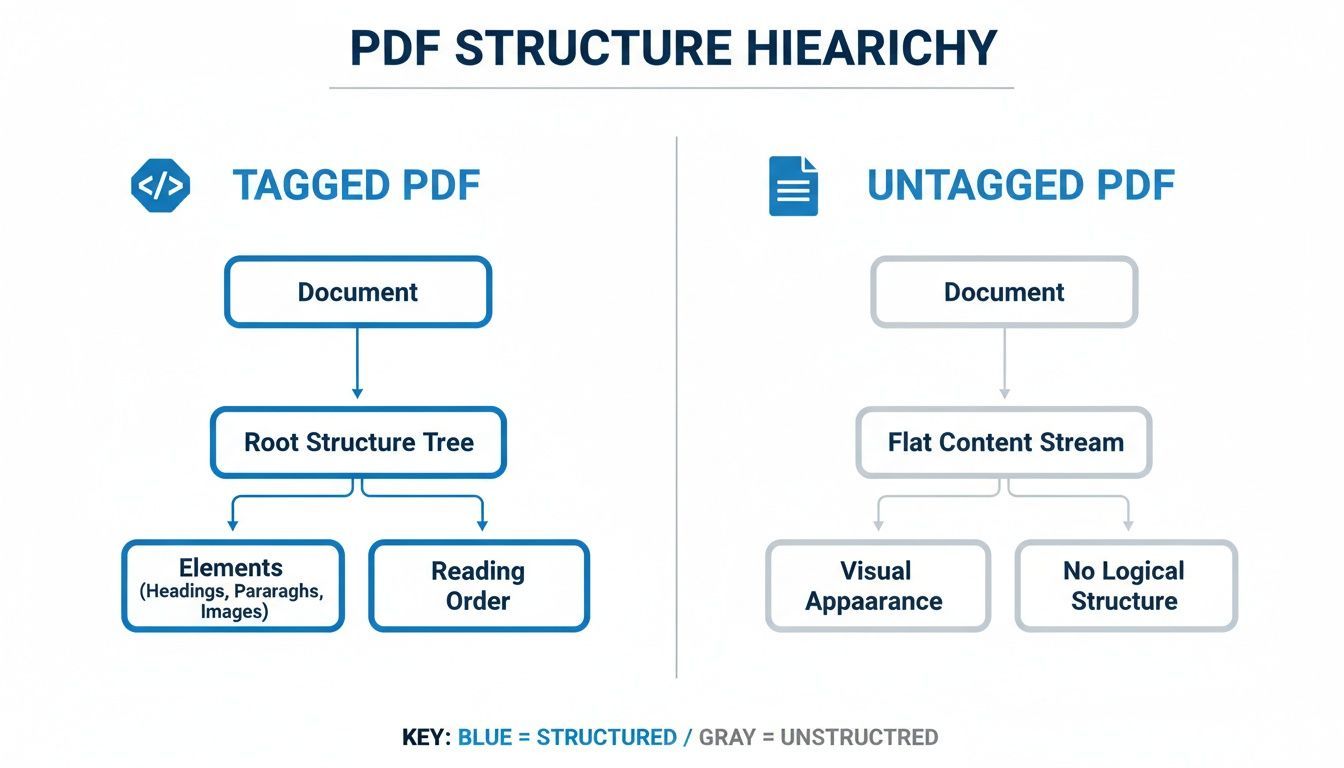
As you can see, a tagged PDF has a coherent, hierarchical structure. An untagged one is just a jumble of disconnected elements—a flat file that's impossible to navigate logically.
Common Tags and Their Meanings
To build this structure, we use a set of standard tags to classify content. Each tag tells a screen reader exactly what kind of information it's encountering, which is what allows users to skip between headings or jump straight to a table.
But here’s the critical part: just having tags isn't enough. A correctly structured tag tree is what makes a document truly usable and compliant. Auto-tagging tools from programs like Adobe Acrobat often make a mess of the logical order, which is why a human review is almost always necessary.
Here are some of the most fundamental tags you’ll find in any accessible PDF:
<H1>to<H6>: These are your heading tags, and they create the document's outline.<H1>should be the main title, with<H2>,<H3>, and so on, creating a nested structure of topics and sub-topics.<P>: This tag simply identifies a paragraph of text. It’s what separates distinct blocks of content to create a clear reading flow.<Figure>: This tag is used for images, charts, and other graphics. It acts as a container for the visual element and, most importantly, its alternative text (alt text), which describes the image to users who can't see it.<L>and<LI>: The<L>tag defines a list, while each<LI>marks an individual list item within it. This tells the screen reader, "You are now in a list with X number of items."<Table>: This tag contains all the elements of a data table, including rows (<TR>), header cells (<TH>), and data cells (<TD>), making sure that complex data is presented in a way that makes sense.
Why Tagging Is Essential for Compliance
It’s one thing to get the technical details of a tagged PDF, but it’s another to grasp why it matters so much in the real world. For countless organizations, making documents accessible isn't just a nice-to-have; it's a legal and ethical imperative. These rules exist to guarantee everyone, including people with disabilities, has equal access to information.
This isn’t some vague ideal. The requirement for accessibility is written into law and global standards. These frameworks define the baseline for digital content, and a properly tagged PDF is the bedrock of compliance. If that tag structure is missing or broken, the document is essentially non-compliant right out of the gate.
The Legal and Ethical Drivers
The most influential standards in this space are the Web Content Accessibility Guidelines (WCAG). Think of WCAG as the blueprint for accessibility laws worldwide, including major U.S. legislation like Section 508 of the Rehabilitation Act.
For government agencies, universities, and any organization that gets federal funding, Section 508 compliance is not optional. This law requires all electronic information and technology—which absolutely includes PDFs—to be usable by people with disabilities.
This means every official report, public form, and internal memo needs a logical tag structure that assistive technologies can read. Ignoring these standards opens the door to serious legal trouble, steep fines, and a damaged reputation. To really dig into the details, you can read our guide on Section 508 compliance requirements.
The Challenge of Scale and Automation
As compliance has become non-negotiable, tagging has become a massive operational challenge for large organizations. In the U.S., agencies like the Department of Health & Human Services even publish guides on how to tag PDFs to meet WCAG standards.
The problem? Automated tools just aren't good enough yet. Industry estimates suggest that auto-tagging features require manual cleanup on 20% to 60% of document elements, especially in complex files. Imagine an organization with millions of PDFs. A 30% error rate from an automated tool creates a mountain of manual work, easily adding up to thousands of hours of tedious fixes. That’s why having a solid, reliable tagging workflow is so critical. You can learn more about the government's PDF tagging guides to see the level of detail required.
At the end of the day, tagging is what connects the content in a document to a person's ability to understand it. It’s the critical step that turns a static file into an inclusive tool, meeting both legal mandates and the moral duty to leave no one behind.
Unlocking Business Benefits Beyond Accessibility
While staying compliant is often the main reason people start tagging PDFs, the real value goes way beyond checking a box for accessibility. Think of a proper tag structure as a smart investment in your content. It’s a strategic move that boosts how your documents perform, polishes your brand’s reputation, and makes your digital files more valuable to absolutely everyone.
Basically, you’re adding a high-quality blueprint inside your documents. This underlying framework doesn’t just help users with assistive tech; it creates a more robust, flexible, and intelligent file that benefits your entire organization.
A Better Experience on Every Device
One of the most obvious wins with a tagged PDF is how it handles reflow. Ever tried reading a normal PDF on your phone? It's a mess of pinching, zooming, and scrolling sideways just to follow a sentence. It’s a genuinely frustrating experience.
A tagged document completely sidesteps this problem. Because the tags map out the logical reading order, the content can automatically rearrange itself to fit any screen. Text, images, and headings neatly stack into a single column that’s a breeze to scroll through, making your documents perfectly readable on the go.
Boosting Search Engine Optimization
Search engines like Google don't see your PDF the way a person does; they read its code. An untagged document is essentially a black box, leaving search crawlers guessing about its structure and what’s important. A well-tagged PDF, on the other hand, is like an open book.
The tag structure—with its
<H1>,<P>, and<Figure>elements—gives search engines the same kind of semantic clues they use to understand a webpage. This helps them index your reports, whitepapers, and manuals far more accurately, making them much easier for people to find through organic search.
The technical case is pretty clear, too. A properly tagged PDF with a declared language and good semantics doesn't just improve the screen-reader experience; it helps you sidestep the most common accessibility pitfalls. In fact, when you look at aggregated audit data, issues with missing or incorrect tags often account for a massive chunk of all PDF accessibility failures—frequently over 40%. You can explore more about PDF accessibility techniques to see just how critical this is.
Making Content Smarter and Reusable
A logical tag structure transforms your PDF from a static, flat file into a dynamic container of content. Let's say you want to repurpose that big annual report into a series of blog posts or a new ebook. If the PDF is tagged, it's surprisingly simple. The tags make it possible to programmatically pull out the content and convert it into other formats like HTML.
This opens up a ton of possibilities:
- Less manual work: No more mind-numbing copy-pasting and reformatting.
- Keeps content intact: The original structure and hierarchy are preserved perfectly during conversion.
- Speeds up content creation: Your team can quickly adapt existing materials for new marketing campaigns.
By treating your PDFs as structured data from the start, you unlock their true potential and get a much better return on all the effort you put into creating them.
How to Create and Validate Tagged PDFs
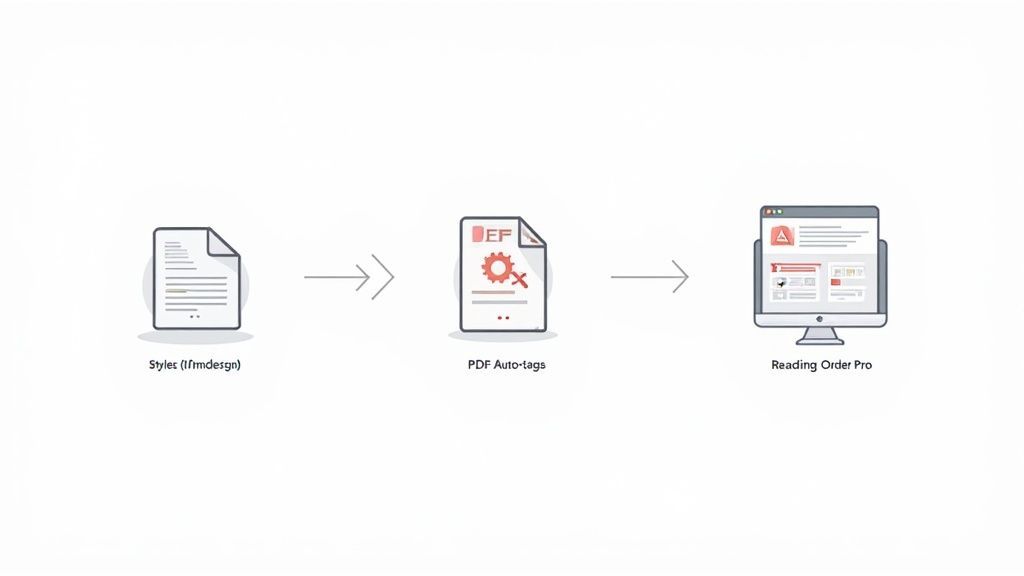
Making a genuinely accessible tagged PDF is less about flipping a switch and more about a thoughtful process. It’s a mix of using smart tools and applying a bit of human know-how. The real goal isn't just to have tags, but to have the right tags in the right order so that anyone using assistive tech has a smooth, logical experience.
Honestly, the best thing you can do is think about accessibility from the very beginning. Creating a document that is "born accessible" will save you a world of headaches compared to trying to fix a broken PDF later on.
Start at the Source
The secret to a great tagged PDF often lies in a well-built source document. It doesn't matter if you're working in Microsoft Word, Adobe InDesign, or Google Docs; the principle is the same. Use the program's built-in styles to define your content's structure.
So, instead of just making text bold and bigger to look like a heading, apply the "Heading 1" or "Heading 2" style. Doing this bakes that structural meaning right into the file. When you export to PDF, that work translates directly into the correct <H1> and <H2> tags.
Think of it this way: by using proper styles in your original document, you're essentially pre-tagging your content. You’re building the correct foundation from the start, which makes everything that follows much, much easier.
Use Automation Wisely
After you've created your PDF, tools like Adobe Acrobat Pro have a handy "Auto-Tag Document" feature. This is a fantastic first pass. It does a decent job of identifying the obvious stuff—paragraphs, headings, lists, and so on.
But—and this is a big but—you have to treat its output as a first draft, not the finished product.
Automation is pretty good with simple, one-column documents. It starts to get confused with anything more creative, often messing up:
- Multi-column layouts: The tool might jump between columns, reading the content completely out of order.
- Complex data tables: It often struggles to identify which cells are headers for rows and columns.
- Images vs. decoration: It can’t always tell the difference between a meaningful image that needs alt text and a decorative element that should be ignored.
After running the auto-tagger, a manual review is non-negotiable. While the world of automated accessibility testing is getting better all the time, a human eye is still essential for getting PDF accessibility right.
The Manual Validation Process
This last step is where you roll up your sleeves and make sure everything is perfect. Using the tools inside a program like Acrobat Pro, you'll need to manually check and clean up the tag tree to ensure it’s accurate and makes sense.
A solid validation workflow should always include these steps:
- Check the Tag Tree: Open the "Tags" panel and just look at the structure. Do the headings follow a logical order (e.g., an
<H3>comes after an<H2>, not the other way around)? Does the tag order reflect the visual flow of the document? - Use the Reading Order Tool: This is my favorite tool for this job. It overlays numbered boxes on the page, showing you the exact path a screen reader will take. If the order is wrong, you can simply drag and drop the boxes to fix it.
- Add Meaningful Alt Text: Hunt down every
<Figure>tag. If it represents an important image, it absolutely must have descriptive alternative text. The description should be concise but capture the core purpose and content of the image. - Run an Accessibility Check: Finally, use the built-in accessibility checker. It will generate a report that flags any remaining technical issues, like missing alt text, funky table structures, or color contrast problems, giving you a final punch list of things to fix.
So, What's the Big Takeaway?
When it all boils down, a tagged PDF is so much more than a technical checkbox. Think of it as the invisible framework that ensures everyone—regardless of how they interact with technology—can get to the heart of your content. It’s what transforms a flat, lifeless document into a truly interactive and understandable experience.
The real shift happens when you stop thinking about accessibility as a final step and start making it part of your process from the get-go. This "born accessible" mindset is a game-changer. It means you're building accessibility into your documents right from the source, using proper heading styles, checking your tags, and writing solid alt text as you create.
Adopting a 'born accessible' mindset transforms accessibility from a final-step compliance task into a core principle of quality content creation. It ensures that digital publishing is responsible by default, not as an afterthought.
Doing this isn't just about meeting legal requirements. It's about creating better documents, period. A well-tagged PDF works better for everyone, on any device. It even gives your SEO a nice little boost. By making tagged, structured documents your standard, you’re not just being compliant—you’re building a smarter, more inclusive digital presence for whatever comes next.
A Few Lingering Questions
Still have a few questions about how tagged PDFs work in the real world? Let's clear up some of the most common points of confusion so you can tackle document accessibility with confidence.
Can I Just Hit "Auto-Tag" in Adobe Acrobat and Call It a Day?
It's a tempting shortcut, isn't it? While Adobe Acrobat's "Auto-Tag Document" feature is a fantastic starting point, it’s almost never the final step. Think of it as a first draft—it does a decent job guessing at simple paragraphs and headings but often stumbles over more complex layouts.
Anything with multiple columns, intricate tables, or unique formatting can easily confuse the automated tool. A manual review is absolutely essential to correct the reading order, ensure the tags actually make sense, and write meaningful alternative text for images. Without that human touch, the document will almost certainly have major accessibility gaps that shut some users out.
What’s the Difference Between a Tagged PDF and a PDF/UA File?
This is a great question because the terms are often used interchangeably, but they mean very different things. A tagged PDF is simply a PDF that contains a tag structure. It's the bare minimum, the foundation.
PDF/UA (Universal Accessibility), on the other hand, is a formal international standard (ISO 14289) that defines what it means for a PDF to be truly and fully accessible. Think of it as a rigorous checklist. In addition to requiring tags, PDF/UA demands a lot more:
- The document must have a declared title and language.
- Headings must be used logically and in the correct order (no skipping from H1 to H4).
- All meaningful images need high-quality, descriptive alt text.
- Crucially, there can be zero untagged content in the file.
To put it simply: All PDF/UA files are tagged PDFs, but most tagged PDFs are not PDF/UA compliant.
If I Save My Word Document as a PDF, Is It Automatically Tagged?
It can be, but there's a catch. For this to work, you have to create the original Word document with accessibility in mind from the very beginning. When you export a PDF from Microsoft Word, it creates tags based on the semantic styles you used.
This means you need to use Word’s built-in tools correctly. Use the "Heading 1" and "Heading 2" styles instead of just making text bold and bigger. Use the official list tools for bullets and numbers. And add your alt text to images right inside Word before you ever hit "Save As." If you do the work upfront in the source file, you'll get a PDF with a clean, logical tag structure that needs far less manual cleanup later.
Creating truly accessible documents takes a consistent workflow and the right support. WebAbility.io offers an end-to-end platform designed to help your organization meet and maintain compliance with standards like WCAG and Section 508. We ensure all your digital content, from websites to PDFs, is open and available to everyone.
Learn how WebAbility.io can simplify your accessibility efforts.
Quick Questions
Tap to ask AI about this article