How to Make PDF Accessible A Practical Guide

Sidharth Nayyar
TL;DR: Your PDF Accessibility Fast Track
Creating an accessible PDF means building a logical structure that screen readers can understand. Start by using styles (Headings, Lists) in your source document (Microsoft Word, InDesign), add descriptive alt text to all images, and ensure tables are properly structured. After exporting, use Adobe Acrobat Pro to run the Accessibility Checker, fix tags, and verify the reading order. For a seamless, long-term solution that ensures all your documents meet compliance standards, consider a comprehensive platform like WebAbility.io to automate monitoring and streamline remediation.
When we talk about making a PDF “accessible,” we’re really talking about building a logical roadmap inside the document. The goal is to structure it so that everyone, especially people using assistive technologies like screen readers, can easily navigate and understand the content. It’s less about how the document looks and more about the invisible architecture underneath.
This means adding a proper tag structure, setting a logical reading order, and providing descriptive text for all your images.
Your Quick Guide to Accessible PDFs
Before we get into the nitty-gritty of PDF remediation, it’s worth taking a step back. A solid grasp of understanding the fundamentals of accessibility will give you the context you need to really nail this. Think of this as your high-level game plan—a cheat sheet for the entire process we're about to walk through.
The biggest shift you can make is to stop treating accessibility as an afterthought. It needs to be part of your process from the very beginning. When you create an accessible source document in a program like Microsoft Word or Adobe InDesign, you're not just making a visual file; you're building a structured, machine-readable document right from the start. This saves a ton of time and headaches later.
The Essential Steps to Accessibility
Getting a PDF to a truly accessible state really comes down to a few core pillars. These are the non-negotiables that make sure your document works for everyone.
- A Logical Tag Structure: Tags are what give the document its architecture. They tell a screen reader what’s a heading (
<h1>), what’s a paragraph (<p>), and what’s a list. You can’t have an accessible PDF without proper tags. It's the foundation of everything. - A Clear Reading Order: This makes sure the content is read out loud in the sequence you intended. Without it, a screen reader might jump all over the page, turning a simple document into a confusing mess.
- Descriptive Alt Text: Alternative text for images is crucial. It describes the content and function of an image, giving vital context to anyone who can't see it.
- Navigable Tables and Forms: Tables and forms need to be built correctly so users can move through them cell by cell or field by field without getting lost.
This simple workflow breaks the entire process down into three main stages: structure, tag, and test. Get these right, and you're well on your way.
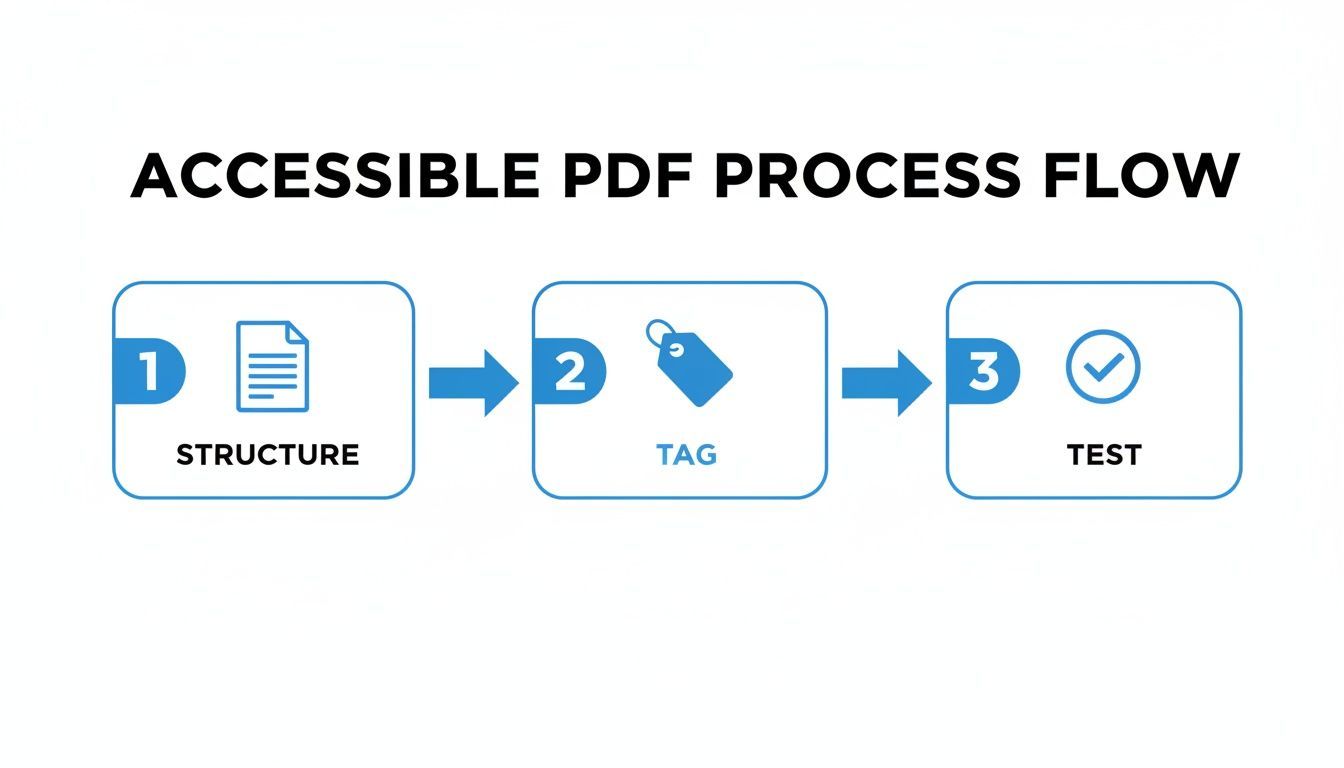
As you can see, it’s a cyclical process. It all starts with a solid foundation in your source document and always ends with thorough testing and validation.
To help you remember these key areas, here’s a quick breakdown of the core components of PDF accessibility.
Core Pillars of PDF Accessibility
| Accessibility Component | Primary Tool/Method | Impact on User Experience |
|---|---|---|
| Semantic Structure | Source document styles (headings, lists) | Provides clear navigation and context. |
| Logical Reading Order | Tags panel & Reading Order tool (in Acrobat) | Ensures content is read in the intended sequence. |
| Image Alt Text | Properties panel or accessibility tools | Conveys visual information to non-visual users. |
| Table & Form Tags | Table Editor & Form Field properties | Allows for easy navigation of complex data. |
Focusing on these pillars ensures that you're not just checking boxes but are genuinely improving the user experience for people with disabilities.
Why PDF Accessibility Matters More Than Ever
The push for accessible digital content isn't just a best practice anymore; it's a growing business and legal requirement. The market for digital accessibility software, which includes tools for fixing PDFs, was valued at USD 0.85 billion in 2025. It’s projected to hit USD 1.89 billion by 2034.
What's driving this? Companies are scrambling to comply with mandates like the ADA and Section 508. They're finally realizing that accessibility is non-negotiable.
If there's one thing to take away, it's this: an accessible PDF is fundamentally different from a standard one. It’s not about what you see on the screen. It's about the rich, semantic information hidden in the file's structure.
Ready to dive deeper? Get a full breakdown of what an accessible PDF truly is in our detailed guide.
Building Accessibility from the Ground Up
The best way to create an accessible PDF is to think about accessibility long before you hit "Export." Honestly, the magic happens in your source document. If you build the foundation right in Microsoft Word or Adobe InDesign, you're not just creating a document; you're building a roadmap for assistive technology.
This isn't about some complicated technical wizardry. It’s a simple shift in how you work.
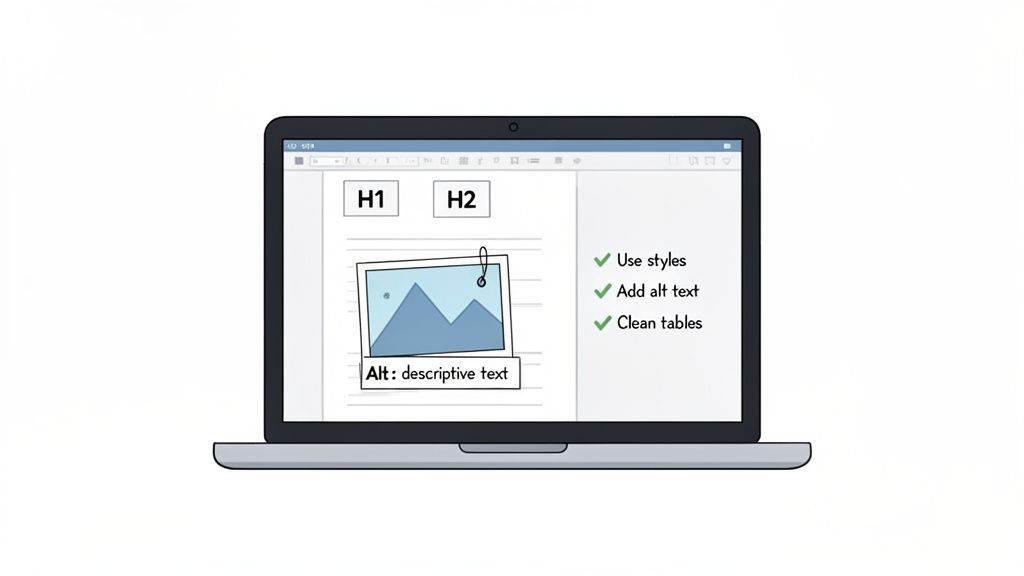
Instead of just making text bold and bumping up the font size for a headline, you use the built-in “Heading 1” style. That one small change embeds a structural tag into the document, which screen readers use to understand and navigate the content. It’s a game-changer.
Start with a Strong Semantic Structure
At the heart of every truly accessible document is its semantic structure. Think of it as the skeleton that gives the content its shape and logical order. Without it, a screen reader just sees a wall of text.
The single most important part of this is using built-in heading styles correctly.
- Heading 1 (H1): This is for your main document title and nothing else. You should only have one H1 per document.
- Heading 2 (H2): Use these for your major section titles. This is how a screen reader user can quickly jump between the main topics.
- Heading 3 (H3) and below: These are for your sub-sections. The key is to nest them logically and never skip a level (don't jump from an H2 straight to an H4, for example).
This isn't just for looks. This structure creates a functional table of contents that allows screen reader users to skim the document and find what they need, just like a sighted person would. When you do it right in the source file, this heading structure transfers perfectly into the final PDF's tags.
Pro Tip: Get in the habit of using styles for everything—body text, lists, quotes. It keeps the document’s underlying code clean and predictable, which makes for a much smoother conversion to an accessible PDF.
Getting this right is more important than ever. The digital accessibility market is set to grow from USD 1,751.34 million in 2026 to an estimated USD 3,239.42 million by 2034. A huge part of that growth is driven by the need for tools that can handle semantic tagging, especially since a staggering 80% of PDF accessibility problems stem from content that was never tagged in the first place.
Handling Images and Tables Correctly
Beyond the text, you need to give some thought to your visuals, especially images and tables.
For every image, descriptive alternative text (alt text) is an absolute must. Good alt text is brief but captures the core purpose of the image. Don't just write "graph." Instead, try something like, "Bar chart showing Q3 sales increased by 25% over Q2." If an image is purely for decoration, you can mark it that way so a screen reader knows to just skip over it.
Tables can be another tricky spot. For a table to be accessible, it needs to be straightforward with a clearly marked header row. In both Word and InDesign, you can designate the top row as a header and even set it to repeat on subsequent pages. This gives screen reader users crucial context, telling them what each column of data actually means as they navigate through the cells.
To really understand why these steps matter, it helps to know what’s happening behind the scenes. For a deeper look at the mechanics, you can learn more about what a tagged PDF is and why it matters in our other guide.
Spending a little extra time on your source document will save you hours of frustrating remediation work down the line. Adopting this "accessibility-first" mindset creates better, more compliant PDFs and establishes a sustainable workflow for you and your team.
Diving into Hands-On Remediation with Adobe Acrobat Pro
So, you’ve inherited a PDF that wasn't built with accessibility in mind. It happens. This is where Adobe Acrobat Pro becomes your best friend. Think of it less as a simple PDF viewer and more as a workshop where you can get under the hood to inspect, repair, and completely rebuild a document’s structure. It's an incredibly powerful tool, and once you get the hang of it, it's not nearly as intimidating as it looks.
The secret to successful remediation isn’t just clicking on error messages. It's about following a methodical process. A little bit of order here goes a long way, turning what feels like a chaotic jumble of errors into a clear, step-by-step path toward a compliant and genuinely usable document.
Your Starting Point: The Accessibility Checker
Before you touch anything else, your first move should always be to run the Accessibility Checker. This tool is your diagnostic scan, running your document against a checklist of accessibility rules (like the WCAG 2.1 standards) and spitting out a report that is essentially your initial to-do list.
The report handily breaks down issues into three buckets:
- Failed: These are the clear-cut, undeniable problems—things like missing alt text on an image or entire sections of the document being untagged. The good news is you can often right-click the issue right in the report and select "Fix," letting Acrobat walk you through the solution.
- Needs Manual Check: This is where your brainpower comes in. An automated checker is smart, but it can't know if your alt text is actually good or if the reading order makes any logical sense. It flags these areas for you to review with a human eye.
- Passed: While a pass is great, don't take it as gospel just yet. It means the document meets the automated criteria, but a quick manual review is always a good idea to catch anything nuanced the machine might have missed.
Think of the checker as a map of the territory ahead. It won't solve everything for you, but it gives you a fantastic overview of the scope of work.
Getting Comfortable in the Tags Panel
Once the checker gives you your marching orders, you'll be spending most of your time in the Tags panel. Honestly, this is the single most critical tool for PDF remediation. It reveals the document's logical structure—its "tag tree"—which is precisely what screen readers and other assistive technologies rely on to make sense of your content. If that tag tree is a disorganized mess, the user experience will be, too.
A classic task here is correcting heading levels. You’ll often see documents exported from Word with multiple <h1> tags, or you’ll find that what is clearly a section heading has been mistakenly tagged as a simple paragraph (<p>). Fixing this is straightforward: just right-click the tag, open its properties, and change it to the correct type, like <h2> or <h3>.
My go-to tip for the Tags panel: Get familiar with the 'Find' feature. When the Accessibility Checker flags a vague error like "Tagged content," instead of scrolling endlessly through the tree, you can use the find tool to pinpoint that specific untagged element and apply the right tag in seconds.
Getting the tags right ensures that someone using a screen reader can navigate the document the way it was intended, jumping from one section to the next just as a sighted user would scan the visual headings. For teams managing hundreds of documents, keeping this structure consistent is a huge challenge. That’s where a centralized dashboard, like the one offered by WebAbility.io, becomes invaluable for monitoring compliance at scale without constant manual spot-checks.
This screenshot shows Acrobat’s Reading Order tool, which gives you a more visual way to see and manipulate how the document flows.
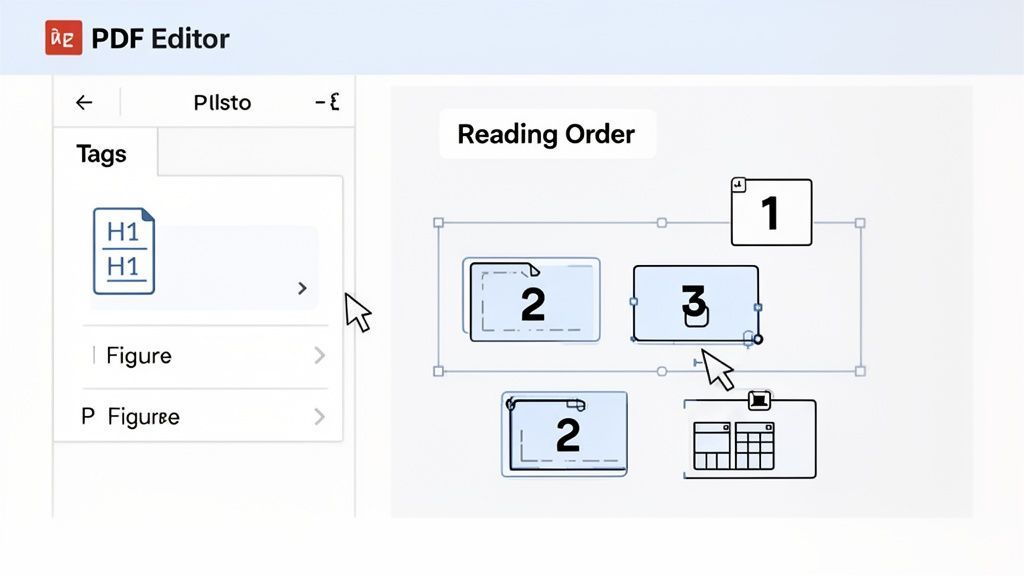
Those numbered boxes show the exact sequence a screen reader will follow. It's an essential sanity check to make sure everything is being read in a logical order.
Nailing the Reading Order
While the Tags panel defines what each piece of content is (a heading, a paragraph, a list), the Reading Order tool controls the sequence in which it's all presented. This is an absolute lifesaver for documents with creative or complex layouts, like multi-column newsletters or brochures where the visual design doesn't follow a simple top-to-bottom flow.
Imagine you're fixing a marketing PDF where a big, important headline is placed on the right side of the page. Visually, it's the first thing you see, but a screen reader might read the left-hand column first. The Reading Order tool lets you draw boxes around content elements to reorder them. You can select the headline, confirm its tag is "Heading 1," and then use the Order panel to drag it to the very first position. Problem solved.
Tackling Tricky Tables and Forms
From my experience, tables and forms are where accessibility efforts most often fall apart. To a screen reader user, an untagged table is just a chaotic jumble of data, and an inaccessible form is a dead end.
Here’s what to focus on:
- Define Header Cells: In the Tags panel, you must identify which cells are table headers (
<th>). This simple step allows a screen reader to announce the correct column and row headers as a user navigates the data, giving them context for every single cell. - Set the Scope: For more complex tables, you also need to set the "scope" for each header to specify if it applies to the "Row" or "Column."
- Add Form Field Tooltips: For any interactive form, every single field—text boxes, checkboxes, buttons—needs a descriptive tooltip. This tooltip functions as the accessible label, telling the user exactly what information is expected. Without it, they're just guessing.
By working through the checker's report, cleaning up the structure in the Tags panel, and verifying the sequence with the Reading Order tool, you can systematically transform even the most broken PDF into a document that works for everyone.
Tackling Advanced PDF Accessibility Challenges
Once you've got the basics down, you’ll inevitably hit a wall with trickier documents. I’m talking about the dense, multi-page financial reports, interactive forms with a mind of their own, and old scanned documents that were never digital to begin with.
This is where the real work begins. Moving beyond simple paragraph and heading tags is how you go from creating a compliant document to a genuinely usable one. Mastering these areas ensures that even the most complex information is clear for everyone, no matter how they access it.
Remediating Complex Data Tables
A simple table with one header row is easy enough. But what about a financial statement where cells are merged and you have headers spanning multiple rows and columns? This is where basic tagging just won't cut it.
For a screen reader to make sense of this, every single data cell has to be programmatically linked to all of its corresponding headers. This means you have to go beyond just marking cells as <th> (Table Header). You need to assign a unique ID to each header cell and then reference those IDs in the properties of every data cell (<td>).
It's meticulous, I know. But doing this creates a clear map that tells the screen reader, "This number in row 5, column 3, is for 'Q4 Earnings' and falls under the 'West Region' sub-header." Without this, the data is just a meaningless jumble of numbers.
Making Interactive Forms Truly Accessible
Just because you can type in a form field doesn't mean the form is accessible. A truly accessible form needs clear labels tied to every field, a tab order that makes logical sense, and instructions that a screen reader can announce.
Think about a form where choosing a country from a dropdown menu automatically changes the options in the "state/province" field. For a screen reader user to understand what just happened, you need to provide that feedback. This is often done using ARIA (Accessible Rich Internet Applications) attributes, like aria-live, which tells the screen reader to announce that the state field has new options.
A key takeaway for forms: Every interactive element—from radio buttons to the final submit button—must have a descriptive tooltip in its properties. This tooltip becomes the accessible name, telling the user exactly what that button or checkbox does.
Working with Scanned Documents and OCR
One of the toughest jobs is fixing a scanned document. To a computer, it’s just a picture of text, not actual text. Before you can even think about tagging, you have to run it through Optical Character Recognition (OCR) software. This is the magic that turns that image into real, selectable text.
But OCR is never a one-and-done process. It's a great start, but it's rarely perfect. You'll almost always need to:
- Proofread meticulously: OCR often misinterprets letters or mashes words together. You have to go through and manually correct these errors.
- Build the structure from scratch: The OCR process gives you raw text, but no structure. You have to create the entire tag tree yourself—defining every heading, paragraph, list, and table.
- Clean up artifacts: Sometimes, the scan leaves behind stray lines or speckles that OCR turns into garbage characters. These need to be marked as "artifacts" so screen readers know to ignore them completely.
It’s a big job, but this is how you transform a flat image into a structured, accessible document.
Writing Hyperlinks That Provide Context
This is a common mistake, but it's a huge barrier for screen reader users. Generic link text like "click here" or "learn more" is meaningless when you're listening to a list of links out of context.
Every link should make sense on its own. It needs to tell the user exactly where they're going.
| Bad Example | Good Example |
|---|---|
| To see our quarterly results, click here. | View the full Q3 2024 Financial Report. |
| Learn more about our services. | Explore our comprehensive PDF remediation services. |
This one small change makes a world of difference for navigation and usability.
The Importance of Language and Metadata
Finally, let's talk about two of the easiest—and most often forgotten—steps. First, you absolutely have to set the document's primary language in the file properties. This tells screen readers which pronunciation engine to use. Without it, a document in English might be read with a French or Spanish accent, making it completely unintelligible.
Second, always fill out the metadata, especially the document title. This is often the very first thing a screen reader announces. It gives the user immediate context for what they've opened before they even read the first line. It’s a simple touch that adds a crucial layer of professionalism and usability.
When you're dealing with high-stakes documents where accuracy and compliance are non-negotiable, bringing in an expert is often the smartest move. WebAbility.io’s expert accessibility services can provide the specialized guidance needed to tackle these complex documents and ensure they meet the highest standards.
Keeping Your PDFs Accessible: Validation and Maintenance
Your Quick Validation Checklist in a Nutshell
So, you’ve built your accessible PDF. Great! But the job isn't done until you've proven it actually works for people using assistive technology. Think of it this way: automated tools are your first line of defense, catching about 30% of potential problems. The real test, though, is putting yourself in the user's shoes with a screen reader like NVDA. From there, it's all about keeping things compliant over the long haul, because accessibility isn't a one-off project.
An accessible document isn't truly compliant until you've confirmed it provides a seamless experience for real users. This validation stage is what separates documents that just tick a box from those that are genuinely usable.
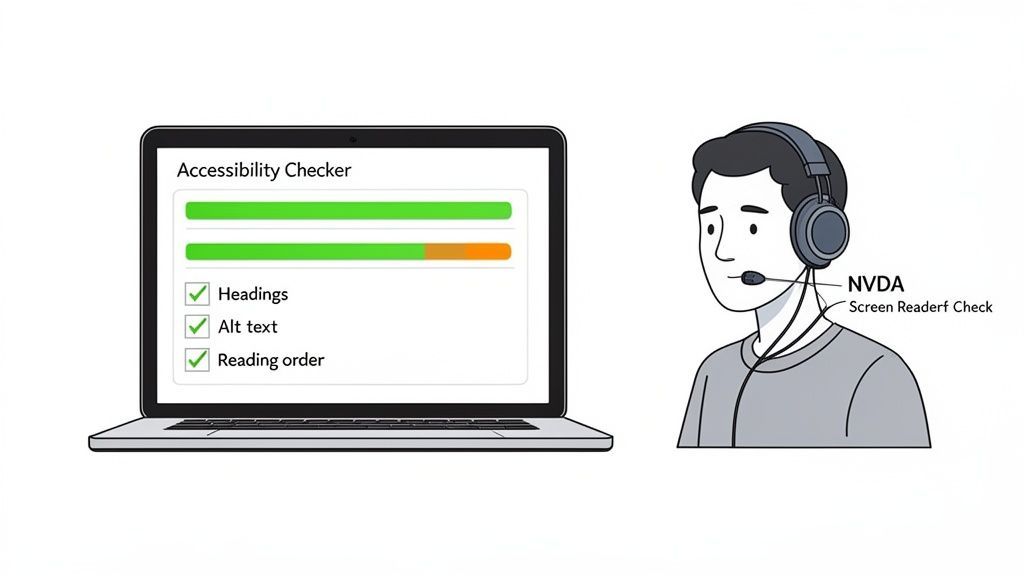
The best approach mixes smart automation with irreplaceable human insight.
Starting With Automated Accessibility Tools
The first step in any validation process should be running an automated checker. These tools are fantastic for catching the low-hanging fruit. I always start with Adobe's built-in Accessibility Checker or the free PDF Accessibility Checker (PAC 3). They’ll scan your document against WCAG standards in seconds and flag clear-cut violations.
They’re particularly good at spotting things like:
- Images that are missing alt text completely.
- Content that hasn't been tagged.
- A heading structure that's out of order (e.g., an H3 before an H2).
- A missing document title or language setting.
But here’s the critical thing to remember: automated tools have their limits. They can confirm an image has alt text, but they have no idea if that text is actually helpful or just nonsense. They can see a reading order exists, but they can't tell you if it flows logically. That’s where you come in.
The Critical Role of Manual Testing
This is the most important part of the process. Manual testing, specifically with a screen reader, is the only way to truly understand what you’ve built. You don't need to be a seasoned expert; just learning the basic commands for a free screen reader like NVDA (NonVisual Desktop Access) will help you spot glaring usability issues.
My Pro Tip: When I’m testing manually, I’m not just looking for errors. I’m trying to answer one question: Can someone using a screen reader get the same information and navigate this document just as easily as someone who can see it?
As you go through your manual review, keep these key questions in mind:
- Is navigation logical? Try using the screen reader’s shortcut to pull up a list of all headings. Does it give you a clear, easy-to-understand outline of the document’s structure?
- Is the reading order correct? Just let the screen reader read the document from start to finish. Is it moving through the content as you intended, or is it jumping around erratically between columns or sidebars?
- Is everything announced properly? Pay close attention to how it handles tables, lists, and form fields. Does the screen reader provide the context needed to understand these elements?
Maintaining Compliance as an Ongoing Process
Accessibility is a moving target, not a finish line. A PDF that's compliant today might fall out of compliance tomorrow when it's updated or as accessibility standards evolve. To stay on top of your legal obligations, it helps to understand the bigger picture, like the frameworks explained in A Guide to Website ADA Compliance Requirements.
This means shifting from a one-and-done project mindset to a practice of continuous monitoring. This is becoming a huge focus for businesses, and the market reflects it: the accessibility testing market is expected to jump from USD 610.51 million in 2025 to USD 827.86 million by 2031. For anyone interested in the data behind this shift, you can read the full research about the PDF software market.
If you're managing a high volume of documents, trying to do this manually is a recipe for disaster. This is where a dedicated platform becomes essential. For instance, the WebAbility.io dashboard offers the 24/7 scanning and reporting you need to turn accessibility from a recurring fire drill into a manageable part of your workflow. Kicking off with a full accessibility audit is a great way to get a baseline and pinpoint any recurring problems in how your team creates documents.
Common Questions About PDF Accessibility
Got a few nagging questions about making PDFs accessible? You're not alone. Here are some of the most common ones I hear, with straightforward answers to get you on the right track.
What’s the Real Difference Between a Tagged and Untagged PDF?
Think of a tagged PDF as a document with a hidden blueprint. This "tag tree" tells assistive technology exactly what each piece of content is: this is a main heading, that's a paragraph, this is an image, and here’s a data table. This structure is what allows screen readers to navigate the content in a logical, predictable way.
An untagged PDF, by contrast, is just a flat picture of text to a screen reader. The software has to guess the reading order, often jumping around the page and creating a jumbled, frustrating experience for the user. Simply put, tagging is the non-negotiable foundation of an accessible PDF.
Can I Actually Make a PDF Accessible Without Adobe Acrobat Pro?
You can get a surprisingly long way just by working smart in your original document. Applications like Microsoft Word and even Google Docs have tools to help you build in accessibility from the start. You can add alt text, create a proper heading structure, and run a basic accessibility check before you even think about exporting.
But for the final, critical steps? You'll almost always need a professional tool like Adobe Acrobat Pro. It gives you the power to fix tricky reading order problems, fine-tune complex table tags, and handle interactive forms—the kind of detailed work required for full compliance with standards like WCAG.
My Experience: I've found that a well-built source document can knock out about 80% of potential accessibility problems. That last 20% is where the real craft comes in, and that’s where a dedicated tool becomes essential to get it right.
Does PDF Accessibility Really Help with SEO?
Absolutely. Search engines are all about user experience, and accessibility is a huge signal of quality. A properly tagged PDF is structured in a way that search engine crawlers can understand, much like a screen reader does. They can easily identify headings, paragraphs, and lists to figure out what your document is about.
The alternative text you write for images also gives search engines valuable context. By making your PDFs accessible, you’re not just serving people who use assistive technology—you're also making your content much easier for Google and other search engines to find, index, and rank.
Is an Automated Checker All I Need for Compliance?
I wish it were that simple! Automated checkers are an indispensable first step, but they can only catch about 30-40% of accessibility barriers. They're great at finding clear-cut technical errors, like a missing alt tag on an image.
What they can't do is judge quality or context. For instance, an automated tool can see an image has alt text, but it can't tell you if that text is actually a good description. It also can't determine if the reading order makes any logical sense to a human being. There's no substitute for manual testing with a keyboard and a screen reader to ensure the document is genuinely usable. This combination of automated scans and human validation is the key to mastering how to make a PDF accessible.
At WebAbility.io, we provide a complete accessibility platform to help you achieve and maintain compliance with confidence. Our AI-enhanced tools, automated monitoring, and expert services ensure your digital content is usable for everyone, reducing risk and opening your brand to a wider audience. Discover how our end-to-end solution can streamline your accessibility efforts at https://www.webability.io.
Quick Questions
Tap to ask AI about this article