PDF Remediation: Your Guide to Accessible Documents

Sidharth Nayyar
PDF remediation is the process of making PDFs accessible to assistive technologies, and at scale it has become an operational necessity because manual remediation can cost roughly $1 to $4 per page and take hours per document while automated workflows can reduce that to cents per page and minutes per document. If your team is sitting on a library of legacy PDFs, the practical answer is usually not “fix everything by hand,” but to decide which files should be remediated, which should be rebuilt, and which should never have been PDFs in the first place.
A lot of digital teams are in the same position right now. There's a shared drive full of annual reports, forms, brochures, product sheets, policies, and scanned records. Some are still active. Some are legally important. Some are blocking users who rely on screen readers or keyboard navigation. And some are creating compliance exposure under WCAG and Section 508 requirements while also putting friction in front of users who are trying to convert, apply, enroll, buy, or complete a task.
PDF remediation matters because accessible documents are part of the complete customer journey. When someone can't read a benefits guide, complete a form, or use a pricing document, that's not just an accessibility defect. It's a lost interaction. Teams that treat document accessibility as part of UX and conversion work usually make better decisions than teams that treat it as a last-minute compliance patch.
The Bottom Line on PDF Remediation
Most organizations don't have a PDF problem. They have a document operations problem.
A team publishes content for years, often from Word, InDesign, PowerPoint, scanners, or line-of-business systems. Then accessibility requirements catch up with the archive. Legal, procurement, content, and UX teams all start asking the same question: what do we do with all these files?
Adobe says there are “trillions of PDFs” in the world and more than 90% are at least partially inaccessible in its discussion of accessible PDFs at scale. That number matters because it explains why PDF remediation isn't a niche task for specialists anymore. It's a recurring business process for universities, public agencies, healthcare organizations, publishers, and companies with large content libraries.
What PDF remediation actually means
At a practical level, PDF remediation means repairing the structure of a PDF so assistive technologies can interpret it correctly. That includes things like headings, paragraphs, lists, tables, images, links, form fields, reading order, language, and document properties.
A visually polished PDF can still fail badly for a screen reader user. The layout may look perfect on screen while the underlying document has no reliable structure.
Practical rule: If a PDF only works for sighted mouse users, it isn't finished.
Why digital teams should care
PDF remediation usually enters the conversation through compliance, but the teams that handle it well think broader than that.
- Compliance pressure: PDFs often sit inside regulated workflows such as government services, HR communications, education materials, procurement, and customer disclosures.
- User experience: If users can't interact with the document, they can't complete the task the document supports.
- Operational scale: Legacy repositories force teams to prioritize, automate, and review work instead of treating every file like a bespoke project.
- Conversion impact: Documents often sit close to decision points, such as applications, onboarding packets, plans, benefits summaries, and product information.
Good remediation work reduces friction. Better strategy reduces unnecessary remediation in the first place.
Defining PDF Remediation From the Inside Out
A PDF can look organized and still be structurally broken.
That's the part many teams miss. Accessibility isn't judged by how the page looks to a sighted reviewer. It depends on whether the file contains machine-readable structure that assistive technology can follow.
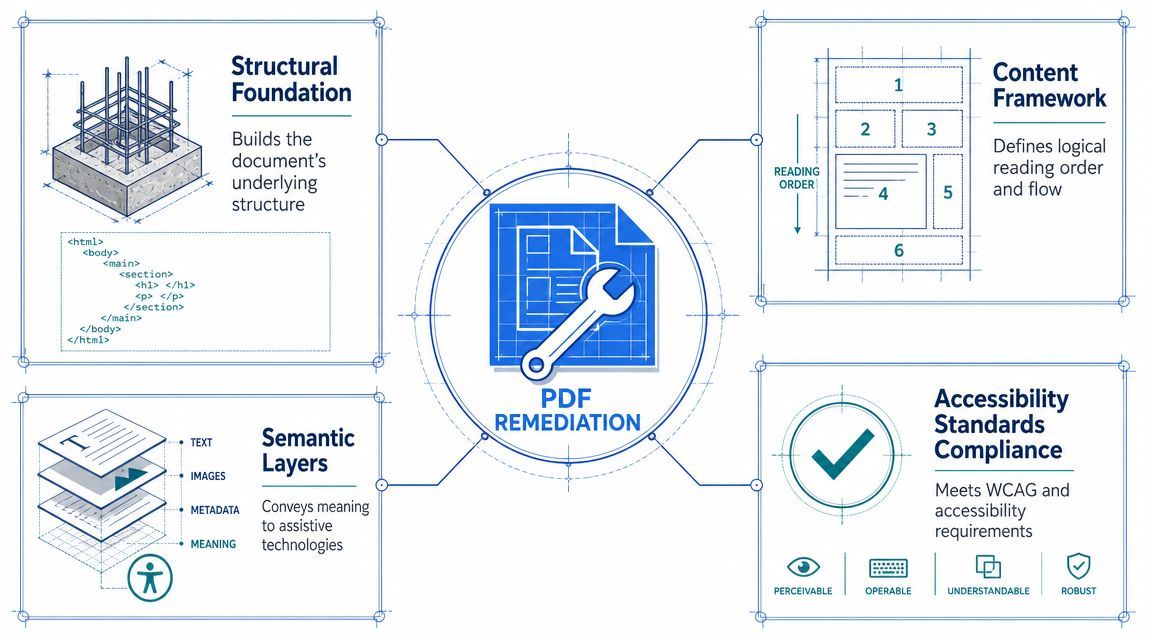
The blueprint analogy
The easiest way to explain a remediated PDF is to compare it to a building blueprint.
A visual-only PDF is like a building with walls, doors, and furniture but no labels, no signage, and no floor plan. A sighted person can infer where things are. A screen reader can't. It needs a structural map.
That structural map is the tag tree. It tells assistive technology which content is a heading, which text belongs in a paragraph, where a list begins and ends, whether a figure needs alternative text, and how table data is related.
Crawford Technologies explains in its overview of PDF remediation and accessibility structure that remediation includes adding a logical tag tree, setting document language, and defining reading order. Without that structure, screen readers can fall back to an arbitrary sequence, which can make the document unusable.
What changes during remediation
The file doesn't just get “cleaned up.” It gets reinterpreted.
A remediator works at the structural layer to make sure the document behaves correctly, not just appears correct. That usually includes:
- Tags for document elements: Headings, paragraphs, lists, figures, tables, and form controls need proper semantic roles.
- Reading order: Multi-column layouts, sidebars, headers, footers, and floating content need to be presented in a sequence that makes sense when read aloud.
- Document language: Screen readers need the correct language setting to pronounce content properly.
- Navigation support: Bookmarks, links, and structure help users move through longer files efficiently.
For teams that are new to this work, a guide to inclusive documents helps connect the PDF-specific mechanics to broader accessibility principles.
A PDF is accessible when its structure communicates the same meaning that a sighted user gets from layout alone.
Why visual review fails
Teams lose time when someone opens the file, sees headings in larger font, sees data arranged in rows, and assumes the PDF is fine.
But larger font doesn't create a heading tag. A table that looks orderly doesn't automatically expose row and column relationships. A scanned page of text isn't readable text until OCR extracts it.
That's why PDF remediation is a structural discipline, not a design tweak.
The Key Elements of an Accessible PDF
When I review remediated files, I'm looking for a small set of fundamentals first. If these are wrong, the rest of the document usually falls apart fast.
Structure comes first
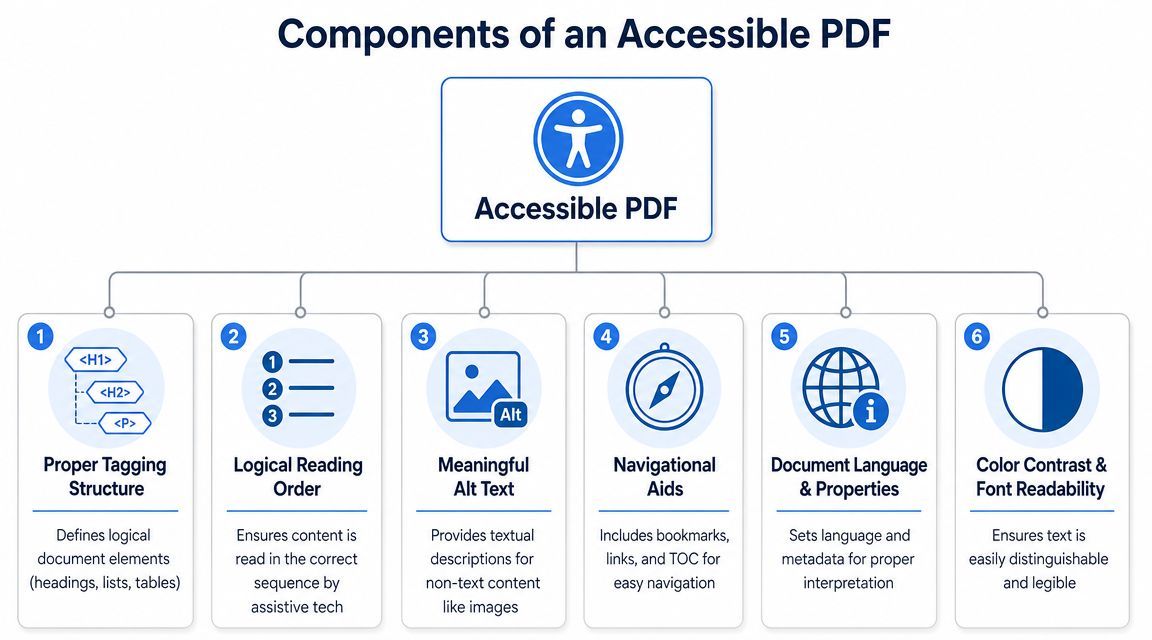
The tag tree is the backbone of the file. It should reflect the document's actual logic, not just its visual styling.
In practice, that means checking whether headings are tagged as headings, paragraphs as paragraphs, lists as lists, and tables as tables. It also means avoiding a flat mess of generic tags that technically exist but don't create meaningful navigation.
If your team needs a stronger grounding in tagged files, this explainer on accessible PDF documents is useful because it focuses on what the structure is supposed to do, not just what menu items to click.
The core checklist
- Logical headings: Headings must reflect hierarchy. Users rely on them to skim and locate information.
- Correct reading order: The sequence has to match how the content should be consumed, especially in multi-column or heavily designed layouts.
- Alternative text for figures: Useful images need meaningful alt text. Decorative images should be treated as decorative.
- Properly tagged lists: A list should announce as a list, with clear item boundaries.
- Document properties and language: The title, language, and other properties help assistive technology interpret the file.
- Usable links and form labels: Links should be descriptive, and form fields need labels users can understand.
Tables are where many PDFs break
Simple tables are manageable. Complex tables are where remediation becomes expert work.
Accessible tables need more than visible grid lines. The structure has to preserve the relationship between headers and data cells so nonvisual users can understand what each value means when navigating cell by cell.
Section 508 training materials in the federal PDF accessibility workflow emphasize repairing document properties, tags, reading and tab order, alternative text, language metadata, and table headers. That's a good reminder that table accessibility is not a separate issue. It sits inside the whole document structure.
What works: Keep tables simple when possible. Split dense visual tables into smaller, clearer ones before export if the source file is still available.
Scanned PDFs need a different starting point
A scanned PDF is often just an image of a page. If there's no real text layer, tagging alone won't save it.
Before accessibility checks can succeed, image-only files need OCR so the text becomes searchable and machine-readable. In actual workflows, that's a go or no-go step. If OCR quality is poor, the rest of the remediation work becomes slower and less reliable because you're repairing structure on top of bad extracted text.
Navigation matters more in long files
For short one-page PDFs, users may tolerate weak navigation. For long reports, handbooks, or policies, they won't.
Bookmarks, heading structure, meaningful links, and predictable reading order turn a long PDF from a wall of content into something users can move through intentionally. That's not an extra. It's part of making the document usable.
The Strategic Choice Remediate Recreate or Re-export
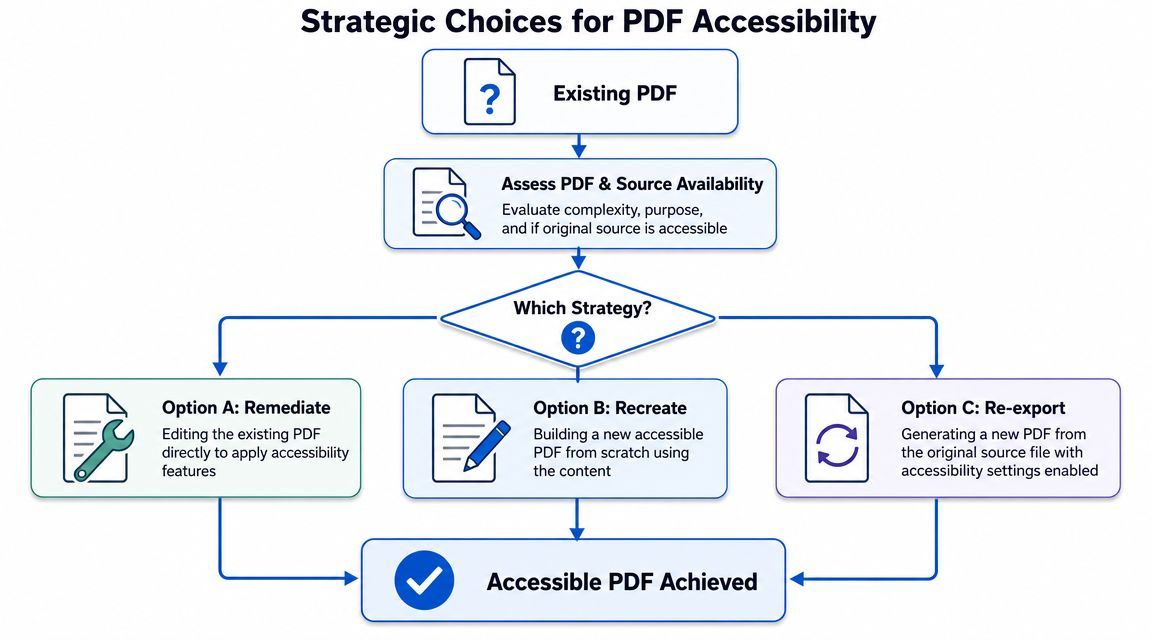
Not every PDF should be remediated.
That sounds obvious, but a lot of teams still default to patching the file they already have, even when the smarter move is to rebuild the content in HTML or return to the source document and export it correctly.
Start with the source, not the PDF
Several university accessibility programs make this point clearly. Resources from UCLA and the University of Arizona advise teams to consider alternatives first, fix the source file before exporting, or convert the content to HTML when that's the better option, as outlined in the University of Arizona's PDF remediation guidance.
That advice lines up with what works in practice. If you can solve the problem upstream, you should.
A short walkthrough on this decision point is helpful here:
When to remediate
Remediate the existing PDF when the file is necessary, still in active use, and the source isn't available or can't be updated quickly. This often applies to archived records, externally provided documents, signed forms, or files tied to a specific distribution format.
This path makes sense when preserving the PDF itself matters.
When to recreate in HTML
HTML is often the better delivery format for content users need to read, search, explore, and use across devices.
That usually includes policy pages, service information, instructions, FAQs, and marketing content. If the document exists mainly to present information rather than preserve a fixed-format artifact, HTML is often easier to maintain and more accessible by default.
Rebuilding a document as HTML can eliminate a lot of remediation effort that would otherwise be spent repairing a format that wasn't the best fit.
When to re-export
If the original Word, InDesign, or source file still exists, fixing accessibility there and exporting properly is usually the most sustainable path.
This is especially true for recurring documents such as reports, statements, templates, handbooks, and campaign assets. Re-exporting from an accessible source creates a repeatable workflow. Direct PDF repair often creates a one-off fix.
A simple decision rule helps:
- Remediate when the PDF itself must stay.
- Recreate when the content belongs on the web.
- Re-export when the source file is available and maintainable.
Tools and Workflows for PDF Remediation
The workflow you choose matters as much as the tool.
Teams usually land in one of three models: fully manual remediation, highly automated remediation, or a hybrid workflow that combines automation, validation, and human review. For large libraries, the hybrid model is the most realistic because it balances throughput with quality control.
The economics of scale
Manual remediation still has a place, especially for complex tables, forms, and files with inconsistent layouts. But at volume, it becomes expensive and slow.
According to the comparison in this overview of PDF remediation tools and workflows, manual remediation can cost roughly $1 to $4 per page and take hours per document, while automated solutions can reduce that to cents per page and minutes per document. That gap is why teams with large repositories don't rely on expert hand-tagging alone.
PDF Remediation Approaches Compared
| Approach | Cost | Speed | Scalability | Best For |
|---|---|---|---|---|
| Manual | Roughly $1 to $4 per page | Hours per document | Low for large repositories | Complex forms, tables, and high-risk files |
| Automated | Cents per page | Minutes per document | High | Large batches of consistent, lower-complexity PDFs |
| Hybrid | Varies by workflow mix | Faster than manual with review built in | Strong for ongoing programs | Enterprises, agencies, universities, and mixed archives |
What teams actually use
A practical stack often includes Adobe Acrobat Pro for direct editing, OCR for scanned files, PAC for validation, and screen reader testing for final verification. Some organizations also use bulk processing or template-based automation where document layouts are consistent.
The biggest mistake is assuming one tool will solve everything. Tools are good at finding and fixing predictable patterns. They're weaker at judging meaning, context, and user experience.
If your team is trying to solve PDF accessibility errors, the useful workflow is usually:
- Triage the file type: Born-digital, scanned, form, report, brochure, or table-heavy document.
- Run OCR if needed: No real text layer means no meaningful remediation yet.
- Apply structural fixes: Tags, reading order, language, alt text, links, and form labels.
- Validate: Use automated checkers to catch technical failures.
- Manually verify: Confirm the file works with assistive technology and makes sense to a user.
Where platform monitoring fits
For organizations managing broad accessibility programs, WebAbility.io can sit alongside document workflows as a platform for ongoing accessibility monitoring, reporting, and governance across digital properties. That's different from direct PDF editing, but it matters because PDF problems often surface inside a larger compliance program rather than as isolated files.
Common Remediation Pitfalls and How to Avoid Them
Most remediation failures aren't caused by lack of effort. They happen because teams stop one step too early.
Trusting auto-tagging too much
Auto-tagging is useful. It speeds up first-pass structure work and can be a major help on consistent documents. But it doesn't understand meaning the way a skilled reviewer does.
A heading might be tagged as body text. A decorative line might become a figure. A sidebar might interrupt the reading order. Teams that accept automated output without review usually end up with files that look remediated but still read badly.
Avoid it: Treat auto-tagging as a draft, not a finished product.
Forgetting reading order
This is one of the fastest ways to make a document miserable for screen reader users.
I've seen polished reports where the screen reader jumps from the title to the footer, then into a right-hand sidebar, then back to the body copy. Every visual clue that helps a sighted user disappears. What remains is a scrambled experience.
Field note: If a document has columns, callouts, pull quotes, or floating images, reading order should be reviewed manually every time.
Writing weak alt text
“Image,” “chart,” or “logo” doesn't help unless the image is purely decorative. Alt text should carry the purpose of the graphic in the context of the document.
If an image conveys information, the description should reflect that information. If it's decorative, it shouldn't become noise in the reading experience.
Avoid it: Write alt text based on what the user needs to know, not what the image merely looks like.
Breaking tables and forms
Complex tables and forms often pass a superficial check while still failing real use. A form field with no meaningful label is technically present but functionally unusable. A table without proper header relationships might announce cell contents with no context.
Avoid it: Test the interaction, not just the presence of elements. Ask whether a user can understand and complete the task.
Skipping screen reader testing
Automated checkers catch a lot, but they don't tell you whether the experience is coherent.
Open the file in a screen reader. Move by headings. Move through tables. Tab through forms. Listen for confusion. The file either works or it doesn't.
Beyond One-Time Fixes Building a Governance Strategy
Teams that treat PDF remediation as a cleanup project usually end up repeating the same work.
The better model is governance. That means controlling how documents are created, exported, tested, published, tracked, and rechecked over time. It also means recognizing that PDFs are part of the broader accessibility system, not an exception to it.
Accessibility quality decays without process
A remediated file can become outdated the next time someone swaps pages, republishes a source document incorrectly, or uploads a scanned replacement without review.
That's why mature workflows include recurring checks. The University of Nevada, Reno describes advanced remediation as an iterative process with repeated checks, reading-order review, and manual verification in its advanced PDF remediation workflow. That's the right mental model. Accessibility isn't one pass.
What governance looks like in practice
- Creation standards: Authors need templates and export rules that preserve accessibility from the source document.
- Intake rules: Teams should decide which PDFs are allowed, which require review, and which content should be published as HTML instead.
- Validation checkpoints: New and updated PDFs need structured review before publication.
- Ownership: Someone has to own document accessibility across content, design, legal, and development.
- Retesting: Important documents should be checked again when they're revised, migrated, or republished.
Build the feedback loop
The strongest programs connect document production with platform monitoring, audit evidence, and issue tracking. That makes it easier to spot repeat failures, train authors, and prove that accessibility work is ongoing rather than reactive.
If your team is building that broader system, this guide to full PDF compliance is a useful reference point because it puts remediation inside the wider lifecycle of accessible document management.
Good PDF remediation fixes today's file. Good governance prevents tomorrow's backlog.
A digital team doesn't need perfection on day one. It needs a repeatable operating model. Prioritize active documents, fix accessibility at the source when possible, reserve specialist remediation for the files that need it, and keep validating over time.
If your organization needs a practical way to manage accessibility beyond one-off document fixes, WebAbility.io provides an end-to-end accessibility platform with monitoring, reporting, governance support, and expert services that can help teams sustain accessible experiences across websites and digital content.
Quick Questions
Tap to ask AI about this article