Mastering the Figure HTML Tag for Semantic Web Design

Sidharth Nayyar

TL;DR: The <figure>HTML tag is your go-to for wrapping self-contained content—like an image, diagram, or code snippet—along with its caption. It tells browsers and screen readers that the content and its description (the <figcaption>) belong together as a single unit. Using figure boosts accessibility, gives search engines better context, and builds a far more meaningful document structure than a generic <div>.
Your Quick Guide to Using the Figure HTML Tag

Ever find yourself wondering about the right way to group an image with its caption in HTML? The <figure> element is the modern, semantic answer to that question. It’s more than just a box; it’s a signal to the browser that a piece of content is a complete, self-contained unit that might be referenced from your main text.
The key idea here is that the content inside a <figure> is related to your article but could be moved to another part of the page—like a sidebar or an appendix—without breaking the flow of the main text. It officially connects the visual or illustrative content to its description.
Why It Matters
Using the <figure> tag properly is a cornerstone of building well-structured, accessible, and SEO-friendly websites. It’s one of those small details that delivers some big wins.
Improved Semantics: It gives clear meaning to your content, identifying it as a distinct, referenced unit. A generic
<div>, on the other hand, tells you nothing about what’s inside.Enhanced Accessibility: Screen readers recognize a
<figure>and its<figcaption>, announcing them together. This provides essential context for users who rely on assistive technology.Better SEO: Search engines understand this structured relationship. Connecting images directly to descriptive text can improve image indexing and even help you qualify for rich snippets.
In essence,
<figure>elevates content from being just an image on a page to a meaningful piece of information with a clear purpose and description.
For a quick overview, here’s a breakdown of what the <figure> tag brings to the table.
Core Concepts of the Figure Tag at a Glance
| Concept | Description | Primary Benefit |
|---|---|---|
| Semantic Container | A tag that groups self-contained content (like images, charts, or code) with its caption. | Gives clear meaning to the content, separating it from generic containers like <div>. |
| Self-Contained Content | The content inside a <figure> should make sense on its own and be referencable from the main text. | Allows content to be moved (e.g., to an appendix) without disrupting the document's flow. |
| Associated Caption | The <figcaption> element provides a visible, programmatically linked description for the figure. | Improves accessibility and provides context for all users and search engines. |
| Accessibility Aid | Screen readers announce the <figure> and its <figcaption> together as a single, related unit. | Ensures users with visual impairments understand the connection between an image and its text. |
This quick table gives you the high-level view, but there’s a lot more to explore.
This guide will walk you through everything from the basic syntax to more advanced applications, making sure you can put this powerful tag to work effectively in your next project. We’ll cover how to group different types of content and unlock its full potential.
So, What Exactly Is the <figure> Tag?
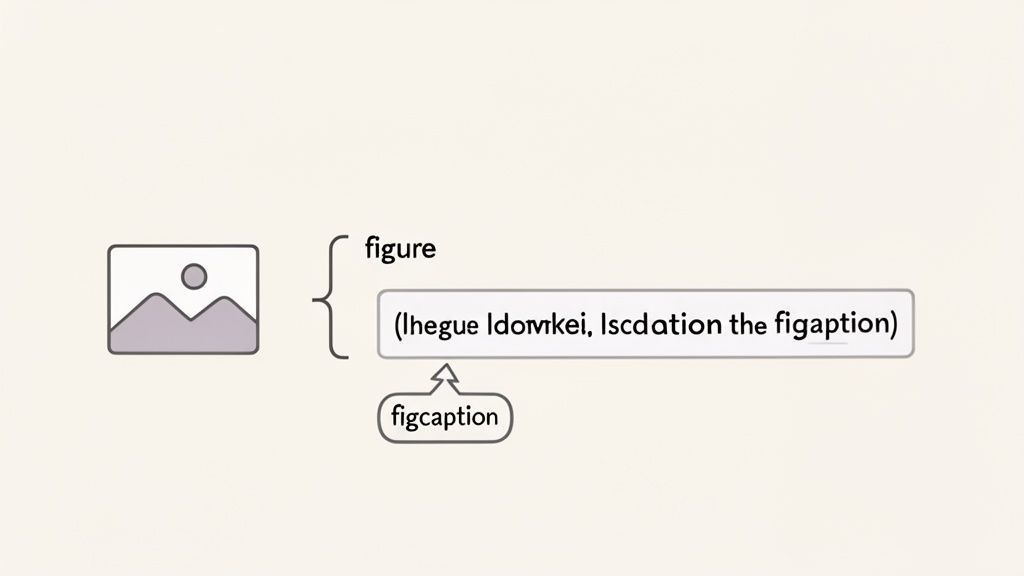
Let's get past the dry, technical definitions. At its heart, the <figure>HTML tag is more than just a box for an image. It’s a semantic tool that tells browsers, screen readers, and search engines that a piece of content and its description belong together as a single, meaningful unit.
Think about a diagram in a science textbook. The picture and the text explaining it are a package deal—you instinctively know they're connected. That’s precisely what <figure> and its partner, <figcaption>, do for web content. They create a clear, programmatic link between the two.
This grouping isn't just for looks; it provides essential context. You're explicitly telling the browser, "Hey, this chunk of content and its caption are a self-contained idea." This is the foundation of a well-structured and accessible webpage.
The Power of Being Self-Contained
That idea of being "self-contained" is the key to understanding when to use <figure>. The content inside a <figure> should relate to the main article, sure, but it should also make sense if you lifted it out and put it somewhere else. Removing it shouldn't break the flow of your main text.
For instance, if your article says, "See Figure 1 for a breakdown," you could theoretically move that entire figure to an appendix at the end. The reader wouldn't get lost because the figure and its caption contain everything needed to be understood on their own.
Think of a
<figure>as a way of saying: "This block of content, along with its description, is a complete thought. It supports the main article but can also stand on its own two feet."
This is completely different from a simple decorative image or an icon that’s baked into the middle of a sentence. Those don't belong in a <figure> tag because they can't be separated from the main text without causing confusion. It all comes down to whether the content is illustrative and referenced, not just presentational.
It’s Not Just for Images
While photos are the most frequent guest inside a <figure>, the element is far more versatile. It's the perfect wrapper for any piece of content that needs a caption to give it the right context.
You can wrap all sorts of things with the <figure> tag:
Illustrations and Diagrams: A no-brainer for complex visuals that need a detailed explanation.
Charts and Graphs: Essential for giving context to your data visualizations.
Code Snippets: Lets you present a block of code with a caption explaining what it does.
Videos and Audio Clips: Great for grouping multimedia with a title or description.
Blockquotes and Poems: Can be used to attribute a quote or provide context for a piece of writing.
Ultimately, using the <figure> tag is about declaring your intent. You're signaling to every person and machine interacting with your site that the content and its caption are a matched set, making your page clearer and more meaningful for everyone.
From <div> Hacks to Semantic Figures
To really get why the <figure> tag is so important, it helps to rewind the clock. Before it came along, we web developers were stuck using a generic <div> to group an image with its caption. It was a common hack.
Visually, it worked just fine. You could throw a class like "image-container" on a <div>, add some CSS, and make the image and text look like a single unit. The problem? It was a purely visual trick. To a browser, search engine, or screen reader, it was just another box on the page. There was no real connection between the image and the text.
This created a huge gap in meaning. Assistive technologies had no idea that a particular paragraph was meant to describe the image next to it. They were just two separate things stuck inside the same container, which wasn't very helpful for accessibility or SEO.
The Semantic Web Revolution
HTML5 changed everything. It wasn't just about adding a few new tags; it was a fundamental shift toward making the web's structure understandable to machines. This is the core idea behind what we now call semantic HTML.
The <figure> element was a key player in this evolution. Interestingly, the idea isn't brand new. The tag we use today, introduced with HTML5 around 2010, has roots in early proposals like the FIG element from HTML 3 drafts in the mid-1990s. A 1995 working draft actually suggested using FIG to solve this exact problem, aiming to help non-graphical browsers and text-to-speech software. You can dig into these early proposals on W3.org to see how forward-thinking this was, especially when you remember that in 2005, a whopping 73.8% of browsers were Internet Explorer, with Firefox at just 22.4%.
By creating a dedicated tag for this purpose, HTML5 finally gave us a standard, meaningful solution. The
<figure>tag isn't just a matter of cleaner code; it’s a vital leap forward.
It makes the relationship between content and its description crystal clear to everyone and everything—from search crawlers indexing your page to a screen reader explaining an illustration. This change reflects the entire industry's move away from ambiguous <div> soup and toward a web built on clear, accessible, and future-proof markup. The <figure> tag is a perfect example of that progress in action.
Practical Ways to Use the Figure Tag
Okay, so we've covered the theory. Now let's get into the practical side of things, where the <figure> tag really starts to shine. Seeing how it works in real-world scenarios is the best way to understand its power. We'll start simple and build from there.
The most common, bread-and-butter use case you'll see everywhere is wrapping a single image and its caption.
A Standard Image and Caption
Think about a blog post with a photograph that needs a bit of context. Instead of just tossing an <img> and a <p> tag inside a generic <div>, you can group them semantically with <figure>. It’s a small change in markup that makes a big difference.

Figure 1: The sun rises over the peaks, casting a warm glow across the valley.
What this does is signal to browsers and assistive technologies that the image and its caption are a single, self-contained unit. The alt text is there for screen readers, describing the image for anyone who can't see it, while the <figcaption> gives everyone that extra layer of context. If you want to dive deeper into captioning, our guide on how to add captions on pictures covers this in more detail.
Explaining a Block of Code
But the <figure> tag isn't just a one-trick pony for images. It’s also incredibly useful for presenting code snippets, especially when you pair it with the <pre> and <code> elements to keep the formatting intact.
This is a fantastic way to introduce a block of code in a tutorial or documentation. The <figcaption> works perfectly as a title or a quick summary of what the code does.
Example of a simple JavaScript function to add two numbers.
function add(a, b) { return a + b; } See how cleanly that packages everything together? The <figure> element groups the code and its description, making the entire block easier for a developer to scan and understand.
Grouping Multiple Related Images
Now, what if you have a few images that all belong together and share one central idea? The <figure> element handles this beautifully. You can pop multiple <img> tags inside a single <figure> and give them all one shared <figcaption>.
This pattern is perfect for things like a small photo gallery, a step-by-step visual guide, or showing off a product from a few different angles.


The three-step user registration process from start to finish.
> This structure is great because it semantically links all three images to that one caption. It's a clean, accessible way to present a visual sequence without needing a separate, repetitive caption for every single image, which creates a much smoother experience for people using screen readers.
How Figures Supercharge Web Accessibility
The <figure> tag is much more than just a neat way to organize your page; it's a game-changer for web accessibility. It creates a solid, machine-readable link between a piece of content and its description. For anyone using assistive technology like a screen reader, this connection is everything.
Imagine a screen reader landing on a <figure> element. It immediately knows that the image, diagram, or code snippet inside is directly related to the <figcaption>. This allows it to announce the caption right along with the content, providing crucial context that would otherwise be completely missed.
This clear-cut relationship is a cornerstone of meeting the Web Content Accessibility Guidelines (WCAG). Specifically, it helps satisfy success criterion 1.1.1 (Non-text Content) by making sure that information presented visually is also available as text.
The Role of ARIA and Screen Readers
Under the hood, the <figure> tag has a built-in ARIA (Accessible Rich Internet Applications) role of figure. This inherent semantic meaning tells assistive technology exactly what it's looking at: a self-contained unit of content that likely has a caption. You don't even have to add it yourself.
While it's possible to use ARIA attributes like aria-labelledby to manually link a figure to a caption located elsewhere on the page, this is rarely necessary. Sticking with the native <figcaption> is almost always the simplest and most robust approach.
The core idea is simple but incredibly powerful: By grouping content with its description,
<figure>ensures no user is left out of the loop. It makes your website more inclusive and easier for everyone to understand.
This kind of semantic structure is what the modern web is all about. With HTML5 being used by 97.3% of all websites, the <figure> tag is a universally supported and reliable tool for embedding accessible content. This is essential for the millions of people with visual impairments, ensuring that descriptive captions and effective alt text are correctly interpreted by their screen readers.
Creating Inclusive User Experiences
Using the <figure> element correctly is a fundamental step toward building a genuinely inclusive website. It's how you make sure your charts, diagrams, and illustrative photos are just as meaningful to visitors who can't see them. This diagram lays out the most common and effective uses for the tag.
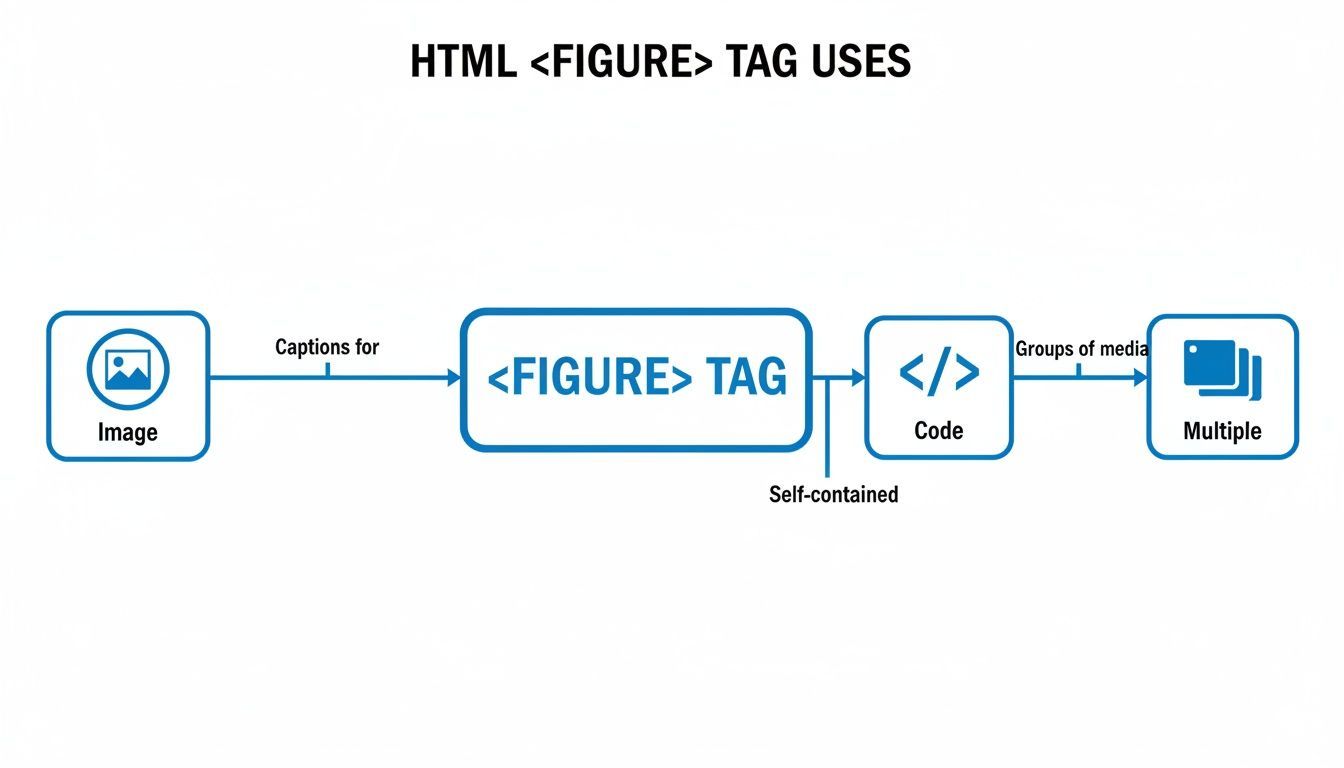
As you can see, the tag is flexible enough to handle everything from a single image to a complex code block or even a whole group of related photos under a single, unifying caption.
Making this small semantic choice has a massive impact on the user experience. If you're looking to go deeper into best practices, I highly recommend reading more about mastering accessibility website design. By embracing simple but powerful tools like <figure>, you move beyond just checking off compliance boxes and start designing with real empathy and universal access at the forefront.
Browser Support and SEO Benefits
Whenever we consider using a new HTML element, two questions immediately pop into our heads: "Will it actually work everywhere?" and "Is this going to help my SEO?" When it comes to the <figure> element, the answer to both is a confident "yes."
Near-Universal Browser Support
Worries about browser compatibility for <figure> are a thing of the past. It's now a completely safe and reliable choice for any modern web project.
Global usage stats show that support is hovering between 98-99% across every major browser. We're talking about full support that goes way back—think Chrome 8.0 and even Internet Explorer 9.0. This means you can use it without a second thought, knowing it will render consistently for virtually every visitor to your site. You can always check the latest browser support statistics on caniuse.com for the nitty-gritty details.
How <figure> Gives Your SEO a Boost
This is where things get interesting. Using <figure> and <figcaption> isn't just about organizing your code; it directly benefits your search engine optimization.
When you pair an image with a <figcaption>, you're creating a powerful semantic link between the visual content and its description. Search engine crawlers love this. Instead of guessing what an image is about, you’re telling them explicitly, "This caption belongs to this image."
This clarity helps search engines index your visuals far more accurately, which can lead to better rankings in image search results. By providing clear context, you’re not just making your content more accessible to users—you're giving search algorithms exactly what they need to understand and value your content.
Proper use of semantic HTML elements like the
figuretag is a foundational aspect of good technical SEO, ensuring search engines accurately interpret your content and improve visibility. To dive deeper into the methods and importance of the science behind technical SEO, it's helpful to see how these small details fit into the bigger picture. In short, a well-structured page is a high-performing page.
Common Questions About the Figure Tag
As more developers and content creators start using the <figure> element, a few questions tend to pop up again and again. Getting these sorted out will help you use the tag correctly and confidently, making sure your content is both meaningful and accessible.
Does Every Image Need a <figure> Tag?
This is probably the number one question people ask. The short answer is a definite no. You don't need to wrap every single image in a <figure>.
Think of <figure> as a special frame reserved for content that is self-contained and directly referenced from your main text. It’s perfect for important illustrations—like diagrams, charts, or key photos—that need a caption to explain what's going on.
If an image is just there for decoration or makes perfect sense without needing a special callout, a simple
<img>tag is usually the right tool for the job. The<figure>element is for content that adds distinct, descriptive value.
This isn't just a matter of preference. Overusing <figure> for purely decorative images can create a clunky experience for people using screen readers, as they'll hear "figure" announced for visuals that don't add any real information.
Can I Use a Figure Without a Figcaption?
From a technical standpoint, yes, the HTML is still valid if you have a <figure> without a <figcaption>. But in practice, it often defeats the purpose of using the tag in the first place. The real power of <figure> comes from its ability to semantically group a piece of content with its description.
If you find yourself adding a <figure> without a caption, take a moment to reconsider. Does this content truly stand alone and need to be packaged this way? If there's no caption, it might be a sign that a standard <img> or another element would be a cleaner, more appropriate choice.
Styling the Figure and Figcaption
Styling is another hot topic. How do you get the <figure> and its caption to look the way you want? The good news is they behave like standard block-level elements, so you can style them with CSS just as you would a <div> or <p>.
Here are a few common styling tricks:
Centering: To center the image and caption, you can apply
text-align: center;to the<figure>element itself.Borders and Backgrounds: Adding borders, padding, or a background color to the
<figure>is a great way to visually frame the content and its caption, making them feel like a single unit.Caption Placement: The
<figcaption>can go either before or after the image or diagram inside the<figure>. Its position in the HTML code dictates where it shows up on the page.Font Styling: You can easily target the
<figcaption>with CSS to adjust its font size, color, text alignment, or anything else to match your design.
Getting the hang of the <figure> tag is all about understanding its semantic role first and worrying about the visuals second. With these common questions cleared up, you’re well on your way to building more meaningful and accessible web pages.
At WebAbility.io, we believe an inclusive web is built on the correct implementation of foundational HTML elements like <figure>. Our end-to-end accessibility platform gives your team the power to create compliant, user-friendly experiences for everyone. Find out how our tools and expert services can help you reach your accessibility goals at https://www.webability.io.
Quick Questions
Tap to ask AI about this article