TL;DR: How to Add a Caption
- On Websites (like WordPress): Use the built-in "Add caption" field that appears when you click an image in the editor. This automatically creates accessible HTML.
- On Social Media (like Instagram/Facebook): The "caption" is the main text you write for your post. Use it to tell a story or give context.
- To Add Text Directly Onto a Picture: Use a tool like Canva for easy graphics or Photoshop for professional control. Always add descriptive alt text when you post the final image.
- Key Difference: A caption is visible to everyone and provides context. Alt text is a hidden description for screen readers and search engines. You need both.
Right, let's get straight to it. If you're looking for the fast answer on how to add a caption to a picture, the real answer is: it depends entirely on where you're putting the image.
If you're working directly on a website, you'll be using HTML's <figcaption> tag or a built-in caption field in your Content Management System (CMS). If you're on social media, the "caption" is simply the main text that goes along with your post.
A Quick Guide to Adding Picture Captions
One of the biggest hang-ups people have is mixing up the visible caption with the hidden alt text. Getting this right is a game-changer for both your user's experience and making your content accessible to everyone.
A caption gives context or tells a story to everyone who sees the image. Alt text, however, is a lifeline for those who can't see the image—it describes the visual for screen readers and also helps search engines understand what's there.
I've found it helps to think of it like this:
- A caption is part of the story you're telling your audience out loud.
- Alt text is the behind-the-scenes description that ensures the story still makes sense, even if the picture doesn't load or can't be seen.
To clear this up once and for all, here’s a simple table breaking down the key differences.
Caption vs Alt Text Quick Reference
| Attribute | Visible Caption | Alt Text (Alternative Text) |
|---|---|---|
| Visibility | Always visible to all users on the page. | Hidden by default; visible only if the image fails to load or when read by a screen reader. |
| Purpose | Provides context, credit, or a narrative related to the image. It's commentary for the visual. | Describes the image's content and function for visually impaired users and search engines. |
| Best For | Artist credits, dates, locations, or explaining why the image is relevant to the content. | Describing what is in the image for accessibility (WCAG compliance) and SEO. |
Think of them as two different tools for two different jobs—both are essential for a complete, professional, and accessible piece of content.
This guide will give you the core actions you need to take. After this, we’ll dive deeper into the why and the specific how-to steps for each platform.
Why Image Captions Are More Than Just Text

Before we jump into the "how-to," let's talk about the "why." It's easy to see captions as just another box to check, but they're so much more than a simple line of text under a picture. A well-crafted caption turns a static image into a powerful tool that significantly boosts user engagement, accessibility, and even your SEO.
Think about how people consume content. A great caption can literally stop the scroll, giving a reader crucial context or a spark of personality that makes your entire article stick. It’s the difference between a picture being just decoration and being an integral part of your story.
From an accessibility standpoint, captions and alt text work together to build a more inclusive web for people using screen readers. You can dive deeper into the technical definition of a caption in our glossary if you're curious.
This push for more accessible content isn't just a good practice; it's a massive, growing market.
The global captioning market is currently valued at USD 2.5 billion and is expected to more than double by 2033. This growth is fueled by the rising demand for assistive technologies for millions of users worldwide. You can explore more on this market growth to see where things are headed.
How to Add Captions on Websites and Blogs
If you're running a website or a blog, getting your image captions right is a small detail that makes a big difference. It's not just about looks; it directly impacts user experience and even your SEO. How you do it, though, really depends on the platform you're using.
For those who don't mind getting their hands dirty with a little code, the gold standard is using semantic HTML. This means wrapping your image and its caption in <figure> and <figcaption> tags, respectively.
This simple bit of code signals to search engines and screen readers that the text is explicitly connected to the image. It's a huge step up for accessibility compared to just dropping the caption in a standard paragraph (<p>) tag underneath.
Using a Content Management System
Thankfully, you don't always have to mess with code. Most modern content management systems (CMS) have this functionality built right in. Platforms like WordPress, Squarespace, and Wix make it incredibly straightforward.
In WordPress, for example, it's as simple as clicking on an image you've added. A dedicated field for your caption appears immediately below it.
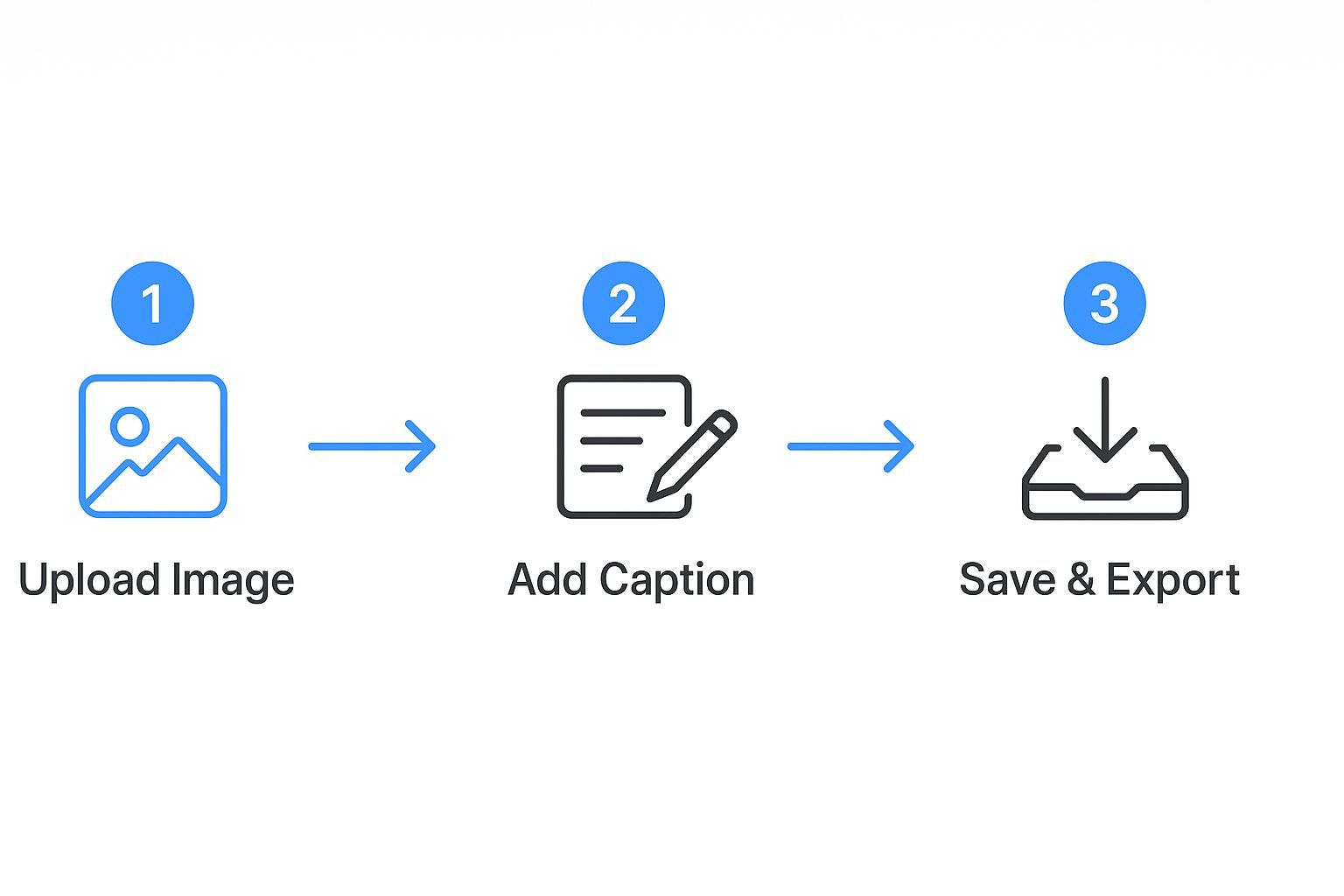
As you can see, the interface is completely intuitive. You just type what you want to say, and the platform handles all the formatting and HTML in the background. It's designed to be quick and easy.
This simple workflow is the standard across most user-friendly CMS platforms. If you're looking for something more custom, like laying text directly on top of your visuals, there are several advanced techniques for placing text over images using HTML you can explore.
Getting Captions Right on Social Media
When it comes to social media, your caption can make or break your post. It’s where the story happens. Think about it—the caption is your direct line to your audience, turning a passive scroll into an active engagement. The details really matter here.
Instagram and Facebook
On visual-heavy platforms like Instagram, readability is everything. No one wants to read a giant wall of text. Use line breaks to add some breathing room and make your longer thoughts easier to digest.
A classic debate is where to put your hashtags—in the main caption or the first comment? Honestly, both work for discoverability. I personally prefer putting them in the first comment; it keeps the caption looking clean and focused on the message.
On Facebook, you have a bit more flexibility. One of its best features is the ability to go back and edit a photo’s description after it's already live. So, if you spot a typo or think of a better way to phrase something, it’s a quick fix.
LinkedIn and X (Twitter)
For more professional networks like LinkedIn or X, there’s a crucial distinction to understand: the difference between your post’s visible text (the caption) and the dedicated alt text field.
Your caption is for storytelling and engaging your audience. The alt text is purely for accessibility, describing the image for people using screen readers. Don't skip it—it’s essential for creating inclusive content.
This isn't just a niche concern. The demand for accessible, well-described content is skyrocketing, with the captioning market projected to reach $356.1 million by 2026. If you're curious about the numbers, you can learn more about captioning market trends and see just how big this is becoming.
2. Tools for Adding Text Directly Onto an Image
There are times when you don't just want a caption below a photo; you need the text to be part of the image itself. Think social media graphics, quote cards, infographics, or even a good old-fashioned meme. This is what we call adding text directly to images, where the words are "burned" into the file.
When you need to get this done, the right tool makes all the difference.
For Quick, Professional-Looking Graphics
For most people, most of the time, Canva is the answer. It’s incredibly user-friendly with a drag-and-drop interface that feels intuitive right from the start. You get access to a massive library of templates, fonts, and stock photos, letting you create something that looks polished in just a few minutes. It's my go-to for social media posts and blog headers.
For Ultimate Creative Control
If you’re a designer or need pixel-perfect precision, nothing beats Adobe Photoshop. It’s the undisputed industry standard for a reason. You have complete control over every single detail—layers, custom fonts, advanced blending effects, and precise typography. The learning curve is steeper, for sure, but the power you get is unmatched for professional work.
For On-the-Go Edits
What if you're not at your desk? Mobile apps are surprisingly powerful these days. I’ve had great luck with apps like Phonto (available for both iOS and Android). They're perfect for quickly adding text to a photo you just snapped, letting you create and post content directly from your phone.
A Quick But Crucial Accessibility Note:
When you burn text into a graphic, that text becomes just another part of the picture. To a screen reader, it’s invisible. This creates what's known as an image of text, which presents a major barrier for visually impaired users.
Always remember to write descriptive alt text for the image when you post it online. This ensures that the message you embedded in the visual is still accessible to everyone.
Common Questions About Image Captions
Got a few lingering questions about image captions? You're not alone. Let's clear up some of the most common points of confusion I see all the time.
What Is The Difference Between Captions and Alt Text?
This is a big one. People often mix up captions and alt text, but they have completely different jobs.
Think of it this way: a caption is for everyone. It's the text you see right below an image that adds a bit of story, context, or credit. It's part of the visible content.
Alt text, on the other hand, works behind the scenes. It’s a hidden description embedded in the HTML, specifically for screen readers and search engines. For a deeper dive into this essential accessibility feature, check out our guide on what is alt text.
How Long Should a Caption Be?
Keep it short and sweet. The sweet spot is usually one to two short sentences.
Your caption should add value quickly without turning into a whole paragraph. If you find yourself writing a novel, that information probably belongs in the main body of your article.
A great caption enhances the reader's understanding without overwhelming them. Think of it as a helpful label, not a full explanation.
Can You Add Captions in Emails?
Absolutely, but you have to be smart about it. Email clients can be notoriously finicky.
The most bulletproof way is to wrap your image and its caption inside a basic HTML table. This helps keep everything aligned across different email platforms like Outlook and Gmail. Even more crucial, always include alt text on your image. Many people have images blocked by default, and that alt text is the only thing that will tell them what they're missing.
Ensuring your website's images are accessible isn't just about compliance—it's about creating a better experience for every single visitor. WebAbility.io offers a complete platform to help you achieve and maintain accessibility, minimizing legal risks along the way. Find out more at https://www.webability.io.