Digital reading isn’t a niche issue. It sits at the intersection of education, accessibility, compliance, and revenue. The disability economy represents $13T, and that alone should change how web teams think about reading access. When people can’t read your content comfortably, they don’t convert, they don’t complete tasks, and they don’t stay.
Your Guide to a More Accessible Web
TLDR
- Assistive technologies for reading help people access written content through audio, visual adjustment, magnification, and document conversion.
- They matter for people with dyslexia, low vision, print disabilities, cognitive differences, and anyone who benefits from flexible reading options.
- They also matter for web teams because accessible reading experiences support WCAG, improve usability, and open access to a large market.
- A strong approach combines clean front-end code, accessible documents, and scalable tools that let users personalize their experience.
- If your team needs a plain-English primer on the bigger business case, Baslon Digital's accessibility guide is a useful companion read.
Reading access is bigger than screen readers alone. It includes text-to-speech, OCR for scanned documents, adjustable fonts, spacing controls, contrast changes, reading guides, and layouts that don’t fight the user. For some people, these tools are essential. For others, they make a long page easier to finish.
A useful market signal comes from the assistive technology space itself. Vision and speech aids accounted for 16% of the total assistive technology market in 2016 and are projected to be 15% by 2025, while overall AT adoption in India was 19.2% in 2019 according to Market.us assistive technology statistics. That combination tells web teams two things. Demand is steady, and access still isn’t evenly distributed.
What this means for developers
If your site publishes articles, product pages, forms, reports, PDFs, learning materials, or support documentation, you already serve readers who use assistive technologies for reading. Some arrive with their own tools, such as NVDA, VoiceOver, ZoomText, or reading pens. Others rely on built-in browser settings or on-site controls.
Practical rule: Build pages so native assistive tech works first, then add user controls that make reading easier without changing the meaning or structure of the content.
That’s where platform thinking helps. Teams often need a central place to monitor issues, review compliance progress, and connect accessibility work to high-value pages like product detail pages, support hubs, pricing pages, and lead forms. Accessibility stops being a side task when it’s tied to completion rates and content reach.
A Practical Breakdown of Key Reading Aids
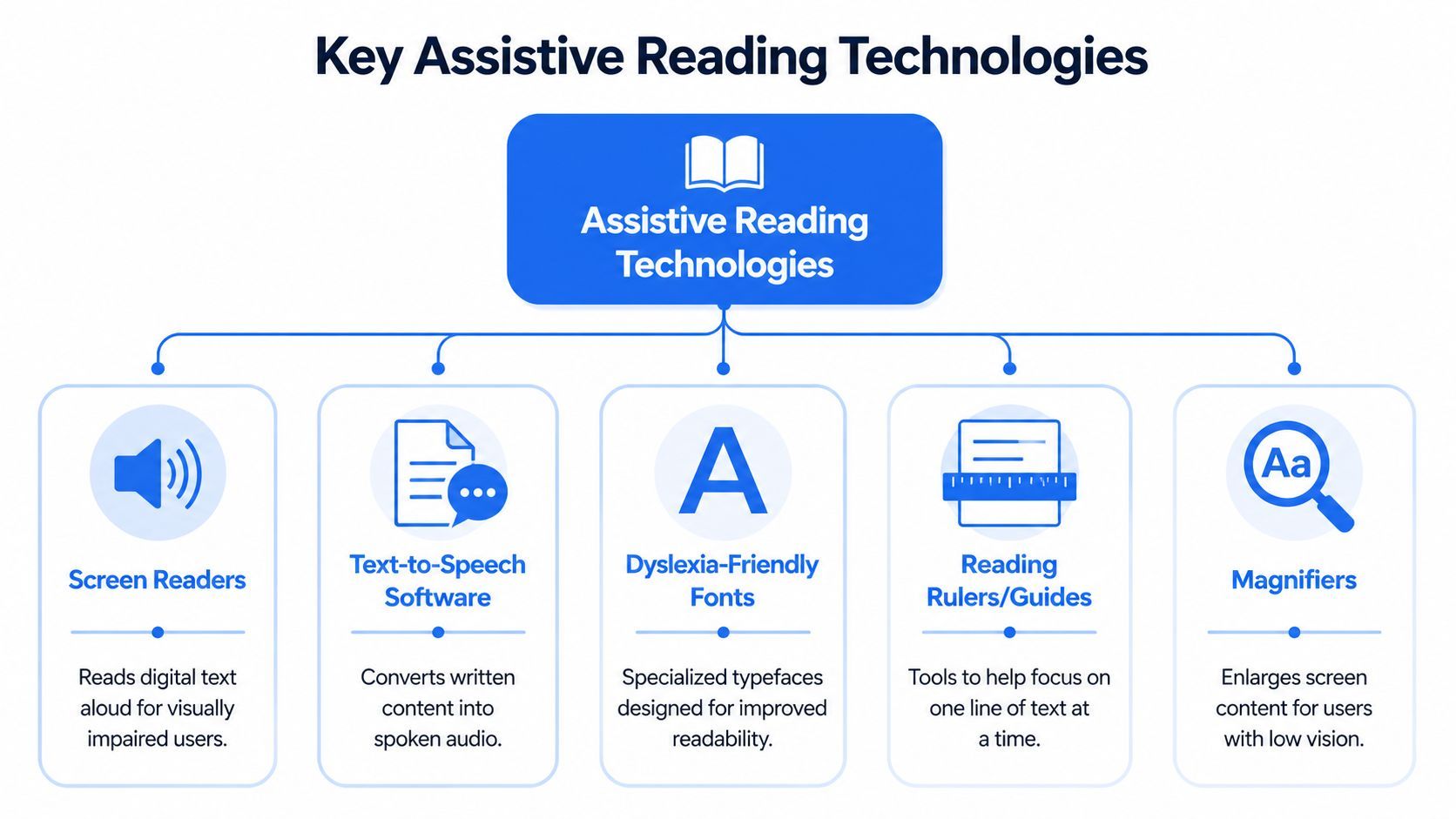
Some assistive reading tools are like glasses for the web. Others are more like a live narrator, a highlighter, or a scanner that turns a photo into readable text. Web teams don’t need to master every product. They do need to understand how these tools interact with headings, buttons, links, form labels, and documents.
Screen readers
A screen reader is a software narrator for digital content. It reads page text aloud, announces headings and links, and tells users what kind of control they’re on. If your HTML is messy, the narration becomes confusing fast.
People who are blind use screen readers heavily, but they’re not the only audience. Some users with low vision, fatigue, or reading-related disabilities also listen to content rather than read line by line. For a web team, this means page structure matters as much as page design.
A screen reader experience depends on basics like:
- Heading order: Use real heading tags so users can move through the page in a sensible outline.
- Button clarity: Name controls by what they do, not by vague labels.
- Alt text quality: Describe images that carry meaning.
- Form labels: Connect prompts and inputs so the tool can announce them correctly.
Text to speech and why it matters
Text-to-speech, or TTS, converts written words into spoken audio. It’s different from a full screen reader because users may still look at the text while listening. That combination matters for many struggling readers.
A controlled study found that reading comprehension scores were significantly higher when participants used TTS than when they read without TTS, with p<0.05 in the ATIA study on TTS and comprehension. For web teams, that’s one of the clearest signals that reading support tools can improve understanding, not just convenience.
If your team wants a straightforward primer on the mechanics behind these systems, text to speech technology explained offers a readable overview.
When users can listen and read at the same time, decoding becomes less of a bottleneck.
That matters on pages with dense instructions, long policies, onboarding flows, and educational material. It also affects conversion. A user who understands the page is more likely to finish the task.
OCR for scanned and image-based text
Optical Character Recognition, or OCR, solves a common problem. A PDF may look readable to a sighted person and still be useless to assistive tools because the text is really just an image.
OCR converts those images into machine-readable text. Once that happens, TTS tools can read the content aloud, and users can search, select, and move through the text. This is especially important for schools, healthcare portals, government forms, and archived resources.
Common web examples include:
- Scanned PDFs: Old reports, menus, worksheets, and application packets
- Image-based flyers: Event announcements uploaded as JPGs or PNGs
- Photo uploads: Mobile snapshots of printed handouts or receipts
Magnification and visual customization
Not every reader wants audio. Some need a cleaner visual presentation. Magnifiers enlarge content. Reading rulers help users focus on one line at a time. Dyslexia-friendly fonts, line spacing changes, and color adjustments can reduce visual strain.
These features help users with low vision, dyslexia, migraines, concentration challenges, and general reading fatigue. They also help when the page design is busy, text is tightly packed, or contrast is poor.
Here’s a quick way to think about the major categories:
| Tool | What it does | What your site must do |
|---|---|---|
| Screen reader | Announces structure and content aloud | Use semantic HTML and proper labels |
| TTS | Reads visible text while users follow along | Keep text selectable and well-structured |
| OCR | Converts image text into readable text | Avoid image-only documents where possible |
| Magnifier | Enlarges content | Support zoom and reflow without breakage |
| Visual customization | Adjusts fonts, spacing, and contrast | Don’t block user styling or fixed layouts |
For teams comparing broader tooling options, this guide to essential assistive technology types is a practical reference.
The Legal and Business Imperative for Accessibility
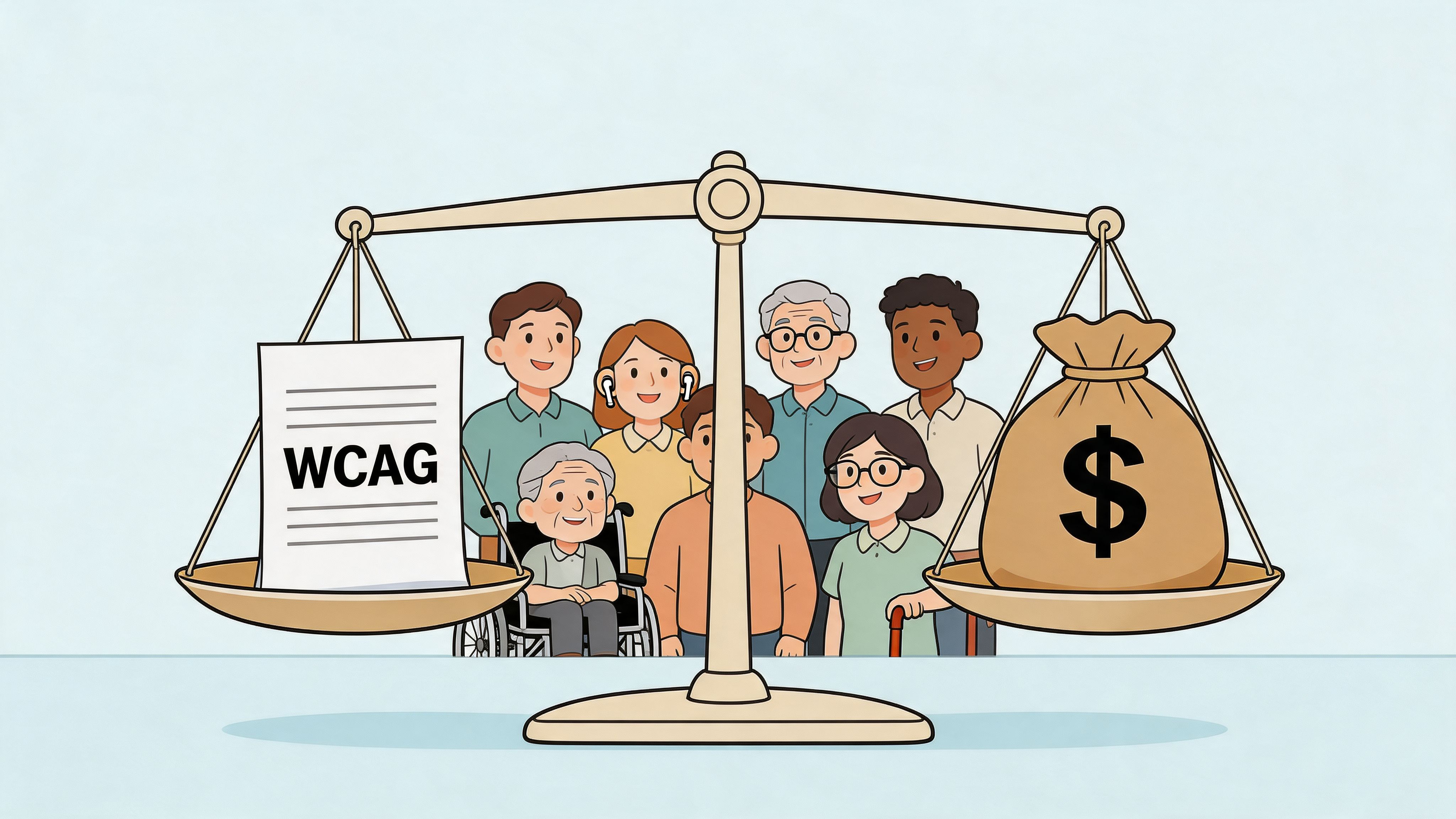
Accessibility work often gets framed as a compliance checklist. That’s too small. For most organizations, the primary question is whether customers, students, patients, and citizens can complete important reading tasks without friction.
Why legal standards matter to reading access
When developers hear ADA, Section 508, AODA, or EN 301 549, it can sound abstract. In practice, these standards show up in very ordinary places. Can someone read the account setup instructions? Can they understand a product comparison table? Can they use a support PDF without needing someone else to interpret it?
A lot of reading barriers live inside documents, not just web pages. OCR is a major example. OCR can achieve 95% to 99% accuracy on clear documents, which makes it a key part of turning scanned PDFs and image-based files into content that works with TTS and supports compliance needs, as described in Recite Me’s overview of assistive technology for reading.
That single detail matters more than many teams realize. A site can have a polished homepage and still fail users if the downloadable forms, reports, or brochures are unreadable.
Compliance and conversion work together
Teams sometimes separate accessibility from growth. Users don’t. If a page is easier to read, it’s usually easier to trust and easier to act on. Clear structure improves scanability. Better labels reduce hesitation. Readable text lowers abandonment.
A reading-accessible site also supports stronger internal linking strategy. Important commercial and informational pages become easier to access when heading structure is clean and link text is descriptive. That helps users using assistive tech, and it also helps visitors who skim quickly or arrive with limited context.
Business lens: The same page improvements that support assistive technologies for reading also tend to support clearer journeys to pricing, contact, support, and product pages.
This walkthrough is worth watching if your team wants a more visual view of digital accessibility in practice.
What web teams should treat as non-negotiable
A simple rule helps here. If the page can’t be read, it can’t convert. That includes body text, headings, error messages, tables, and attached files.
Use this baseline for reading-heavy content:
- Readable page structure: Proper headings, lists, and landmarks
- Accessible documents: Tagged PDFs where possible, OCR when needed
- Keyboard support: People must reach and use controls without a mouse
- Flexible presentation: Zoom, spacing, and contrast changes shouldn’t break the layout
- Clear content design: Short paragraphs, meaningful links, and plain language
A Practical Implementation Workflow for Web Teams
Reading barriers usually enter a site through everyday decisions. A heading is styled with a div instead of marked up as a heading. A button says “Learn more” with no context. A scanned PDF is posted as if it were readable text. Each choice seems small on its own. Together, they create a site that looks polished in a design review but breaks down for people who rely on reading aids.
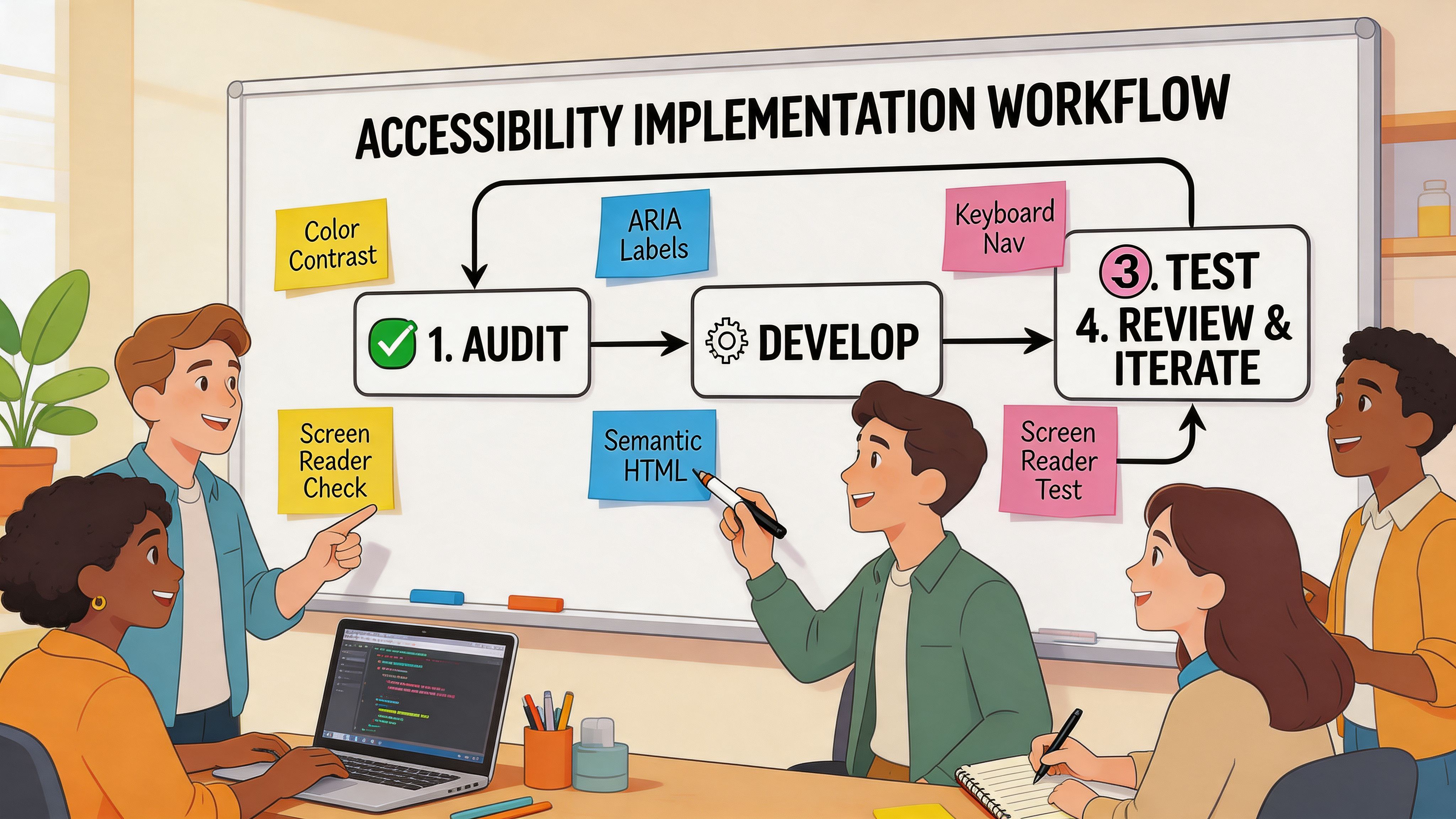
A practical workflow helps teams catch those issues early and fix them in a way that scales across templates, content types, and publishing teams. The goal is larger than passing a single audit. It is to build a repeatable system that supports assistive reading technologies, reduces legal risk, and makes more of your site usable to more of the market.
Start with the content layer
Reading accessibility starts before a developer opens a code editor. Content strategists shape sentence length, document type, heading order, and link wording. Designers set the reading conditions, including line length, spacing, contrast, and typographic hierarchy. Developers then preserve that meaning in the interface.
A good first review focuses on pages where poor reading support creates direct business friction:
- High-intent pages such as pricing, product detail, checkout, admissions, or service descriptions
- Support content such as help centers, FAQs, onboarding guides, and policy pages
- Document-heavy areas where PDFs, charts, forms, or reports contain information people must understand to act
Typography choices have a long shelf life because they often become tokens, components, and CMS defaults. Before your team locks those decisions, review top choices for readable fonts and test them in real templates, not just mockups.
Build the code so tools can do their job
Assistive reading tools depend on structure the same way GPS depends on roads. If the map is broken, the tool cannot guide the user well.
That is why semantic HTML matters so much. A heading that only looks like a heading does not give a screen reader, reading ruler, or text extraction tool the information it needs. A clickable span may respond to a mouse, but it does not behave like a button in the accessibility tree. Front-end code has to carry the page’s meaning, not just its appearance.
Use this implementation checklist as a shared standard:
- Preserve structure: Use real headings, lists, blockquotes, tables, and landmarks.
- Keep text as text: Avoid placing important copy inside images when HTML text will work.
- Support user adjustments: Text resizing, browser zoom, spacing changes, and contrast changes should not break layout or hide content.
- Handle documents carefully: Replace image-only files, add OCR where needed, and publish accessible formats whenever possible.
- Name interactions clearly: Buttons, links, and form fields should state their purpose in plain language.
Add a scalable support layer
Manual fixes matter, but they are not enough for larger teams. Once multiple departments publish content across many pages or sites, accessibility work needs ownership, monitoring, and a way to track remediation over time.
That is where platform support becomes useful in a practical sense. WebAbility.io offers an AI-enhanced accessibility widget with 40+ features, along with dashboard-based monitoring, scanning, compliance scoring, and reporting for multi-site environments. For a web team, that can mean faster deployment of reading aids such as text-to-speech, dyslexia-friendly font options, text scaling, and contrast controls, while keeping broader accessibility work visible in one place.
The important point is sequence. Platform tools should reinforce good content standards and sound front-end implementation. They are not a substitute for semantic code or clear editorial rules. They help teams apply accessibility across a growing web estate in a consistent, auditable way.
That combination matters for compliance and growth. A site that works with assistive reading technologies is easier to read, easier to complete tasks on, and easier to maintain across redesigns and content updates. For teams building an accessibility strategy, the practical workflow is simple: fix the source content, preserve meaning in code, then add a platform layer that supports governance at scale.
How to Test Your Site with Assistive Reading Tools
You don’t need a specialized lab to catch the biggest reading barriers. A laptop, a browser, a keyboard, and a little patience will reveal a lot. The key is to test like a user who can’t rely on vision, precise mouse movement, or ideal reading conditions.
Try the keyboard-only pass
Put the mouse away and start at the top of a page. Press Tab. Keep going. Watch where focus lands and ask simple questions.
Can you reach the main navigation, search, filters, forms, PDF links, and CTA buttons? Can you tell where you are? If a skip link appears, does it work?
This test is especially useful on templates with sticky headers, dropdown menus, accordions, and popups. Reading tools often depend on the same predictable structure that keyboard users need.
Listen to the page
Install a free screen reader such as NVDA on Windows, or use VoiceOver on Apple devices. Then listen to the page in chunks. Jump by headings. Pull up a links list. Move through form fields.
What you’re checking isn’t polish. You’re checking whether the page communicates its structure. If the screen reader announces five vague links in a row, or if a heading order feels chaotic, the reading experience is already breaking down.
For teams tracking changes in this area, this article on the future of screen reader software gives helpful context on how these tools continue to shape web expectations.
If a page only makes sense when you can see the layout, it’s not ready.
Inspect the text itself
Now switch perspective. Zoom in. Increase browser text size. Turn on reader mode if your browser supports it. Open a downloadable PDF and see whether you can select the text. If you can’t, it may be image-based and inaccessible to many reading tools.
Look for common failures:
- Tiny text blocks: Hard to read even before magnification
- Low contrast passages: Often missed in long articles and footnotes
- Crowded layouts: Sidebars, banners, and popups that interrupt reading flow
- Image-only documents: They look fine visually but don’t expose readable text
- Unclear link text: “Click here” tells users very little out of context
Use automation for coverage
Manual testing catches lived experience. Automated scanning catches patterns across many pages. Together, they’re much more useful than either method alone.
A practical workflow is to manually review your most important templates, then run a site-wide scan to flag repeat issues in navigation, forms, headings, color contrast, and documents. That gives your team a baseline, helps prioritize fixes, and creates a cleaner handoff between content, design, development, and QA.
Your Accessibility Adoption Checklist
A good accessibility program doesn’t begin with perfection. It begins with consistent habits, clear ownership, and a short list of actions the team can repeat.
Use this list with your dev, design, and content teams
- Audit key journeys first: Review the pages that matter most to reading and conversion, including landing pages, product pages, help content, forms, and downloadable files.
- Fix structure before styling: Use real headings, lists, labels, and buttons so assistive technologies for reading can interpret the page correctly.
- Review typography choices: Check font size, spacing, line length, contrast, and zoom behavior on both desktop and mobile.
- Clean up documents: Replace image-based PDFs where possible, and apply OCR when documents must stay in scanned format.
- Add user controls thoughtfully: Support text resizing, contrast changes, and read-aloud options without disrupting core content or navigation.
- Test with real tools: Run keyboard checks, screen reader checks, zoom checks, and document checks on high-value templates.
- Track against standards: Use a reference such as this wcag aaa checklist to organize requirements and conversations across teams.
- Monitor over time: Accessibility changes as content changes. Recheck templates, publishing workflows, and new components regularly.
Keep it operational: Treat accessibility like performance or security. Assign owners, review changes, and make it part of release quality.
Frequently Asked Questions
Are accessibility widgets enough for full compliance
Widgets can support reading by adding controls such as text resizing, contrast modes, dyslexia-friendly fonts, and text-to-speech. They do not replace the foundations assistive reading tools rely on, including semantic HTML, clear labels, accessible documents, logical focus order, and keyboard support.
A good way to explain this to a web team is to compare it to captions on a video player. Captions help, but they cannot fix poor audio. In the same way, user-facing controls improve access, while the site still needs clean structure underneath.
What’s the best place for a small team to start
Start where reading quality affects understanding and conversion. For many teams, that means navigation, product or service pages, forms, help content, and PDF downloads.
Fix structure first. Then test those pages with a keyboard and screen reader so your team can see where reading breaks down in real use.
Do assistive technologies for reading only help people with disabilities
No. They serve disabled users and also help people in common reading situations. A visitor on a small screen may need magnification. A person in a noisy place may prefer text-to-speech. Someone reading a long policy page may understand it better with larger spacing, stronger contrast, or fewer visual distractions.
That wider benefit matters for business. Clearer reading support can reduce drop-off, improve task completion, and make content usable for a broader audience without creating separate experiences.
How should agencies talk about accessibility to clients
Start with outcomes clients already measure. Reading access affects whether people can understand an offer, complete a form, compare options, and trust what they see on the page.
Then connect that to delivery. Accessibility is not a one-time design choice. It is an operating practice that combines content standards, design decisions, code patterns, testing, and monitoring across the site.
If your team wants a practical way to support assistive technologies for reading while managing broader compliance work, explore WebAbility.io. It gives agencies, enterprises, education teams, and public sector organizations a way to combine user-facing reading tools with ongoing monitoring, scanning, reporting, and implementation support.