Assistive Technology Testing: WCAG Compliance Guide

Sidharth Nayyar
Your team has probably reached the same point many teams do. The scanner runs in CI, a few issues get fixed, the dashboard looks cleaner, and yet nobody can answer a simple question with confidence: can a real person using a screen reader, keyboard navigation, voice control, or switch access complete the core tasks on this site?
That's where assistive technology testing changes the conversation. It moves accessibility work from abstract compliance into observed behavior. You stop asking whether the code looks accessible and start checking whether the experience works.
Your Guide to Effective Assistive Technology Testing
TL;DR
- Assistive technology testing verifies whether real users can complete important tasks with tools like JAWS, NVDA, VoiceOver, magnification, voice input, and keyboard-only navigation.
- Automation belongs in the workflow, but it doesn't replace manual validation or user testing.
- Teams get the best results when they test core journeys early, define clear acceptance criteria, and treat AT coverage as part of release readiness.
- Accessibility improvements often strengthen UX, reduce friction in forms and navigation, and support stronger conversion paths to key pages.
- A hybrid process works best: automated scans in CI/CD, structured manual checks on components and flows, and periodic testing with people who use assistive tech.
Many teams start with the wrong assumption. They bundle everything under “accessibility testing” and then spread effort too thin. Emerging 2024 data from .gov and academic sources shows that 40% of public sector projects conflate AT testing with user testing, leading to inefficient resource allocation according to the University of Michigan guidance on testing with assistive technology. That confusion shows up everywhere: teams buy tools, run audits, and still miss the exact points where users get blocked.
AT testing is more practical than people think. You don't need to simulate every disability and every device combination. You need to validate the journeys that matter most: sign-in, product discovery, pricing, lead forms, checkout, support, account management, and any page you want users to reach consistently.
That's also why this work matters for CRO. If keyboard users can't reach a CTA, if focus disappears inside a modal, or if a validation error isn't announced, users drop. Accessibility fixes often clean up the same friction points that hurt completion rates for everyone.
A useful starting point is getting your team aligned on what assistive technology includes. WebAbility.io's assistive technology guide is a solid internal reference for that shared vocabulary.
Practical rule: If a page is commercially important, legally important, or operationally important, it belongs in your assistive technology testing scope.
An E-E-A-T approach matters here. Experience means testing real tasks in realistic environments. Expertise means knowing which failures need human judgment. Authoritativeness comes from a repeatable process your team can defend. Trust comes from documenting what was tested, with which tools, and what still needs remediation.
How to Plan and Scope Your AT Testing
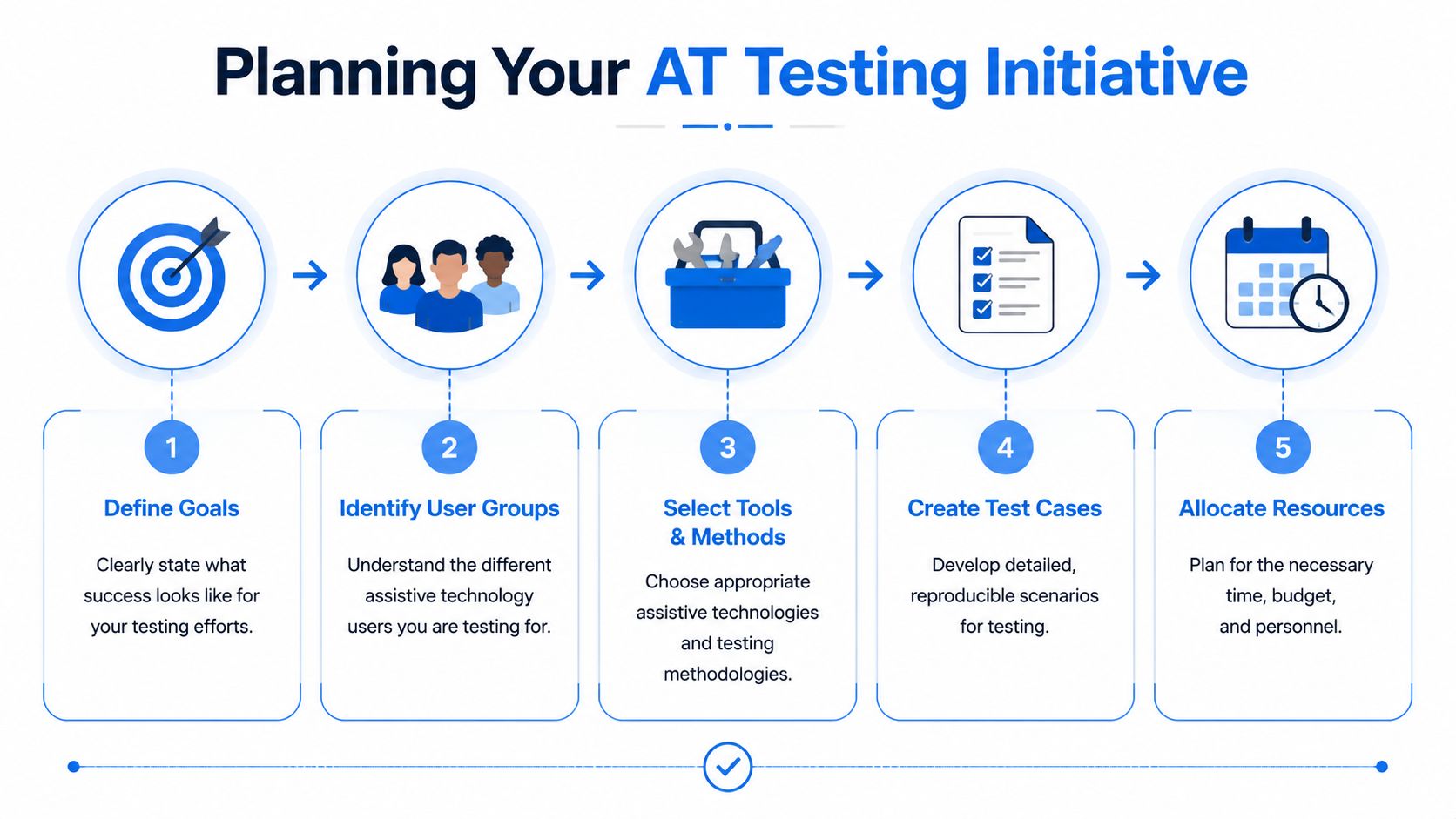
The fastest way to waste time is to test everything equally. AT testing works when the scope is tied to user goals and product risk.
Start with critical journeys
Pick the flows where failure has a clear business or service impact. This typically means some mix of:
- Acquisition paths like homepage to product page to demo request
- Conversion paths such as plan comparison, cart, checkout, or quote request
- Account tasks including sign-up, sign-in, password reset, profile updates, and billing
- Support tasks like contact forms, live chat entry points, knowledge base search, and ticket submission
This creates a clean connection between accessibility and business outcomes. It also helps with internal linking because you can prioritize pages that should receive and retain user attention, not just pages that happen to be easy to test.
Define success before anybody opens a screen reader
Teams need a written definition of done. Without it, every test session turns into opinion.
Use acceptance criteria like these:
- Keyboard completion users can reach every interactive control in sequence, operate it, and exit overlays without getting trapped
- Name, role, state support components expose the right information to assistive tech when expanded, collapsed, selected, invalid, or disabled
- Error recovery forms identify errors accessibly and let users correct them without losing context
- Visible focus the focused element remains perceivable during navigation, including in sticky headers, drawers, and modals
- Authentication alternatives login or verification doesn't rely only on memory or puzzle-solving
The planning work should also connect these checks to formal requirements. WCAG 2.2 AA added nine new success criteria, including 2.4.11 Focus Not Obscured (Minimum), summarized in the Level Access WCAG 2.2 AA overview.
Scope by templates and components
Most products don't need page-by-page manual AT testing. They need coverage of the components and templates that appear across the experience.
A practical scope usually includes:
Templates
Homepage, category pages, product detail, article page, account screens, checkout steps
Shared components
Navigation, search, carousels, tabs, accordions, filters, modals, forms, date pickers, toasts
High-risk interactions
Dynamic content updates, custom dropdowns, drag-style controls, multi-step forms, third-party embeds
If you need a broader testing framework that balances tool-based and manual work, WCAG compliance testing strategies can help teams structure ownership.
Test what users repeat, what pages drive revenue, and what interactions are hardest to recover from when they fail.
Assign owners and timing
Scope also means deciding who tests and when.
- Design reviews focus order, labels, error handling, and component behavior before build
- Developers validate keyboard and semantic behavior during implementation
- QA runs scenario-based manual checks before release
- Accessibility leads or specialists handle edge cases, component sign-off, and escalation
Good planning keeps AT testing inside delivery, not parked at the end as a final gate.
Building Your Assistive Technology Test Environment
A useful test environment doesn't need to be huge. It needs to be deliberate. The goal is to cover the combinations most likely to expose structural, interaction, and announcement problems.
What to include in your baseline setup
For most web teams, the baseline environment should include:
- JAWS on Windows for enterprise-heavy environments and advanced screen reader behavior checks
- NVDA on Windows because it's widely used in testing practice and gives strong coverage for standards-based screen reader review
- VoiceOver on macOS to validate Apple ecosystem behavior
- Keyboard-only testing on every supported browser
- Browser zoom and screen magnification checks to catch clipping, overlap, hidden controls, and broken responsive patterns
- Voice control checks for forms, buttons, and custom widgets where naming and operability matter
- Switch-style interaction review for interfaces with dense focusable controls or timing sensitivity
You don't need a massive hardware lab on day one. You do need stable browser versions, documented settings, and a repeatable setup any tester on the team can launch quickly.
Common Assistive Technology Testing Configurations
| Assistive Technology | Operating System | Recommended Browser | Notes |
|---|---|---|---|
| JAWS | Windows | Chrome | Useful for validating complex enterprise flows, forms, tables, and dynamic components |
| NVDA | Windows | Firefox | Strong baseline for manual screen reader checks and semantic review |
| VoiceOver | macOS | Safari | Important for Apple ecosystem compatibility and native browser behavior |
| Keyboard only | Windows and macOS | Chrome, Firefox, Safari | Validates focus order, operability, visible focus, and escape behavior |
| Screen magnifier or browser zoom | Windows and macOS | Supported browser for your product | Helps expose clipping, overlap, fixed-position issues, and hidden actions |
| Voice control software | Matching device ecosystem | Native or supported browser | Useful for confirming clear labels and actionable control names |
| Switch access features | Matching device ecosystem | Native or supported browser | Helps review sequential focus and motor-access barriers |
Standardize the environment
The biggest setup mistake isn't missing a tool. It's inconsistent test conditions. If one tester uses default verbosity and another changes announcement settings heavily, you'll get conflicting findings that are hard for developers to act on.
Create a short lab standard:
- Document versions for OS, browser, and assistive tech
- Record settings such as verbosity, punctuation, cursor mode, and zoom level where relevant
- Use the same test accounts with predictable permissions and seeded data
- Capture sessions consistently with screen recording and notes tied to task IDs
The more stable your test environment is, the more credible your bug reports become.
Keep the stack realistic
Teams often overbuild the environment before they've proven a workflow. Start with the combinations that match your audience and product complexity. Add more coverage when a component is custom, the risk is high, or analytics and support feedback point to a recurring barrier.
For CI/CD teams, the test environment should mirror release readiness. If a component changes, the corresponding AT checks should already be mapped. That keeps manual testing focused and prevents last-minute scrambling before launch.
Step-by-Step Manual Testing Procedures
Manual testing is where teams stop guessing. It shows whether the interface can be operated in sequence, understood in context, and recovered when something goes wrong.
Start with keyboard-only navigation
Before you turn on a screen reader, use the keyboard alone. This catches a surprising amount of failure.
Run this sequence on each critical flow:
Enter the page at the top
Press Tab and confirm focus starts in a logical place.
Move through all interactive controls
Check links, buttons, fields, filters, disclosures, tabs, dialogs, and menu items.
Watch the focus indicator
It must stay visible against the background and remain easy to track as the layout changes.
Test opening and closing behavior
Modals, menus, and drawers should move focus inside when opened and return it to the trigger when closed.
Try to break it
Use Shift+Tab, Escape, arrow keys where expected, Enter, and Space. If the user can't get in, out, or back, that issue is release-blocking.
WCAG 2.2 makes one of these checks especially concrete. Criterion 3.3.8 Accessible Authentication (Minimum) prohibits authentication processes from relying solely on cognitive function tests like memorizing passwords or solving puzzles, requiring alternative methods or help mechanisms for users unable to complete such tests, as outlined in the University of Arizona WCAG 2.2 highlights.
Test components with a screen reader
A custom accordion that looks polished can still fail badly when announced. The same goes for tabs, combo boxes, and live validation.
Use a simple script when testing with JAWS, NVDA, or VoiceOver:
- Find the component by headings, landmarks, or tab order
- Move to the control and listen for name, role, and state
- Activate the control
- Confirm the announced state changes
- Check that newly revealed content is reachable and understandable
Example checks that matter:
- An accordion button should announce whether it's expanded or collapsed.
- A modal should identify itself, move focus inside, and prevent background interaction confusion.
- A toast or inline error should be exposed in a way the user notices without hunting for it.
- A filter drawer shouldn't reset focus to the page top after applying options.
If your team needs a stronger testing baseline, WebAbility.io's manual accessibility insights are useful for QA checklists and repeatable review patterns.
If a tester has to guess where focus moved, users will have to guess too.
Walk through forms like a real user
Forms are where assistive technology testing earns its keep. Testing a form means more than checking whether labels exist.
Validate the full cycle:
- Field discovery can users identify each input and its purpose
- Instructions are guidance and requirements exposed before submission
- Validation are errors announced clearly and linked to the correct fields
- Correction can users fix one field without losing prior input or context
- Submission is success confirmed in a way assistive tech can perceive
Look closely at date fields, masked inputs, password requirements, promo code inputs, and payment forms. These are frequent friction points because teams add visual logic without matching semantic support.
Include users who rely on assistive tech
Internal manual testing finds a lot. It doesn't replace validation with people who use these tools daily. A strong process recruits 5–10 users per disability type to uncover most usability issues, and captures both qualitative feedback and quantitative metrics like time on task and success rates using think-aloud protocols, according to the AudioEye guide to accessibility user testing.
That kind of testing is especially valuable when your interface depends on complex workflows, dynamic state changes, or cognitive load. A technically correct interaction can still be exhausting in practice. User sessions expose that difference quickly.
Smart Automation for Continuous AT Compliance
A release passes automated checks, ships on Friday, and still breaks for screen reader users in checkout on Monday. That pattern is common when teams treat automation and assistive technology testing as separate workstreams. The fix is to build them into the same delivery loop from the start, so automated checks flag likely failures early and manual AT validation confirms whether key tasks still work for real users.
What automation does well
Automation gives teams coverage, speed, and repeatability. It is well suited to catching code-level failures at scale, watching for regressions across templates, and enforcing baseline rules in pull requests, CI pipelines, and scheduled scans.
It also has clear limits. Automated accessibility testing tools, including AI-enhanced systems, detect approximately 30-40% of WCAG violations, while roughly 50% of WCAG 2.1 success criteria cannot be fully automated at all, and only about 23% of screen reader compatibility issues can be detected through automated testing alone. Organizations that combine AI-powered automated testing with expert manual review achieve approximately 85% issue detection, and using AI to pre-screen sites can reduce overall audit time by about 40%, according to the TestParty analysis of AI tools and testing accuracy.
That is the practical case for a hybrid process. Use automation to narrow the search area. Use manual AT testing to verify task completion, state changes, reading order, announcement timing, and interaction quality.
Build the hybrid workflow into delivery
Teams get the best results when accessibility checks sit in the same pipeline as functional and visual testing. That keeps issues close to the code change that caused them, which makes fixes faster and cheaper.
A workable CI/CD model looks like this:
- During development automated checks run locally and in pull requests so developers catch obvious failures before review
- Before merge targeted manual checks confirm keyboard support, focus handling, names, roles, values, and semantic changes in the affected component
- Before release testers run AT scenarios on high-value flows such as login, search, account changes, and checkout
- After release scheduled scans, monitoring, and issue trends catch regressions introduced by content updates, design changes, or third-party scripts
This model also changes how teams use AI-powered tools. Instead of asking them to certify accessibility, use them to sort findings, cluster repeat failures by component, and point manual testers to the places where interaction risk is highest. That is where they save time.
Where platforms fit
A centralized platform helps only if it shortens the path from detection to remediation. WebAbility.io provides automated scanning, monitoring, compliance tracking, and an accessibility widget alongside reporting and workflow support. In practice, that matters when developers can see recurring failures by template, QA can confirm whether a fix resolved the issue, and accessibility leads can track whether the same pattern keeps returning across releases.
For teams evaluating tool choices and rollout patterns, this practical guide to automated accessibility testing is a useful reference.
A platform earns its place when it supports three things:
- Visibility recurring failures are grouped by template, page type, or component so patterns are obvious
- Governance teams can assign fixes, track regressions, and review trend lines over time
- User support temporary accommodations remain available while code-level issues are being fixed
I use a simple rule with development teams. Automation answers, "Where should we inspect next?" Manual AT testing answers, "Can someone complete the task without guesswork or workaround?" Keeping those roles separate, but connected inside one delivery process, is what improves compliance and the actual user experience.
Creating Actionable Reports and Driving Fixes
A release is hours away. QA says the checkout button "doesn't work with a screen reader," a developer cannot reproduce it, and the fix misses the branch cut. That is what weak AT reporting does. Good reporting shortens the path from failed interaction to verified fix, which is exactly what teams need if accessibility work is going to hold inside CI/CD instead of living in a spreadsheet after launch.
Start with reproducibility. If an engineer, QA analyst, or accessibility lead cannot follow the report and hit the same failure, the ticket will stall or get patched in the wrong place.
Write bugs the team can act on
Each report should give the delivery team enough detail to diagnose the issue, assign it to the right owner, and confirm the fix in the next build:
- Clear title the issue and affected element in plain language
- Exact location page URL, template, state, and user account condition if relevant
- Environment details browser, operating system, and assistive technology used
- Steps to reproduce numbered actions with no missing assumptions
- Expected result what an accessible interaction should do
- Actual result what happened instead and how it affects completion
- Relevant criterion the WCAG requirement tied to the failure
- Evidence screen recording, screenshot, or transcript excerpt when useful
Add one more detail if your team works across shared components. Name the component, design pattern, or story tied to the defect. That changes the conversation from "fix this page" to "fix this pattern everywhere it appears," which is how teams stop repeat failures.
Prioritize by user impact
Priority should reflect task failure, not developer effort. A minor text issue may wait a sprint. A form control with no accessible name on a revenue path should not.
Use simple priority logic:
- Blocker users can't complete a core task
- High users can finish, but only with confusion, delay, or workaround
- Medium the issue degrades clarity or efficiency without stopping task completion
- Low the issue should be fixed, but it has limited immediate impact
In practice, the best workflow combines automated findings with manual validation in the same queue. Automation can flag the page, template, or component that regressed. Manual AT testing confirms whether the defect breaks the user journey, how severe it is, and what acceptance criteria the fix must meet. That hybrid record is what makes reports useful to engineers and credible to compliance stakeholders.
Retesting matters just as much as reporting. Confirm the original barrier is gone, then check adjacent behavior like focus order, announcements, dynamic updates, and keyboard recovery paths. Teams that build this retest loop into pull requests, QA sign-off, and platform tracking catch regressions early and avoid reopening the same issue two releases later.
If you need a platform to support ongoing accessibility work, WebAbility.io brings together automated monitoring, reporting, workflow support, and user-facing accommodations in one place so teams can manage compliance and remediation as part of normal delivery.
Quick Questions
Tap to ask AI about this article