Students use assistive technology every day, but many study materials still fail at the point where learning should start. I see the same pattern across schools, colleges, and training teams. The tool is available, yet the PDF is unreadable, the quiz cannot be completed by keyboard, the video has no captions, or the LMS breaks a screen reader workflow.
That is the issue. Assistive technology in study materials is not only about which tools students have. It is about whether your content, platform, and teaching process support those tools in regular use.
Good accessibility work connects three things. The tools students rely on, the legal and ethical reasons to provide access, and the daily decisions that make access work at scale. Teams that treat assistive technology as a last-minute accommodation usually create delays, uneven support, and avoidable barriers. Teams that build for access from the start get more consistent learning outcomes and fewer remediation problems.
If you need a foundation before choosing formats, workflows, or platform changes, start with understanding key assistive technologies.
TLDR Your Guide to Assistive Technology
If you need the short version, here it is.
- Assistive technology removes access barriers: In study materials, that includes tools such as text-to-speech, screen readers, voice input, Braille displays, alternate keyboards, and accessible math tools.
- This is both an inclusion issue and an operations issue: Teams that treat accessibility as a one-time accommodation usually create delays, workarounds, and inconsistent student support.
- The strongest programs start with universal design: Build study materials so more students can use them from day one, instead of waiting for individual requests.
- Tool choice matters less than ecosystem fit: A strong tool can still fail if the LMS, PDFs, forms, media player, or testing workflow blocks it.
- Accessibility of the assistive tools themselves matters too: If a platform works with AT in theory but breaks in a real browser, on a real device, or inside a real course flow, students still lose access.
- Measurement should be practical: Track engagement, completion, and accessibility-related support demand to see whether implementation is working.
- For a broader foundation, start with understanding key assistive technologies before selecting tools for a course, campus, or learning platform.
Bottom line: Effective assistive technologies in the study materials depend on content design, platform compatibility, staff habits, and ongoing review. The tool alone isn't the strategy.
Why Accessible Study Materials Matter Now
Accessible study materials shape whether a student can participate independently or has to wait for help. In practice, access usually fails at the content layer first. A reading is scanned as an image. A chart has no text alternative. A quiz works with a mouse but not a keyboard. A worksheet looks clean on screen but falls apart in a screen reader or text-to-speech tool.
That failure has instructional consequences, not just technical ones.
As a former educator, I saw how often access problems were misread as motivation problems. A student who could not annotate a PDF, listen to assigned reading, or move through a lesson in a predictable order often looked disengaged. The issue was frequently the material itself. If a student cannot use the content without staff intervention, the course is already off track.
Schools also face a legal and operational reality. Disability law sets the baseline, but compliance alone is a weak strategy if the day-to-day workflow still depends on rushed fixes and one-off conversions. Teams get better results when they connect policy, course design, procurement, and support into one system. That is the shift from accommodation as reaction to accessibility as infrastructure.
The immediate payoff is practical. Students read with fewer barriers, complete work with less friction, and rely less on emergency support from disability services or faculty. Staff spend less time remediating the same file types over and over. Course quality becomes more consistent across departments.
A strategic approach starts with a few questions. Can students access materials in more than one format? Do core tasks work with keyboard input, reading support, and visual adjustment? Can students move through readings, media, and assignments without needing someone to reinterpret the content for them?
Those checks matter across the full learning environment, including tools outside the LMS. Mobile wayfinding, for example, can affect whether students reach the right room, lab, or library support point independently. Schools reviewing physical and digital access together should pay attention to navigation platforms for blind people, especially when campus access is part of the student experience.
A better operating model is to build access into material creation from the start.
- Readable structure: Use real headings, lists, table headers, and selectable text.
- Flexible use: Support resizing, contrast changes, text-to-speech, captions, and keyboard control.
- Independent completion: Make sure students can open, read, annotate, respond, and submit work without a workaround.
- Repeatable process: Set standards for faculty, templates for authors, and review checks for high-risk content such as PDFs, math, science diagrams, and assessments.
Teams that want to tighten both instruction and compliance can build from these accessible learning environments insights. That is usually where the bigger picture comes into focus. The tools matter, but outcomes improve when content standards, platform compatibility, staff training, and measurement all work together.
Categorizing Assistive Technologies for the Classroom
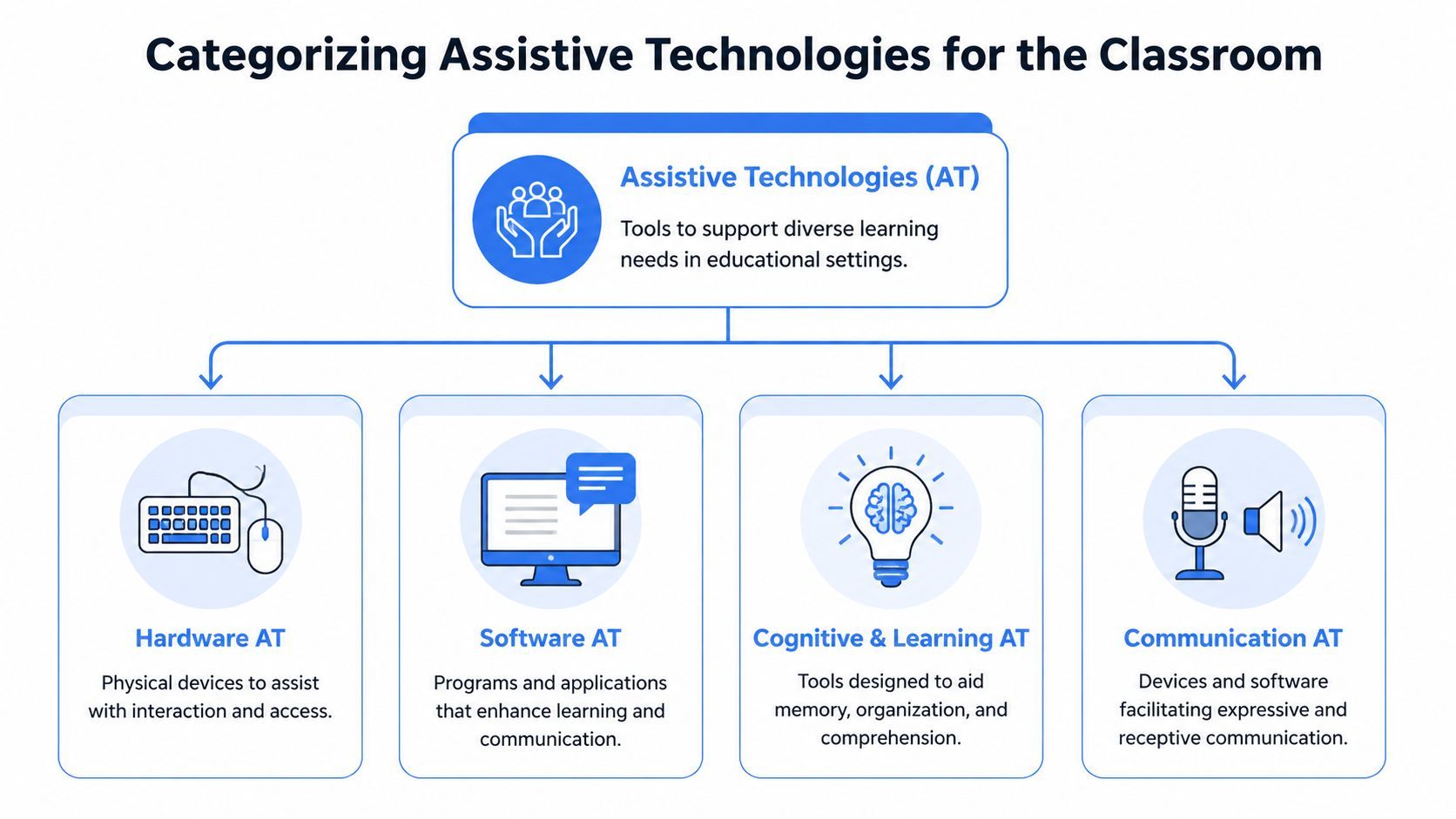
Assistive technologies in the study materials usually get discussed as if they're one category. They aren't. The fastest way to make good decisions is to separate tools by what they help a student do.
Hardware and software serve different access points
Some tools are physical. Others are digital. Both matter.
| Category | What it includes | Where it shows up in study workflows |
|---|---|---|
| Hardware AT | Braille displays, alternate keyboards, switch devices | Reading, navigation, input, test taking |
| Software AT | Screen readers, text-to-speech, speech recognition | Reading assignments, writing, web navigation |
| Cognitive and learning tools | Word prediction, dictionaries, organizational supports | Drafting, revision, note-taking, task management |
| Communication aids | AAC tools, voice output supports, captioning-related supports | Participation, discussion, presentation, collaboration |
That distinction matters in procurement. A school might buy software licenses but forget that students also need compatible input devices. A university might scan textbooks into digital files but ignore whether those files work properly with the student's actual reading setup.
Low-tech and high-tech both have a place
Not every access barrier needs an advanced platform. Some needs are solved with a simple tool, a clear layout, or a better workflow. Others require specialized software or device compatibility testing.
What has changed is the range of tools now available. Modern assistive technology includes robotics, 3D printing, and AI-powered solutions, and mainstream products increasingly include accessibility support. The EBSCO research overview points to Desmos as a strong example. It works with JAWS and NVDA screen readers, Braille displays, and text-to-speech, which is especially important in math-heavy courses where many digital tools still fail accessibility checks. The same source notes that smartphones and tablets can reduce stigma because they are products "readily available, broadly advertised to the general public, and desired by one's peers" (EBSCO assistive technology in education overview).
A useful rule in classrooms is this. If a student has to leave the normal course flow to gain access, the material isn't functionally accessible yet.
Matching tools to study tasks
The practical way to choose AT is to tie each tool to a study action.
- Reading dense digital text: Screen readers and text-to-speech are often the first layer.
- Writing under time pressure: Speech recognition, word prediction, and spelling support can remove bottlenecks.
- Working with diagrams or maps: Discipline-specific tools matter, and so does accessible labeling.
- Moving through campus and learning spaces: For students with visual impairments, resources on navigation platforms for blind people can help teams think beyond the document itself and into the full learning journey.
- Math and graphing: Choose tools with documented compatibility, not just attractive interfaces.
For teams focused on literacy access first, a practical next step is implementing reading assistive tools inside course content, digital libraries, and study portals.
Navigating Legal and Compliance Frameworks
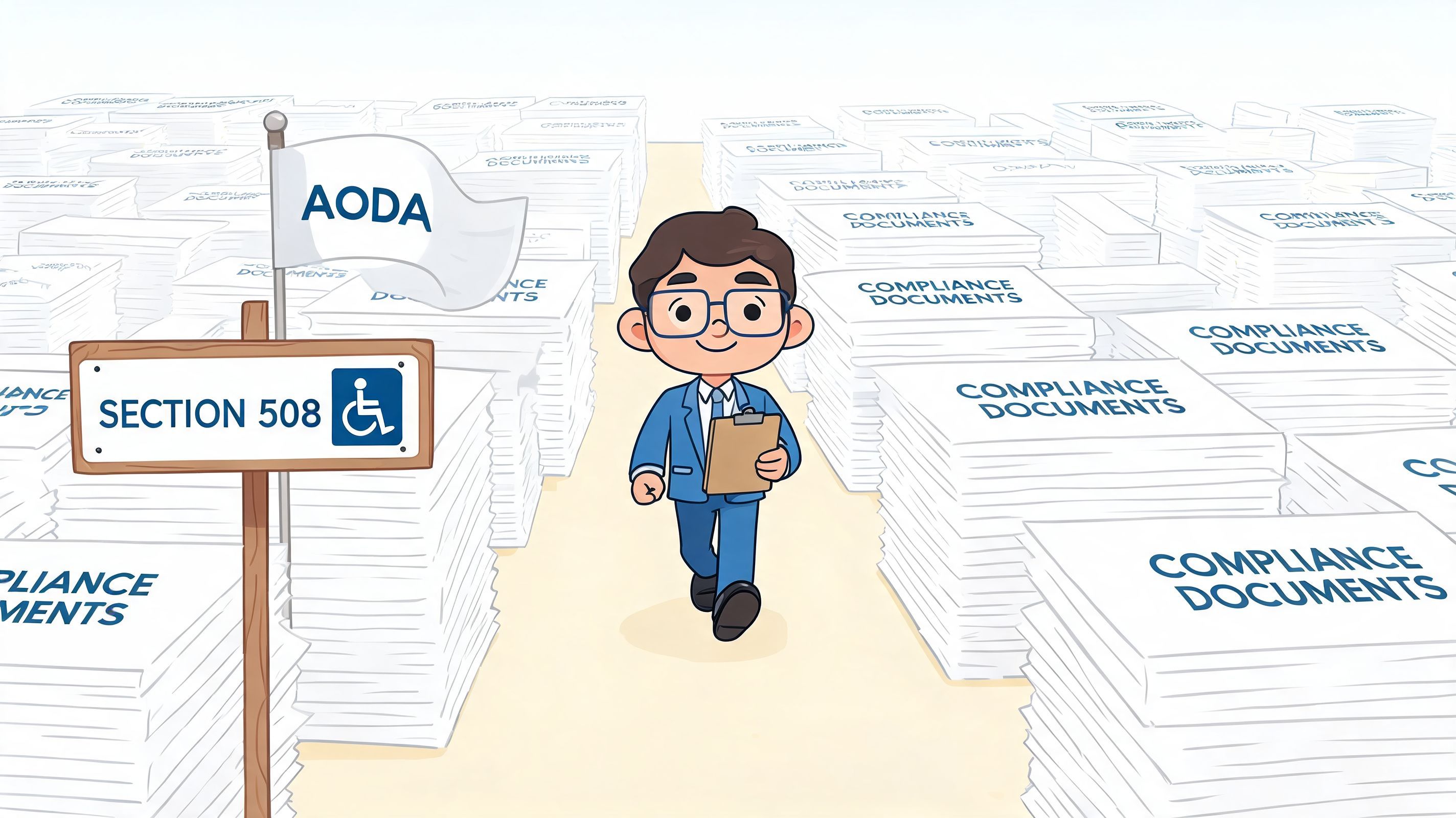
Legal compliance gets framed too narrowly in education. Many teams stop at "Can a screen reader open this page?" That isn't enough. Compliance in study materials depends on whether students can complete real academic tasks across the entire learning environment.
What the standards mean in practice
Most education teams encounter a mix of frameworks:
- Section 508: Relevant for public sector and federally connected digital environments in the US.
- AODA: Important for organizations operating in Ontario.
- WCAG: The practical baseline most digital teams use to shape web, app, and content accessibility work.
The standards differ in scope and enforcement context, but the daily implications are familiar. Course portals need keyboard access. PDFs need structure. Video players need accessible controls. Forms, quizzes, and navigation patterns need to work consistently with assistive technology.
If your team needs a direct reference point for digital implementation, the web content accessibility guidelines remain the clearest place to align design, development, QA, and governance decisions.
The compliance gap many teams miss
There is one issue that comes up repeatedly in audits and vendor reviews. Teams verify whether content works with assistive technology, but they don't always verify whether the assistive tools themselves create barriers.
The CAST UDL guidance highlights this directly: institutions need to ensure that instructional technologies are accessible and don't create barriers to the use of assistive technologies. In practical terms, that means the AT ecosystem itself must be usable, not just the content students are trying to reach (CAST guidance on assistive technologies).
Practical rule: Never approve an accessibility workflow based only on product claims. Test the actual study task. Open the article, navigate the menu, complete the form, annotate the reading, submit the assignment.
A stronger compliance workflow
A workable review process usually includes:
- Content checks: Headings, alt text, table structure, captioning, PDF tagging, and plain language.
- Interface checks: Keyboard access, focus order, visible states, error handling, contrast, zoom behavior.
- Compatibility checks: Browser and device testing with the AT students are likely to use.
- Task testing: Reading, note-taking, assessment, discussion posting, and file submission.
Schools that skip the last step often think they're compliant because single pages pass automated checks. Students experience the system differently. They experience the full path.
A Practical Guide to Implementing Assistive Technology
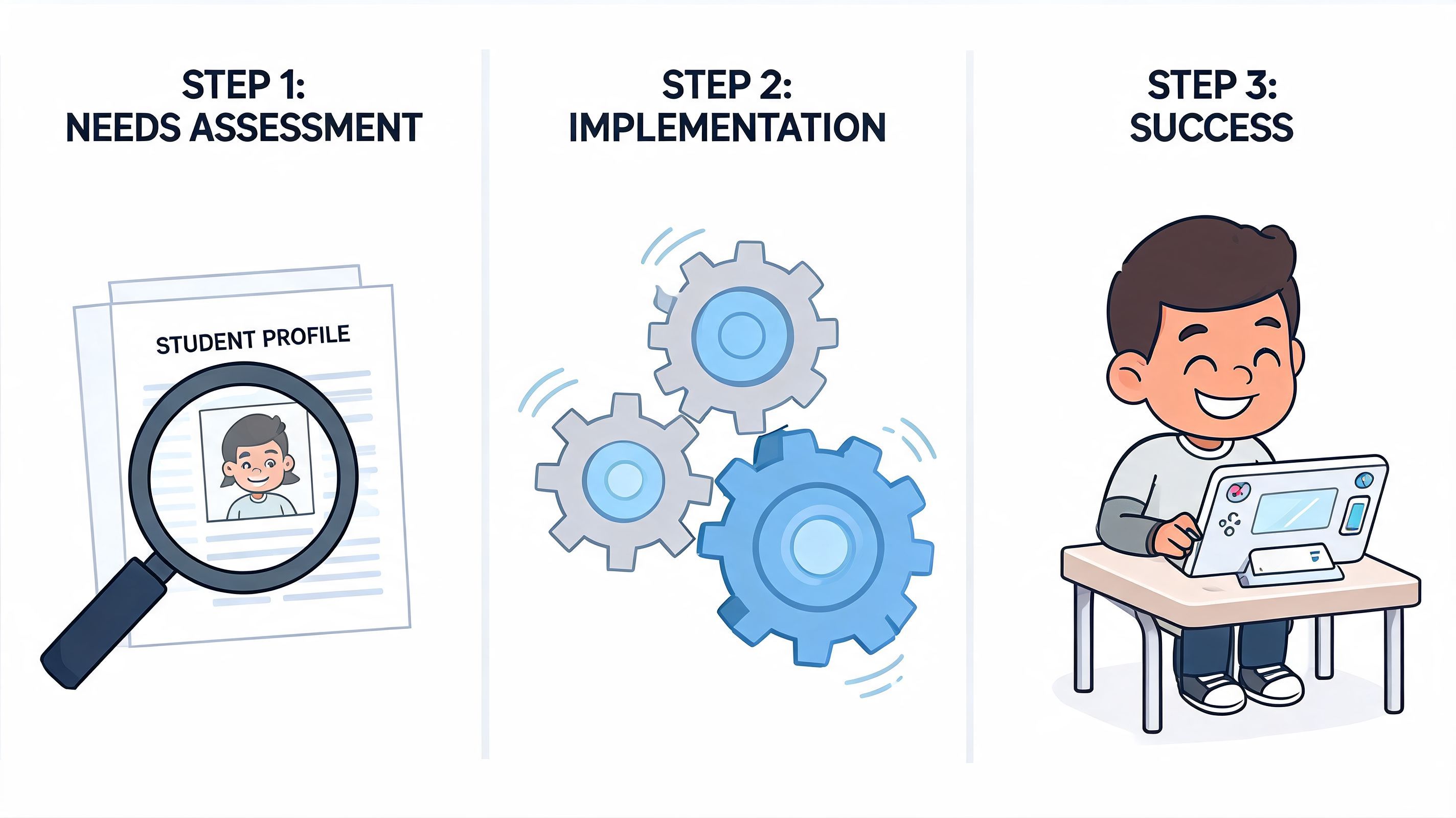
Most AT rollouts fail for ordinary reasons. The tool arrives before the workflow is ready. Staff get a demo but not durable training. Students receive access but not clear setup guidance. The result is underuse, confusion, or quiet abandonment.
Start with the study barrier, not the product
A reliable implementation process begins by identifying what students need to do and where that process breaks.
Ask questions such as:
- Can students read assigned materials independently?
- Can they interact with the LMS without a mouse?
- Can they complete writing tasks without fatigue or unnecessary delay?
- Can they use diagrams, calculators, or subject-specific tools in the same timeline as peers?
That needs assessment should include educators, disability services, IT, and students themselves. The student perspective is usually the fastest way to identify friction that formal audits miss.
Build the rollout around real use
Once needs are clear, implementation should be staged around actual coursework.
A practical sequence looks like this:
- Choose one priority workflow first. Reading access is often the best starting point because it affects nearly every course.
- Map the content sources. LMS pages, PDFs, ebooks, handouts, discussion boards, quizzes, and external tools.
- Confirm compatibility before launch. Don't assume a tool that works on a vendor demo site will behave the same way inside your environment.
- Train for tasks, not features. Show faculty how to post readable documents. Show students how to activate and customize the tools they need.
- Create a fast feedback route. Problems should reach the people who can fix them without forcing students into repeated explanation.
Training has to be role-based
Faculty, support staff, and students need different guidance. One generic session rarely works.
| Role | What they need to learn |
|---|---|
| Faculty | How to create accessible readings, slides, links, and assignments |
| Support staff | How to troubleshoot compatibility issues and escalate correctly |
| Students | How to personalize settings for reading, writing, navigation, and focus |
A lot of institutions also underestimate the study-skills layer. Students may have access to AI-supported note support, summarization workflows, or planning tools, but they still need instruction on how to use them responsibly. For teams exploring that area, Maeve platform study techniques offer a useful view into how technology can support studying without replacing active learning.
Here is a short explainer worth using during staff onboarding or implementation planning:
Think ecosystem, not add-on
A sustainable model treats accessibility as part of content operations. That means templates, procurement checklists, QA routines, and governance all include AT compatibility.
One practical option in that ecosystem is WebAbility.io, which provides an AI-enhanced accessibility widget, text-to-speech support, keyboard navigation features, contrast controls, dyslexia-friendly font options, and ongoing monitoring tools for websites and learning platforms. In education settings, that kind of tooling can support adaptable access while teams continue deeper remediation and governance work.
If students need to request the same workaround every term, the institution doesn't have an accommodation problem. It has a systems problem.
Measuring the Impact of Accessible Learning Tools
Implementation isn't the finish line. Teams need evidence that assistive technologies in the study materials are helping students do academic work more independently and with less friction.
Text-to-speech is one of the clearest examples
Text-to-speech is often misunderstood as a convenience feature. For many dyslexic learners, it is an access method.
Kennesaw State University's accessibility guidance summarizes the research clearly. Text-to-speech has a positive effect on decoding, word recognition, and reading comprehension for students with dyslexia. By converting visual text into audio, it reduces the cognitive load tied to decoding and allows more working memory to go toward understanding the material. That is why TTS functions as a critical compensatory tool rather than a bonus feature (Kennesaw State guidance on assistive technologies).
This matters operationally. If a reading support tool is present but difficult to activate, incompatible with assigned formats, or blocked inside a course flow, students don't just lose convenience. They lose independent access.
What to measure when broad ROI benchmarks are missing
The field still has a real data gap on broad return-on-investment benchmarks for AT integration. That shouldn't stop institutions from measuring what matters inside their own environments.
Track outcomes that reflect access in practice:
- Engagement patterns: Are students opening and completing assigned materials more consistently?
- Course completion signals: Are fewer students dropping off when coursework depends heavily on reading or digital interaction?
- Support demand: Are accessibility-related tickets becoming more specific and less repetitive?
- Independence indicators: Are students needing fewer manual conversions, one-off fixes, or ad hoc staff intervention?
- Faculty adoption: Are instructors using accessible templates and posting materials in usable formats without being prompted every time?
Look for friction reduction, not just usage
A common mistake is to measure only whether a tool was turned on. Activation data matters, but it doesn't tell you whether the tool helped.
A stronger review asks:
| Question | Why it matters |
|---|---|
| Could the student complete the task independently? | Independence is one of the clearest signs that access improved |
| Did the tool work in the actual course environment? | A tool that works outside the LMS may still fail in class |
| Did support requests shift from crisis to refinement? | That usually signals maturing implementation |
| Did instructors change content habits? | Tool success often depends on better upstream content creation |
Measure the task students are trying to complete, not just the technology you deployed.
Build your own evidence base
For leaders trying to justify budgets or procurement decisions, internal data is often more persuasive than generic market claims. Compare cohorts, course formats, or content types only after the measurement method is stable. Keep the questions practical. Can students access readings? Can they complete assessments? Can staff support the system without heroic effort?
When teams measure those basics consistently, they move the conversation away from opinion and toward operational proof.
Integrate WebAbility.io Into Your Digital Ecosystem
Educational access usually breaks across multiple layers at once. The website is one system. The LMS is another. PDFs, media players, external tools, and campus microsites all introduce separate points of failure. That is why accessibility management works better when teams can monitor and support the full digital estate instead of fixing one page at a time.
For institutions managing study portals, library interfaces, enrollment flows, and course support sites, a platform approach can simplify operations. WebAbility.io combines user-facing accessibility features with governance tools that help teams maintain compliance over time.
That matters in study environments where students need immediate control over how they consume content. Features such as text-to-speech, keyboard navigation, contrast modes, text scaling, translation, and dyslexia-friendly reading options can help make digital materials more adaptable without requiring separate setup for every page.
On the operations side, centralized monitoring, scanning, compliance reporting, and historical tracking help administrators see whether accessibility is improving or drifting. That's especially useful when multiple departments or campuses publish content through different teams.
A practical way to use a platform like this is to treat it as one layer in a broader accessibility program:
- User support layer: Give learners flexible controls for reading and navigation.
- Monitoring layer: Catch recurring issues across sites and content repositories.
- Governance layer: Support WCAG, Section 508, and AODA workflows with a shared reporting process.
- Remediation layer: Pair platform tooling with content fixes, staff training, and procurement standards.
For many teams, the best next step isn't a full rebuild. It's starting with one public-facing learning property, reviewing the findings, and then expanding the process across the wider digital ecosystem.
Frequently Asked Questions About Assistive Technology
Do assistive technologies only help students with formal diagnoses
No. Many of the same features that support disabled students also help multilingual learners, students with temporary injuries, students studying in noisy environments, and anyone who benefits from flexible reading or navigation options.
The key distinction is this: some students need assistive technology for equal access, while others benefit from it for convenience or preference. Both realities can be true at the same time.
How do you start when the budget is limited
Start with the materials and workflows that affect the most students. Reading access is often the strongest first move because it touches every discipline.
Prioritize:
- Core course documents
- Public-facing learning pages
- Frequently used forms and student service pathways
- High-friction media and PDF collections
Then track your internal outcomes. There is a recognized gap in broad ROI data for AT integration, but institutions can still build a strong case by measuring student engagement rates, course completion percentages, and reductions in accessibility-related support tickets through their own programs (PMC overview of the ROI measurement gap).
What causes implementation problems most often
In my experience, three problems show up repeatedly:
- Poor source content: Inaccessible PDFs, unlabeled controls, weak heading structure, and broken reading order.
- No role clarity: Faculty, IT, and support teams assume someone else owns accessibility.
- No follow-up: The tool launches, but no one checks whether students can use it in the actual course flow.
How do you handle faculty or staff resistance
Keep the conversation practical. Most resistance drops when staff see that accessible materials are easier to reuse, easier to troubleshoot, and less likely to trigger urgent requests later.
Don't lead with abstract policy language. Lead with common teaching pain points. Students can't find readings. Submission errors spike. Disability services get overloaded. Faculty spend time remaking files days before exams. Accessibility solves operational problems that staff already feel.
What's the standard for success
Success isn't having more tools. Success is when students can access, understand, and complete academic work with fewer barriers and less dependency on manual intervention.
If you're ready to make study materials more usable across websites, learning platforms, and student service flows, WebAbility.io gives your team a practical place to start. You can explore accessibility tooling, monitoring, and compliance support that fit into day-to-day digital operations, then build a stronger long-term program from there.