A Practical Guide to Test 508 Compliance

Sidharth Nayyar
TLDR: A successful Section 508 compliance test combines automated scans with manual checks. Start with automated tools like website accessibility checker to quickly find common code-level issues like missing alt text. Then, perform manual testing by navigating with only a keyboard and using a screen reader to uncover real-world usability problems that tools miss. Remember to test all digital content, including PDFs and videos, not just your web pages. Document your findings in a clear report, track fixes, and implement continuous monitoring to maintain compliance as your site evolves.
When you need to test 508 compliance, a one-and-done approach just won't cut it. The most effective strategy combines the speed of automated scanning with the critical nuance of manual, human-led checks. This hybrid method is the only way to catch both the low-hanging technical fruit and the real-world usability barriers that can frustrate users with disabilities.
Your Quick Guide to 508 Compliance Testing
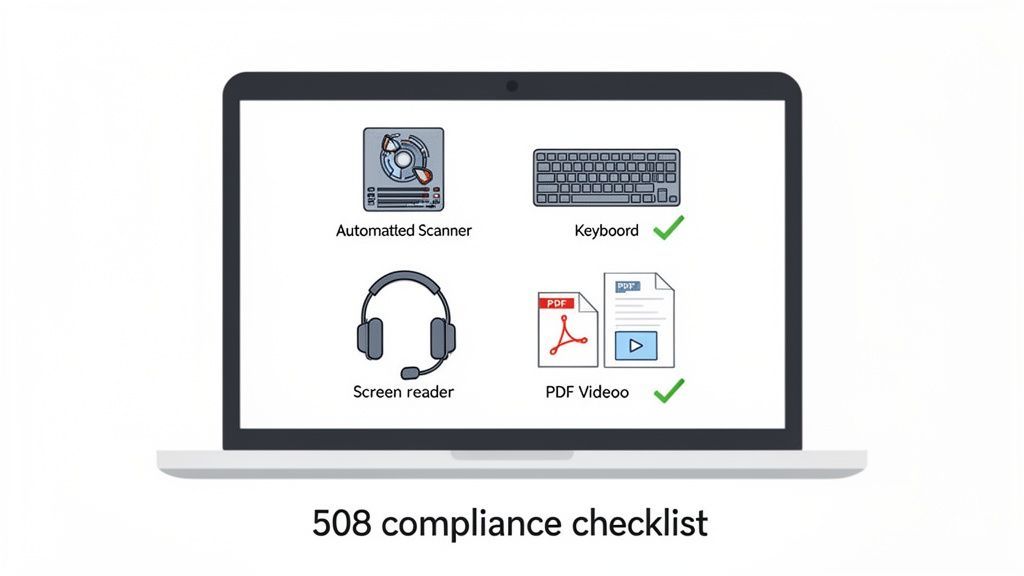
Think of a successful Section 508 compliance test as a multi-layered investigation. You'll want to start with automated tools—they're great for quickly flagging common problems like missing alt text or basic contrast errors. But that's just the beginning.
The real insights come from manual testing. This is where you unplug your mouse and navigate using only your keyboard, then fire up a screen reader to experience your site as a visually impaired user would. This process almost always uncovers user experience hurdles that automated tools simply can't see.
Don't forget that compliance extends beyond your web pages. All your digital content, including often-overlooked PDFs and videos, must also be accessible. Once you've gathered your findings, document everything in a clear, actionable report and set up a plan for continuous monitoring to keep your site compliant as it grows and changes.
For a great primer on the core principles that underpin these efforts, check out these essential guidelines for website accessibility.
Laying the Groundwork for Effective 508 Testing
Jumping straight into testing without a clear plan is a recipe for disaster. I've seen it happen countless times—teams waste hours on unfocused scans and end up with incomplete, unreliable reports. A little prep work upfront makes the entire process smoother and far more effective.
Your first move is to define the scope. What exactly are you testing? Is it the main public-facing website? An internal HR portal for employees? A specific mobile app? Get it down in writing. Be crystal clear about what's in scope and, just as importantly, what's out. This simple step prevents "scope creep" down the line and keeps everyone on the same page.
Define Critical User Journeys and Assemble Your Tools
Once you know what you're testing, you need to figure out the how. That starts with identifying the core user journeys. These are the make-or-break paths people take on your site. Think about things like signing up for an account, checking out, or finding a support number. By focusing on these essential flows, you ensure your testing efforts have the biggest impact on real users.
With your priorities straight, it's time to build your toolkit. You can't rely on just one type of tool; a truly thorough audit requires a blended approach. Your arsenal should include:
Automated Scanners: These are great for a first pass. They'll quickly crawl your site and flag low-hanging fruit and common programmatic errors.
Browser Extensions: Perfect for quick spot-checks on the fly. I use these constantly to validate things like color contrast or heading structure on a specific page.
Assistive Technologies: This is non-negotiable. You absolutely must test with real screen readers like NVDA, JAWS, or VoiceOver to understand the actual experience for people who rely on them.
You can’t fake your way through this. The entire Section 508 standard points directly to the Web Content Accessibility Guidelines (WCAG) 2.0 Level AA. If you aren't familiar with these criteria, every other step will be a struggle. Make WCAG your foundation.
This prep work is so important because, frankly, many organizations are behind the curve. Time, money, and training are always the biggest hurdles. One survey of federal agencies found that 58% cited a "lack of resources" as their top challenge, while 43% admitted to having inadequate training. You can read more about these long-standing compliance challenges on highlighttech.com. This just goes to show why starting with a rock-solid, well-defined strategy is the only way to get it right.
Look, when it comes to a serious Section 508 testing strategy, it’s not an either/or situation with automated tools and manual checks. You absolutely need both. Think of it this way: automated scanners are your first line of defense, quickly flagging the low-hanging fruit—programmatic errors like missing alt text or ARIA issues. But they can’t tell you the whole story.
That’s where you, the human tester, come in. You have to get hands-on, navigating with just a keyboard and then with a screen reader to find the real-world usability problems that machines will always miss. This hybrid approach is the only way to get close to true compliance.
Combining Automated and Manual Checks
A truly effective strategy for testing 508 compliance has to blend the raw speed of automation with the nuanced, critical eye of a human evaluator. Kicking things off with automated tools is a great first pass, giving you a quick, high-level look at your site's overall accessibility health.
These tools are brilliant at catching the kind of programmatic issues that are completely invisible to the eye. They can crawl thousands of pages in minutes and pinpoint common, code-level mistakes like missing image alt text, a jumbled heading structure, or incorrectly used ARIA attributes. In my experience, a good automated scan can catch up to 40% of potential WCAG violations right out of the gate. This gives your team a solid, data-driven starting point for fixing things. If you want to dive deeper, adopting smarter automated testing strategies can really sharpen your process.
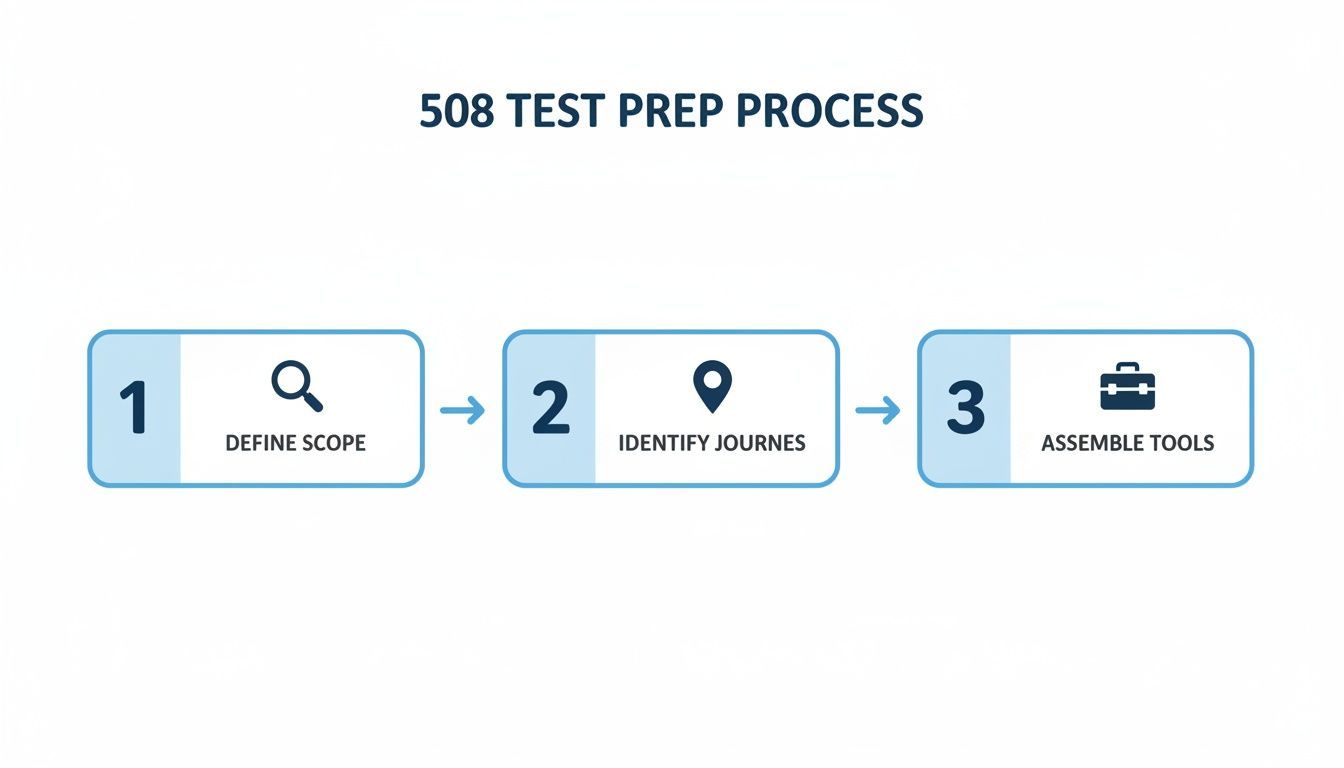
Having a clear process from the start, as outlined here, is key. It ensures that both your automated scans and your manual deep-dives are focused and productive from day one.
Hybrid Testing Approach Strengths and Weaknesses
To get the most out of your testing, it helps to understand what each method brings to the table—and what it leaves out.
| Testing Method | Strengths | Weaknesses | Best For |
|---|---|---|---|
| Automated Testing | Extremely fast and scalable. Excellent for catching code-level, programmatic errors (e.g., missing attributes). | Lacks human context. Cannot evaluate usability or logical flow. Prone to false positives. | Initial audits, continuous integration (CI/CD) pipelines, and catching widespread, low-hanging fruit. |
| Manual Testing | Uncovers usability and contextual issues. Essential for keyboard and screen reader testing. Provides real-world user perspective. | Slower and more resource-intensive. Requires skilled testers. Can be subjective. | Verifying automated findings, testing user journeys, and ensuring a truly usable experience. |
Ultimately, a hybrid approach lets you cover all your bases, pairing the broad coverage of automation with the deep, insightful analysis only a human can provide.
The Indispensable Role of Manual Testing
Once your automated scan gives you a report, the real detective work begins. This is where you find the make-or-break user experience issues that automated tools are simply blind to. It’s less about code and more about how a real person actually interacts with your site.
Start by unplugging your mouse. Seriously. Try to navigate your entire website and use every single feature—buttons, links, forms, menus—using only the keyboard. As you do, keep a close eye on these things:
Visible Focus Indicator: Can you always tell where you are on the page? A faint or completely missing focus outline is a dead end for keyboard users.
Logical Tabbing Order: As you press the Tab key, does the focus move in a predictable way that follows the visual layout? Or does it jump erratically from the header to the footer and back again?
Keyboard Traps: Can you get stuck? A classic example is a pop-up modal that you can tab into but can't tab out of without a mouse.
Manual testing isn’t just a "nice-to-have"—it's a requirement. Automation can tell you if an
altattribute exists, but only a human can tell you if the alt text actually makes sense. This distinction is at the heart of genuine accessibility.
Simulating the User Experience with Assistive Tech
The final layer of a proper audit is to use the same assistive technologies that people with disabilities depend on every single day. Fire up a screen reader—NVDA is a fantastic free option, or JAWS if you have a license—and just listen to your website.
Is the content announced in a logical sequence? Are form fields labeled clearly? Are images described in a way that adds value? This step builds crucial empathy and uncovers barriers that are impossible to find any other way.
Don't underestimate the challenge here. Between 2023 and 2024, federal agencies tested over 20 million web pages, yet only about 61% of them were found to be fully conformant. You can dig into the full governmentwide Section 508 Assessment findings to see just how widespread the issues are.
By combining automation and manual evaluation, you ensure you're catching both the technical glitches and the functional, human-centered roadblocks. You can learn more about the specifics of automated accessibility testing in our detailed guide.
It’s easy to get tunnel vision and focus only on your website's core pages when testing for Section 508 compliance. But that’s a rookie mistake that can leave you wide open to major compliance gaps. Section 508 covers all your digital content—and that means everything from the PDFs and Word docs you link out to, to the slide decks and videos you publish.
I can't tell you how many times I've seen a beautifully accessible website fail an audit because the "Annual Report" PDF linked on the homepage was completely unreadable to a screen reader. Don't let that be you. These non-web assets are just as much a part of the user experience.
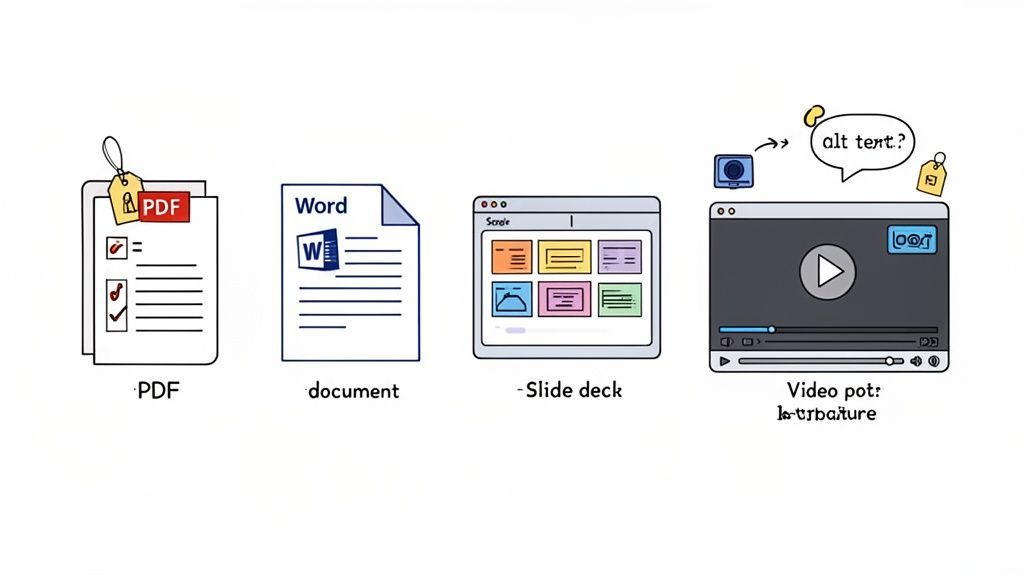
Tackling Documents: PDFs and Word Files
When it comes to documents, think structure. A properly tagged document gives a screen reader a roadmap, just like headings do on a webpage. Without that structure, it’s just a flat, confusing wall of text for the user.
As you dive into your documents, here’s what you need to be checking for:
Logical Reading Order: Does the content flow correctly when read aloud? If tags are out of order, a screen reader might jump from the middle of a paragraph to a footer, then back to the top.
Real Alt Text: Every single image that conveys information needs descriptive alt text. Decorative images should be marked as artifacts so they're ignored.
Coherent Tables: Data tables absolutely must have defined header rows and columns. This is the only way a screen reader user can understand the relationship between the cells.
Usable Forms: If your document has form fields, each one needs a clear, programmatically associated label.
Getting a handle on what makes a PDF accessible is a non-negotiable skill in this field, simply because they are everywhere.
This is a massive blind spot for so many organizations. A recent government-wide assessment found that of the agencies that actually tested their top documents, a mere 24% were fully conformant. What’s even more alarming is that 57% of respondents admitted they didn’t even have the resources to test these files, as highlighted in these Section 508 accessibility requirement findings on reciteme.com. That’s a huge risk.
Getting Multimedia Right
For videos, podcasts, and other media, you're accounting for both visual and auditory disabilities. Just hitting "upload" on a video file and calling it a day is a guaranteed compliance failure.
Your media testing checklist has to include:
Accurate, Synchronized Captions: Captions are essential for users who are deaf or hard of hearing. They need to be accurate and perfectly timed with the dialogue.
Audio Descriptions: If a video contains important visual cues that aren't explained in the dialogue—like a character's expression or an on-screen chart—you need a separate audio track that describes them for users with visual impairments.
A Keyboard-Friendly Player: The media player itself has to be fully accessible. Can a user play, pause, and adjust the volume using only their keyboard? Are all controls clearly labeled for a screen reader?
A critical oversight in many 508 compliance efforts is failing to test these non-web assets. Creating a specific checklist for your most common document and media types ensures that nothing important slips through the cracks. This systematic approach turns a potential liability into a verified component of your accessibility program.
Turning Audit Findings Into Actionable Fixes
Finding accessibility issues is just the starting line. The real work—the part that actually makes a difference—is turning those findings into a concrete plan your team can execute. An audit that ends with a jargon-filled, indecipherable report is almost as useless as not doing one at all.
The goal here is to create a document that genuinely empowers your team to take action.
This means you can't just hand over a single, generic report. What a developer needs to fix a bug is completely different from what a project manager needs to prioritize work for the next sprint. A one-size-fits-all approach simply falls flat.
Crafting a Developer-Friendly Report
When you're writing for your technical team, you have to be precise. Vague feedback like "the navigation is confusing" is a dead end. Instead, your report should read like a well-written bug ticket.
A strong, developer-focused report must include:
Specific WCAG Criteria: Always tie the issue back to the exact WCAG 2.0 AA success criterion it violates. This gives developers the "why" and a clear standard to build against.
Code Snippets: Show, don't just tell. Pull out the exact block of problematic code. If you can, provide a corrected, compliant code example right alongside it.
Steps to Reproduce: Document the exact steps needed to trigger the bug. This saves countless hours of frustration and lets developers get straight to solving the problem.
Screenshots and Annotations: A picture really is worth a thousand words. Use annotated screenshots to point directly to the element on the page causing the problem.
Creating an Executive Summary for Project Managers
While your developers are digging into the code, project managers and stakeholders need a bird's-eye view. A concise executive summary is crucial for helping them understand the scope of the problem and make smart decisions about where to invest time and resources.
Your summary should clearly outline:
Critical Issues: Call out the most severe barriers first—anything that completely blocks a user from completing a core task on your site.
Prioritization: Group the findings by impact and effort. A simple "High," "Medium," "Low" priority system is often enough to create a clear remediation roadmap.
User Impact: Translate the technical issue into human terms. For example, instead of "Missing form labels," write "Missing form labels prevent screen reader users from completing the checkout process."
The best reports I've seen bridge the gap between technical details and human impact. They don't just list failures; they tell a story about the barriers real people face, making the need for fixes both urgent and personal.
Managing the Remediation Workflow
Okay, the report is done and delivered. Now what? This is where many accessibility initiatives lose momentum. A fantastic audit report gathering digital dust in someone's inbox doesn't help anyone.
To keep things moving, you need a structured workflow. The most effective way I've seen this done is by treating accessibility findings just like any other bug. Integrate them directly into your team's existing project management tools, whether that's Jira, Asana, or Trello.
Each issue becomes a ticket that can be assigned, tracked, and verified through your normal development sprints. This approach creates transparency and, more importantly, makes accessibility part of your team's everyday process. You'll finally shift from a reactive "audit-and-fix" cycle to a proactive culture of continuous improvement.
Maintaining Long-Term Compliance
Getting to Section 508 compliance feels like a huge win, and it is. But it's a milestone, not the finish line. Websites are never static. Content gets updated, new features launch, and code gets pushed daily. Every single one of these changes can accidentally break accessibility.
The biggest mistake I see organizations make is treating compliance as a "one and done" project. That's a surefire way to watch your hard-earned accessibility slip away. True compliance is an ongoing process, a commitment that needs a solid system for monitoring and maintenance.
Weaving Accessibility into Your Workflow
The only way to stay compliant in the long run is to stop being reactive and start being proactive. This means building accessibility checks right into your development and content workflows, not saving them for a once-a-year audit.
When you integrate automated scans into your process, you catch potential issues before they ever make it to the live site. This shift makes accessibility manageable. Instead of a mad dash to fix a long list of problems found during a stressful audit, your team can handle them as a normal part of their day-to-day work. It's about making accessibility a pillar of your quality assurance, not an afterthought.
The real goal here is to bake accessibility into your company's DNA. When testing for compliance becomes a habit, not an event, you build a sustainable system that keeps your digital doors open to everyone, all the time.
The Power of Automation Plus Manual Checks
Automated monitoring is your first line of defense, but it can't do the job alone. You absolutely need to pair it with regular, focused manual testing. Automation is fantastic at catching code-level errors, but it can't tell you if a key user journey is confusing or frustrating for someone using a screen reader.
Set up a recurring schedule to manually walk through the most critical paths on your site. I'm talking about things like:
The e-commerce checkout flow
Signing up for an account or logging in
Submitting a contact or support form
Finding key information, like your business hours or location
This combination of wide-net automation and deep-dive manual reviews creates a powerful feedback loop. The automated tools handle the scale, and your human testers confirm the real-world experience. You can explore different Section 508 compliance software options to find tools that support this hybrid model. This two-pronged approach is the best way to maintain both technical compliance and a genuinely great experience for every single visitor.
Common Questions About 508 Compliance Testing
Diving into Section 508 testing can feel a bit overwhelming, and it's natural to have questions. Getting these sorted out early on is the key to building a testing strategy that actually works for your team. Let's tackle some of the most common questions I hear from people just starting out.
What Is the Difference Between Section 508 and WCAG?
This is probably the number one point of confusion, but it’s simpler than it sounds. The easiest way to think about it is that Section 508 is the what and WCAG is the how.
Section 508 is the actual U.S. federal law. It mandates that federal agencies have to make their information and communication technology (ICT) accessible to people with disabilities. It’s the legal requirement, the thing you have to do.
WCAG (Web Content Accessibility Guidelines), on the other hand, is the internationally recognized technical standard for making web content accessible. The two are connected because the revised Section 508 standards officially point to WCAG 2.0 Level AA as the technical benchmark. So, when you're testing for Section 508 compliance, you're really testing against the specific rules laid out in WCAG.
Can Automated Tools Alone Ensure 508 Compliance?
Short answer: definitely not. Automated scanners are incredibly valuable and a non-negotiable part of any modern testing workflow, but they can't get you to the finish line on their own.
Automation is brilliant at scanning your entire site quickly and can reliably flag about 30-40% of potential WCAG issues. Think things like missing image alt text, low color contrast, or empty links. The problem is, they lack human context and judgment. A tool can check if an <img> tag has an alt attribute, but it has no idea if the text inside is a helpful description ("A golden retriever catching a red frisbee in a park") or just keyboard-mashing nonsense.
True compliance isn't just about checking boxes; it's about real-world usability. That's why you need a hybrid approach: the efficiency of automated scanning paired with the nuanced, critical insights that only come from manual testing with keyboards and screen readers.
How Often Should We Test for Section 508 Compliance?
There’s no one-size-fits-all answer here. The right testing cadence depends entirely on how often your website or application changes.
Static Websites: If your site rarely gets updated, a deep, comprehensive audit once a year might be enough to keep you on track.
Dynamic Websites: For sites that are constantly evolving with new content, features, or code pushes, you need a more continuous approach.
The best practice is to build accessibility checks directly into your development cycle. This usually means running automated scans with every new build to catch problems before they even make it to production. Supplement that with smaller, focused audits of your most critical user journeys every quarter, and top it all off with a full, comprehensive audit at least once a year. This layered strategy gives you real-time feedback and stops accessibility debt from accumulating.
Keeping up with compliance doesn't have to be a constant fire drill. WebAbility.io offers an end-to-end platform with automated 24/7 scanning and real-time monitoring to help you weave accessibility into your team's daily workflow. Find out how you can simplify your compliance efforts and keep your digital doors open to everyone. Learn more at WebAbility.io.
Quick Questions
Tap to ask AI about this article