A Screen Reader Testing Guide to WebVTT Files

Sidharth Nayyar
A lot of teams already test forms, menus, and checkout flows, then let video slip through because it lives in a separate production workflow. Marketing uploads the file. Product embeds the player. Legal asks whether captions exist. QA checks play and pause. Everyone assumes accessibility is covered.
It usually isn't.
If your site publishes demos, webinars, tutorials, product explainers, onboarding clips, or campaign videos, your screen reader testing guide needs to include the text tracks that make that media understandable, navigable, and reviewable. In practice, that means treating WebVTT files as part of the same accessibility system as headings, labels, focus order, and keyboard support.
Why Your Screen Reader Testing Must Include Video
TL;DR: If your website uses video, your screen reader testing process can't stop at the page shell. It has to include the media experience itself. VTT files provide the timed text layer that supports captions, subtitles, and description workflows. They also make video content easier to test, easier to maintain, and easier to govern as part of an accessibility compliance program.
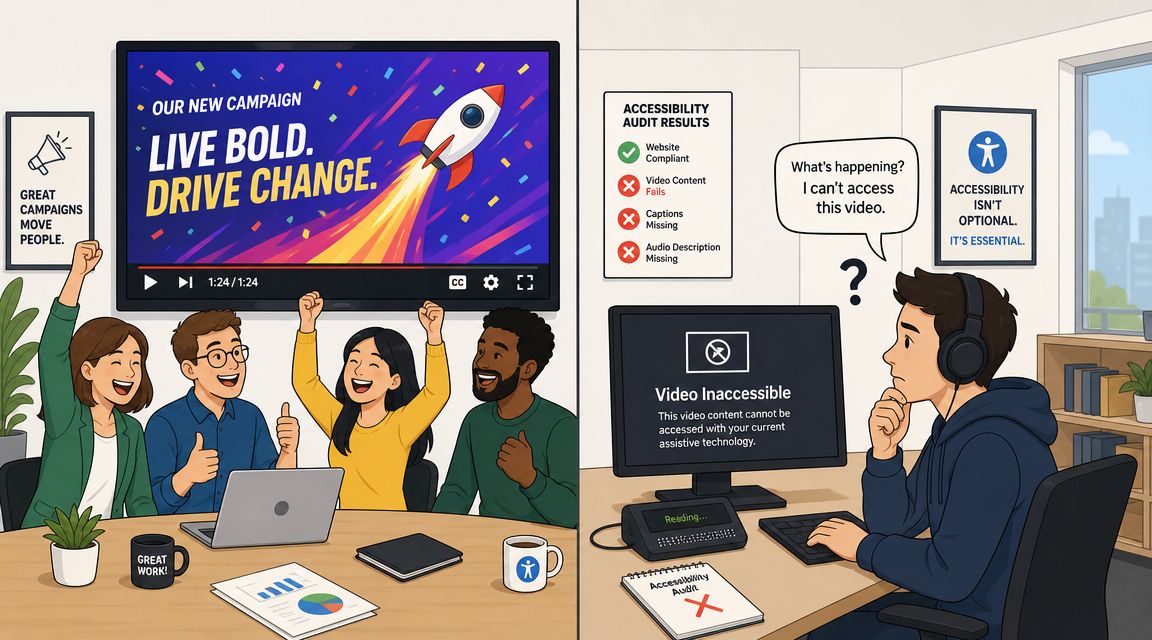
A familiar failure looks like this. The page around the video is well built. The heading structure is solid. Buttons have visible focus. Forms announce labels correctly. Then the core message of the page sits inside a video player with no reliable text track, no usable captions, and no review process for whether the spoken content is available to assistive technology users in any meaningful way.
That's why a practical Screen Reader Testing Guide has to include media, not just page chrome. A video without a dependable text layer creates a blind spot in both user experience and QA. If the video carries product instructions, pricing context, customer education, or conversion-driving proof, that blind spot affects business outcomes too.
A testing process also has to reflect the tools people use. In one survey cited by BOIA, JAWS was used by 53.7% of respondents and NVDA by 30.7%, which is why testing across more than one environment remains the sane baseline for accessibility work, not an edge-case exercise (BOIA's screen reader usage summary). That matters for video because browsers, players, and assistive technology combinations don't all expose media information the same way.
Video is content, not decoration
Teams often treat video as a design asset. Users experience it as content.
If the only place your product explanation exists is inside spoken audio, then the VTT file is not a nice extra. It's part of the content model. That's the same reason broader accessibility planning belongs in business discussions, not just bug triage. If you need a clear executive-level framing of that point, Baslon Digital web accessibility is a useful resource for connecting compliance, usability, and commercial impact.
What belongs in the test plan
A good media checkpoint fits naturally into your wider effective screen reader testing methods. It should cover:
Player access: Can a keyboard user reach the player controls and operate them predictably?
Track availability: Is the correct VTT file attached, enabled, and loading in production?
Content fidelity: Do captions and descriptions reflect what is said and what users need to know?
Regression control: When video is replaced or edited, does the text track get reviewed too?
Practical rule: If video can influence a user's understanding, decision, or task completion, it belongs in accessibility QA.
Understanding the WebVTT File Format
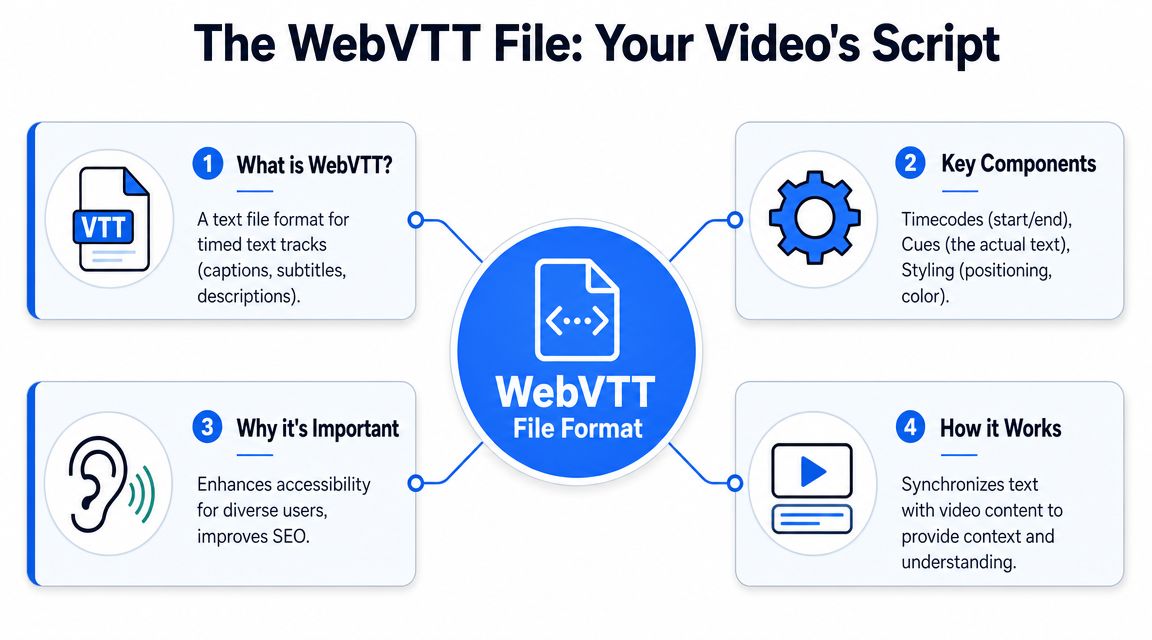
WebVTT stands for Web Video Text Tracks. The easiest way to think about it is this. It's the timed text script that tells the browser what text to show and when to show it during playback.
That sounds simple, but the file matters because it converts speech and important audio context into a structured asset your player, your QA team, and your governance process can all work with.
What a VTT file contains
At minimum, a VTT file has a header and a series of cues. Each cue has timing information and the text that should appear during that time range.
A simple example looks like this:
WEBVTT 00:00:01.000 --> 00:00:04.000 Welcome to our platform overview. 00:00:04.500 --> 00:00:08.000 In this video, we'll show how to submit an accessibility issue. 00:00:08.500 --> 00:00:12.000 [Keyboard clicking] That structure does three important things:
It identifies the file type:
WEBVTTtells the browser what format it's reading.It maps words to time: The timestamp line controls when each caption or description appears.
It preserves meaning: The text payload carries dialogue and, when written well, important non-speech context.
Some files also include identifiers, notes, or positioning details. Those extras can help with review and display, but the core value is still the same. The file provides a dependable text representation of the media.
Why developers should care about the file itself
A surprising number of accessibility problems start with teams assuming the media platform “handles captions.” Sometimes it does, partly. Sometimes it generates a draft. Sometimes it stores a transcript in one place and renders something different in the player. That's exactly why developers and QA analysts should understand the file format, not just the UI setting.
If you want a useful baseline on the topic, start with understanding captions for WCAG. It helps frame captions as a standards issue, not just a media preference.
This walkthrough is also worth watching if your team needs a quick visual explanation of how text tracks behave in practice:
The mental model that helps in QA
Think of the VTT file as a testable artifact, just like HTML, ARIA, or alt text.
When a team can diff, review, version, and validate a text track, accessibility work gets easier to operationalize.
That's the shift. Once VTT is treated as part of the build, failures become visible earlier. Missing tracks, inaccurate timing, speaker confusion, and stale captions stop being “video issues” and become normal QA issues.
How VTT Improves Accessibility and SEO
The easiest mistake is to see VTT as a caption file and stop there. In practice, it does more than that. It gives media a text layer that users can rely on and teams can inspect.
For accessibility, that text layer supports people who need captions, people who benefit from subtitles, and workflows that carry audio meaning into formats that can be reviewed and maintained. For search, it turns spoken content into text that can be associated with the page instead of staying locked inside audio.
Accessibility gains come from inspectable output
The most valuable accessibility checks are the ones tied to what users hear or receive, not what a designer assumes is available on screen. Vispero's guidance on JAWS Inspect makes that point clearly. It shows why speech-viewer and full-page transcripts reveal exactly what a user hears, and why issues such as missing labels, ambiguous links, or broken relationships are easier to diagnose from transcript-level output than from visuals alone (Vispero on speech output testing).
That same mindset applies to video. If your media experience depends on spoken narration, you need a reviewable text equivalent. Otherwise, QA has no stable artifact to validate against.
The accessibility side of VTT
A strong VTT workflow improves usability in several ways:
Captions support comprehension: Users can follow dialogue and key sounds when audio isn't enough or isn't available.
Subtitles extend reach: Teams can support multilingual viewing and clearer understanding in noisy or quiet environments.
Descriptions preserve meaning: When visual action carries important information, timed descriptive text helps teams build more complete accessible experiences.
A page can pass obvious visual checks and still fail the user if the important message exists only in audio.
That's why video belongs inside the same accessibility acceptance criteria as forms and navigation. If a product walkthrough explains setup steps only in narration, those steps are part of the user journey and need the same rigor as written instructions.
The SEO side of VTT
Search engines don't experience a video the way a person does. They work better with text.
A VTT file gives your media a structured textual layer that can support discoverability, align spoken language with page intent, and reduce the gap between what the page promises and what the asset communicates. For marketing teams, that matters because product explainers, tutorials, and webinars often contain the exact terms buyers search for.
A practical side effect is stronger content governance. Once captions and related text tracks exist as managed assets, teams can review terminology, product names, compliance statements, and message consistency in one place instead of leaving them buried in an edited MP4.
How to Create and Add VTT Files to Your Website
There isn't one right way to create a VTT file. The right method depends on video volume, turnaround time, quality requirements, and who owns the workflow.
For a short video that changes rarely, a manual file may be enough. For a content library, release program, or enterprise site, a video to GIF converter can make the process easier, while manual handling gets messy fast.
Three workable creation methods
Manual authoring in a text editor works for short, low-volume media. You write the WEBVTT header, add timestamps, and enter the text cue by cue. This gives you direct control, but it's slow and easy to get wrong if timing changes after an edit.
Captioning tools and media editors are often more practical. They let editors scrub the timeline, adjust cue timing, and export a .vtt file. This works well when your content team already lives in a video production workflow.
AI transcription services help when speed matters. They can create a draft quickly, but they still need review. Proper nouns, speaker changes, domain terminology, and non-speech context often need human cleanup before the file is production-ready.
The HTML implementation
Once the file exists, connecting it to the player is straightforward:
<video controls> <source src="product-demo.mp4" type="video/mp4"> <track kind="captions" src="product-demo-en.vtt" srclang="en" label="English captions" default> </video> The <track> element is where the accessibility work becomes real in the browser. If the src points to the wrong file, the file fails to load, or the track metadata is sloppy, users feel it immediately.
If your team is still building the rest of its accessibility foundation, WebAbility.io's compliance tips offer a practical companion for the broader site-level work that should sit alongside media testing.
Browser and player support
Use this as a working QA reference, not as permission to skip testing in your actual stack.
| Browser/Player | VTT Support | Notes |
|---|---|---|
| Chrome | Yes | Test the native player and any custom player UI separately |
| Edge | Yes | Good for Windows-based enterprise testing environments |
| Firefox | Yes | Useful in cross-browser assistive technology checks |
| Safari | Yes | Important when your audience includes Apple device users |
| Native HTML5 video | Yes | Support depends on correct <track> implementation |
| Custom embedded player | Varies | Validate keyboard support, track loading, and control announcements |
Implementation note: Native support helps, but custom player controls still need manual verification.
What usually goes wrong
The common failures aren't exotic. They're operational.
Wrong file attached after a last-minute media replacement.
Outdated captions because the video edit changed but the VTT file didn't.
Auto-generated drafts shipped without review.
Custom player regressions that hide or break track controls.
Those aren't code mysteries. They're workflow problems. Treat the VTT file like a governed content asset and most of them become easier to prevent.
VTT Best Practices for Maximum Impact
A VTT file can exist and still be poor. That's the gap between compliance theater and usable accessibility.
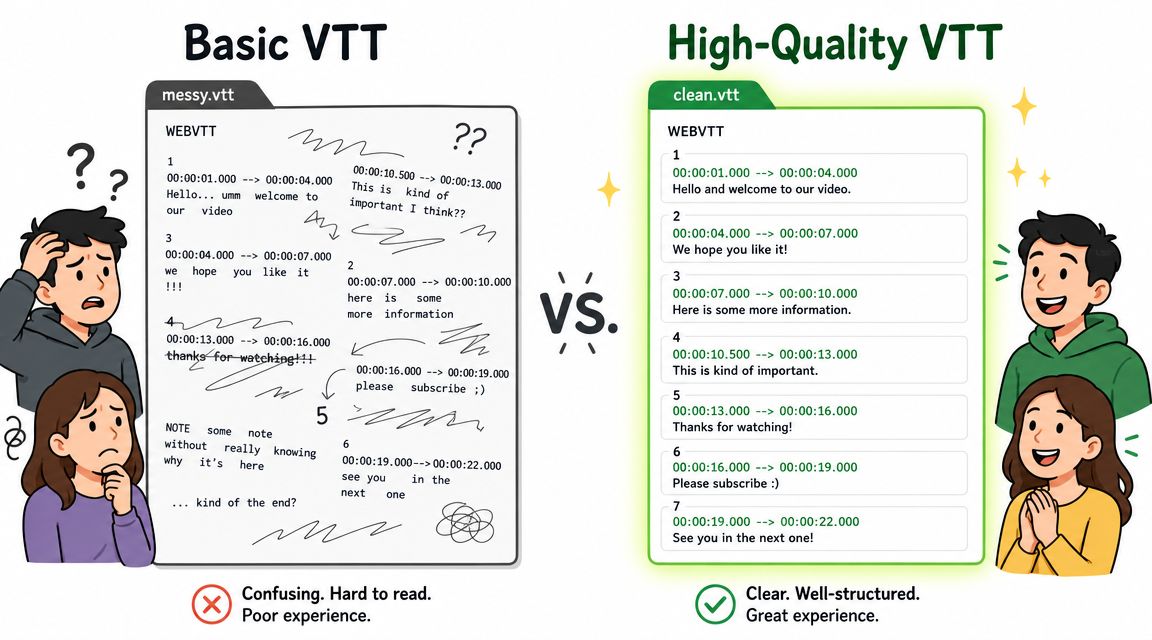
High-quality text tracks help users follow the content smoothly. Poor ones create friction through bad timing, vague wording, missing sound context, or cues that lag behind what's happening on screen.
Quality starts with timing and clarity
The Illinois accessibility guidance treats screen reader testing as a structured QA discipline done in two passes. First, read through content with the Down Arrow. Then operate interactive elements with Tab and related keyboard commands (Illinois screen reader testing method). That methodology is a useful model for media too, because it reminds teams that accessibility verification isn't one glance at a player. It's repeatable review.
Apply that discipline to VTT files with checks like these:
Sync precisely: Cues should appear when the speech or sound happens, not noticeably before or after.
Name speakers when needed: If speaker identity affects understanding, label it clearly.
Include meaningful sounds: Add bracketed context such as music, alerts, or laughter when it changes meaning.
Keep text readable: Break lines naturally and avoid cramming too much into a single cue.
Review the asset like QA, not like content polish
A useful media review pass asks different questions than copyediting.
| Check | What to verify |
|---|---|
| Accuracy | Spoken words match the final edited video |
| Completeness | Important non-speech information is included where needed |
| Timing | Captions appear and disappear at sensible moments |
| Language quality | Product names, acronyms, and terminology are correct |
| Change control | Updated videos trigger updated VTT review |
Review habit: Test the video with keyboard-only interaction first, then replay it while checking the track content itself.
What strong teams standardize
They don't just create VTT files. They create rules around them.
Some teams define naming conventions by language and version. Others require caption review in the same pull request or release checklist as the media embed. Mature teams also test what happens after content updates, because that's where stale tracks usually surface.
That structure pays off in audits and in day-to-day content operations. It gives developers, QA, and content owners a shared definition of done.
Streamlining VTT with Accessibility Platforms
A missed VTT update rarely looks serious on release day. The video plays, the page passes a quick visual check, and the team ships. Then support tickets come in, a prospect drops out of a demo flow, or legal asks for proof that captioned media was reviewed before launch. By that point, the problem is no longer a media task. It is a process failure with user impact and business cost.
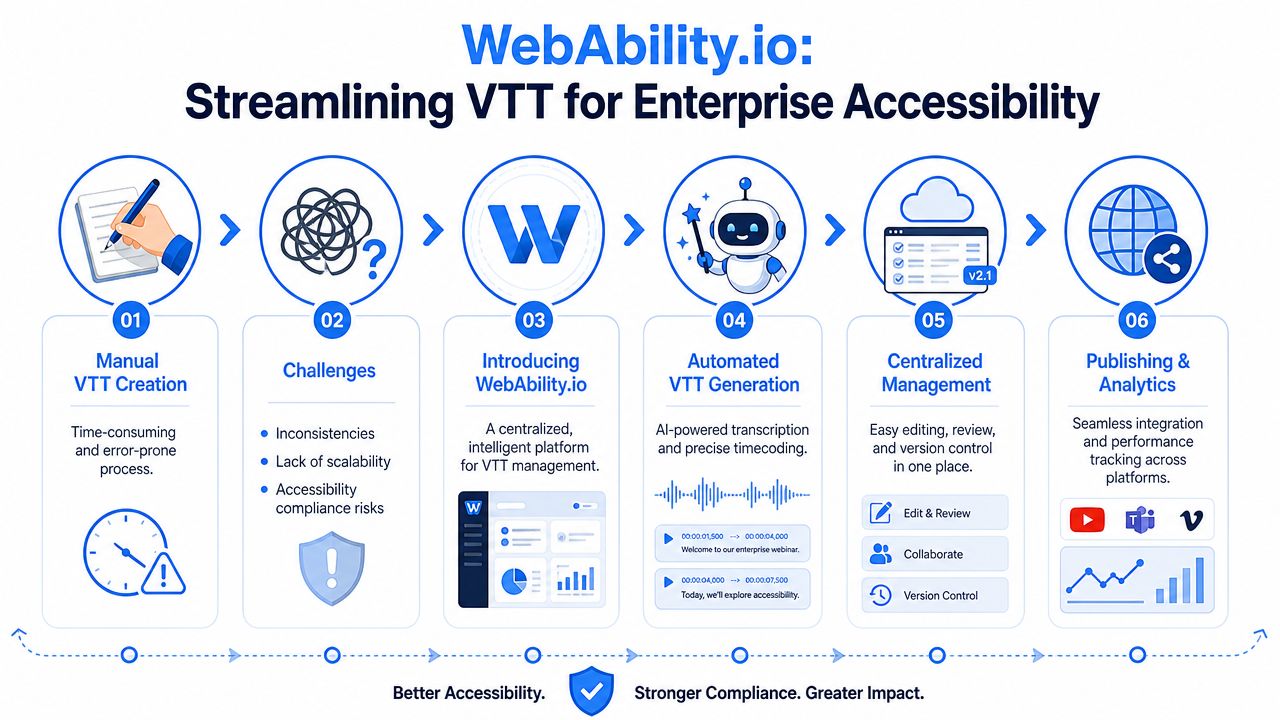
Manual VTT work can hold up when one owner publishes a few videos each quarter. It breaks down once product marketing, support, training, and engineering all ship video in parallel. The common failure points are predictable. Auto-generated captions go live without review. A revised video keeps the old track. QA checks player controls but not the text track itself. Those gaps affect accessibility, but they also affect conversion. If a product explainer is hard to follow, fewer users reach the next step.
What managed workflows fix
Platform-level tooling also becomes useful here. The goal is not to automate judgment. The goal is to put VTT creation, review, approval, and retesting into the same operational system the team already uses for releases and compliance.
Draft generation: Automated transcription gives teams a starting point, which cuts production time without skipping review.
Editorial review: Content owners can correct terminology, speaker labels, timing, and missing non-speech context before publication.
Asset governance: Version history and centralized storage make outdated or missing tracks easier to catch.
Release alignment: Video accessibility checks can sit inside the same workflow as content approval, QA signoff, and deployment.
A broader stack of accessibility tools for websites supports that model by tying scanning, issue tracking, remediation work, and documentation to the same content lifecycle. That matters in real teams, because VTT problems usually show up at handoff points, not during authoring.
Where platform support helps most
The strongest improvement is consistency. Teams stop depending on memory, individual habits, or one accessibility specialist catching every issue before release.
| Manual pattern | Managed workflow improvement |
|---|---|
| Captions live in scattered folders | Teams manage assets in one place |
| Reviews happen ad hoc | Reviews follow a defined approval path |
| Updates depend on memory | Media changes trigger track review |
| QA checks vary by person | Teams use the same validation process across releases |
That consistency has a direct business payoff. It reduces the chance of publishing inaccessible conversion content, gives compliance owners an audit trail, and lowers the cost of fixing errors after launch. It also improves operational speed. Teams spend less time chasing files in chat threads and more time reviewing the parts that need human attention.
WebAbility.io fits into that kind of workflow as a platform-based accessibility management layer with centralized monitoring and user-facing accessibility controls. For VTT work, that setup is useful when video needs to be governed as part of a broader accessibility program rather than handled as a disconnected media task.
Good platforms do not replace review. They make review repeatable, visible, and easier to defend.
Making Video a Part of Your Accessible Future
Teams usually don't fail video accessibility because they reject accessibility. They fail because video sits outside the process that already exists for code, content, and QA.
That's fixable. Once VTT files are treated as required assets, video becomes easier to test, easier to maintain, and easier to defend during audits. The work also gets more useful internally. Product teams can review message accuracy. Marketing can reuse transcripts. QA can validate real output. Compliance owners can track evidence instead of chasing screenshots.
The standard to aim for
A solid screen reader testing guide now needs to account for more than static reading order and keyboard focus. It has to include media that carries business-critical meaning.
Use a practical standard:
If video explains a task, test the text track
If video supports conversion, govern the captions
If video changes, retest the VTT asset
If the player is custom, verify interaction and output together
That approach benefits users first. It also improves operational discipline, reduces avoidable compliance gaps, and helps teams publish content that's easier to discover and easier to trust.
The main shift is cultural. Stop treating accessible video as post-production cleanup. Treat it as part of the product.
If your team wants a cleaner way to manage accessibility across media, templates, and ongoing releases, WebAbility.io gives you a practical place to start. You can use it to bring accessibility monitoring, workflow visibility, and governance into one system so VTT files, screen reader checks, and broader compliance work don't live in separate silos.
Quick Questions
Tap to ask AI about this article