PDF Accessibility: How to Achieve Full Compliance

Sidharth Nayyar
94.75% of public-facing PDFs were found to be inaccessible, and the fix is not a single checker or last-minute cleanup. Teams get pdf accessibility under control when they combine accessible source documents, the right remediation and validation tools, and ongoing monitoring that keeps new files from slipping through.
That number should change how digital teams think about documents. PDF accessibility isn't a niche publishing detail. It's a production, governance, compliance, and user experience issue that sits across content, design, development, legal, procurement, and support.
The good news is that it's solvable. The bad news is that most organizations still treat PDFs as one-off files instead of outputs from repeatable systems. If the workflow keeps generating inaccessible documents, manual remediation becomes a permanent backlog. If the workflow is designed well, accessibility starts earlier and stays manageable.
Why Most PDFs Fail Accessibility Tests
A lot of teams assume a PDF is accessible if it looks clean, has selectable text, and opens without errors. That assumption fails in practice. In a 2025 to 2026 benchmark, Allyant analyzed 644,854 PDFs across more than 770 websites, representing over 15 million pages, and found that 94.75% of public-facing PDFs were inaccessible. Government and education performed even worse, with inaccessibility rates of 97.12% and 98.01% respectively, while healthcare still showed 77.94% of PDFs as inaccessible, according to Allyant's benchmark report.
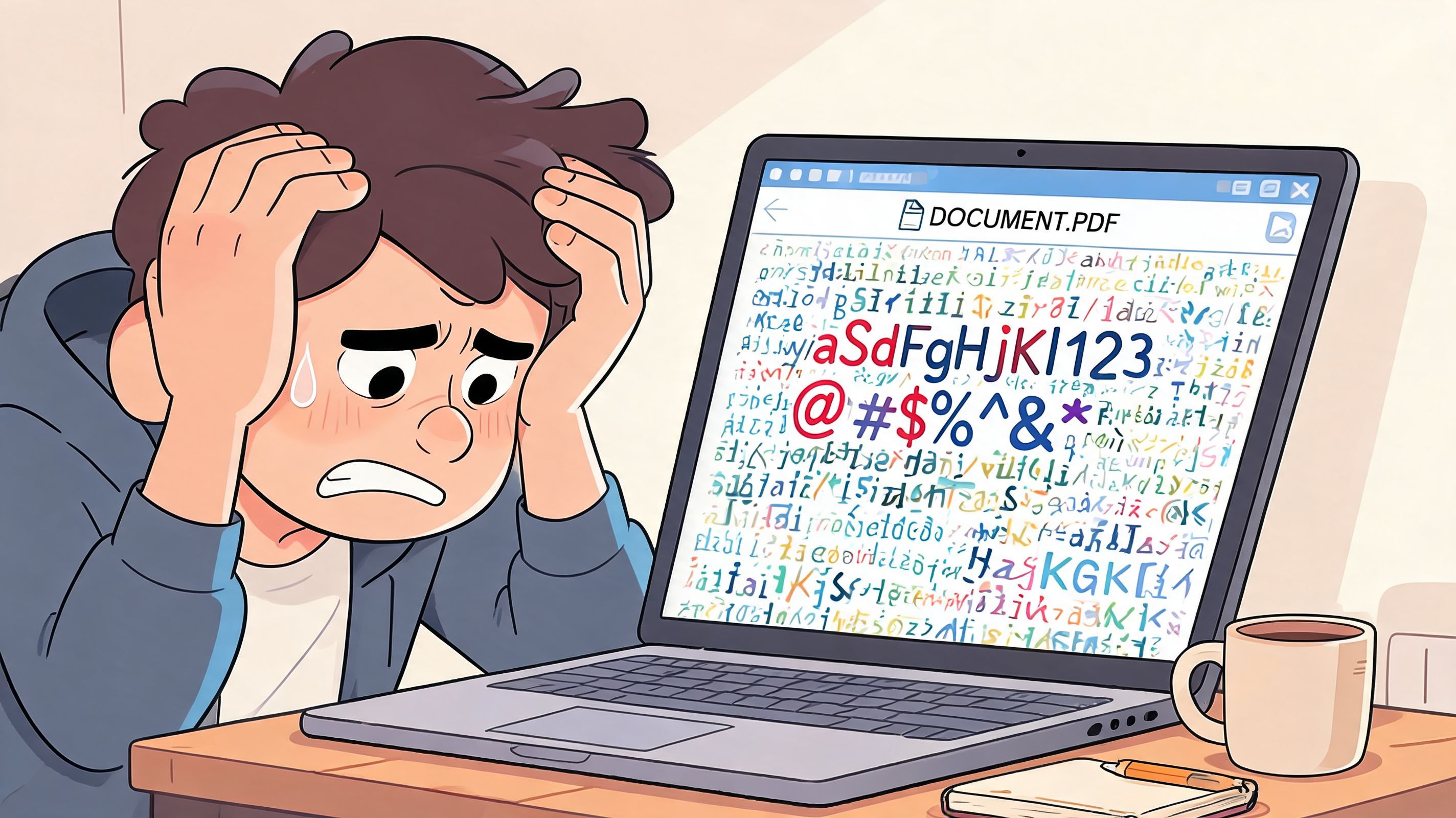
That failure rate tells you something important. Most PDFs aren't failing because teams don't care. They fail because the document pipeline is fragile. People export from Word without preserving tags, flatten forms, scan paper records into image-only files, or publish complex layouts without checking reading order.
The three pillars that actually work
The most reliable approach has three parts:
- Accessible authoring upstream: Writers and designers need to build structure into the source file with heading styles, table headers, alt text, document language, and meaningful link text.
- Remediation and validation: Legacy files still need Adobe Acrobat Pro, OCR, screen reader checks, and structured review. Teams also need to understand what is a tagged PDF, because tags are the backbone of machine-readable structure.
- Continuous governance: New PDFs are created every day. Without monitoring, policy, and publishing controls, defects return as fast as teams fix them.
Practical rule: If accessibility is checked only after publication, your team has already chosen the most expensive point in the workflow to find defects.
What doesn't work is relying on a checklist alone. Checklists help. They don't replace process. The organizations that make progress treat pdf accessibility as a content operations discipline, not a rescue project.
What Makes a PDF Truly Accessible
An accessible PDF has to work as more than a visual artifact. Sighted users can often make sense of layout, font size, and spacing. Assistive technologies can't rely on appearance. They need a structural map.
According to the W3C, the foundation of PDF accessibility is Tagged PDF structure, which lets assistive technologies traverse a document's hierarchy independently of its visual layout, as described in the W3C PDF techniques documentation.
Think of tags as the hidden frame
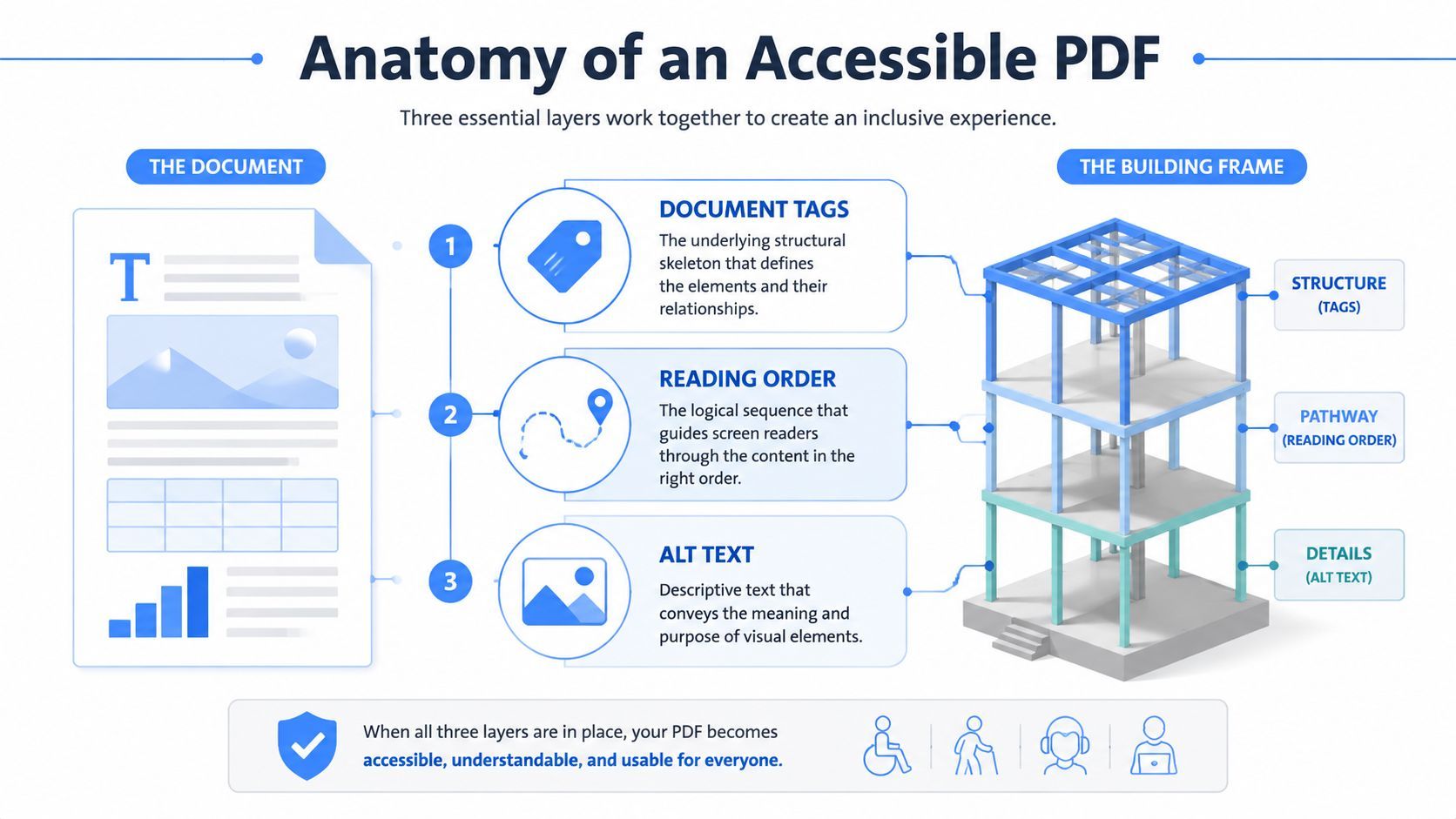
The easiest way to explain this to non-technical stakeholders is to compare a PDF to a building.
The visible design is the paint, glass, and furniture. The tags are the steel frame. If the visible layer looks polished but the frame is missing or chaotic, assistive technology users don't get a coherent document.
A structurally sound PDF includes:
- Semantic tags: Headings, paragraphs, lists, tables, figures, and artifacts are identified correctly.
- Logical reading order: Content is announced in the sequence a user should consume it.
- Metadata: The document title and language are set so screen readers can interpret and present content properly.
What users experience when structure is wrong
When the structure is broken, users don't just get a minor inconvenience. They can get a document that's functionally unusable.
A multi-column annual report may read across columns in the wrong order. A form may announce labels separately from fields. A chart may have no useful text alternative. A table may sound like an undifferentiated stream of cells.
A PDF can look perfect to a designer and still be chaotic to a screen reader user.
That gap is why visual QA is never enough.
What usually preserves accessibility and what strips it
Many teams lose accessibility before the PDF is even published.
Source applications such as Microsoft Word, Adobe InDesign, and Google Docs can preserve structure when authors use native styles and export settings that keep tags intact. The common failure point is "Print to PDF." That workflow often strips the structural information needed by assistive technologies.
For teams that want a practical baseline, these are the essential accessible PDF requirements for enterprises. The point isn't to memorize standards language. It's to recognize that accessibility lives in the underlying structure, not in the appearance of the final file.
Meeting WCAG and ADA Compliance for PDFs
Compliance work gets easier when teams stop treating standards as abstract legal language and start treating them as testable requirements. For PDFs, some issues are subjective and require expert review. Others are concrete enough to validate consistently.
Under WCAG 2.1 AA and Section 508, PDF accessibility requires a minimum 4.5:1 color contrast ratio for standard text and machine-readable searchable text, which means scanned documents need OCR before meaningful remediation can happen, as explained in these PDF accessibility guidelines.
The compliance checks teams should prioritize first
If you need a working triage model, start with the issues that block access at the document level:
- Searchable text: If the PDF is just an image, a screen reader can't read it. OCR comes first.
- Contrast and visibility: Low-contrast text creates barriers for low-vision users and often signals broader design issues in the source file.
- Language and title metadata: These are small settings with outsized impact on pronunciation, navigation, and identification.
- Tables and forms: These need correct structure, labels, and relationships between content elements.
For teams working through policy and implementation expectations, it's useful to compare your document workflow against a broader wcag compliance checklist.
Compliance isn't only about passing a checker
Automated checks are necessary, but they're not enough. A tool can tell you that a field is tagged as a form field. It can't always tell you whether the label makes sense in context, whether the tab order is usable, or whether an alternative description communicates the purpose of a figure.
This short video gives a practical overview of accessibility compliance concepts that often overlap with PDF review:
Where teams often get stuck
In practice, PDF compliance slows down in three places:
| Area | Common problem | Better approach |
|---|---|---|
| Legacy archives | Large volumes of scanned or inherited files | Classify by risk and run OCR before remediation |
| Decentralized publishing | Different departments export documents differently | Standardize templates and export instructions |
| Late-stage review | Accessibility is checked after sign-off | Add document checks into content approval workflows |
If your team is documenting its broader accessibility posture for clients or stakeholders, it can help to view our accessibility details as an example of how organizations communicate standards, support, and ongoing commitments in a public-facing way.
How to Create Accessible PDFs from Source Files
The cheapest accessibility fix is the one you never have to do later. That's why pdf accessibility should start in the authoring tool, not in a remediation queue after publication.
Teams that rely on post-production cleanup usually burn time on avoidable problems. The source file already contains the signals needed to produce a better PDF. Authors just have to use the application as a structured document tool instead of a visual layout canvas.
In Word and Google Docs, structure beats formatting
If someone highlights text, makes it bigger, and bolds it manually, that may look like a heading but it often doesn't behave like one to assistive technology. Authors need to use built-in heading styles, real list controls, and proper table tools.
A practical workflow looks like this:
- Use heading styles from the start. Heading 1, Heading 2, and Heading 3 aren't just formatting presets. They create hierarchy.
- Write descriptive link text. "Download admissions form" is better than "click here."
- Add alt text where the image adds meaning. Decorative elements should stay decorative. Informative visuals need alternatives.
- Mark table headers correctly. If a table communicates relationships, its headers need to be identified in the source.
- Set the document language and title. These are often skipped and easy to fix upstream.
Field note: If authors work from accessible templates, error rates drop before any remediation specialist opens the file.
In InDesign, export settings matter as much as layout
Design teams often assume accessibility gets added later in Acrobat. That creates rework. InDesign can carry a lot of useful semantics forward, but only if the file is built with accessible intent.
That means mapping paragraph styles to tags, setting export options carefully, and checking reading order for complex layouts. Brochures, reports, and public notices with sidebars or multi-column content need extra review because visual layout can diverge from logical sequence.
The export mistake that causes repeat failures
This one matters enough to state plainly: don't print to PDF when accessibility matters.
Printing to PDF commonly strips the tags and structural information that make the file navigable. Teams should use save or export workflows that preserve tagging. If the authoring software offers accessibility-related export settings, they aren't optional extras. They are part of the document production process.
A practical authoring standard for content teams
A usable internal standard doesn't need to be long. It needs to be followed. A short rule set like this often works well:
- Use approved templates: Marketing, HR, legal, and product shouldn't each invent their own export habits.
- Keep source files editable: If remediation is needed, fixing the source is usually faster than repeatedly patching the PDF.
- Route complex documents for review: Forms, tables, and highly designed publications need specialist checks.
- Train authors on the few actions that matter most: Headings, tables, alt text, links, language, export settings.
The shift here is cultural as much as technical. Authors don't need to become accessibility auditors. They do need to stop producing files that are inaccessible by default.
Essential Tools for PDF Remediation and Testing
Manual review still matters, but it doesn't scale by itself. That's the central tooling problem in pdf accessibility. A specialist can inspect tags, reading order, alt text, and form fields in a single file. That approach breaks down when an organization publishes documents across many departments and websites.
The broader context supports that. The 2025 Web Almanac notes that accessibility benchmarks focus on HTML and do not include PDFs or other office documents, even while the median Lighthouse Accessibility score for HTML sites improved by 1% to over 85%, which shows PDFs remain a separate and under-addressed problem that needs specialized attention, as noted in the 2025 Web Almanac accessibility chapter.
What each class of tool is good at
Different tools solve different parts of the problem.
| Tool type | Best use | Limitation |
|---|---|---|
| Adobe Acrobat Pro | Tag inspection, reading order fixes, form remediation, built-in checks | Labor-intensive for large libraries |
| OCR tools | Converting scanned image PDFs into machine-readable text | OCR quality still needs review |
| Screen readers | Real user experience testing for navigation and comprehension | Not efficient as a first-pass scanner |
| Automated scanners | Finding recurring patterns across many files and sites | Can't replace expert judgment on usability |
What strong teams automate
Organizations usually make progress when they automate the repeatable checks and reserve expert time for nuanced issues. That means scanning repositories for image-only PDFs, missing metadata, contrast failures, and other recurring defects, then routing exceptions for deeper review.
A useful operating model includes:
- Scheduled scans: Find newly published PDFs without waiting for complaints.
- Central dashboards: Give content owners, developers, and compliance leads a shared view of document issues.
- Workflow integration: Turn findings into tickets, approvals, or publishing holds.
- Historical reporting: Show whether the backlog is shrinking or moving around.
Accessibility tools work best as force multipliers. They reduce the volume of preventable issues so experts can focus on the files that need judgment.
Where platforms fit
For teams managing accessibility across multiple properties, a platform can connect scanning, reporting, and governance in one place. For example, WebAbility.io includes an accessibility checker, automated monitoring, dashboards, and expert support that can be used alongside remediation workflows for websites and document environments.
The key point isn't to replace people with software. It's to stop asking people to do platform-scale monitoring by hand. Managed accessibility programs, automated monitoring, and user-facing support features can play a constructive role when they're tied to clear standards and review processes.
Beyond Compliance The Business Impact of Accessible PDFs
The business case for accessible documents is stronger than many teams realize. Compliance is one driver, but it isn't the only one. Public PDFs often contain policies, pricing, forms, statements, benefits information, contracts, and service details. If users can't access those materials, the organization creates friction at the exact moment someone is trying to act.
The operational side matters too. Research from the University of Washington shows that even large institutions often rely on reactive, individual remediation requests for PDFs, which points to a workflow problem that creates ongoing costs and risk, as discussed in the University of Washington's PDF accessibility report.
What accessible PDFs improve in practice
When teams get document accessibility under control, several things usually improve at once:
- Support burden drops: Fewer users need to ask for alternate formats or manual help.
- Publishing risk becomes more manageable: Legal, procurement, and communications teams can point to a defined process instead of case-by-case cleanup.
- Brand trust improves: Accessibility signals that the organization expects everyone to use its content, not only users with ideal conditions or devices.
- Internal efficiency gets better: Staff spend less time remediating the same preventable issues.
Why this matters for conversion and content performance
Accessible documents also affect findability and actionability. A machine-readable, well-structured PDF is easier to process, easier to explore, and less likely to create drop-off when someone is trying to complete a form, review a proposal, or compare service information.
That's especially relevant for digital teams measured on lead quality, self-service completion, and customer experience. If a key document is confusing, inaccessible, or trapped in a broken format, users abandon the task or shift to support channels. Accessibility work often removes that friction before it becomes a visible conversion problem.
Better document accessibility usually looks like fewer exceptions, fewer escalations, and fewer last-minute fixes.
PDF Accessibility FAQs
Are tagged PDFs automatically accessible
No. Tags are foundational, but they don't guarantee a good experience. A tagged file can still have poor reading order, weak alt text, confusing forms, or table structures that technically exist but aren't usable.
Should we choose HTML instead of PDF
Sometimes, yes. Recent research shows that even when PDFs are remediated for compliance, they can still present significant usability barriers in complex layouts, which is why teams should consider parallel HTML versions for some content, as discussed in this research on PDF accessibility barriers.
A good rule is simple:
- Use HTML first for content that changes often, needs to work well on mobile, or serves broad public audiences.
- Use PDF carefully when you need a stable print-oriented format, a formal record, or a downloadable package.
- Provide both when the PDF is authoritative but the content is important enough that users shouldn't have to depend on a fixed-layout file alone.
Can automated tools replace expert review
No, but they can dramatically improve coverage and consistency. Automation is ideal for detection, prioritization, and monitoring. Expert review is still needed for complex tables, forms, reading order, alternative text quality, and assistive technology experience.
What's the hardest PDF type to make accessible
In practice, it's usually one of these:
- Scanned legacy documents
- Complex forms
- Multi-column reports
- Data-heavy tables
- Highly designed marketing collateral
Those files often need a combination of OCR, structural remediation, manual testing, and sometimes an alternate HTML presentation.
If your team needs a scalable way to improve pdf accessibility across websites and document workflows, WebAbility.io offers automated monitoring, compliance tooling, and expert support that can help turn one-off remediation into an ongoing governance program.
Quick Questions
Tap to ask AI about this article