Inclusion is no longer a side initiative. It’s a core operating requirement for modern schools. According to the National Educational Statistic Center, 63% of students with disabilities are educated in general education classrooms more than 80% of the time in the U.S., a shift that has made accessible tools and flexible digital systems part of everyday instruction, not a separate program (ATIA overview).
For school administrators and IT teams, that changes the question. The issue isn’t whether adaptive technology in the classroom matters. It’s how to build a system where classroom devices, learning platforms, websites, and daily teaching practices all support students consistently.
The Complete Guide at a Glance
If you need the short version, start here.
- Adaptive technology adjusts to the learner: It can change reading support, input methods, display settings, pacing, or content pathways so more students can participate meaningfully.
- Assistive and adaptive tools work together: A student may use a specialized device such as an eye-gaze system, while also using a platform that personalizes task difficulty or presentation.
- This is an inclusion and operations issue: Schools need accessible classrooms, accessible LMS experiences, accessible websites, and purchasing processes that account for compliance from the start.
- Compliance is part of implementation: ADA, Section 508, AODA, EN 301 549, and WCAG requirements affect procurement, digital content, and platform management.
- Data matters: Modern systems can help staff monitor engagement, usage, and progress so decisions are based on evidence, not guesswork.
- The strongest approach is end-to-end: If you're mapping accessibility across instruction, content, and digital systems, this broader web accessibility guide for education is a useful companion resource.
Why Adaptive Technology is Required in 2026
A growing share of instruction now runs through digital systems. If those systems are hard to read, hard to control, or hard to personalize, students lose access before teaching even begins.
That is why adaptive technology belongs in the core classroom stack, not on the edges of a support plan. For school leaders, this is both an instructional issue and an implementation issue. The goal is not to only add a few helpful tools. The goal is to build an environment where students can enter the LMS, read materials, respond to assignments, and show understanding without unnecessary barriers.
In day-to-day practice, adaptive technology includes tools and settings that change how students receive information or complete work. A student might listen to digital text instead of reading it visually. Another might dictate responses instead of typing. A third might need adjustable contrast, spacing, or pacing to stay engaged with the lesson. The common thread is flexibility. The system adjusts so the student can participate in the same learning workflow as everyone else.
A good way to frame it is building access the way facilities teams build ramps, elevators, and door hardware. One fix in one room helps a few people. A connected access plan across the whole campus helps everyone get where they need to go. Digital learning works the same way. Isolated tools solve isolated problems. A coordinated approach connects classroom practice, platform settings, device management, procurement standards, and compliance review into one accessible learning ecosystem.
Inclusion now depends on the systems students use every day
More students learn in general education settings, and more instruction happens inside shared digital platforms. That changes the job for administrators and IT teams.
Access can no longer depend on a separate room, a separate workflow, or a workaround known only by a few specialists. If the core portal, LMS, classroom app, or assessment platform creates friction, the barrier sits inside the standard learning environment.
That affects several teams at once:
- Curriculum leaders: They need content that remains usable across devices, formats, and reading supports.
- IT departments: They configure accounts, integrations, input options, accessibility settings, and device policies that shape daily access.
- Procurement teams: They need to review accessibility documentation before purchase, not after a complaint.
- School leaders: They set expectations for adoption, training, and accountability across departments.
A simple test helps here. If a student can join the lesson in person but cannot independently use the course website, discussion board, or digital assignment flow, access is still incomplete.
Schools need systems, not isolated fixes
Many schools started the accessibility conversation with accommodations for individual students. That work still matters. But in 2026, the stronger model is operational. It asks whether the district’s digital environment can support variation at scale.
That includes the tools students use directly, and it includes the policies behind those tools. Can staff turn on supports without filing three tickets? Can a vendor product work with screen readers, keyboard navigation, captions, and alternative input methods? Can usage data show whether students are benefiting from the support, or whether the feature exists only on paper?
For teams sorting through product categories, this guide to assistive technology for people with disabilities can help clarify where specialized access tools fit alongside adaptive classroom systems.
The schools making the most progress treat adaptive technology as infrastructure. They connect teaching goals, digital accessibility, procurement review, and support workflows from the start. That is how classroom theory turns into a practical, scalable system that students can use every day.
Understanding Adaptive vs Assistive Technology
People often use adaptive technology and assistive technology as if they mean the same thing. They overlap, but they aren’t identical.
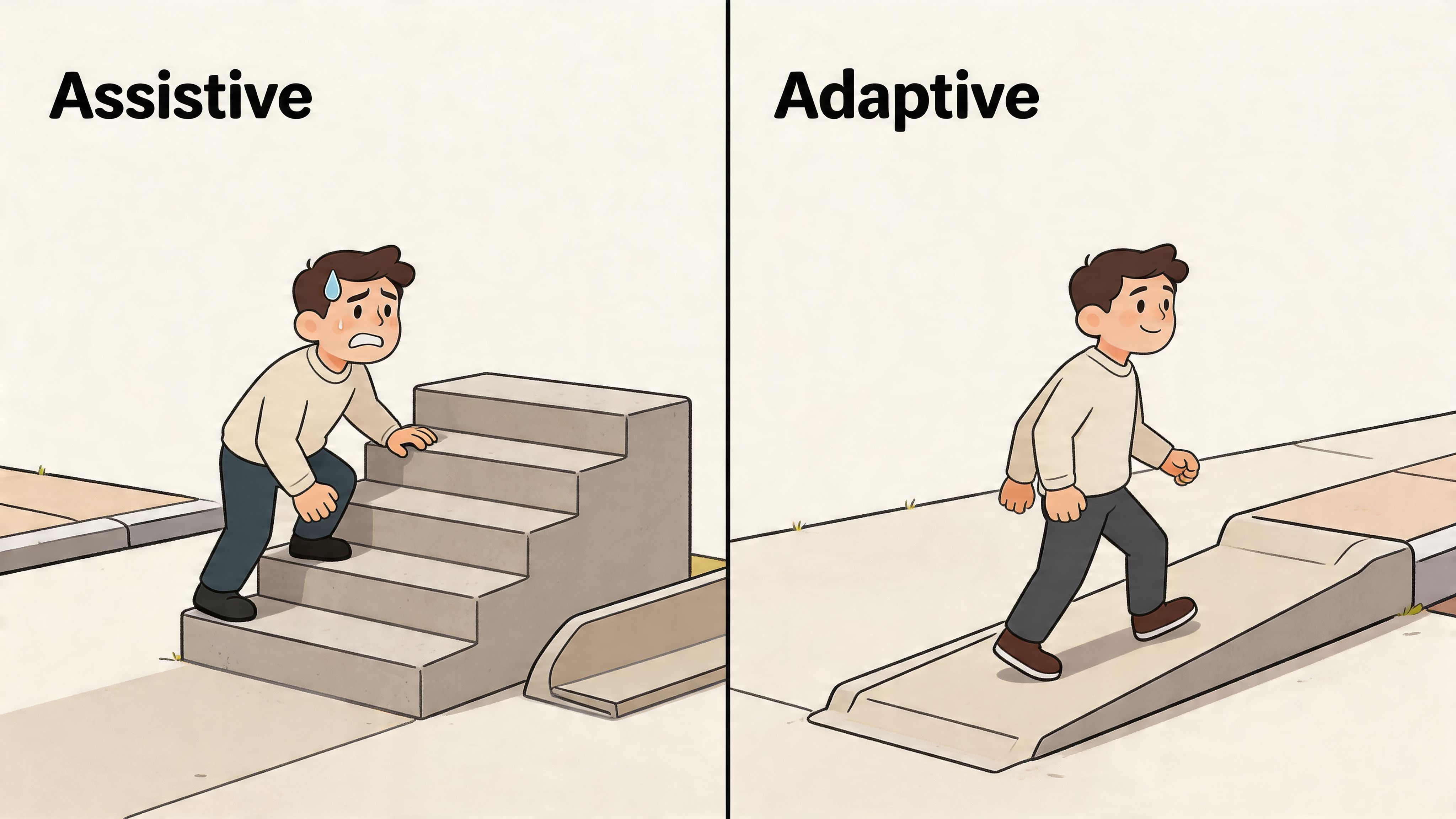
A simple way to think about it is a curb cut on a sidewalk. It helps a wheelchair user directly. It also helps a parent with a stroller, a traveler with luggage, and a delivery worker with a cart. Good classroom design works the same way. Some tools are built for a specific access need. Others make the whole environment more flexible for everyone.
What assistive technology usually means
Assistive technology typically refers to tools that help a person perform a task that would otherwise be difficult because of a disability. These can be highly specialized or built into common devices.
Examples include:
- Screen readers: They convert on-screen text into speech or braille output.
- Braille displays: They give tactile access to digital text.
- Eye-gaze systems: They allow students with severe motor impairments to control a device using eye movement.
- Sip-and-puff switches: They provide device control without standard keyboard or mouse input.
- FM systems: They help students hear the teacher more clearly in noisy classrooms.
If you want a broader breakdown of disability-specific supports, this guide to assistive technology for people with disabilities is a useful reference.
What adaptive technology usually means
Adaptive technology usually refers to tools or platforms that adjust to the learner, the task, or the environment. Sometimes the adjustment is automatic. Sometimes the user chooses settings that make learning more usable.
That might include:
- a reading platform that offers text-to-speech and display customization
- software that changes question difficulty based on performance
- speech-to-text for students who think faster than they type
- word prediction tools that reduce writing friction
- interface settings such as contrast, spacing, font changes, or zoom
The important distinction is this. Assistive tools often address a specific access barrier. Adaptive tools often make the system itself more flexible.
Why schools get confused
Part of the confusion comes from the fact that many modern products do both. A tablet may include built-in magnification, captions, speech recognition, and display adjustments. An LMS add-on may support keyboard navigation while also letting students personalize contrast and text size. In daily school practice, the boundary isn’t always clean.
That’s fine. The goal isn’t perfect terminology. The goal is choosing technology that removes barriers.
Schools make better decisions when they ask, “What barrier does this remove?” instead of “Which category does this fit?”
A helpful instructional lens here is Universal Design for Learning, often shortened to UDL. UDL encourages schools to offer multiple means of engagement, representation, and expression. In plain language, that means students shouldn’t have only one way to receive information, one way to participate, or one way to show what they know.
Here’s a short explainer that aligns well with that mindset:
The model that works in real schools
The strongest classroom ecosystems combine both types.
- Assistive technology handles individual barriers
- Adaptive technology increases flexibility across the environment
- UDL shapes the instructional design so fewer students hit preventable barriers in the first place
When administrators and IT teams understand that relationship, procurement gets easier. So does staff training. Instead of buying isolated tools reactively, schools can build a layered system that supports more students with less friction.
Exploring the Main Types of Adaptive Technology
About one in five students in U.S. schools has an identified disability, and many more need temporary or situational supports during the school day. That is why administrators and IT teams need a practical way to sort adaptive tools. The most useful approach is to group them by the barrier they remove, then connect each category to classroom workflows, device management, and procurement standards. For a related breakdown of individual supports, see these types of assistive technology.
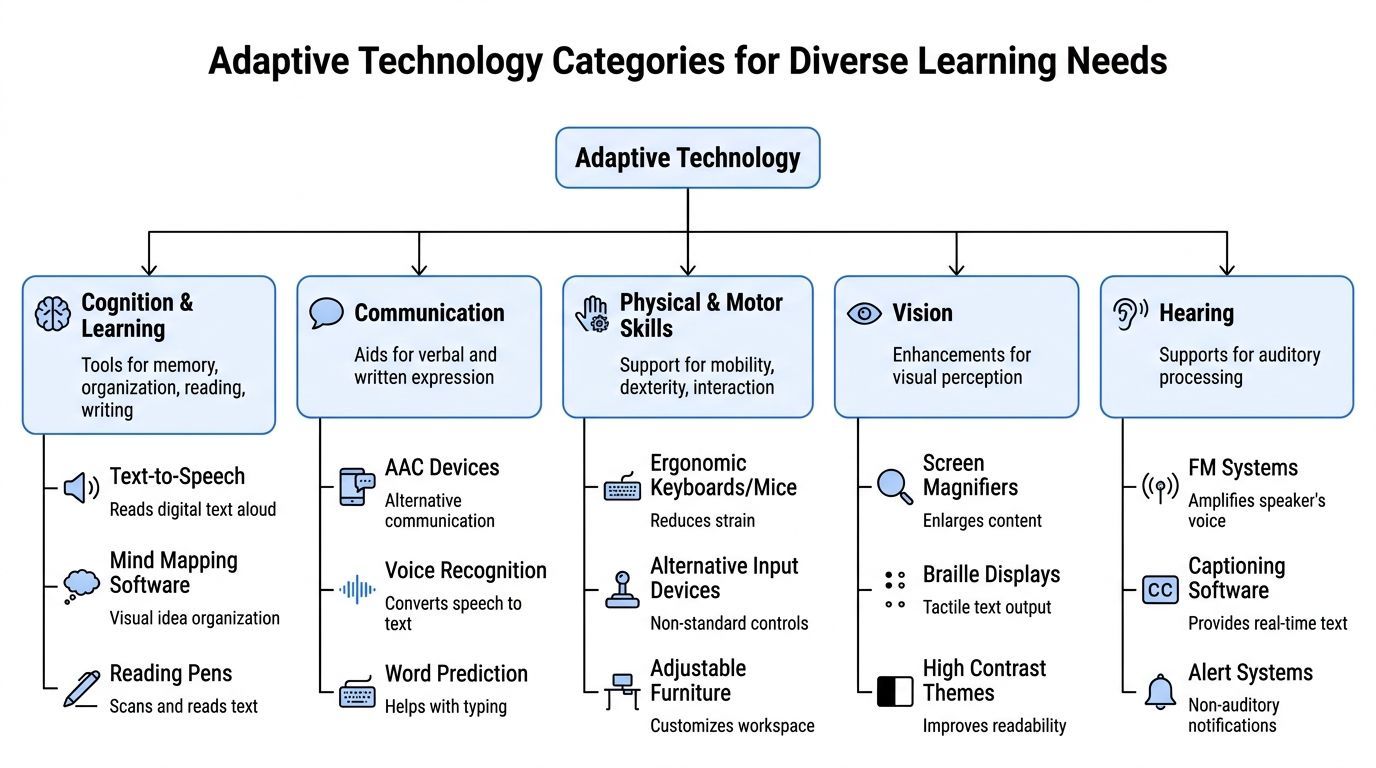
A helpful way to frame this is to picture the digital classroom as a school building. If a doorway is too narrow, students cannot enter. If a platform, file type, or device setting creates the same kind of blockage, instruction stalls for the same reason. Adaptive technology widens those digital doorways across reading, writing, communication, movement, and sensory access.
Vision support
Students with low vision or print access barriers often need the display itself to change before learning can begin. In practice, that means adjusting how content looks, sounds, or is delivered through another format.
Common examples include:
- Screen magnifiers: enlarge text and interface elements
- High-contrast modes: improve readability and reduce visual strain
- Text-to-speech: reads digital text aloud
- Screen readers: support students who access content non-visually
- Braille displays: provide tactile output for digital text
For school systems, this category matters beyond individual accommodation plans. Many of these features are already built into operating systems, browsers, and learning platforms. That makes them easier to scale across classrooms, but only if device images, permissions, and staff training are set up correctly.
Hearing and auditory access
Students who are deaf, hard of hearing, or who process spoken language more effectively with text or replay options need instruction delivered through more than one channel. A teacher explanation heard once in a noisy room is easy to miss. The same explanation with captions, amplification, and playback controls becomes usable.
Tools often include:
- FM systems: amplify teacher voice and reduce background noise
- Captioning tools: convert speech into text
- Visual alerts: replace sound-based notifications
- Recorded instruction with replay controls: lets students review at their own pace
These supports often improve access for multilingual learners and students who need extra processing time. That makes them a strong example of how adaptive technology can serve both individual needs and wider classroom design.
Motor and physical access
Before a student can respond to a prompt, submit an assignment, or join a discussion, the student has to control the device. That is the first gate.
Examples in this category include:
- Alternative keyboards and mice
- Switch interfaces
- Eye-gaze systems
- Touch accommodations
- Mounting systems for tablets and displays
- Speech-based control
For administrators, this category usually raises implementation questions fast. Will the tool work with district hardware? Does it require special mounting, Bluetooth pairing, or custom drivers? Can the student use it across the LMS, testing platform, browser, and communication apps? Those details determine whether a promising tool becomes part of an accessible ecosystem or stays an isolated purchase.
Cognition, literacy, and learning support
This category affects a large share of daily instruction because the barriers are often less visible. A student may understand the concept but lose track of multi-step directions. Another may know what to say but struggle to get words onto the page. In those cases, adaptive technology acts like a scaffold around the task. It reduces the load so the student can focus on the learning goal.
Common tools include:
- Word prediction
- Speech-to-text
- Text-to-speech
- Mind mapping software
- Reading pens
- Adaptive practice platforms
- AI-supported drafting and revision tools
This is also where schools should be careful not to buy single-purpose apps without checking how they fit the wider instructional stack. A writing support tool needs to work with classroom assignments, identity management, data privacy rules, and teacher feedback routines. For teams reviewing revision support, resources like AI Powered Revision can help clarify how AI-assisted drafting and rewriting may fit into literacy workflows.
Communication support
Students who do not rely on speech alone need a reliable way to express needs, answer questions, and participate in academic tasks. If communication access is inconsistent, every subject becomes harder.
These tools include:
- AAC devices
- Symbol-based communication apps
- Voice output tools
- Word and phrase banks
- Speech generation built into tablets
Communication tools are often the clearest example of why schools need end-to-end planning. A student may have an effective AAC app, but if it cannot connect to classroom routines, shared documents, presentation tools, or secure testing conditions, participation still breaks down. The tool and the environment have to work together.
A practical reference table
| Support Area | Example Technologies | Primary Function |
|---|---|---|
| Vision | Screen readers, magnifiers, high-contrast modes, braille displays | Improve access to visual and digital content |
| Hearing | FM systems, captioning software, visual alerts | Improve access to spoken instruction and audio cues |
| Physical and motor | Eye-gaze systems, switch interfaces, alternative input devices | Enable device control without standard keyboard or mouse use |
| Cognition and literacy | Text-to-speech, speech-to-text, word prediction, mind mapping | Support reading, writing, organization, and comprehension |
| Communication | AAC devices, speech-generation tools, symbol-based apps | Help students express needs, ideas, and academic responses |
Selection rule: Start with the barrier, then check the system. The right question is not only “Will this help a student?” but also “Will this work across devices, platforms, training, and compliance requirements at school scale?”
Adaptive Technology in Action Classroom Use Cases
Technology makes more sense when you can see it inside a real school day. The value of adaptive technology in the classroom isn’t the feature list. It’s the difference between a student waiting for help and a student moving forward independently.
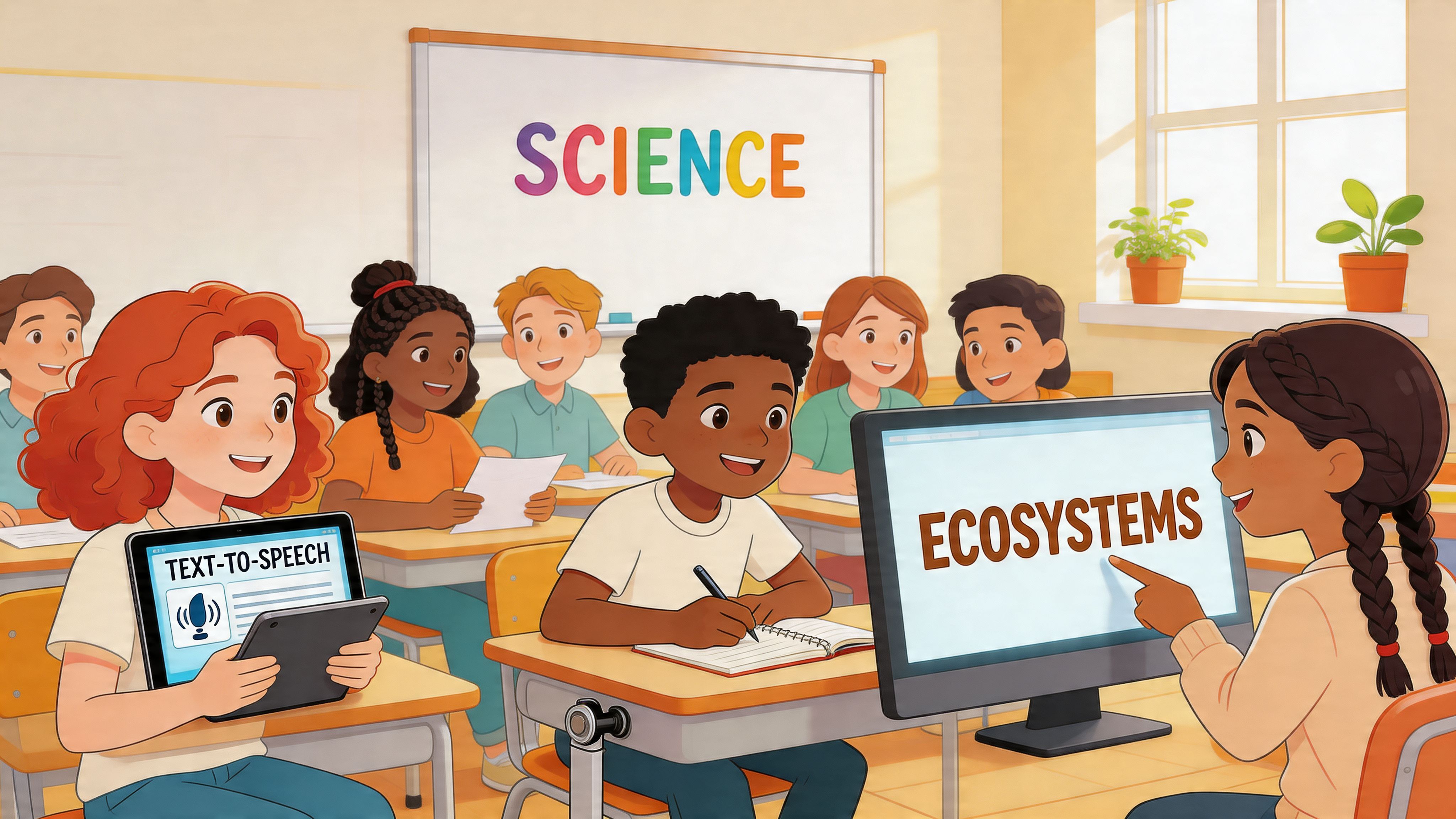
Elementary reading block
A fourth-grade student struggles to decode grade-level passages quickly enough to keep pace with whole-group reading. In a traditional setup, that student falls behind before the discussion even begins.
With adaptive support, the student opens the same reading assignment on a tablet, uses text-to-speech for the first pass, changes spacing and display contrast, and listens again during independent work. The class still studies the same text. The difference is that access arrives faster.
The teacher benefits too. Instead of re-reading the entire passage one-on-one, the teacher can spend that time checking comprehension and vocabulary.
Middle school science lab
A student with limited fine-motor control needs to document observations during a lab. Writing by hand is slow and frustrating. A standard keyboard creates the same barrier.
An alternative setup changes the task, not the expectation. The student uses speech-to-text for observations and a switch-compatible interface for navigation. If the lab platform is accessible, the student can enter data, review prompts, and submit work without depending on constant adult mediation.
That independence matters. It changes how peers see the student, and how the student sees their own role in group work.
High school writing support
A ninth-grade student has strong ideas but weak output fluency. Essays stall because spelling, typing, and sentence production create too much friction.
A writing workflow with speech-to-text, word prediction, and structured revision support can reduce that bottleneck. The student speaks a first draft, uses prediction to complete sentences efficiently, then revises in smaller chunks. The assignment stays rigorous. The path becomes more usable.
College and digital course access
This matters in higher education too. According to Education Week’s reporting on a 2024 foundry10 study, teachers say adaptive learning technologies boost classroom efficiency and student engagement through AI-driven personalization. The same source notes that nearly 1 in 5 U.S. undergraduate students reported having a disability in 2019-20.
For a college student, adaptive support may look less like a special device and more like a survivable digital workflow:
- recorded lectures paired with transcripts
- text-to-speech for dense course readings
- distraction-reduced reading modes
- structured note organization
- flexible quiz timing and accessible input options
What administrators should notice in these examples
Each example has a different tool set, but the pattern is the same.
- The learning goal stays intact
- The barrier changes
- The student does more of the work independently
- The teacher spends less time on workaround support
- The institution moves closer to consistent inclusion
The most effective classroom technology doesn’t lower standards. It removes unnecessary obstacles between the student and the standard.
For IT teams, these use cases also reveal a larger truth. If classroom devices support access but the LMS, portal, or assignment platform doesn’t, students still hit a wall. That’s why implementation has to extend beyond devices on desks.
Navigating Compliance and Smart Procurement
A school can buy excellent classroom tools and still create an inaccessible learning environment. That usually happens when procurement focuses on devices in isolation and ignores the digital systems around them.
Where schools often miss the real risk
A student may have captioned instruction in class, a supportive teacher, and the right device settings. Then they log into a course portal with weak keyboard access, unreadable contrast, unlabeled buttons, inaccessible PDFs, or a discussion tool that doesn’t work well with screen readers.
That gap is already well recognized. As Soliant’s school accessibility discussion notes, schools often support physical classroom access but neglect digital accessibility, leaving students to move from an accommodating room into an LMS or website that lacks WCAG 2.2 AA support.
This is why adaptive technology in the classroom has to be understood as part of an ecosystem. Classroom accommodations can’t carry the full load if the digital infrastructure breaks the chain of access.
The compliance lens administrators need
The legal and standards framework often feels fragmented, but the operational question is simple. Can students access digital information, interactions, and services equitably?
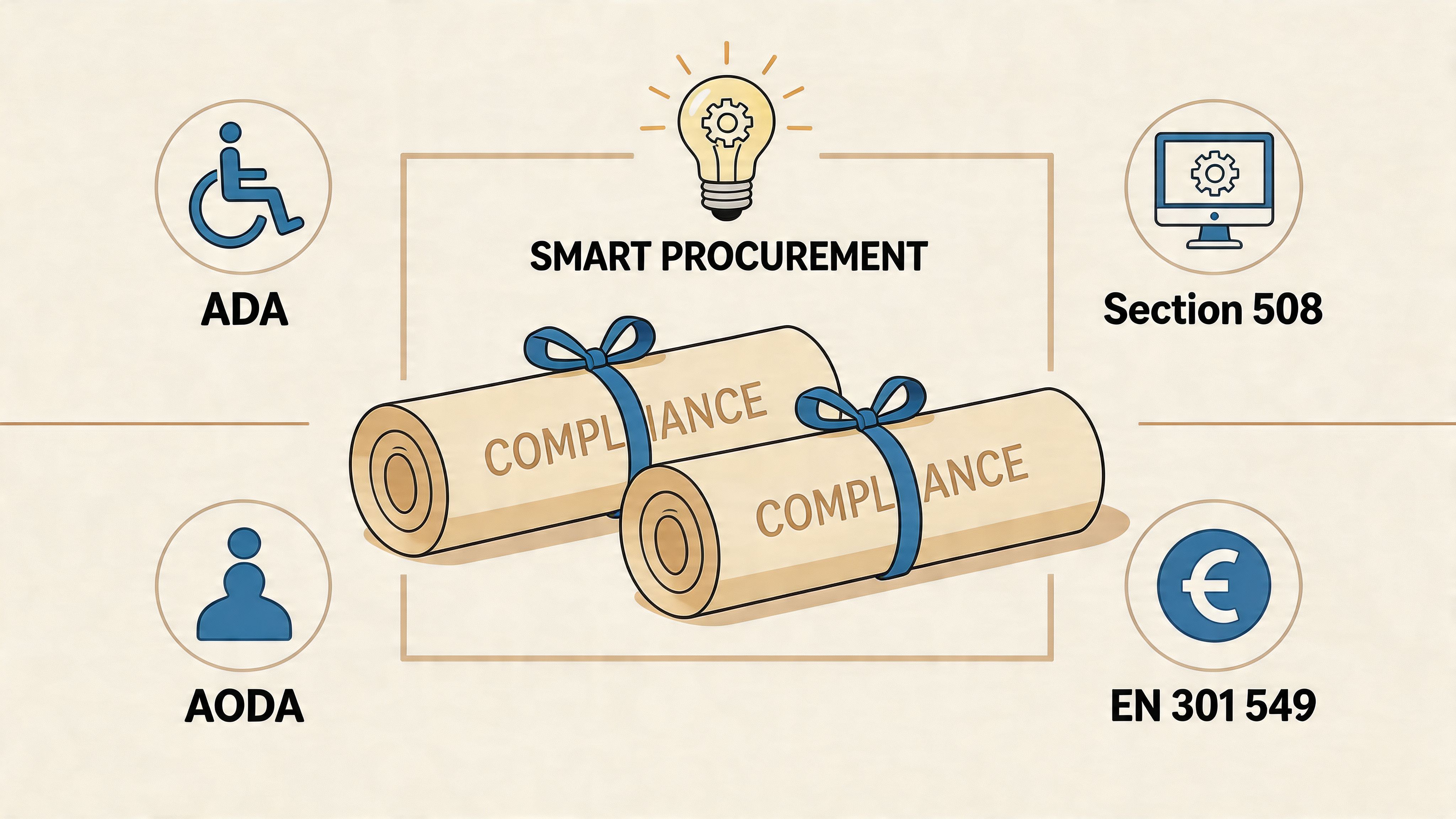
For schools and public institutions, that may involve:
- ADA: broad civil rights obligations tied to access
- Section 508: digital accessibility requirements relevant to public sector contexts
- AODA: accessibility requirements in Ontario
- EN 301 549: accessibility standards commonly referenced in European procurement
- WCAG 2.2 AA: the technical benchmark many organizations use to evaluate web and digital content accessibility
If your team is evaluating digital obligations in the public sector context, this overview of section 508 compliance helps translate the standard into practical review points.
Procurement questions worth asking before purchase
Schools usually ask whether a product has the features teachers want. They should also ask whether the product can be supported, monitored, and defended during a compliance review.
Use questions like these:
- Can students operate it by keyboard alone?
- Does it work with screen readers and common browser settings?
- Can users adjust contrast, text size, spacing, or reading presentation?
- Are captions, transcripts, and alternative text workflows supported?
- Will the vendor provide accessibility documentation and remediation guidance?
- Can IT monitor issues over time instead of relying on one-time checks?
Buying for systems, not one-off fixes
The strongest procurement approach treats accessibility as governance, not a product checkbox. That means selecting tools that fit the school’s wider digital environment.
Some institutions use centralized platforms to monitor websites, portals, and digital experiences alongside classroom tools. For example, WebAbility.io provides an accessibility widget with user controls such as text scaling, high-contrast modes, dyslexia-friendly fonts, text-to-speech, translation, and keyboard support, along with dashboard-based scanning and reporting for ongoing compliance management.
That kind of model can help schools connect classroom inclusion goals with IT oversight. The key point isn’t the brand. It’s the architecture. Schools need visibility across the full path students use to learn.
Procurement works better when the team asks, “Can we sustain accessibility after launch?” not just “Can we buy this before the next semester starts?”
Implementing Adaptive Tech and Measuring Success
Buying technology is the easy part. Making it useful across classrooms, semesters, and platforms takes process.
A strong implementation plan starts small enough to manage but broad enough to reveal system issues. If one grade level, one department, or one course sequence can’t support the tools reliably, scaling up usually exposes the same problem everywhere else.
Start with one learning workflow
Don’t begin with a broad promise like “make all classrooms adaptive.” Start with a workflow that matters and occurs often.
Good starting points include:
- Reading assignments: Can students access text in multiple ways?
- Written response tasks: Do students have usable input options?
- Lecture capture and review: Are recordings, transcripts, and display settings easy to use?
- Assessment delivery: Can students use the platform with their needed supports?
This approach gives teachers and IT staff something concrete to test together.
Train for classroom reality
Training often fails because it stays too abstract. Staff don’t need a giant feature tour. They need answers to practical questions.
For example:
- Which settings should a teacher know how to activate quickly?
- Which tools are built into existing devices?
- Which supports require IT setup or account permissions?
- What should staff do if a tool works in class but breaks inside the LMS?
- How should teachers document recurring barriers so IT can investigate patterns?
That shared language matters. When teachers can describe the barrier clearly, IT can solve the right problem faster.
Implementation advice: Train around tasks students do every week. Logging in, reading, responding, submitting work, and reviewing feedback reveal more than generic product demos.
Use data without overcomplicating it
Adaptive learning platforms often produce useful signals because they track how students move through content and where they need support. According to iDream Education’s overview of adaptive learning technology, adaptive platforms use real-time data to create personalized paths, and students on those paths showed 25-40% higher mastery rates in STEM subjects than students using static curricula.
For administrators, the important lesson isn’t just the percentage. It’s the mechanism. Real-time data helps schools see whether students are accessing support early enough and whether the instructional path is adjusting.
Useful measures can include:
- Usage patterns: Are students activating support features?
- Engagement markers: Where do students stop, repeat, or skip?
- Task completion: Are students finishing work more independently?
- Support requests: Are certain classes or tools generating repeated access issues?
- Teacher observations: Are accommodations reducing bottlenecks during instruction?
If your team wants a simple model for how platforms can track student progress across coursework and learner activity, it can help shape what to ask from your own systems even if your stack looks different.
Measure success at two levels
Schools should evaluate adaptive technology in the classroom at both the student level and the systems level.
Student level
- Can the student access materials with less delay?
- Can the student complete more work independently?
- Is participation more consistent across settings?
Systems level
- Are accessibility issues being identified before they become complaints?
- Are teachers using the same supports consistently?
- Can IT see trends across devices, platforms, or departments?
- Can leadership document an accessibility process, not just isolated accommodations?
Build a feedback loop that lasts
The most reliable implementations create a loop:
- identify barriers
- match tools to those barriers
- train the people using them
- monitor usage and access
- fix what breaks
- review patterns before the next term
That cycle is what turns isolated accommodations into a durable accessibility program.
Building Your Inclusive Digital Campus
Adaptive technology in the classroom works best when schools stop treating accessibility as a collection of separate fixes. A switch device in one room, captions in another, and a few display settings on a tablet can help. But students need continuity. They move across classrooms, assignments, portals, forms, dashboards, and course sites. The experience has to hold together.
That's the fundamental shift for administrators and IT teams. Inclusion now depends on both instruction and infrastructure. Teachers need flexible tools they can use during real lessons. IT teams need platforms and policies that keep digital environments accessible over time. Procurement teams need standards that go beyond feature checklists. Leadership needs evidence that the system is improving access, not just purchasing software.
The schools making the most progress usually share a few habits:
- They plan around student barriers, not vendor categories
- They connect classroom support with digital accessibility
- They train teachers and IT staff as one implementation team
- They monitor what happens after rollout
- They treat compliance as an ongoing practice
This is not a side project. It’s part of how a modern school delivers instruction fairly and sustainably.
If your school wants to assess whether its websites, portals, and learning experiences support that goal, WebAbility.io offers tools for scanning accessibility issues, supporting user customization, and monitoring compliance across digital properties. It’s a practical next step for teams that want to move from isolated classroom accommodations to a more complete accessible learning ecosystem.