What Is JAWS: The Leading Screen Reader Explained

Sidharth Nayyar
JAWS is Job Access With Speech, a Windows-based screen reader that reads web pages, apps, and desktop interfaces aloud and through Braille for blind and low-vision users. It’s widely regarded as the world’s most popular screen reader, which makes it important not only for digital inclusion, but also for accessibility testing, compliance, and the quality of your customer experience.
If you're a developer, project manager, or agency lead, "what is JAWS" usually stops being a definition question very quickly. It becomes a delivery question. Why did a button work visually but fail for a screen reader user? Why does a form feel simple to your QA team but confusing to someone navigating by keyboard and speech output?
That gap is where accessibility projects either mature or stall.
JAWS matters because it turns your code into a user experience. It doesn't care how polished the interface looks in a design review. It cares whether the page exposes a usable structure, clear labels, predictable controls, and meaningful feedback. When those pieces are present, a user can browse products, complete forms, read support content, and manage accounts independently. When they're missing, basic tasks become slow, error-prone, or impossible.
Your Introduction to JAWS Screen Reader
A blind user lands on your homepage. They can't scan the hero banner, spot the primary CTA, or visually guess which menu item matters most. They rely on JAWS to tell them where they are, what each element is, and what action they can take next.
That's the simplest answer to what is JAWS. It's software that acts like a highly structured narrator for the digital world.
For teams building websites and products, that matters in three ways:
- User access: JAWS helps people read articles, shop online, use forms, work in web apps, and access services independently.
- Code quality: JAWS verifies whether your HTML structure and ARIA communicate meaning.
- Business outcomes: Better accessibility often supports clearer navigation, smoother form completion, and stronger trust across all users.
A page can look finished and still be unusable in JAWS if the structure underneath isn't exposed properly.
JAWS is especially relevant in professional environments because many organizations test against it when validating accessibility. If your team serves enterprise, public sector, education, or regulated markets, understanding how JAWS behaves isn't optional.
This is also where accessibility becomes bigger than compliance. A page that's easier for JAWS to interpret is often easier for everyone to interact with. Clear headings help screen reader users jump efficiently. They also help sighted users scan content faster. Proper form labels help JAWS announce fields correctly. They also reduce abandonment caused by ambiguity.
That overlap is where accessibility supports conversion rate optimization, support reduction, and brand credibility. Teams that treat accessibility as a user experience discipline usually produce cleaner interfaces and more resilient code.
What Is JAWS and Who Uses It
A customer lands on your checkout page, tabs to the first field, and hears a confusing label or no label at all. For your team, that may look like a small markup issue. For a JAWS user, it can turn a routine purchase into a dead end.
JAWS stands for Job Access With Speech. It is a Windows screen reader made by Freedom Scientific. It presents digital content through speech and Braille so blind users and many low-vision users can work, shop, study, and manage daily tasks without relying on the screen.
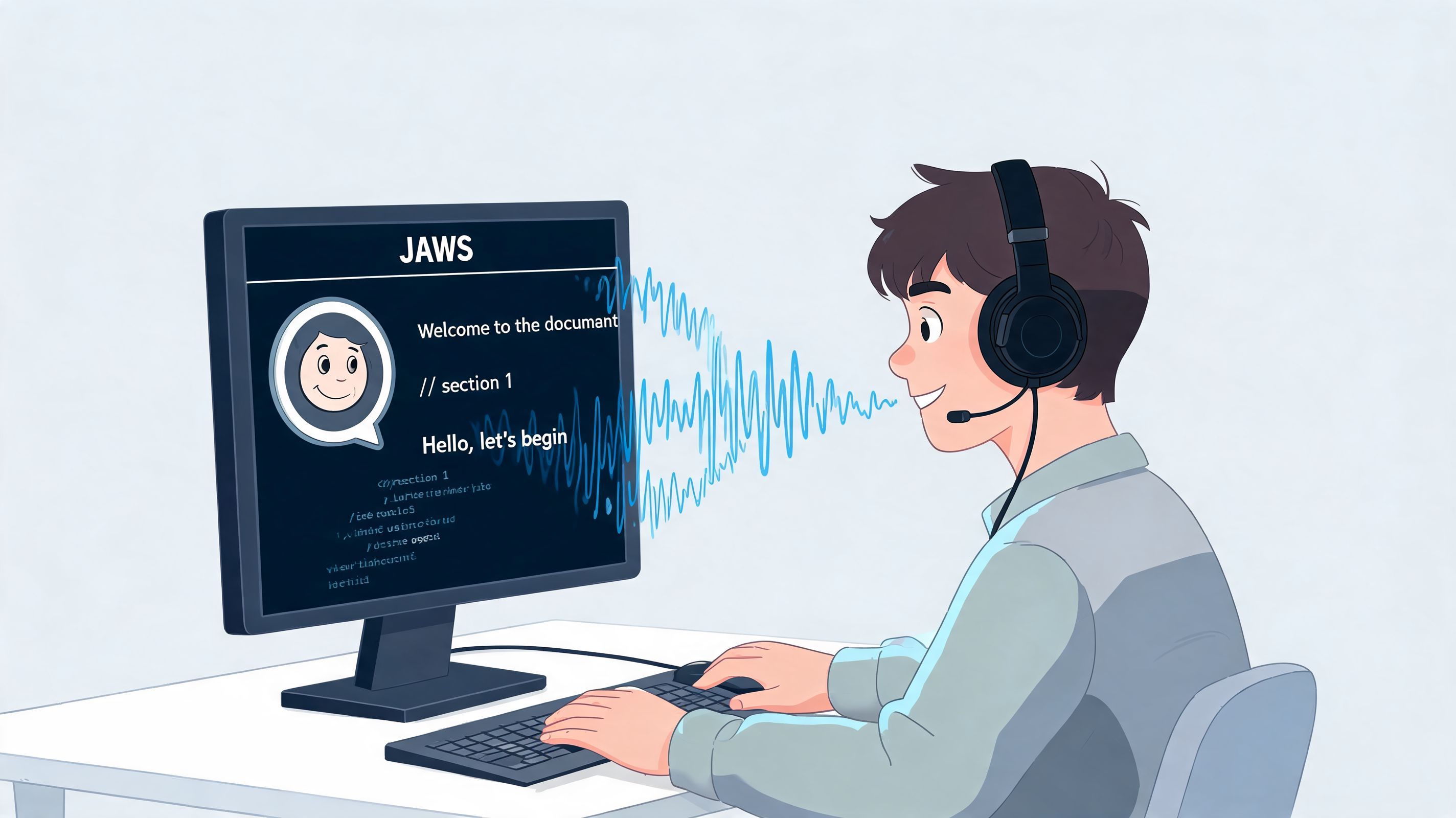
From a product and engineering perspective, JAWS is best understood as the user's interpreter for your interface. It announces the parts of a page that your code exposes clearly: headings, links, buttons, form fields, tables, dialogs, status messages, and landmarks. If those parts are labeled well and structured correctly, the experience feels orderly. If they are vague, missing, or out of sequence, the user has to guess.
Who relies on JAWS
JAWS users are not a narrow edge case. They include people completing school assignments in learning platforms, employees working in CRM systems and internal dashboards, patients checking portal messages, and customers comparing products or submitting support requests. Some use speech only. Some use Braille displays. Some combine JAWS with zoom or high contrast settings because they have partial vision and want both visual and spoken feedback.
That variety matters to teams building digital products. A university portal, benefits platform, ecommerce flow, or SaaS admin panel can all be judged by the same practical question: can someone complete the task efficiently with JAWS?
If your team needs broader context, this complete guide to screen reader software explains how JAWS fits among other screen readers and user needs.
Why this matters to developers and project managers
Teams often meet JAWS after an audit failure or an escalation from support. That is usually the point where accessibility feels expensive, because the fixes now compete with release deadlines.
A better approach is to treat JAWS feedback as direct evidence of how well your interface communicates. When a user says a page is hard to use in JAWS, the root cause is often visible in the code: a missing form label, a custom control with no accessible name, headings used for styling instead of structure, or focus that jumps in an order that breaks the task.
That has business consequences. If users cannot find a product option, complete a payment step, or submit an account form independently, conversion drops, support contacts rise, and trust weakens. Teams that connect the JAWS experience to these outcomes usually make better prioritization decisions, fix issues earlier, and protect both revenue and brand reputation.
How JAWS Interprets a Web Page
A product manager opens a signup flow and sees a clean interface. A developer checks the styling and confirms every control is visible. A JAWS user lands on the same page and hears "button," "edit," and "link" with little context. The gap is not visual polish. The gap is the information your code exposes to assistive technology.
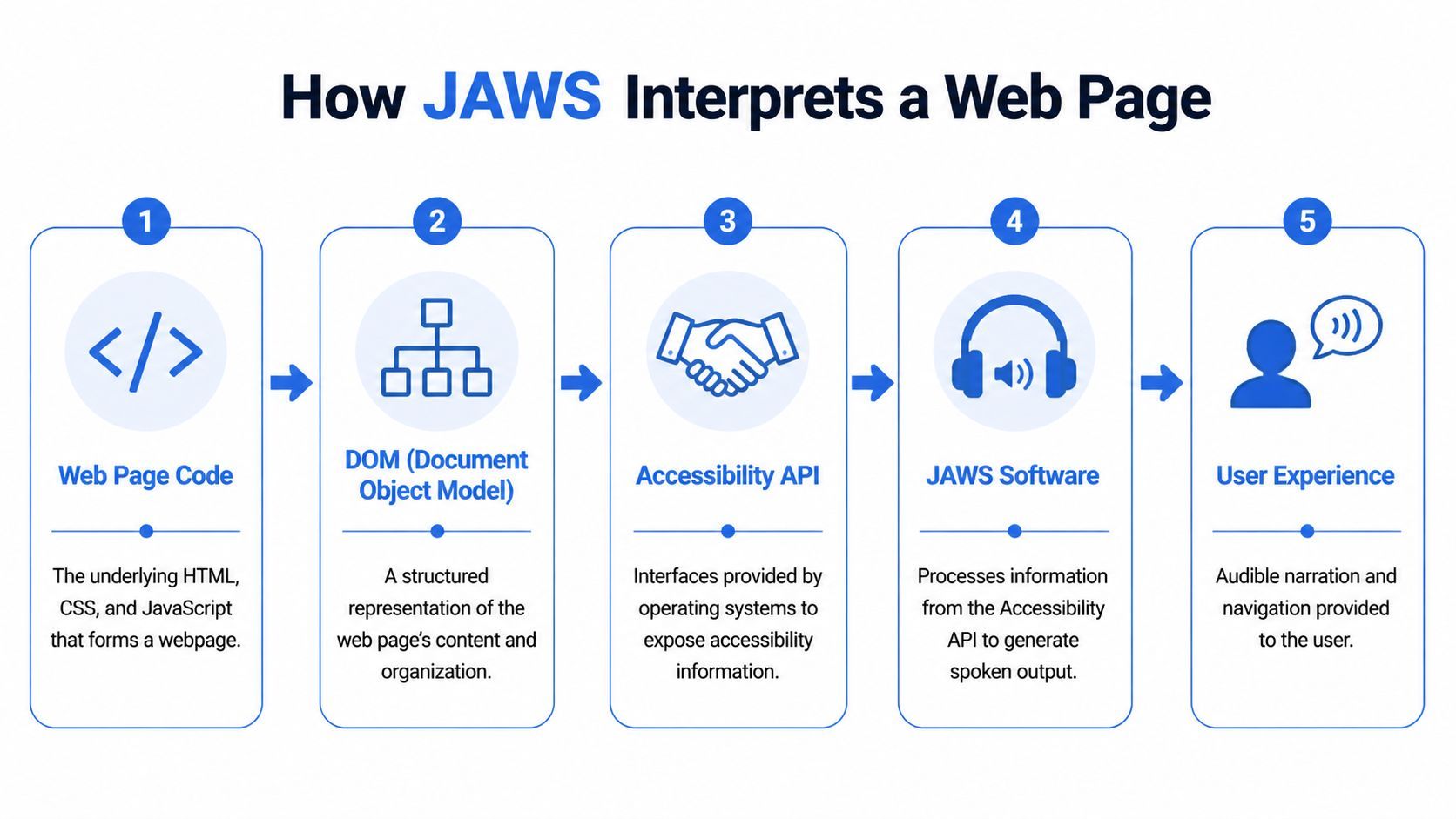
JAWS reads the accessibility information the browser and operating system make available. That includes an element's role, name, state, value, and position in the page structure. If those signals are missing or misleading, the spoken output is missing or misleading too.
For developers, it helps to picture two versions of the same page. One is the visual layer your design team reviews. The other is the accessibility tree, which works like a translated model of the interface for screen readers. JAWS interacts with that second version.
The technical path from code to speech
The path is straightforward:
- Your HTML, CSS, and JavaScript create the interface
- The browser builds the DOM and an accessibility tree from that code
- Windows exposes that information through accessibility APIs
- JAWS reads the role, name, state, and value of each element
- The user hears speech output or receives the same information on a Braille display
That chain explains why accessibility bugs often feel invisible to teams until a user reports them. The page can look finished and still communicate poorly through the accessibility layer.
A simple example makes the difference clear.
| Code pattern | What JAWS is more likely to understand |
|---|---|
Native <button> with clear text | A button with an actionable name |
<input> paired with a proper label | An editable field with an announced purpose |
| Heading tags in correct order | A usable outline of the page |
Generic <div> used as a control without role or keyboard support | Unclear or missing meaning |
Native HTML gives JAWS reliable information. Custom components built from generic containers often need extra work before they expose the same meaning and behavior.
Why semantic HTML matters so much
Semantic HTML acts like good labeling in a warehouse. If every aisle, shelf, and bin is marked correctly, staff can find and move items quickly. If everything sits in plain boxes with no labels, work slows down and errors rise. Screen reader users face the same problem when headings, buttons, lists, and form fields are not coded with their real purpose.
Start with native elements whenever possible. Use ARIA to fill specific gaps, not to rebuild semantics you could have had for free.
This affects more than basic announcements. JAWS users often move by headings, landmarks, links, and form fields to get oriented and decide what to do next. If your page lacks that structure, the experience becomes a long stream of disconnected items. That slows task completion, raises abandonment risk, and turns an accessibility defect into a conversion problem.
For teams refining language and page metadata, WebAbility.io's HTML lang attribute guide is a useful companion because pronunciation and language switching also depend on signals in the code.
A short visual walkthrough helps connect the abstract process to real behavior:
Where developers usually get tripped up
The failure point is usually not JAWS itself. It is the implementation.
Common examples include:
- Unnamed icon buttons where JAWS announces only "button"
- Form fields without labels so the user cannot tell what to enter
- Custom dropdowns that do not expose expanded or collapsed state
- Modal dialogs without focus management so the user loses their place
- Status messages without live region support so errors or confirmations are never announced
Each of these issues maps directly to code decisions your team can review and fix. That is why JAWS testing should not sit only with compliance or QA. It belongs in design reviews, component decisions, sprint acceptance criteria, and remediation planning. Teams that make that connection usually improve both accessibility and business results, because clearer structure helps users complete tasks with less friction and more trust.
Navigating the Web with JAWS Keyboard Commands
The fastest way to understand JAWS is to stop thinking like a mouse user.
A JAWS user often moves through a page by keyboard, listening for structure and deciding what to open next. On a well-built site, that feels efficient. On a poorly built one, it feels like searching a warehouse in the dark.
A well-structured page
Take a product category page. The user lands on the page and presses the key JAWS uses to move through headings. They hear the page title, then category sections, filters, product groups, and supporting help content in a logical order.
They can also bring up a links list with Insert+F7 to scan available destinations without tabbing through every element. If the link text is descriptive, the page becomes navigable quickly.
When they reach a checkout or contact form, the Tab key moves them between focusable fields and controls. If each field has a proper label and errors are announced clearly, the interaction feels direct and confident.
A poorly structured page
Now compare that with a page built from generic containers, visual headings, and custom controls with unclear states.
The heading shortcut may return little or nothing useful. The links list may be full of repeated "learn more" or "click here" style text. Tabbing through the form may reveal unlabeled edit fields, decorative elements in the focus order, or a submit button that announces poorly.
If users must explore element by element to discover meaning, the page is doing too much interpretive work and too little communication.
That difference matters for delivery teams. JAWS users don't browse the way your visual QA checklist assumes they do. They skim by structure, jump by semantics, and depend on predictable keyboard behavior.
What PMs and developers should watch during testing
A practical review should check whether users can:
- Jump by headings to understand the page outline
- List links and hear useful names
- Move through forms in a logical order
- Detect status changes such as errors, confirmations, and expanded sections
- Stay oriented when dialogs, menus, or dynamic panels appear
When those flows work in JAWS, your site usually feels more coherent across the board.
JAWS vs NVDA and VoiceOver A Comparison
Teams asking what is JAWS are also deciding how it fits into their testing stack. That usually leads to a second question. How is JAWS different from NVDA or VoiceOver?
The short answer is that they serve overlapping user needs, but they differ in platform, pricing model, and where they show up most often in practice.
The comparison below keeps things simple.
Screen Reader Comparison JAWS vs NVDA vs VoiceOver
| Attribute | JAWS | NVDA | VoiceOver |
|---|---|---|---|
| Primary platform | Windows | Windows | Apple platforms |
| Cost model | Commercial license | Free | Built into Apple ecosystem |
| Common organizational context | Often used in corporate and government settings | Common among budget-conscious users and many testers | Common on macOS and iOS |
| Developer testing implication | Important for enterprise-facing products | Important for broad Windows coverage | Important for Apple user journeys |
Why JAWS still matters so much
A lot of teams assume free tools will fully represent real-world use. That's risky.
The discussion of JAWS dominance and cost pressures notes that while JAWS is often described as the world's most popular screen reader, its enterprise-level pricing creates a meaningful total cost of ownership. That financial reality often pushes individual users and budget-constrained organizations toward free alternatives like NVDA.
That doesn't reduce JAWS's importance. It explains why the situation is mixed.
- Enterprise and government environments may standardize around JAWS.
- Individual users may prefer NVDA because cost matters.
- Apple users often rely on VoiceOver because it's built into their devices.
For development teams, the lesson isn't "pick one and ignore the rest." It's build on standards so your experience holds up across all of them.
Universal design is the safer strategy. If your site depends on one screen reader handling a weak pattern gracefully, you've already accepted unnecessary risk.
A practical testing mindset
If you're shipping a public-facing website, treat screen reader compatibility as a cross-environment quality issue.
Use JAWS when your audience includes enterprise workflows, regulated sectors, or clients who expect compatibility with established assistive technology. Use NVDA because it broadens Windows coverage without the same budget barrier. Use VoiceOver to validate Apple journeys and touch-plus-screen-reader interaction patterns.
The best result is not "works in JAWS only." The best result is predictable, standards-based behavior everywhere.
Developer Best Practices for JAWS Compatibility
The most reliable way to support JAWS is also the most durable accessibility strategy overall. Build interfaces that expose clear meaning through native HTML first, then use ARIA carefully to fill real gaps.
That sounds basic, but it solves a surprising amount of friction.
Start with stable semantics
The overview of JAWS scripting and enterprise support notes that JAWS remains strong in enterprise partly because of its scripting engine and custom support for proprietary applications. For web teams, the lesson is straightforward: user-side customization can't rescue an inaccessible application.
Use patterns JAWS can interpret consistently:
- Choose native controls first such as
<button>,<a>,<input>,<select>, and heading elements - Label every form field clearly with visible labels connected programmatically
- Name interactive icons so a screen reader announces purpose, not just role
- Preserve heading hierarchy so users can skim by structure
- Use landmarks thoughtfully for navigation, search, main content, and supporting regions
If your team needs outside review on implementation quality, it can help to conduct professional WCAG audits for agencies before issues reach production.
Handle dynamic behavior carefully
Many of the hardest JAWS issues show up after the initial page load.
A menu opens. A modal appears. Search results update. An error message is injected. If focus doesn't move correctly or the update isn't exposed accessibly, the user may not know anything changed.
Check these areas closely:
Focus management
When a dialog opens, move focus into it. When it closes, return focus to a sensible trigger or next step.
State communication
If a control expands, collapses, toggles, or becomes disabled, expose that state programmatically.
Announced feedback
Validation errors, confirmations, and live updates need accessible messaging patterns, not only visual styling.
Build for predictability. JAWS users can work quickly when controls behave the way the platform expects.
Reduce avoidable remediation work
A lot of rework comes from custom components that were faster to design than to make accessible.
Before building a custom accordion, tabs interface, or combo box, ask whether the interaction really needs to be custom. If it does, test keyboard behavior, naming, state changes, and reading order early. Don’t leave that for final QA.
For teams that want implementation help, scanners, and issue tracking in one workflow, technical accessibility solutions from WebAbility.io can support semantic review, automated scanning, and remediation planning alongside manual testing.
A few habits pay off immediately:
- Write descriptive link text so link lists are useful out of context
- Provide meaningful alt text for informative images
- Avoid placeholder-only forms because placeholders don't replace labels
- Keep tab order aligned with visual and task logic
- Test custom widgets with keyboard only before adding screen reader testing
Developers don't need to memorize every JAWS quirk. They need to build interfaces that communicate cleanly through standards.
Achieve and Maintain JAWS Compatibility with WebAbility.io
JAWS compatibility isn't a one-time checkbox. Content changes, components evolve, and third-party scripts can introduce regressions. Teams need a way to catch issues before users do and to keep accessibility visible after launch.
That’s where an operational approach helps. WebAbility.io provides an AI-enhanced accessibility widget, continuous scanning, reporting, dashboards, and support workflows that can help teams maintain compatibility as sites change. For teams working in CMS-driven environments, OneNine's WordPress accessibility guide is also a useful reference for accessibility considerations inside WordPress builds.
If you want a fast first pass on your current site, start with an online accessibility checker. It won’t replace manual testing with JAWS, but it can help surface structural issues that often affect screen reader behavior, including missing labels, weak semantics, and other common implementation gaps.
The bigger point is simple. When teams connect accessibility maintenance to publishing, QA, and ongoing governance, JAWS users get a more reliable experience and the business gets fewer surprises.
If you want to evaluate your site’s accessibility workflow, WebAbility.io offers a practical place to start with scanning, monitoring, and remediation support for teams managing compliance and user experience at scale.
Quick Questions
Tap to ask AI about this article