Master Single Page Application Accessibility

Sidharth Nayyar
Single page application accessibility comes down to fixing what the browser no longer does for you. More than 1.3 billion people, or roughly 16% of the world's population, live with significant disability, and the broader disability market is worth about $13 trillion, so when an SPA fails to announce route changes or loses focus, it's not a minor bug. It's exclusion.
If you're working on a React, Vue, or Angular app right now, you've probably seen the pattern. The UI feels fast. Navigation is smooth. The product team loves the polish. Then someone tests with a keyboard or screen reader and the cracks show immediately. The route changes visually, but nothing is announced. Focus stays on the old button. A modal opens and Tab slips into the page behind it. The app looks modern and behaves like a maze.
This is the primary challenge of single page application accessibility. Dynamic content changes break native browser accessibility features, so developers have to restore that behavior in code. The good news is that the fixes are concrete. You need predictable focus management, route announcements through ARIA live regions, meaningful document titles, semantic HTML, and a testing process that checks the actual user journey instead of just static markup.
This is also one of those areas where engineering quality, compliance, UX, and conversion all meet. Accessible navigation helps people complete tasks. Clear headings and routed URLs improve internal linking to high-value pages. Stable interaction patterns reduce friction during forms, checkout, signup, and support flows.
Why SPA Accessibility Matters Now More Than Ever
You ship a polished feature in your SPA. The transitions are smooth, the loading states are clean, and routing feels instant. Then a keyboard user opens the app and can't tell where they are after navigation. A screen reader user activates a link and hears nothing change. The code passed QA, but the experience didn't.
That gap matters more now because accessibility sits at the center of product quality, legal exposure, and business reach. As of 2024, the global disability market is valued at approximately $13 trillion, and organizations that leave SPA-specific barriers unresolved risk excluding that audience. In the United States, ADA-related web accessibility lawsuits reached over 2,500 federal filings in 2023, a 30% increase from the previous year, which makes inaccessible client-side architecture a real operational risk, not just a design flaw. If you need stakeholder buy-in, these considerations provide the foundation to build a business case for accessibility.
TLDR for busy teams
- Route changes need code support: In an SPA, the browser doesn't announce a new page automatically.
- Focus can't be left to chance: After navigation, users need focus moved to the new content, usually the main heading or first meaningful landmark.
- Dynamic updates must speak: Success messages, errors, and state changes need ARIA live regions.
- Semantics still do most of the work: Native buttons, links, headings, forms, and landmarks solve more than custom widgets ever will on their own.
- Testing needs layers: Automated scans help, but they won't catch every route or focus issue in a JavaScript-heavy app.
Why this is an expertise issue
Single page application accessibility rewards teams that understand browser behavior, assistive technology behavior, and framework behavior at the same time. That's where E-E-A-T matters in practice.
- Experience: Teams that have debugged real route transitions know that “looks correct” and “is understandable” are different things.
- Expertise: You need command of focus order, ARIA roles, keyboard interaction, and client-side routing.
- Authoritativeness: Good accessibility decisions align with WCAG 2.2 AA and hold up across audits and reviews.
- Trustworthiness: Users trust interfaces that behave consistently, especially in forms, account areas, checkout, learning systems, and admin dashboards.
Practical rule: If a user can't tell what changed after an action, the SPA is still doing too much silently.
The Four Pillars of Accessible Single Page Applications
The easiest way to make single page application accessibility manageable is to stop treating it like one giant problem. In practice, most failures fall into four pillars. Fix these, and the app becomes much more predictable.
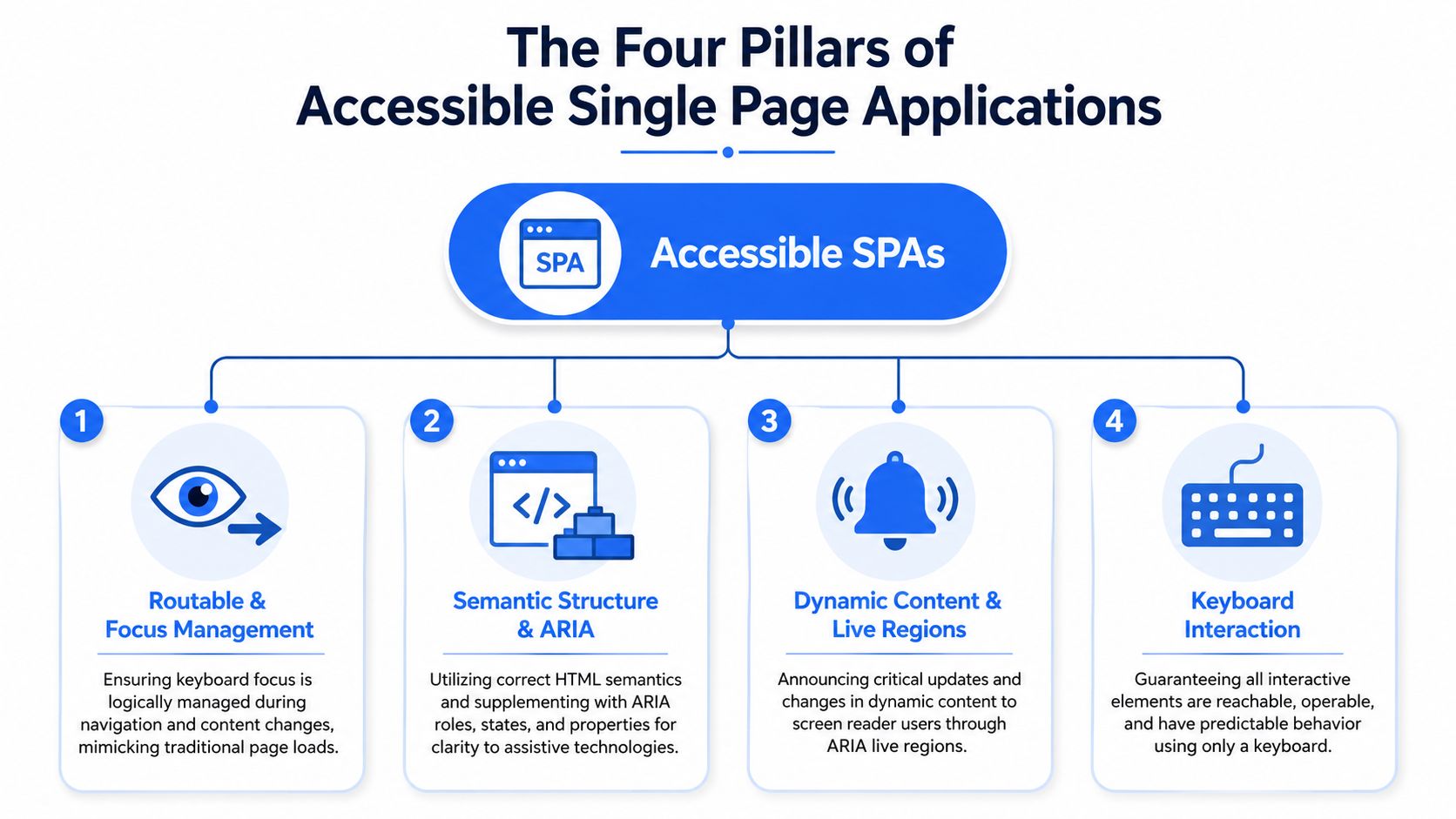
Routable and shareable URLs
In a traditional page load, the browser gives you location changes, history behavior, and refresh logic by default. In an SPA, your router has to recreate that experience. Each meaningful view should have a distinct URL state, and browser back and forward behavior should map to something users can understand.
This matters for accessibility because location is orientation. If the URL, title, visual content, and application state drift apart, users lose confidence fast. Internal linking also suffers when important account pages, category views, or learning modules aren't represented as meaningful routes.
A quick gut check helps here:
| Check | What good looks like |
|---|---|
| URL state | Each major view has its own route |
| Browser history | Back and forward restore the expected screen |
| Deep linking | Users can reload or share a URL and land in the same place |
Predictable focus management
Focus in an SPA works like a spotlight operator in a play. If nobody moves the spotlight when the scene changes, the audience keeps staring at the old actor. That's what happens when a route updates but focus stays on the link or button that triggered it.
After navigation, move focus to the most meaningful target. In many apps, that's the page <h1>. In some flows, it's the top of the main content region or a newly injected success panel. The point is consistency, not novelty.
For dialogs, drawers, and overlays, focus must stay inside the active surface until the user closes it. When the UI closes, focus goes back to the element that opened it.
Meaningful content announcements
SPAs often fail unannounced. The UI visibly changes, but assistive technology gets no native page-change event because the browser never loaded a new document. That means you have to announce meaningful changes yourself.
When SPA content changes dynamically, developers must update document.title and use an ARIA live region to announce the change. A 500ms delay after inserting text into the live region is essential, because assistive technology may otherwise miss the DOM alteration entirely and fail to provide auditory confirmation of the new page state, as described in SitePoint's SPA accessibility guidance.
A practical pattern looks like this:
- Update the page title with the new view name.
- Inject the same message into a fixed live region near the start of the document.
- Wait briefly before clearing the message so screen readers can register it.
If your ARIA knowledge is rusty, start with WebAbility.io's guide to ARIA before adding roles everywhere. Most accessibility bugs come from missing semantics first, not missing ARIA attributes.
Robust semantics and keyboard interaction
The last pillar is the one teams often underestimate because it sounds basic. It isn't. Native HTML still carries the interaction model for the whole app.
Use a <button> for actions. Use an <a> for navigation. Use real headings in a logical order. Use landmarks like main, nav, and footer. Use form labels that connect to actual controls. Then add ARIA only when native semantics can't express the state or relationship you need.
Good SPA accessibility rarely starts with exotic ARIA. It starts with honest HTML and fewer custom controls.
When these four pillars line up, route changes become understandable, keyboard interaction becomes reliable, and important pages become easier to discover and complete.
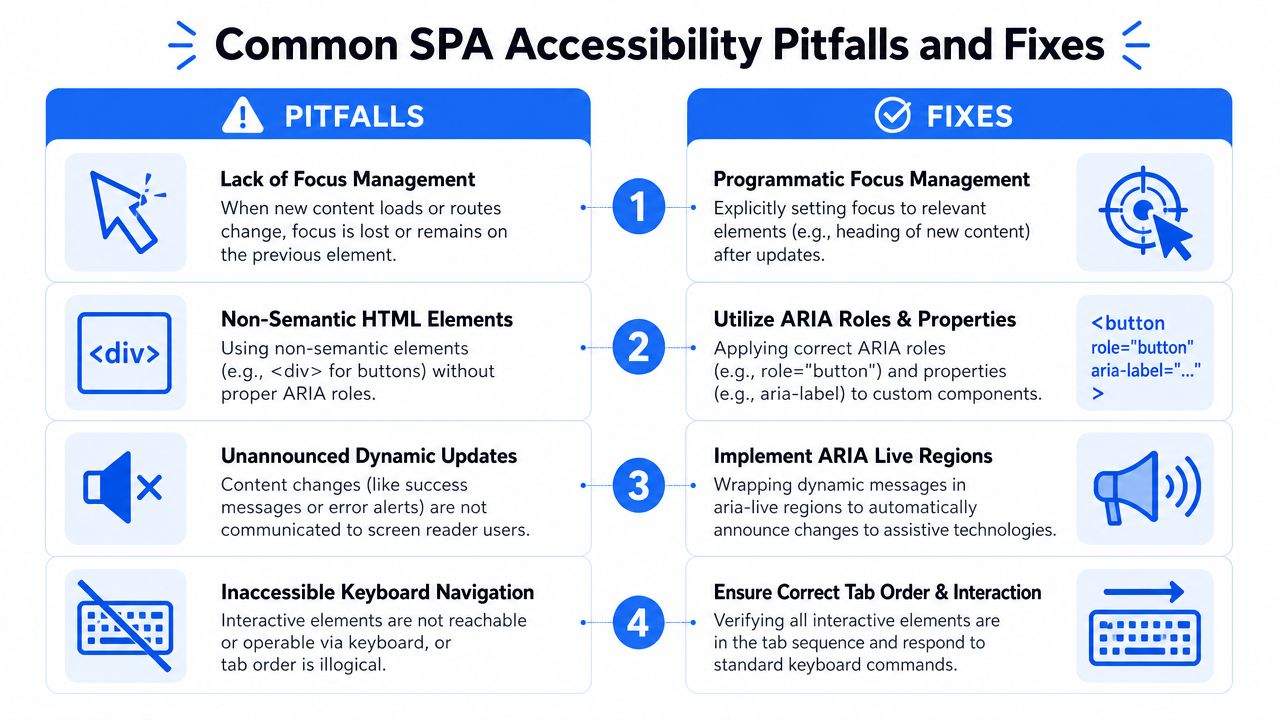
Common SPA Accessibility Pitfalls and Fixes
Most SPA bugs aren't mysterious. They repeat. You see the same failure modes in dashboards, ecommerce filters, admin panels, course platforms, and support portals.
Here's a visual map of the patterns that show up most often:
The modal that leaks focus
A user opens a settings modal with the keyboard. They press Tab a few times, and suddenly they're on links behind the overlay. Visually, the modal still looks open. Functionally, the app now has two active layers.
That happens when the dialog never traps focus. To comply with WCAG 2.2, SPAs must implement focus trapping in modals so keyboard users can't access hidden background content. When the modal closes, focus must return to the element that triggered it, which preserves orientation and context, as outlined in this guide to SPA accessibility implementation.
Use this pattern:
- On open: Move focus to the first meaningful control in the modal.
- During interaction: Intercept
TabandShift+Tabso focus cycles inside the dialog. - On close: Restore focus to the trigger button.
The route change nobody hears
A user activates a sidebar link. The main panel updates. The URL may even change. But the screen reader announces nothing, so the user has to hunt around to figure out whether the app moved.
This bug usually comes from treating visual rerendering as sufficient. It isn't. Route changes need a title update, an announcement target, and a focus target.
A dependable remediation sequence is short:
- Set
document.titleto the new route title. - Write that title to a live region.
- Move focus to the page heading or main content container.
The back button that feels broken
A user opens a product detail drawer, changes tabs, backs out, and lands in a state that doesn't match the previous screen. Sometimes scroll position resets. Sometimes focus lands nowhere useful. Sometimes the visual UI changes while the URL stays frozen.
This class of bug often shows up in apps that keep too much state off the URL. If the route can't represent the screen, browser navigation becomes unpredictable. That hurts accessibility, but it also hurts conversion because users abandon flows they can't recover.
For teams tightening navigation and page structure, it also helps to improve UX with WebAbility.io's skip content advice. Skip links won't fix broken routing, but they make repeated navigation far less frustrating in dense layouts.
After the common pitfalls, it helps to see a manual walkthrough in action:
If a keyboard user can open something, they must also be able to stay oriented inside it and leave it cleanly.
Framework-Specific Accessibility Patterns
The principles are shared across frameworks, but the implementation details differ. The main task is the same in each stack: on route change, update the title, announce the new view, and move focus to the primary heading.
React pattern
React makes this straightforward with useEffect, useRef, and router state. The biggest mistake is trying to scatter accessibility logic across individual pages. Centralize the route announcement and focus logic in a layout-level component when you can.
import { useEffect, useRef, useState } from 'react'; import { useLocation } from 'react-router-dom'; function RouteAnnouncer({ pageTitle, children }) { const location = useLocation(); const headingRef = useRef(null); const [announcement, setAnnouncement] = useState(''); useEffect(() => { document.title = pageTitle; setAnnouncement(pageTitle); const focusTimer = setTimeout(() => { headingRef.current?.focus(); }, 0); const clearTimer = setTimeout(() => { setAnnouncement(''); }, 500); return () => { clearTimeout(focusTimer); clearTimeout(clearTimer); }; }, [location.pathname, pageTitle]); return ( <> <div aria-live="polite" style={{ position: 'absolute', left: '-9999px', width: '1px', height: '1px', overflow: 'hidden' }} > {announcement} </div> <main> <h1 ref={headingRef} tabIndex="-1"> {pageTitle} </h1> {children} </main> </> ); } A few things matter here.
tabIndex="-1"on the heading lets you move focus there programmatically without putting it in the normal tab order.- The live region stays mounted so assistive tech can detect updates consistently.
- The clear delay matters because clearing too fast can cause the announcement to be missed.
For modals in React, trap focus inside the dialog and restore it to the trigger on close. Whether you write that yourself or use a mature dialog library, test the keyboard loop manually.
Vue pattern
Vue apps usually solve this cleanly with watch, nextTick, and route metadata. The pattern works well if each route carries a title and the page component owns the heading ref.
<script setup> import { ref, watch, nextTick } from 'vue'; import { useRoute } from 'vue-router'; const route = useRoute(); const headingRef = ref(null); const announcement = ref(''); watch( () => route.fullPath, async () => { const title = route.meta.title || 'Application'; document.title = title; announcement.value = title; await nextTick(); headingRef.value?.focus(); setTimeout(() => { announcement.value = ''; }, 500); }, { immediate: true } ); </script> <template> <div aria-live="polite" style="position:absolute;left:-9999px;width:1px;height:1px;overflow:hidden;" > {{ announcement }} </div> <main> <h1 ref="headingRef" tabindex="-1"> {{ route.meta.title }} </h1> <router-view /> </main> </template> This works because Vue's update cycle is explicit. nextTick() ensures the new DOM is present before you try to focus it. Without that, the focus call can hit a stale node or fire too early.
For component-level dynamic updates such as inline validation and success messages, use role="alert" for unexpected errors and role="status" for expected confirmations. Keep those announcements close to the component that triggered them, unless the update changes the entire page context.
Angular pattern
Angular gives you router events and the Title service, which makes route-change accessibility easier to centralize in the app shell. You subscribe to completed navigation, derive the route title, update the document title, announce it, and focus the page heading after view rendering settles.
import { Component, ElementRef, ViewChild, AfterViewInit } from '@angular/core'; import { Router, NavigationEnd, ActivatedRoute } from '@angular/router'; import { Title } from '@angular/platform-browser'; import { filter } from 'rxjs/operators'; @Component({ selector: 'app-root', template: ` <div aria-live="polite" style="position:absolute;left:-9999px;width:1px;height:1px;overflow:hidden;" > {{ announcement }} </div> <main> <h1 #pageHeading tabindex="-1">{{ pageTitle }}</h1> <router-outlet></router-outlet> </main> ` }) export class AppComponent implements AfterViewInit { @ViewChild('pageHeading') pageHeading!: ElementRef<HTMLHeadingElement>; pageTitle = 'Application'; announcement = ''; constructor( private router: Router, private route: ActivatedRoute, private titleService: Title ) { this.router.events .pipe(filter(event => event instanceof NavigationEnd)) .subscribe(() => { let activeRoute = this.route; while (activeRoute.firstChild) { activeRoute = activeRoute.firstChild; } const title = activeRoute.snapshot.data['title'] || 'Application'; this.pageTitle = title; this.titleService.setTitle(title); this.announcement = title; setTimeout(() => { this.pageHeading?.nativeElement.focus(); }); setTimeout(() => { this.announcement = ''; }, 500); }); } ngAfterViewInit() {} } What works and what usually doesn't
Some patterns stay reliable across stacks. Others create noise, inconsistency, or maintenance debt.
| Pattern | Usually works | Usually fails |
|---|---|---|
| Route feedback | Updating title plus live region | Moving focus only, with no announcement |
| Navigation target | Focusing the main heading | Leaving focus on the old trigger |
| Modal behavior | Trap focus and restore trigger | Letting focus drift into the background |
| Custom controls | Native elements first | Rebuilding buttons and links from <div>s |
Teams get farther when they standardize these patterns in shared layout components, router hooks, and design system primitives instead of fixing each page ad hoc.
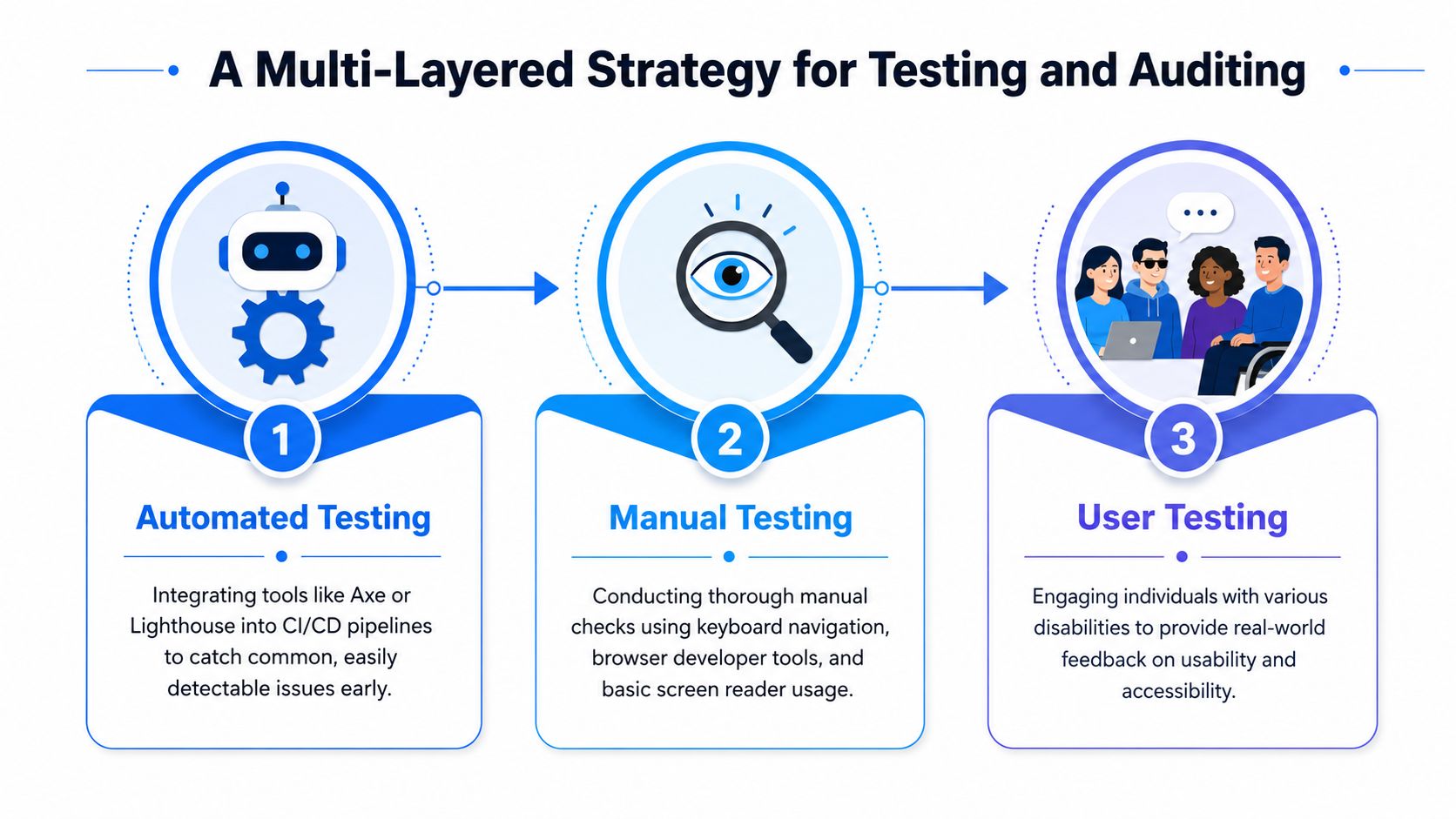
A Multi-Layered Strategy for Testing and Auditing
Testing accessible SPAs takes more than one method because each method catches a different class of failure. A static scanner can flag missing labels and contrast problems. It can't always tell whether a route transition makes sense to a screen reader user in the moment.
Layer one with automated checks
Automated tools belong in CI. Axe, Lighthouse, and framework testing libraries can catch repeatable markup issues before they ever reach staging. That's good engineering hygiene, especially in component libraries where a broken pattern can spread quickly.
But automation has a hard limit in SPA environments. A 2024 W3C report found that 74% of automated scanning tools fail to detect accessibility issues in SPAs where the URL remains static despite content updates, which creates false-negative compliance scores and legal risk for teams relying only on basic scans. This is one reason many teams pair baseline automation with deeper insights from WebAbility.io on testing.
Use automated testing for:
- Static regressions: Missing labels, duplicate IDs, contrast flags, landmark issues.
- Component gating: Preventing known accessibility failures from entering the design system.
- Pull request feedback: Giving developers fast, local signals.
Layer two with manual flow testing
Manual testing is where single page application accessibility becomes real. Start with the keyboard. Can you reach every interactive element? Is the tab order logical? Does focus remain visible? After navigation, do you land somewhere meaningful?
Then test with a screen reader at a basic but disciplined level. You don't need to be an expert user to catch glaring route issues. Trigger a route change. Submit a form with errors. Open and close a modal. Sort a table. Filter a result set. If the app changes state and the screen reader gives weak or no feedback, you've found a meaningful issue.
A simple manual route checklist helps:
| Scenario | What to verify |
|---|---|
| Route navigation | Title updates, announcement fires, focus lands on new content |
| Modal open and close | Focus enters dialog, stays trapped, returns to trigger |
| Inline validation | Errors are announced and tied to the right fields |
| Back and forward | State, scroll, and orientation remain coherent |
Layer three with user feedback
User testing closes the gap between technical compliance and real usability. It surfaces confusion that automated and internal manual checks may miss, especially in dense enterprise apps where workflows are long and stateful.
This layer matters most when the app includes:
- Complex task flows: Checkout, onboarding, claims, enrollment, scheduling.
- Dynamic dashboards: Filters, charts, tabbed regions, data refresh patterns.
- Content-heavy systems: Learning modules, account areas, multi-step forms.
What users often reveal isn't “you missed an attribute.” It's “I couldn't tell whether the page changed” or “I lost my place after that dialog closed.” Those are architecture and interaction issues.
A scanner can tell you whether markup has problems. A user can tell you whether the product is understandable.
Scaling Compliance with Governance and Monitoring
Developer skill is the foundation, but sustained accessibility in a growing organization needs operating discipline. Once multiple teams ship into the same SPA platform, accessibility stops being just a code review concern. It becomes governance.
What governance solves
Without governance, teams fix accessibility reactively. A modal gets patched after a complaint. A route announcer gets added in one product area but not another. A design system button is accessible, but a custom marketing widget isn't. Over time, inconsistency becomes the primary risk.
A better model turns accessibility into a managed program:
- Standards: Teams share route, modal, form, and notification patterns.
- Monitoring: Changes are tracked continuously across environments and releases.
- Reporting: Leaders can see whether accessibility work is improving or stalling.
- Accountability: Product, engineering, QA, and compliance all know what they own.
Where platform support helps
Platform support is useful because it centralizes visibility. Dashboards, audit trails, historical reports, and recurring scans make it easier to spot regressions across multiple apps or clients. In large programs, that reduces the chance that accessibility work lives only in one senior frontend engineer's head.
That's especially important in sectors with documentation pressure, including education and public sector procurement. Teams building course platforms, training portals, or LMS interfaces often need accessibility evidence that extends beyond a single sprint. For a useful sector-specific reference, LearnStream's piece on accessible e-learning content connects accessibility obligations to the realities of digital learning delivery.
The blended model that tends to last
The strongest approach isn't code-only or platform-only. It's layered.
- Developers implement accessible patterns in routes, dialogs, forms, and layout primitives.
- Design systems encode those patterns so they're reusable and harder to break.
- Monitoring tools watch production continuously and create organizational memory.
- Governance ties the technical work to policy for ADA, WCAG 2.2 AA, Section 508, AODA, and EN 301 549 obligations.
This is also where conversion and internal linking benefit. When primary routes are accessible, stable, and meaningful, users can move through top-intent pages with less friction. Search-facing pages, category hubs, product detail views, learning modules, and support content all become easier to browse, revisit, and share.
The Developer's SPA Accessibility Checklist
A good checklist should help you ship, not just audit. Use this one during implementation, code review, and pre-release testing.
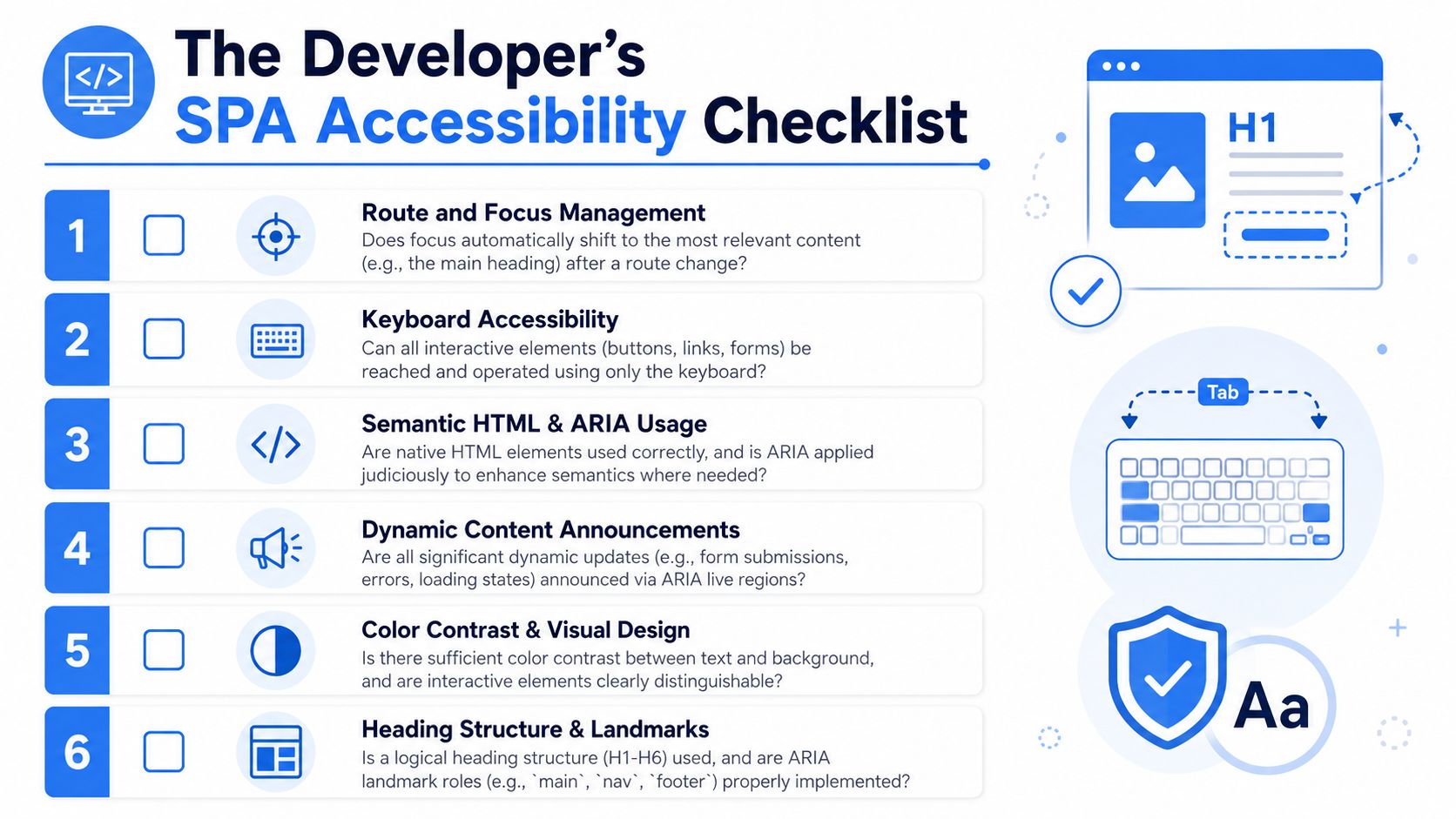
Routing and page state
- Give each meaningful view a real route: Users should be able to reload, bookmark, and share high-value pages without losing context.
- Update
document.titleon route change: The title should match what the user sees. - Move focus after navigation: In most cases, send focus to the new
<h1>or main content entry point.
Keyboard and interaction
- Test every interactive control with only a keyboard: Buttons, links, filters, menus, tabs, forms, and dialogs all need to work without a mouse.
- Trap focus inside modals: Keep Tab and Shift+Tab inside the active dialog until it closes.
- Return focus to the trigger: Closing an overlay should take the user back to the control that opened it.
Announcements and status messages
- Add a persistent live region for route updates: Keep it mounted and use it for meaningful page-state changes.
- Use the right live region role for the message:
role="alert"for urgent errors,role="status"for expected confirmations. - Don't clear announcements too fast: Let assistive tech register the DOM change before removing the text.
Semantics and structure
- Prefer native HTML first: Use real buttons, links, headings, labels, and landmarks before reaching for ARIA.
- Keep heading levels logical: Every major view needs a clear heading structure.
- Make high-priority pages easy to reach: Accessible nav, skip links, and stable internal linking improve both usability and content discovery.
Final check: If a user can answer “Where am I, what changed, and what can I do next?” after every interaction, your SPA is in much better shape.
If your team wants a faster path to sustainable compliance, WebAbility.io can help combine code-level fixes with ongoing monitoring, reporting, and governance. That makes it easier to keep single page application accessibility from slipping between releases while improving UX for real users across every critical route.
Quick Questions
Tap to ask AI about this article