Top 10 Screen Reader Chrome Extension Options for 2026

Sidharth Nayyar

You need a screen reader chrome extension for one of three reasons. You want content read aloud while you work. You need to test how a page behaves for screen reader users. Or you need a broader accessibility layer for teams, schools, or enterprise sites.
A lot of confusion comes from treating those as the same job. They are not.
TL;DR
- Use ChromeVox if you need a true browser-based screen reader experience inside Chrome.
- Use Read Aloud, Speechify, NaturalReader, Talkie, or TTSReaderX if your main goal is listening to page text.
- Use Helperbird, Read&Write, Kurzweil 3000, or Snap&Read if you need a broader reading and support toolbar, not just speech.
- Do not rely on TTS alone for accessibility QA. TTS can confirm readable text flow, but it will not replace testing focus order, labels, roles, states, and interactive behavior with a true screen reader.
- For organizations, extensions are helpful at the user and tester level. They work best alongside a managed accessibility program with continuous scanning, remediation workflows, reporting, and user-facing adjustments.
Access the Web with Your Ears: Your Guide to Chrome Screen Readers
You might be trying to review a long page without staring at the screen, sanity-check a new checkout flow, or help a student or colleague who processes information better by listening. In each case, a screen reader chrome extension can help, but not every tool solves the same problem.
Some extensions are close to true screen readers. They announce links, buttons, form fields, states, and focus changes. Others are text-to-speech tools that read visible text aloud. A third group acts more like a reading and accessibility toolbar, combining speech with visual supports, highlighting, translation, spacing controls, and study aids.
That distinction matters. If you are a developer or QA lead, picking the wrong category can hide serious accessibility issues. If you are a content team or operations lead, picking too much tool can create friction when all you needed was quick listening.
The list below is built from a practitioner’s point of view. It focuses on what each tool excels at, where it fits, and where it does not. You will see true screen readers, TTS tools, and versatile toolbars. You will also see where browser extensions stop being enough, and where a platform approach makes more sense for scale.
1. ChromeVox Screen Reader
ChromeVox Screen Reader is the only tool on this list I put in the “true screen reader” bucket.
If your job is testing headings, links, form labels, focus movement, ARIA landmarks, and state changes inside Chrome, ChromeVox belongs in your kit. It is especially useful for teams working in Google-heavy environments or validating the browser-level experience before moving into deeper testing with desktop screen reader software.
Where ChromeVox earns its place
ChromeVox reads more than text. It announces structure. That is the key difference.
You can move by common screen reader navigation patterns, inspect how focus lands on controls, and hear whether the page exposes enough context to a non-visual user. For quick browser-based checks, that makes it far more useful than a generic read-aloud extension.
A few practical strengths stand out:
- True interaction feedback: It announces roles and states, not just words on the screen.
- Keyboard-first workflow: You can test navigation without touching a mouse.
- Useful for early QA: It catches obvious labeling and structure problems fast.
The trade-off is that ChromeVox is not a replacement for mainstream desktop screen readers. WebAIM’s 2024 survey shows JAWS at 41% and NVDA at 38%, which is why I treat ChromeVox as a strong browser test layer, not the final word on compatibility.
Practical tip: Use ChromeVox to catch structural issues early, then confirm critical user journeys with the screen readers your audience uses most.
For developers, that workflow is efficient. For everyday listening, it is overkill.
2. Read Aloud A Text to Speech Voice Reader
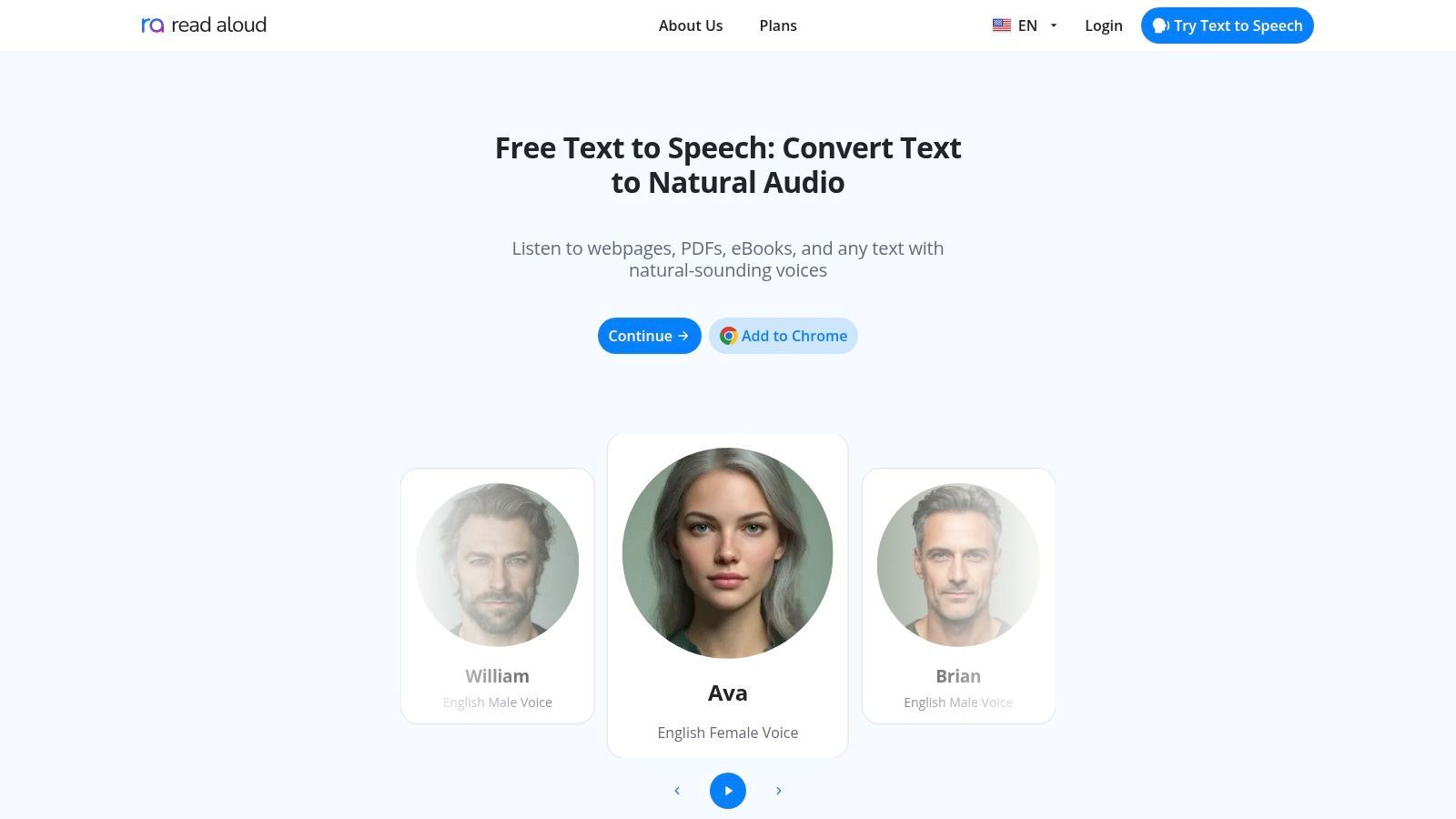
Read Aloud is a straightforward TTS choice when the goal is simple. Click, listen, move on.
It works well for articles, documentation, many web PDFs, and Google Docs. I would hand this to a content team, project manager, or marketer long before I would hand them a full screen reader. The learning curve is lighter, and the benefit is immediate.
Best fit for quick listening
This extension shines when you need to hear page copy the way a user might consume it conversationally. It is not exposing full accessibility semantics. It is helping you process content by audio.
That makes it useful for:
- Editorial QA: Hear awkward phrasing, repetitive headings, or overloaded paragraphs.
- Light accessibility checks: Confirm whether text order and visible content feel coherent when spoken.
- Fast rollout: Teams can adopt it with almost no training.
The limit is equally clear. Read Aloud does not give you the role, state, and focus behavior you need for serious accessibility testing. It is a listening tool first.
I also like it because it stays out of the way. In teams that resist new tooling, low-friction extensions usually get used. Heavy tools often sit idle.
If your need is “read this page to me,” Read Aloud is one of the cleaner answers in the category. If your need is “tell me whether this modal is announced correctly,” move up to a true screen reader.
3. Speechify Text to Speech Chrome Extension
Speechify is the polished, consumer-friendly end of the TTS market.
Stakeholders tend to like it for one reason: the voices are designed to sound good enough that people want to keep listening. That matters when adoption depends less on accessibility testing and more on daily use across emails, pages, docs, and PDFs.
When premium voice quality matters
Speechify fits users who care about convenience, voice variety, and continuity between devices. It feels more like a modern listening product than a niche browser utility.
That can be a real advantage in workplace rollouts:
- Executive and stakeholder adoption: Better voices reduce the “robot reader” objection.
- Cross-device continuity: Useful when people move between desktop and mobile.
- Broad content coverage: It handles a range of common reading situations.
The compromise is predictability. Premium TTS platforms often gate their best voices and features behind paid plans, and teams sometimes find the packaging less transparent than they want.
From an accessibility professional’s perspective, I would not confuse Speechify with a testing tool. It is a strong listening aid. It can help teams review content and support users who prefer audio. It does not substitute for testing with a real screen reader or for a site-level accessibility strategy.
If your organization wants a TTS option people will enjoy using, Speechify is usually on the shortlist.
4. NaturalReader Chrome Extension
NaturalReader sits in a similar space to Speechify, but I find it appealing to teams that want a calmer product and more control over how speech sounds.
The extension gives users control over speed, pitch, and pronunciation, and that matters more than people think. In accessibility work, poor pronunciation can make technical content, product names, or academic terms much harder to follow.
Strong choice for controlled listening
NaturalReader works well when the listening experience itself needs tuning. That could mean internal QA, accommodation support, or helping users get through dense content with less fatigue.
A few reasons teams choose it:
- Pronunciation control: Helpful for industry terms and branded language.
- Consistent ecosystem: Useful if the browser extension is only one part of a broader workflow.
- Good fit for reading-heavy environments: Documentation, policy libraries, coursework, and research portals.
The downside is familiar. The best voices and deeper features tend to sit behind paid tiers.
I also think NaturalReader works best when someone owns the deployment. If you have a support or enablement lead who can standardize preferred settings, users get more value faster. If you just tell everyone to “pick a voice,” experiences vary.
For a screen reader chrome extension that is really a quality TTS layer, NaturalReader is a dependable option. For screen reader semantics and interactive testing, it is not the right category.
5. Helperbird
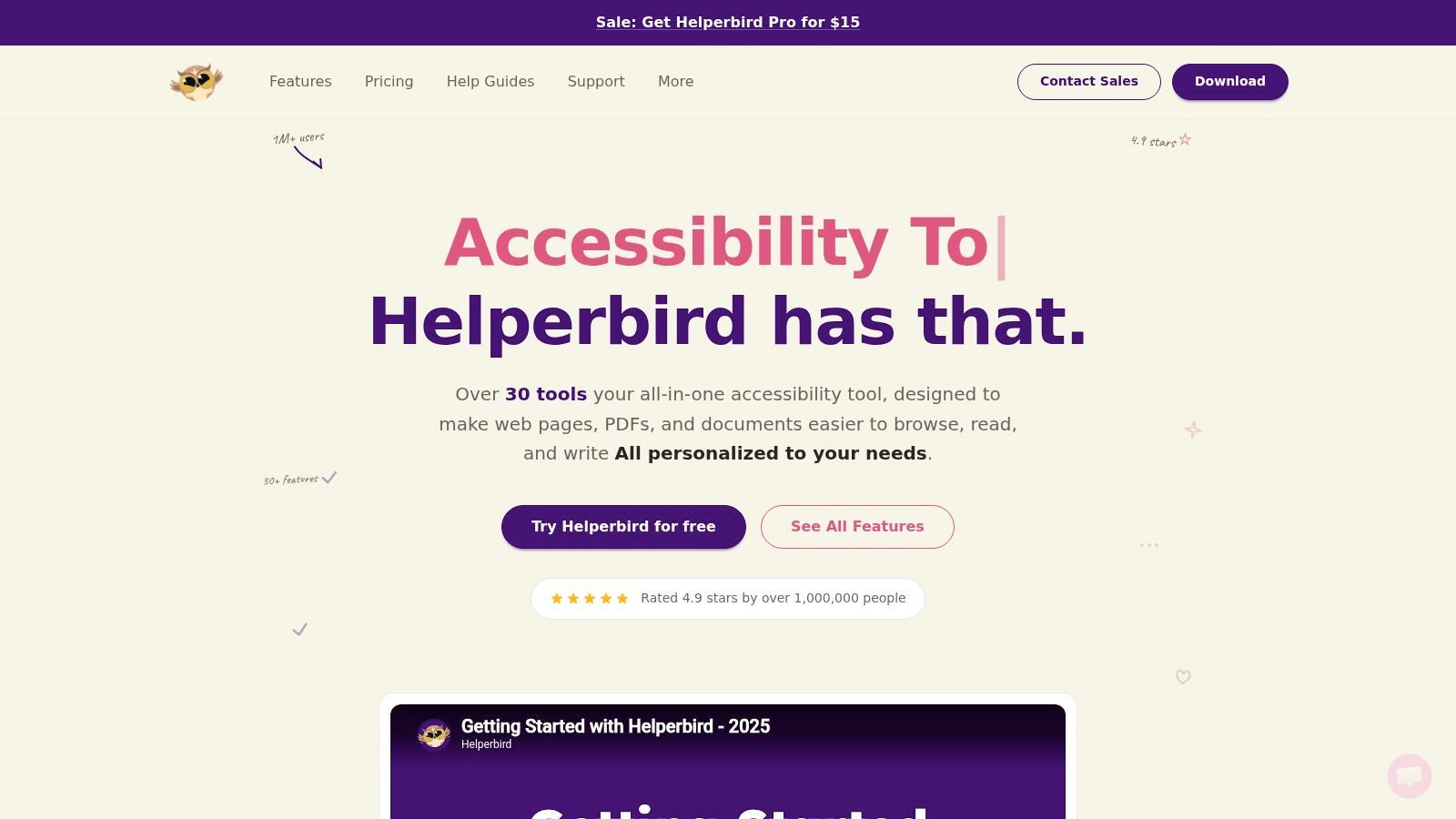
Helperbird is not just a speech extension. It is an extensive accessibility toolbar.
That distinction matters. If you need read-aloud plus fonts, spacing changes, color adjustments, focus tools, and reading mode support, Helperbird covers far more ground than a typical TTS add-on. It is especially useful when a team wants to validate multiple preference-based adjustments alongside a screen reader test.
Best for mixed user needs
Helperbird is one of the more practical tools for environments where users need different supports, not just audio. Schools, support teams, and inclusive design reviews often fit that pattern.
Its value comes from bundling common accommodations into one install:
- TTS with visual follow-along: Helpful for users who benefit from both audio and highlighted text.
- Reading and visual supports: Dyslexia-friendly fonts, color filters, and focus tools add flexibility.
- Broader accessibility coverage: Teams can check more than one adjustment path in a single session.
This all-in-one design is a strength when users need options. It is less ideal for someone who wants a minimal extension and nothing else.
The broader tooling trend also supports why Chrome is where many teams start this work. Safari accounts for 58.2% of mobile screen reader usage, while Chrome holds 27.9% and has shown slight growth since 2021. In practice, that makes Chrome a common testing hub even when final validation needs to include more environments.
Helperbird fits that reality well. It helps teams experiment, compare, and support varied reading preferences without forcing an enterprise-scale rollout on day one.
6. Read&Write for Google Chrome
Read&Write for Google Chrome is what I reach for when the conversation moves from “browser extension” to “supported reading platform.”
It has the feel of a mature literacy toolbar. Text-to-speech is only one part of the package. You also get highlighting, dictionaries, translation, and study support. For education, public sector, and structured workplace deployments, that matters.
Better for managed rollouts than casual installs
Read&Write makes sense when admins, accessibility leads, or IT teams need something supportable. It is not the lightest experience on this list, but it is one of the more operationally credible ones.
What stands out:
- Deployment support: Easier to manage at scale than consumer-only tools.
- Broader reading assistance: It supports users who need more than passive listening.
- Good fit for structured environments: Especially where training and consistency matter.
The trade-off is complexity. Some users only need “read this page aloud,” and Read&Write gives them much more. That is fine in institutional settings. It can feel heavy in small teams.
Chrome itself has become central to extension-based workflows. One market snapshot notes that among 137,345 Chrome extensions, 86.3% have fewer than 1,000 users. That is a useful reminder that established tools with real deployment support are not interchangeable with niche extensions, especially when your accessibility stack needs longevity. For teams evaluating broader web accessibility testing tools, that kind of maturity matters.
Read&Write is not the simplest option. It is often the safer one for institutions.
7. Talkie Text-to-Speech
Talkie is the extension I would call “small, useful, and easy to underestimate.”
It does not try to be a full accessibility platform. That is a benefit. For multilingual pages, quick checks, and lightweight read-aloud tasks, it stays lean.
A good low-overhead option
Talkie works well when you want one-click speech without accounts, setup friction, or a feature panel that takes over the browser. It uses available system or Chrome voices and can work offline with local voices.
That makes it handy for:
- Multilingual content checks: Auto language detection can smooth out mixed-language review.
- Low-friction installs: Good for contractors, temporary reviewers, or one-off projects.
- Offline or limited environments: Useful when cloud dependence is a problem.
The obvious limitation is that the quality of the experience depends heavily on the voices already available on the device. If the local voice stack is weak, Talkie inherits that weakness.
I would not use Talkie as the centerpiece of an accessibility program. I would absolutely keep it around as a utility extension. In practice, those small utilities often save time because they launch quickly and do one job well.
If your screen reader chrome extension search is really about simple, immediate listening, Talkie deserves more attention than it usually gets.
8. Kurzweil 3000 Read the Web
Kurzweil 3000 Read the Web is built for accommodation-heavy environments.
This is not a casual browser add-on. It is part of a larger reading and learning ecosystem. The Chrome extension brings that ecosystem into web content with TTS, highlighting, dictionaries, translation, and screenshot OCR workflows.
Best in education and formal support settings
Kurzweil makes sense when the organization already thinks in terms of services, accommodations, LMS integrations, and training. In those settings, a lightweight TTS tool can be too limited.
Its stronger use cases include:
- Structured student support
- Reading intervention workflows
- Content access across varied file types
- Organizations that need vendor-backed deployment
OCR support is especially valuable in practical scenarios. Teams often discover that “digital content” still includes image-based handouts, difficult PDFs, or captured text inside screenshots. A simple TTS extension often breaks at that point. Kurzweil is built for that messier reality.
The trade-off is cost and implementation effort. You do not buy Kurzweil for a quick browser convenience. You choose it when reading access is a program, not a feature.
That is also why I place it in the feature-rich toolbar category rather than the true screen reader category. It supports access very well, but it does not replace dedicated screen reader testing for interactive UX.
9. Snap&Read Universal
Snap&Read Universal is another strong fit for education and accessibility support programs, especially when image text and protected content keep getting in the way.
Its OCR and translation features are the reason many teams keep it around. Basic TTS works until the content stops being selectable text. Snap&Read is designed for that moment.
Practical where content quality is inconsistent
A lot of school, training, and enterprise content is messy. Some PDFs are tagged well. Some are not. Some knowledge-base assets are clean HTML. Some are image exports. Snap&Read handles that inconsistency better than lightweight listeners.
A few strengths stand out:
- OCR support: Helpful when users encounter image-only or locked text.
- Translation and reading support: Useful for broader accommodation programs.
- Education-first design: It aligns well with intervention and support models.
Its trade-off is that it is not a free utility extension. It is a licensed product that benefits from admin setup.
This category matters because browsing support and screen reader use overlap without being identical. When teams want to understand real user needs, it helps to study How Blind Users Interact With The Web, but it also helps to remember that many users rely on combinations of speech, highlighting, translation, and visual adaptation rather than one single tool.
Snap&Read fits that broader accessibility reality well.
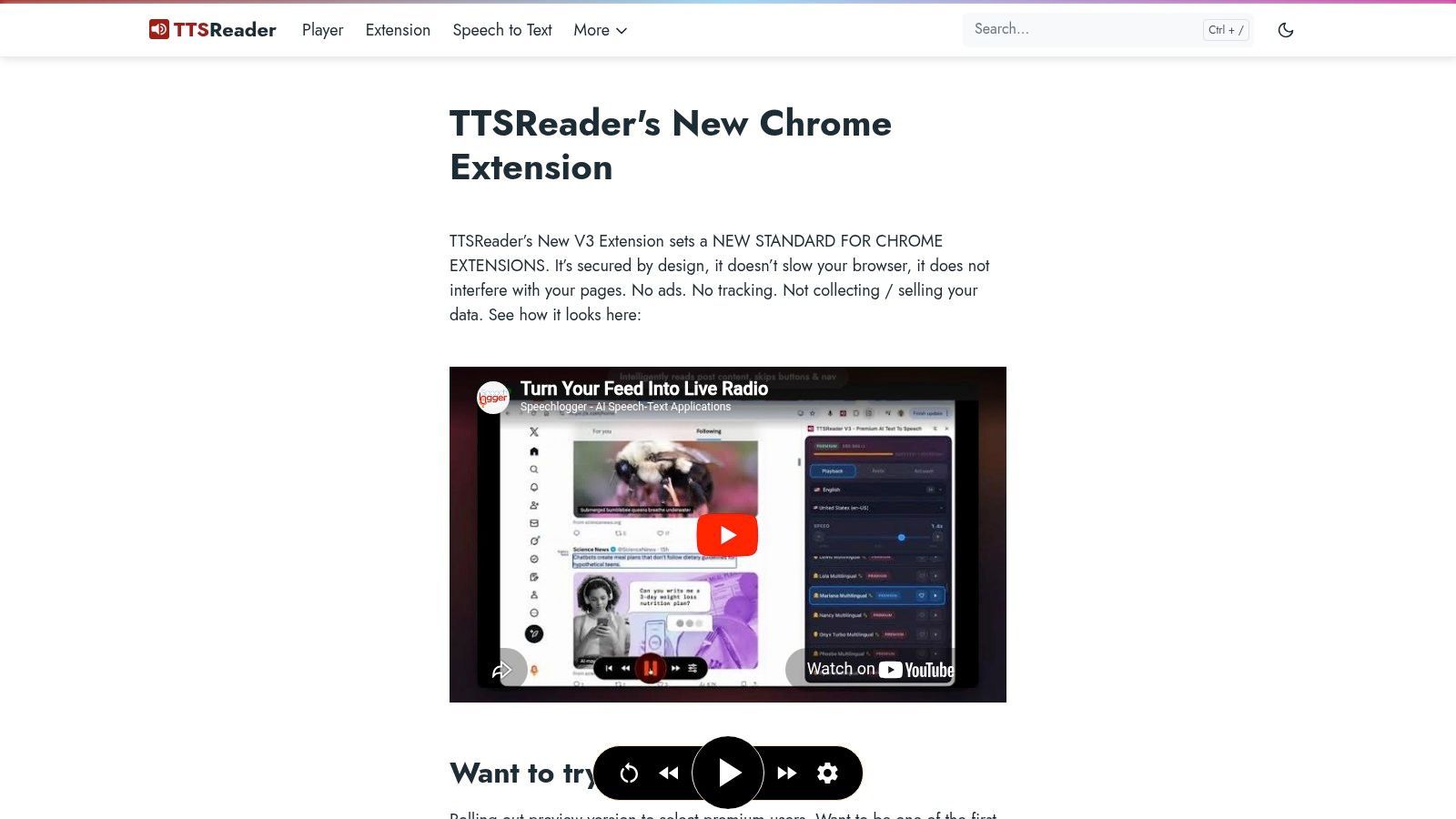
10. TTSReaderX In-Page Text-to-Speech
TTSReaderX appeals to a very specific buyer. Someone who wants clear limits, clear usage rules, and no mystery about what is free versus paid.
That sounds minor until you manage tools across a team. Predictability matters. If your organization hates surprise upgrades, vague usage caps, or unclear commercial terms, TTSReaderX has a practical advantage.
Good for predictable planning
This is an in-page TTS tool first. It is not trying to masquerade as a complete accessibility testing suite.
Why it works:
- Transparent model: Easier to plan around than many voice platforms.
- Multiple voices and languages: Useful for mixed content environments.
- Simple deployment: Teams can start small without overcommitting.
Its weakness is polish. Compared with larger commercial suites, the interface feels more functional than premium.
That said, there is value in a tool that says exactly what it does. In accessibility operations, clarity often beats flash. If all you need is dependable in-page speech with understandable boundaries, TTSReaderX is a solid option.
Top 10 Chrome Screen Reader Extensions Comparison
| Tool | Type | Core features | Best for | Price / Notes |
|---|---|---|---|---|
| ChromeVox Screen Reader | True Screen Reader | Full keyboard navigation; announces focus, roles & states; Braille support | ChromeOS accessibility testing; developers & screen-reader users | Free; built into ChromeOS / extension |
| Read Aloud | Text-to-Speech (TTS) Extension | Plays webpage text, Google Docs & many PDFs; selectable voices & speeds | Quick content listening and sanity-checks | Free core; premium voices may cost |
| Speechify | Text-to-Speech (TTS) Extension | Large natural/AI voice catalog; cross-device sync; high-speed playback | Stakeholders wanting premium voices & continuity | Freemium; paid plans for premium features |
| NaturalReader | Text-to-Speech (TTS) Extension | Natural voices; speed/pitch/pronunciation controls; app integration | QA listening; users preferring high-quality voices | Freemium; subscription for best voices |
| Helperbird | Extensive Accessibility Toolbar | TTS with highlighting; dyslexia fonts; color filters & focus tools | Users validating multiple preference adjustments | Freemium; some features paid |
| Read&Write (Texthelp) | Extensive Accessibility Toolbar | Read-aloud, highlighting, dictionaries, translation, study tools | K‑12, higher ed & enterprise deployments | Paid per-user / education pricing; enterprise support |
| Talkie | Text-to-Speech (TTS) Extension | One-click speak/full-page read; uses system/Chrome voices; auto language detect | Lightweight multilingual testing; offline/local voices | Mostly free; advanced voices may cost |
| Kurzweil 3000 – Read the Web | Extensive Accessibility Toolbar | Natural voices, highlighting, OCR screenshot reading, study workflows | Schools, LMS integrations, compliance-driven orgs | Licensed product; higher total cost |
| Snap&Read Universal | Extensive Accessibility Toolbar | TTS with highlighting, OCR for images/locked text, reading-level adjust | K‑12 and accessibility programs needing OCR & leveling | Paid license; admin onboarding typical |
| TTSReaderX | Text-to-Speech (TTS) Extension | In-page read aloud, multiple voices & languages; clear quotas & pay-as-you-go | Teams needing transparent usage limits & planning | Mostly free legacy model; paid for advanced/AI voices |
The Right Tool for a More Accessible Web
Choosing a screen reader chrome extension comes down to the job in front of you.
If you want to listen to articles, internal documentation, or reports while working, TTS tools are usually the right answer. Read Aloud, Speechify, NaturalReader, Talkie, and TTSReaderX all fit that use case, with differences mostly in voice quality, ecosystem depth, and administrative predictability.
If you need to test accessibility, the bar is higher. You need a tool that exposes structure, announces interface meaning, and helps you judge whether navigation works non-visually. ChromeVox is the strongest fit on this list for that purpose. It is still only one part of a proper testing workflow.
That distinction matters because browser extensions are useful, but they are not complete. A true screen reader user experience is shaped by the browser, the operating system, the screen reader itself, and the quality of the site’s code. Extension-based tools can surface obvious issues, but they do not replace testing with mainstream assistive technology or ongoing accessibility governance.
The broader market also points to why this space matters. One industry estimate values the screen readers software market at $1.21B in 2023, with projected 10% CAGR through 2032. Growth does not just mean more products. It means more teams are expected to support accessible digital experiences consistently.
That is where site-integrated solutions enter the picture.
A browser extension helps an individual user or tester. A managed accessibility platform helps the organization. It gives teams a way to monitor issues continuously, support visitors with useful on-site adjustments, document progress, and coordinate remediation across multiple properties.
That is also the most practical way to think about tool choice. Use extensions for personal productivity, exploratory QA, and user-side support. Use a platform approach when accessibility becomes operational, legal, and brand-critical.
WebAbility.io fits that second category well. Its AI-enhanced widget offers 40+ features, including screen reader compatibility, text-to-speech, keyboard navigation, high-contrast modes, translation, and personal profiles. The dashboard adds 24/7 scanning, compliance scoring, historical trend reporting, and multi-site management. For agencies, e-commerce teams, public institutions, and enterprise web teams, that combination is far closer to how accessibility gets sustained over time.
Extensions help you hear the web. A managed platform helps you improve it, support more users, and keep that work moving.
If you need more than a standalone extension, explore WebAbility.io for a scalable accessibility program that combines user-facing support, continuous monitoring, compliance reporting, and expert guidance. It is a practical next step for teams that want to strengthen UX, reduce legal risk, and make accessibility part of everyday operations.
Quick Questions
Tap to ask AI about this article