TL;DR: How to Add Alt Text
Alt text is a written description of an image for screen readers and search engines. To add it, find the "alt text" field in your CMS (like WordPress or Shopify) when you upload or edit an image. If you're using HTML, add the alt="Your description here" attribute to the <img> tag. Good alt text is descriptive, concise (under 125 characters), and doesn't start with "Image of...". For purely decorative images, use an empty alt="".
Adding alt text to your images is pretty straightforward.You can either pop a descriptive phrase right into the image's HTML code or, more commonly, just fill out the dedicated "alt text" field in your content management system (CMS) like WordPress or Shopify. It's a small step, but it makes a massive difference for both accessibility and your SEO.
The Two Core Reasons for Adding Alt Text
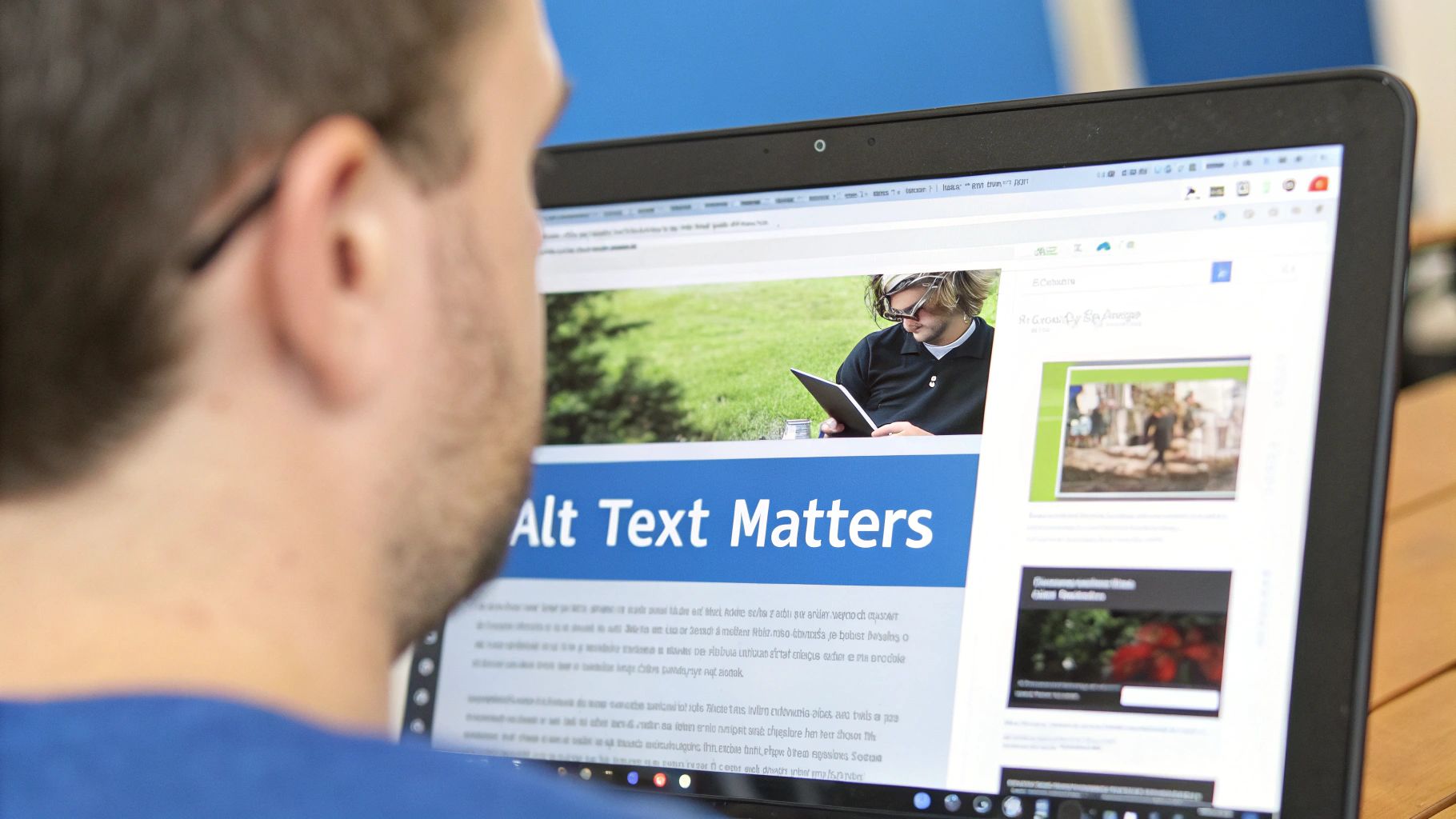
Before we get into the nitty-gritty of how to do it on different platforms, let's quickly cover the "why." Alt text, short for alternative text, is the copy that shows up if an image doesn't load. More importantly, it’s what screen readers read aloud to users with visual impairments, giving them a clear picture of what's on the page.
This simple text description serves two vital purposes that you really can't afford to overlook:
- It makes your site accessible. Alt text ensures that everyone, including the 15% of the global population with some form of disability, can access the information your images provide. It’s a cornerstone of inclusive web design.
- It gives your SEO a serious boost. Search engines like Google can't actually "see" images the way we do. Alt text gives them the context they need to understand what an image is about, which helps them index your visual content correctly and rank your page higher.
In short, learning how to add alt text to images is not just a technical box to check. It's fundamental to creating a website that is both inclusive and easy for search engines to find.
Skipping it leaves a major hole in both your user experience and your SEO strategy. This guide will walk you through the practical steps to get it right every time, no matter what platform you're using.
To boil it all down, here’s a quick-reference table covering the essentials.
Alt Text Essentials At a Glance
| Component | Description | Example |
|---|---|---|
| Purpose | To provide a textual alternative for images, ensuring accessibility for screen reader users and providing context for search engines. | A screen reader announces "A golden retriever puppy playing with a red ball in a grassy field" for an image. |
| Key Characteristics | Descriptive, concise (under 125 characters is a good rule of thumb), and relevant to the surrounding content. Avoid starting with "Image of..." or "Picture of..." | Good:alt="A person holding a smartphone displaying the Twitter app logo."Bad:alt="image" |
| Implementation | Added via the alt attribute in an HTML <img> tag or through a dedicated field in a Content Management System (CMS). | HTML: <img src="puppy.jpg" alt="Golden retriever puppy playing."> CMS: Filling in the "Alternative Text" field in the media library. |
Think of this table as your cheat sheet. As long as you keep these core ideas in mind, you're well on your way to writing effective alt text.
So, why is adding alt text to images such a big deal?
Simply put, alt text lets screen readers describe your images to visually impaired users and helps search engines understand what those images are about. It's a cornerstone of both web accessibility and good SEO.
Why Alt Text Is Non-Negotiable
Knowing how to add alt text isn't just a box to check off; it’s a critical part of a smart content strategy. The main driver behind it is web accessibility. For someone using a screen reader, an image without alt text is just a silent void on the page. Good alt text gives them the full picture by providing a clear, audible description.
When you skip it, you're building a barrier that prevents a whole segment of your audience from accessing your content. Think of it like a silent movie with no title cards—the experience is completely lost.
This isn't just a friendly suggestion, either. The practice goes back to the early days of the web accessibility movement and was officially outlined by the Web Content Accessibility Guidelines (WCAG) all the way back in 1999. Because of this, providing text alternatives is a legal requirement in many jurisdictions under laws like the Americans with Disabilities Act (ADA).
Boosting Your Search Engine Performance
Beyond its crucial role in accessibility, alt text is also a powerhouse for Search Engine Optimization (SEO). Search engine crawlers are smart, but they can't see your images. They depend on the text you provide to figure out what an image shows and why it's on the page.
When you write clear, descriptive alt text, you’re giving search engines vital context. This not only helps your images show up in Google Images—a significant source of traffic—but also strengthens the topical authority of the entire page. It's another signal telling Google what your content is all about.
Alt text is the bridge between your visual content and two very important audiences that can't see it: users with visual impairments and search engine bots. Skipping it means you're missing out on a huge opportunity for both inclusivity and visibility.
At the end of the day, well-written alt text works twice as hard for you, making your site more inclusive and easier to find. It’s a small detail that delivers a massive impact. For a complete rundown on the basics, feel free to check out our glossary entry on alt text.
How To Add Alt Text: A Practical Walkthrough
Knowing you should write alt text is one thing, but knowing how to add it is another. The good news is that most modern platforms make it pretty simple. Whether you're in a popular CMS or writing your own code, the core idea is always the same.
You'll usually follow a similar pattern: upload your image, look for a field specifically for alternative text, type in your description, and hit save. That's it. This simple habit makes your content far more accessible and gives your SEO a nice little boost.
This graphic really simplifies the universal three-step flow for adding alt text.
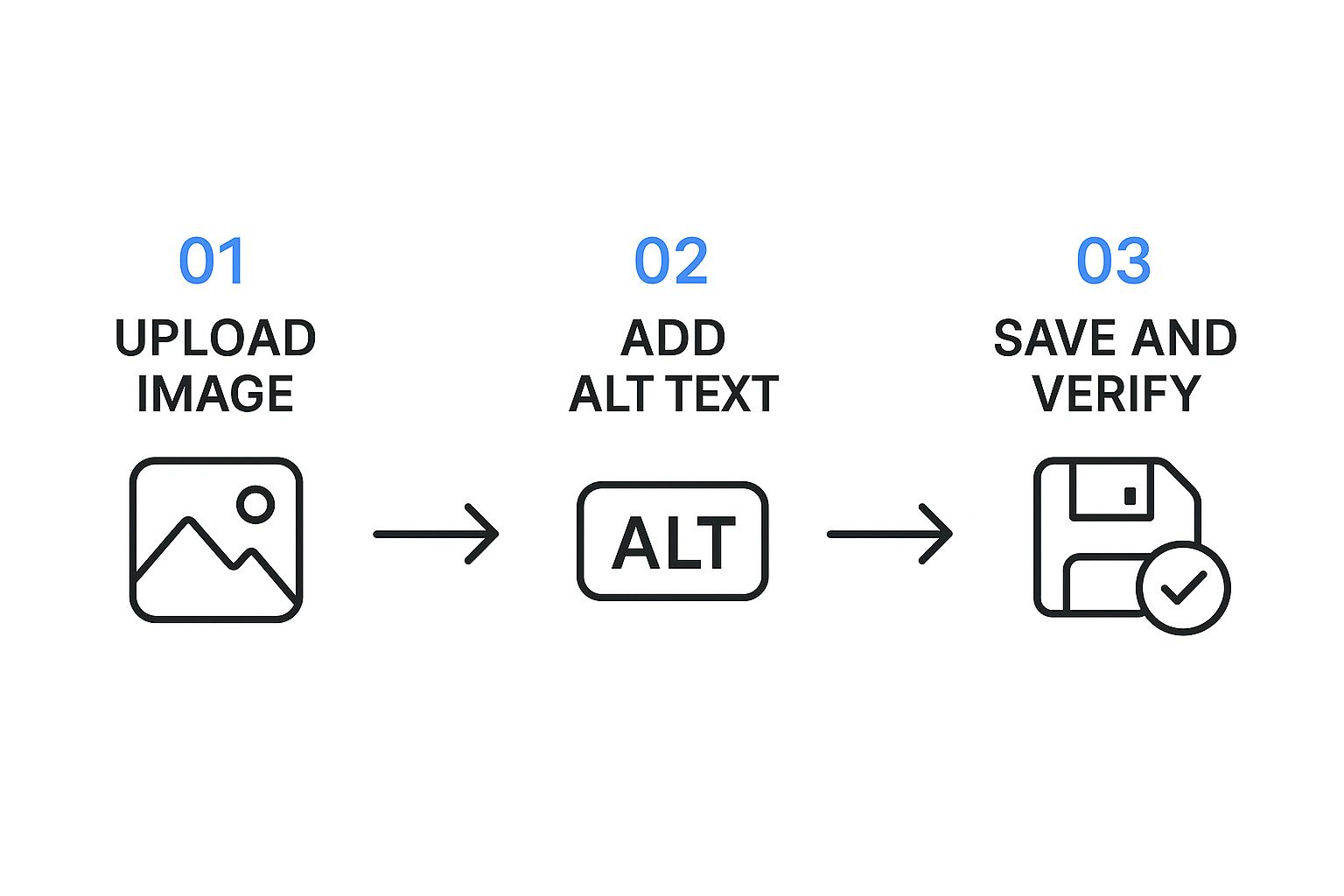
It’s a great reminder that adding alt text isn't some extra chore; it's just part of the process of creating good content.
Let's dive into exactly how this looks on a few of the most common platforms.
Adding Alt Text in WordPress
If you use WordPress, you're in luck. The functionality is built right into the Media Library. When you upload a new image or click on an existing one, you'll see an "Attachment Details" panel pop up on the right.
In that panel, you’re looking for the field labeled "Alternative Text." That’s your spot. It’s easy to mix this up with the Title, Caption, or Description fields, but don't. Each one does something different, and only the Alternative Text field populates the alt attribute that screen readers and search engines rely on.
Adding Alt Text in Shopify
For anyone running an e-commerce store on Shopify, alt text is absolutely critical for product images. It helps visually impaired shoppers understand what you're selling and helps Google index your products correctly for image searches.
When you're editing a product, just click on one of its images. A dialog box will appear with an option to "Edit image alt text" (sometimes it's just labeled "Edit"). This is where you'll describe the product—mentioning the color, angle, or any key features shown in that specific photo. You can follow a similar process for images you add to blog posts or pages within Shopify's rich text editor.
Adding Alt Text Directly in HTML
Maybe you're not using a CMS and prefer to code your site by hand. No problem. Adding alt text is a fundamental part of HTML. You just need to add the alt attribute directly inside the <img> tag.
The code looks like this: <img src="your-image-file.jpg" alt="A detailed description of the image goes here.">
Here, the
srcattribute tells the browser where to find the image file, and thealtattribute provides the description. This is the text that a screen reader will voice aloud and what search engines will use to figure out what the image is about. It's clean, simple, and essential.
Writing Alt Text That Actually Helps People
In a nutshell: Good alt text is specific, concise, and paints a clear picture of the image's content and its purpose on the page. I always aim for under 125 characters, skip redundant phrases like "image of," and only add keywords if they fit naturally.
Knowing where to plug in the alt text is just the first step. The real skill is writing a description that actually does its job. The trick is to be specific and descriptive without writing a whole essay.
Think about it this way: what information is this image actually adding to the page? Your alt text needs to answer that question. It’s the essential bridge between your visual content and the people who can’t see it.
Finding The Sweet Spot
I've always found the 125-character guideline to be a solid target. It's not a hard-and-fast rule, but it's practical because many popular screen readers tend to cut off descriptions that run much longer. The goal is to be concise but still informative.
One of the first things I learned to stop doing was starting my alt text with "image of" or "picture of." Screen readers already announce that it's an image, so those phrases just waste valuable character space. Just get right to the point.
It can be a tricky balance to strike, but getting it wrong means you could be leaving a huge chunk of your audience behind. Think about it—neglecting this simple step can negatively impact the 15% of the global population with some form of visual impairment. It's not just a technical checkbox; it's about inclusivity.
Your primary mission with alt text is to provide the same level of understanding to a non-sighted user as a sighted user gets from looking at the image. Context is everything.
Good vs. Bad Alt Text Examples
Let's be honest, seeing the difference is the best way to learn. A lazy, one-word description is pretty much useless, but a thoughtful one makes the experience better for everyone. This is also where keywords come into play—they should feel like a natural part of the description, not just stuffed in for SEO.
I've put together a few real-world examples to show you exactly what I mean.
This table breaks down some common scenarios I see all the time, showing how a little more detail can make a huge difference.
| Image Type | Bad Alt Text | Good Alt Text | Why It's Better |
|---|---|---|---|
| Product Photo | alt="blue shoes" | alt="Pair of navy blue running shoes with white soles and orange laces" | Specificity. It describes key features that a potential buyer would actually care about. |
| Blog Image | alt="woman working" | alt="A woman with glasses typing on a laptop at a sunlit wooden desk" | Context. It paints a clear scene that adds to the article's atmosphere and topic. |
| Screenshot | alt="screenshot" | alt="Screenshot of the WebAbility.io dashboard showing a compliance score of 98%" | Function. It explains what the screenshot shows, turning a generic image into useful information. |
Once you get the hang of it, you'll see that writing quality alt text is less of a technical chore and more of a creative, user-focused task. And believe me, the difference in impact is enormous.
Can AI Write Your Alt Text for You?
With artificial intelligence popping up everywhere, the temptation to automate tedious tasks—like writing alt text—is real. Let's be honest, AI tools offer some clear wins. They're fast, they can handle massive image libraries, and they provide a basic level of accessibility where there might have been none at all. That’s a good start.
But relying entirely on AI for this? That’s where things get tricky. Automated descriptions are notorious for missing the point. They often fail to grasp the context, the feeling behind an image, or why you chose that specific picture for your content.
An AI might describe a photo of a running shoe by its color, but completely miss the innovative new sole technology you’re actually trying to highlight. It just doesn't understand the intent.
The Human-in-the-Loop Approach
So, what's the solution? I've found the best strategy is to treat AI as a helpful assistant, not the final decision-maker.
Think of it as getting a first draft done for you. Tools like our AI-powered alt text generator can instantly produce a description, saving you time and getting the ball rolling. But that’s just step one. The crucial next step is having a human review and refine it.
The verdict is clear: use AI to handle the initial legwork, but always have a person check the output. This balanced approach ensures your descriptions are both efficient and truly helpful.
This isn’t just my opinion; the data backs it up. Research consistently shows that while AI-generated alt text is better than nothing, users overwhelmingly prefer the richer, more insightful descriptions written by people. Technology is here to help us work smarter, not replace the thoughtful human touch that makes content truly accessible.
tldr Alt text is the written copy describing an image for screen readers and search engines. You can add it in your CMS's "alt text" field or directly in the HTML with the alt="description" attribute. Aim for a descriptive summary under 125 characters, and for purely decorative images, use an empty alt="".
Common Questions About Alt Text
Let’s tackle some of the questions that pop up all the time when I talk to people about alt text. Getting these details straight is the key to making a real difference for both accessibility and your SEO.
One of the biggest points of confusion is the difference between alt text, image titles, and captions. They all seem similar, but they do very different jobs.
Here’s a simple way to think about them:
- Alt Text: This is the behind-the-scenes description for screen readers and search engines. It's invisible to most users but is absolutely essential for accessibility.
- Image Title: You know that little text box that sometimes appears when you hover your mouse over an image? That's the title attribute. It's more of a minor user experience touch and doesn't carry any real weight with search engines.
- Caption: This is the text you see right under an image on the page. It’s for everyone and usually gives extra context, provides a photo credit, or cracks a joke.
Do All Images Need Alt Text?
Simple answer: no. This might sound counterintuitive, but it's an important distinction.
Every image that conveys information needs alt text. But what about images that are just there to look pretty—like a background pattern, a swoosh, or a simple dividing line? These are called decorative images.
For these, you still need the alt attribute in your HTML, but you should leave it empty. It looks like this: alt="". This is called a null alt attribute.
By leaving the alt attribute empty, you're telling screen readers, "Hey, there's nothing to see here, move along." This is so much better than having the screen reader announce a meaningless file name like "divider-graphic-final.png," which just creates noise and frustration.
Finally, a quick word on length. That ~125 character guideline isn't a hard-and-fast rule; it’s a best practice. Why 125? Because many screen readers simply stop reading after that point.
If you have a complex image, like a detailed chart or an infographic, you can't possibly explain it all in 125 characters. In that case, use the alt text to give the main takeaway of the chart and then provide a full, detailed explanation in the text on the page nearby.
Ready to make your website truly accessible for everyone? WebAbility.io provides an end-to-end platform to achieve and maintain compliance while improving the user experience. Start your free trial today and see how our AI-enhanced widget and real-time monitoring can transform your site's accessibility.
Article created using Outrank