What is semantic html and Why It Matters

Sidharth Nayyar
TLDR: What Is Semantic HTML?
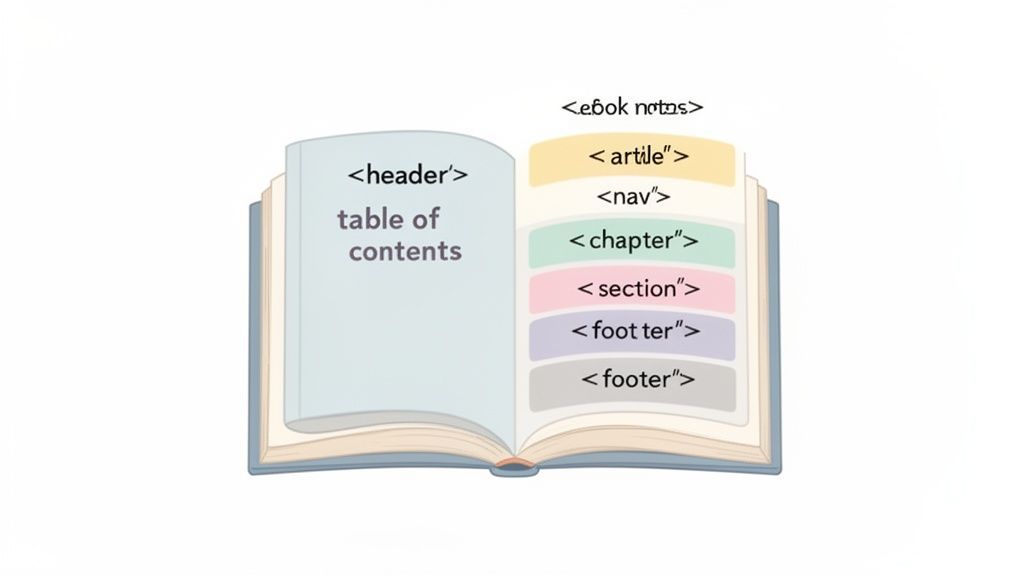
Semantic HTML means using tags that actually describe the content inside them. Think <header>, <article>, and <footer>. This isn't just about appearances; it tells browsers, search engines, and screen readers exactly what each piece of your page is for. Getting this right is a game-changer for SEO, accessibility, and even makes life easier for your developers.
What Exactly Is Semantic HTML?
At its core, semantic HTML is about choosing the right HTML tag for the right job. It’s the practice of using elements that convey the meaning and structure of your content, not just how it looks.
Imagine your website is a book. Without semantic HTML, it’s just a giant, unreadable wall of text. But when you use semantic tags, that book suddenly has a cover (<header>), distinct chapters (<section>), and a clear ending (<footer>). It becomes instantly understandable to everyone—and everything—that reads it.
Instead of wrapping every single thing in a generic <div> or <span>, you pick a tag that describes its purpose. This creates a clear roadmap for assistive technologies like screen readers and for search engine crawlers, letting them navigate and interpret your content with precision.
From Ambiguity to Clarity
The move from presentation-focused code to meaning-focused code was a huge leap forward for the web. When HTML5 officially introduced a new suite of semantic elements on October 28, 2014, it gave developers the tools to build smarter, more accessible websites. This evolution, from just 18 original tags in 1991 to over 100 today, was a direct response to the need for more structure.
In fact, this shift led to a more than 50% increase in the use of structured data online by 2016. It's what separates a confusing jumble of code from a well-organized, machine-readable document. If you're curious about the journey, the Library of Congress has some great history on HTML5's technical specs.
Semantic HTML is the shared vocabulary between you, the browser, and assistive technologies. When you use it correctly, everyone understands the conversation.
The whole idea is to bake context right into your markup. Let's look at how this plays out in a real-world example.
Non-Semantic vs. Semantic HTML at a Glance
A common mistake is building entire layouts with nothing but <div> tags, often called "div soup." It works visually, but it provides zero structural information. Here’s a quick comparison to see the difference.
| Non-Semantic (Div Soup) | Semantic HTML (Clear Structure) |
|---|---|
<div class="header"> | <header> |
<div class="nav"> | <nav> |
<div class="main"> | <main> |
<div class="article"> | <article> |
<div class="sidebar"> | <aside> |
<div class="footer"> | <footer> |
As you can see, the semantic version is immediately understandable, even without the CSS classes. You know exactly what each part of the page is meant to do just by looking at the tags.
This is precisely why resources like the MDN Web Docs emphasize that semantics are foundational for both SEO and accessibility. It's not just about what people see—it's about ensuring your content is truly understood by the machines that deliver it.
Why Semantic HTML Is Your Business Superpower
Knowing what semantic HTML is gets you started, but understanding why it’s a game-changer is what truly elevates a website. Using semantic tags isn't just about checking a box for coding standards. It's a strategic move that directly boosts your business's reach, efficiency, and overall reputation by turning your code into a hard-working asset.
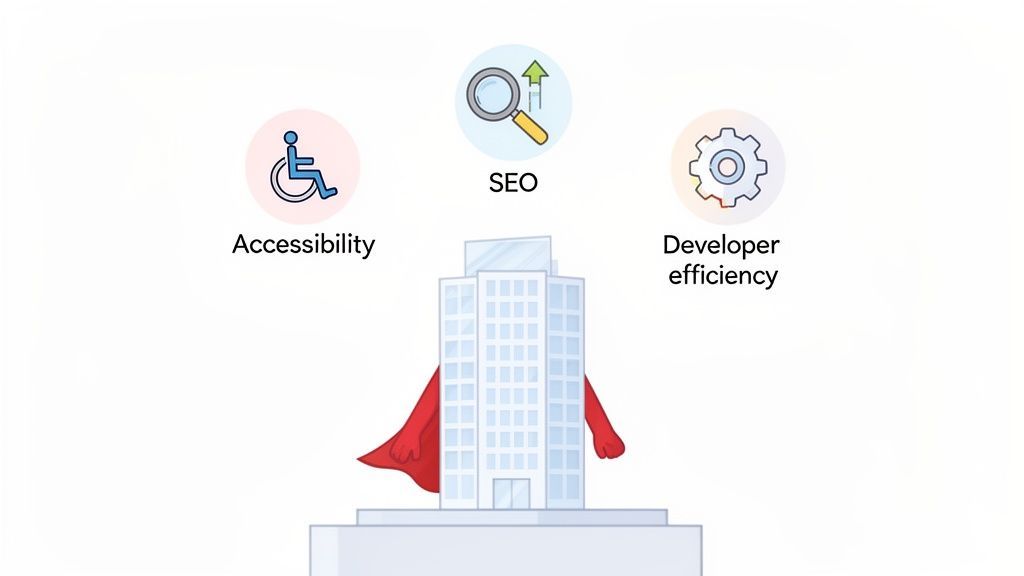
This pays off in three huge ways. First, it makes your website accessible to a much wider audience. Second, it hands search engines a clear roadmap to your content, helping them rank it properly. And finally, it results in a cleaner, more logical codebase that saves your development team a world of time and headaches.
Unlocking Digital Accessibility for Everyone
At its very core, semantic HTML is the bedrock of an accessible website. Assistive technologies like screen readers don't see a webpage the way we do; they interpret its underlying code to describe it to the user. A page built only with generic <div> tags is like a book with no chapters, headings, or page numbers. It’s a frustrating, and often impossible, mess to navigate.
Semantic tags like <nav>, <main>, and <h1> are the signposts that bring order to that chaos. They let a screen reader user jump straight to the main content, skip over the navigation, or grasp the document's structure in an instant. This isn't just a nice-to-have feature. It's essential for providing an equal experience for all users and for meeting legal standards like the WCAG (Web Content Accessibility Guidelines).
Gaining a Powerful SEO Advantage
Just like assistive technologies, search engine crawlers rely on your site's code to figure out what your content is all about. And while they’re incredibly sophisticated, they work best when you give them a well-structured document to work with. Semantic HTML provides Google and Bing with a perfect blueprint of your page, highlighting what’s important and how everything relates.
Put yourself in the crawler’s shoes for a moment:
<header>and<footer>: These tags clearly mark the top and bottom of the page, helping the crawler separate site-wide boilerplate from the unique content on that specific page.<article>: This tag basically shouts, "Hey, this is the main, self-contained story here!" It signals that the content inside is high-value.<nav>: By wrapping your main links in this tag, you’re explicitly pointing out your site’s navigation, which helps search engines map out your site structure.
Providing this kind of built-in context helps search engines index your content more accurately, which in turn can lead to higher rankings for the keywords you care about. The tight link between good structure and search performance is why understanding both SEO and accessibility is no longer optional.
Boosting Developer Efficiency and Maintainability
Finally, writing semantic HTML is one of the best gifts you can give your development team. A codebase built with clear, meaningful tags is practically self-documenting. A new developer can scan the markup and immediately get a feel for the page's layout without having to untangle a confusing nest of <div> tags with bizarre class names.
This clarity slashes onboarding time, reduces the chance of introducing bugs, and makes future updates and redesigns exponentially faster.
A clean, semantic structure is just plain easier to debug, maintain, and scale. That saves countless development hours that can be spent building new features instead of fixing old problems.
To really get this right and make sure your website works for everyone, start with a comprehensive website accessibility checklist. Building with semantics from day one isn't just a best practice—it's a smart business decision that pays for itself in better user experience, stronger search visibility, and smoother operations.
Your Practical Semantic HTML Element Toolkit
Now that we’ve covered why semantic HTML is so important, it’s time to roll up our sleeves and get practical. Think of this section as your go-to reference—a toolkit you can pull from whenever you're trying to pick the right element for the job. We'll walk through the most common and essential semantic tags, grouped by how they function, so you can start building meaningful, well-structured web pages right away.
We're going to move past dry definitions and use simple analogies and code snippets to make their purpose crystal clear. This is where the theory becomes a real, tangible skill.
Core Page Structure Elements
Every house needs a foundation, walls, and a roof. In the same way, every webpage depends on a core set of elements to define its main structure. These are the "landmark" roles that tell browsers and assistive technologies where to find the most important parts of your page.
<header>: This isn't just for the top of the page. It represents the introductory content for whatever its parent section is. You’ll often find logos, the site title, and the main navigation tucked inside. Think of it as the masthead of a newspaper.<footer>: Just like the<header>, this element defines the footer for its nearest sectioning parent. It’s where you’ll usually find copyright info, contact details, and secondary links. It’s the closing credits for your content.<main>: This is arguably one of the most critical structural tags. It should wrap the primary, unique content of your page—the whole reason the page exists in the first place. There should only be one<main>element per page.<nav>: Use this to enclose major blocks of navigation links. It’s a clear signal to screen readers that says, "This is the main menu," allowing users to easily find or skip it. It's perfect for your primary site navigation, but not for every little group of links on a page.
Here’s a look at how they all fit together in a basic page skeleton:
My Awesome Website
© 2024 My Awesome Website
Organizing and Grouping Content
Once you have your main structure in place, you need elements to organize the content within it. These tags help create a logical hierarchy and show how different pieces of information relate to one another. The difference between <article> and <section> trips a lot of people up, so let’s clear that up right now.
<article>: The Standalone Story
Use the <article> element for any self-contained piece of content that could be pulled out and shared elsewhere and still make complete sense on its own. A blog post, a news story, a product card, or a user comment are all perfect candidates for an <article>. Ideally, each <article> should have its own heading.
<section>: The Thematic Chapter
The <section> element, on the other hand, is for grouping related content together. Think of it as a chapter in a book. A section almost always needs a heading to announce its theme. For instance, a homepage might have sections for "About Us," "Services," and "Testimonials."
Key Takeaway: An
<article>can stand on its own, while a<section>is a piece of a larger whole. You can even have multiple<section>elements inside a single<article>to break it down further.
<aside>: The Related Tangent
Use <aside> for content that is related to the main content but isn't part of its primary flow. The most common examples are sidebars, pull quotes, or a list of related articles. It's the "by the way..." content on your page.
Here’s a practical example showing these three elements working together on a blog post:
The Ultimate Guide to Semantic HTML
<section> <h2>What Is It?</h2> <p>Content explaining the basics...</p> </section> <section> <h2>Why Does It Matter?</h2> <p>Content explaining the benefits...</p> </section> Related Posts
Adding Meaning to Text and Media
Beyond the big structural elements, semantic HTML gives us tags to add specific meaning to text and embedded content. Using these correctly adds another rich layer of context for both machines and people.
<figure>and<figcaption>: When you have an image, chart, or code block that needs a caption, wrap it all in a<figure>and use<figcaption>for the description. This programmatically ties the content to its caption, which is fantastic for accessibility. For a deeper look into this powerful tag, you can learn more about the HTML figure tag in our detailed guide.<blockquote>: This one is specifically for quoting a block of text from another source. It signals that the content is a direct quotation, and browsers typically indent it by default to set it apart visually.<time>: When you’re displaying a date or time, wrap it in the<time>element and use thedatetimeattribute to provide a machine-readable format. This helps search engines understand things like event dates and publication times.
For instance, properly marking up an image with its caption makes that relationship explicit and clear:

Fig. 1 - User engagement metrics after implementing semantic HTML.
By adding these elements to your toolkit, you start moving from simply building pages to crafting rich, meaningful, and highly functional web experiences.
Avoiding Common Semantic HTML Mistakes
Even when you know the rules, it's surprisingly easy to fall into a few common semantic HTML traps. It's one thing to know you should use a <nav> tag for your menu, but it's another to actively spot and correct the subtle mistakes that can creep into your code. Learning to sidestep these pitfalls is what really separates clean, effective markup from a confusing mess.
One of the most widespread problems is an affliction developers have jokingly dubbed "divitis"—the habit of wrapping everything in a <div> tag. While <div> is a perfectly good element for grouping content for CSS styling, it carries zero semantic meaning. When you rely on it for structure, you're essentially stripping your content of all its built-in context, creating major roadblocks for accessibility and SEO.
The Pitfall of Divitis
The cure for divitis is simple: just pause for a second before you type <div>. Ask yourself, "Is there a more descriptive element I could use here?" Most of the time, the answer is yes. A <section>, <article>, <nav>, or <aside> will almost always better describe the content's role.
Before (A Bad Case of Divitis):
Post Title
Some text here...
After (The Semantic Fix):
Post Title
Some text here...
The "after" version instantly tells browsers and screen readers what the content *is*, not just how it’s grouped together on the page.
Confusing Section and Article
Another classic mix-up is the difference between <section> and <article>. At first glance, they seem interchangeable, but they serve two very different purposes. An <article> should be a complete, self-contained piece of content that would make sense on its own if you pulled it out and syndicated it elsewhere. Think of a blog post, a news story, or a product review.
A <section>, on the other hand, is for grouping thematically related content within a larger document. It’s a chapter in a book, not the book itself.
A great rule of thumb: If you can't come up with a clear, descriptive heading for a block of content, it probably shouldn't be a
<section>. An<article>can stand on its own, but a<section>is always just a part of something bigger.
This infographic breaks down how these high-level semantic elements form the skeleton of a well-built webpage.
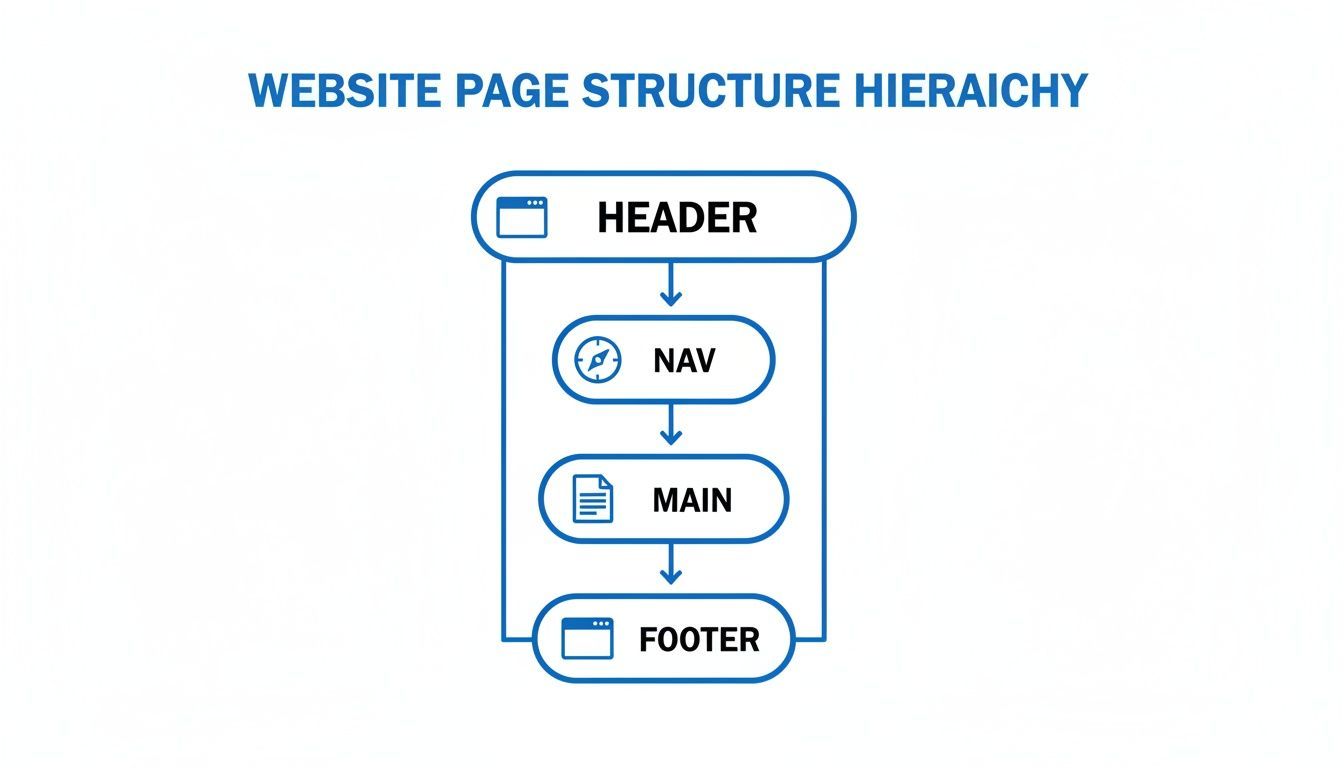
This hierarchy, with landmarks like <header>, <nav>, <main>, and <footer>, creates a logical and easily navigable outline for all users.
Misusing Headings for Styling
This one is a big deal. A really common mistake is using heading tags (<h1> through <h6>) just because you want big, bold text. Headings are not for styling—they are the single most important tool for creating a logical document outline. Both search engines and screen readers rely on this outline to understand your content's structure and hierarchy.
When you skip heading levels (like jumping from an <h1> to an <h3>) or just use them to make text pop, you completely break that structure. Always use headings to map out your content's real hierarchy and leave all the styling to your CSS.
Before (Incorrect Heading Use):
Page Title
A Big, Bold Subtitle for Style
Some content...
After (Correct Semantic Use):
Page Title
A Logically Nested Subtitle
Some content...
Forgetting ARIA's Role
Finally, a common misstep is either forgetting about ARIA (Accessible Rich Internet Applications) entirely or using it when you don't need to. While ARIA is a powerful tool for making custom widgets and dynamic content accessible, it should never be a substitute for native HTML.
Remember this golden rule: if a native semantic element exists for the job, always use it. For instance, never do this: <div role="button">Click Me</div>. Just use the real thing: <button>Click Me</button>. A native <button> element comes with all the keyboard and screen reader functionality built right in, saving you a lot of extra work. Use ARIA to fill in the gaps where HTML falls short, not to reinvent the wheel.
How to Audit and Upgrade Your Existing Website
So, you have a website that’s been around for a while, and it’s not built with semantic HTML. The idea of overhauling it can feel overwhelming, but here's the good news: you don't have to tear it all down and start over. A phased, strategic approach will get you there without derailing your other projects.
It all starts with a simple audit to find the biggest opportunities for improvement.
You can actually start this process right now, using a tool you already have—your browser. Just right-click on any page and hit "Inspect." This opens up the developer tools and shows you the raw HTML. Keep an eye out for "divitis," which is what developers jokingly call the overuse of generic <div> tags where meaningful elements like <header>, <main>, or <footer> should be.
Creating Your Migration Plan
Once you’ve peeked under the hood and spotted the problem areas, you can sketch out a practical migration plan. Don’t try to fix everything at once. Focus on the high-impact, low-effort changes first. I'm talking about the "landmark" elements that define the fundamental structure of your pages.
Here's a simple three-step checklist to get you started:
<header>: Find that<div class="header">at the top of your page—the one holding your logo and main navigation. Swap it for a<header>tag. This one small change immediately tells assistive technologies where your page begins.<main>: Locate the main container that holds the unique content of the page. It's almost always a<div>. Changing it to a<main>tag is a massive win for screen reader users, as it allows them to skip the navigation and jump straight to the good stuff.<footer>: At the bottom, that final<div>with the copyright notice and contact links? That’s your<footer>. Making that switch cleanly marks the end of the page content.
Using Automated Tools for Deeper Insights
Manual spot-checks are great for getting started, but for a more thorough analysis, automated tools are your best friend. Platforms like WebAbility.io can scan your entire site to pinpoint structural and accessibility gaps, giving you a clear, actionable report on where your semantic markup is falling short.
This is the kind of insight an automated tool can give you—real-time monitoring and compliance scores.
Tools like these take the guesswork out of the equation. Instead of hunting for issues page by page, you get a comprehensive list of non-semantic patterns across your entire site. It makes the audit process way more efficient.
After you've sorted out the main landmarks, you can dive a little deeper. The next step is to look for opportunities to replace other <div> wrappers with more specific tags like <nav>, <article>, and <section>. This adds another layer of meaning to your content, which both search engines and screen readers will thank you for.
For a complete guide on this process, consider performing a full website accessibility audit to create a detailed roadmap for your team. This phased approach makes the upgrade manageable and ensures you're consistently delivering value.
The Journey From Presentation to Meaning
To really get why semantic HTML is such a big deal, you have to look back at how we used to build websites. The early days of the web were a bit like the Wild West, a chaotic time often called the "Browser Wars." Back then, developers had to rely on presentational HTML tags just to make things look right.
Think of tags like <font> for changing text color or <center> for moving content. They mashed a page's structure and its visual appearance together into one big, messy file. The code ended up describing how something should look, not what it actually was. This created a huge roadblock for search engines and assistive technologies that needed to understand the content's real meaning.
The Great Separation: Structure and Style
The solution was a complete shift in thinking: we needed to separate a document's structure (HTML) from its presentation (CSS). This single idea became the foundation for a much cleaner and smarter web. HTML's role was refined to focus purely on defining the meaning and hierarchy of content, while CSS was given the job of handling all the visual styling.
This wasn't just a stylistic choice; it was a necessity. As the internet exploded in size, the need for machine-readable content became critical for everything from search rankings to accessibility. Semantic HTML wasn't just an update; it was a whole new language that let developers describe the purpose of their content. The evolution started with the 18 basic tags Tim Berners-Lee first defined in 1991, but the real semantic revolution came with HTML5 in 2014, standardizing the powerful elements we rely on today. You can read more about this journey on Wikipedia’s page on HTML.
This separation of concerns is the bedrock of modern web standards. HTML gives a page its bones (structure), while CSS provides the clothes (style).
The Rise of Meaningful Markup
This new approach gave developers the tools to build websites that were far more robust and future-proof. Instead of just grabbing a generic <div> and slapping on a class like class="red-bold-title", we could finally use a semantic <h1> tag and let CSS handle the visual flair.
With this method, the content's meaning stays locked in, even if the entire design gets a facelift. It also paves the way for more advanced features. For instance, if you want to get even more explicit with search engines, the next logical step is learning how to implement structured data. It builds directly on the principles of semantic HTML, giving search crawlers an incredibly rich layer of context.
This whole journey—from simple presentation to deep meaning—shows why semantic markup is so much more than a "best practice." It’s the very architecture of a web that is accessible, searchable, and built to last.
Frequently Asked Questions About Semantic HTML
Jumping into semantic HTML usually sparks a few questions. Let's clear up some of the most common ones so you can start writing cleaner, more effective code right away.
When Should I Use a Section vs. an Article?
This is easily one of the most common head-scratchers. The best way to think about it is to ask: could this content stand on its own?
Use <article> for complete, self-contained pieces of content. If you could syndicate it in an RSS feed and it would still make perfect sense, it’s an article. Think of a blog post, a forum comment, a news story, or a product card on an e-commerce site.
Use <section> to group related content within a larger document. A section almost always needs a heading to explain what it's about. Imagine chapters in a book—each one is a section of the whole story. A single blog post (<article>) could easily have sections for its introduction, main points, and conclusion.
Are Div and Span Tags Obsolete?
Definitely not. In fact, <div> and <span> are still vital. Their role has just become much clearer: they are purely for styling and grouping when no other semantic tag fits the bill.
Think of them as your non-structural tools. You use semantic tags like <nav> or <header> first to give your content meaning and structure. After that, you can reach for <div> and <span> to create layouts, add CSS hooks, or manipulate elements with JavaScript. They have no meaning on their own, and that's their strength.
How Does Semantic HTML Relate to ARIA Roles?
They're a team, but they play different positions. Semantic HTML is your first-string player. Native elements like <button> or <nav> come with built-in accessibility features—a <nav> tag, for instance, automatically tells a screen reader it's a "navigation" landmark.
The first rule of ARIA is: if a native HTML element already provides the semantics you need, use it.
So, when does ARIA (Accessible Rich Internet Applications) get called in? You use it to fill in the accessibility gaps, especially for custom-built widgets or dynamic content made from non-semantic tags like <div>. ARIA adds the necessary roles and properties where native HTML can't.
Is It Worth Upgrading an Old Website to Semantic HTML?
Absolutely. It might look like a big project, but retrofitting an older site with semantic HTML is an investment that pays off quickly and in multiple ways.
The benefits are real and measurable. Migrating your code gives search engines a much clearer map of your content, which directly helps your SEO. It massively improves the experience for people using assistive technologies. And for your team, it makes the codebase far easier to read, maintain, and update down the road. You don't have to do it all at once—even just swapping out key <div>s for <header>, <main>, and <footer> can make a huge difference.
Ready to ensure your website is built on a foundation of clean, accessible code? WebAbility.io provides real-time monitoring and automated scanning to help you identify and fix semantic and accessibility issues. Start your free trial and build a better web at https://www.webability.io.
Quick Questions
Tap to ask AI about this article