Testing for 508 compliance: A Practical Guide

Sidharth Nayyar
TLDR: Testing for 508 compliance requires a two-part strategy: automated scans to catch common code issues and manual testing to ensure real-world usability. Automated tools like WAVE and axe DevTools find about 30-40% of problems, such as missing alt text or poor color contrast. Manual testing, using just a keyboard or a screen reader, is essential to uncover the remaining issues and confirm the digital product is truly accessible for people with disabilities. This combined approach ensures you meet both the legal requirements of Section 508 and the technical standards of WCAG 2.0 Level AA.
Think of Section 508 compliance testing as a two-pronged attack. You've got automated scans that act like a first-pass metal detector, catching the most obvious code-level problems. Then, you have manual testing, which is where real human insight comes in to gauge the actual user experience.
Why both? Because automated tools, while fast, only catch about 30% of all potential accessibility issues. They're great for a quick check-up, but they can't tell you if your site is genuinely usable.
The Essential Two-Part Testing Strategy
Getting Section 508 compliance right means moving past simple checklists. It’s about ensuring people with disabilities can actually use your digital product without hitting frustrating roadblocks. This requires blending technology with a human touch.
Automated tools are your starting point. They'll quickly flag things that are easy to spot in the code, like missing alt text on an image or a button with poor color contrast. Think of this as getting the easy wins out of the way and establishing a baseline for your audit.
But that's where the machines stop. The real test of accessibility comes from manual testing. This is where you, or an accessibility expert, actually try to navigate and use the site just as someone with a disability would. It's the only way to know for sure if someone can get around with just a keyboard, or if a screen reader announces the content in an order that makes sense.
This workflow is key to running a comprehensive 508 compliance test.
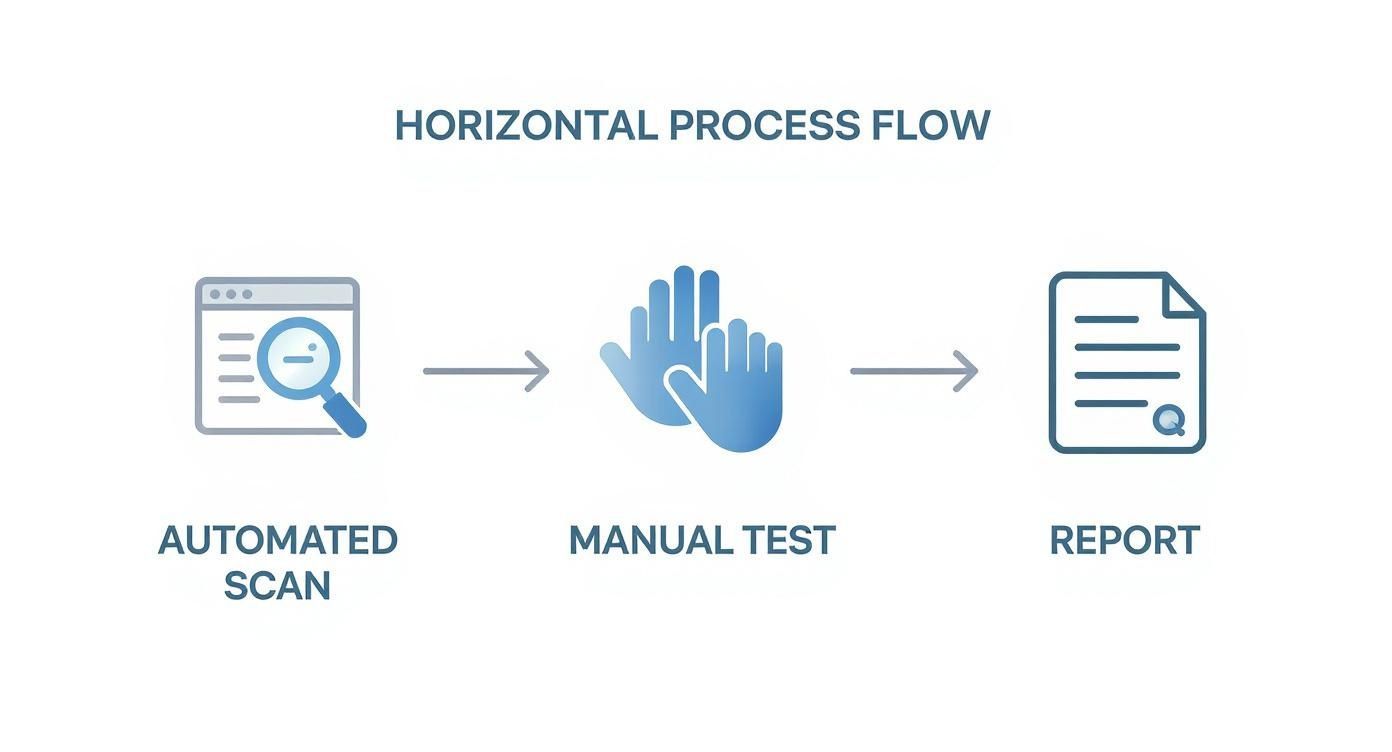
As you can see, the process starts with a broad scan, then dives deep with a manual review. The findings from both are combined into a clear report that tells your development team exactly what needs to be fixed. This dual approach ensures you're meeting both the technical letter of the law and the practical spirit of usability.
Why Section 508 Testing Actually Matters
It’s easy to get lost in the weeds of compliance and think of testing for 508 compliance as just another technical chore. But at its heart, Section 508 of the Rehabilitation Act is a civil rights law. It’s a mandate that says U.S. federal agencies, and any contractors they hire, must provide people with disabilities the same access to their technology as everyone else.
This isn’t some abstract concept. It’s what ensures a person using a screen reader can apply for a federal job just as easily as someone using a mouse. It’s about creating an equitable digital world where everyone can participate.
The Link Between Section 508 and WCAG
So, how do you actually know if your technology is accessible? That's where the Web Content Accessibility Guidelines (WCAG) come into play. Section 508 doesn’t create a new set of rules from scratch; it smartly points to WCAG 2.0 Level AA as the technical benchmark for what "accessible" means.
Here’s a simple way to think about it:
Section 508 is the law. It tells you what you need to do and why.
WCAG is the technical manual. It provides the specific, testable criteria for how to do it.
This partnership turns a lofty goal into a practical checklist. For instance, WCAG defines the exact color contrast ratios required for readable text and lays out the precise way to code a form so that assistive technologies can navigate it. To see how these standards are applied in practice, you can dig into the detailed Section 508 compliance requirements.
The real goal isn't just to pass an audit. It's about building digital tools that actually work for people. A compliant site lets a veteran with a motor disability apply for benefits online, or allows a visually impaired student to access educational materials from a federal archive without hitting a wall.
The Ripple Effect Beyond Government Contracts
While Section 508 is a federal mandate, its influence extends far beyond government work. The business case for accessibility is stronger than ever. The global market for accessibility testing, largely driven by laws like this one, was valued at around USD 610 million in 2025 and is on track to blow past USD 800 million by 2030. With North America making up roughly 41% of that market due to strict enforcement, ignoring accessibility is a real risk.
Ultimately, a serious commitment to accessibility brings powerful advantages:
A Wider Audience: You instantly make your products and services available to more people.
A Stronger Reputation: Showing you care about inclusivity builds trust and a positive brand image.
A Better UX for Everyone: Many accessibility features, like clear navigation and video captions, end up improving the experience for all your users.
Thoroughly testing for 508 compliance is your first step. It transforms a legal obligation into a genuine business opportunity.
Starting Your Audit with Automated Testing Tools
Think of automated testing as your initial high-level sweep. It's the essential first phase of any serious effort in testing for 508 compliance, casting a wide net to quickly snag the most common, code-level accessibility bugs. These tools are incredibly efficient, scanning pages in seconds to give you an immediate health check on your site.
These scanners really shine at identifying issues that are "programmatically determinable." In plain English, that means they look for clear-cut violations in your HTML, CSS, and ARIA attributes that don’t require a human to interpret context. For instance, a scanner can instantly tell if an <img> tag is missing its alt attribute or if the color codes for your text and background don't meet the required 4.5:1 contrast ratio.
This initial pass is invaluable for spotting widespread problems. If the same color contrast error is flagged on every single page, you’ve just found a systemic issue that a single CSS change can likely fix. That saves you an enormous amount of time you would have spent reviewing each page by hand.
Choosing Your Automated Toolkit
You don't need a dozen different tools to get started. In my experience, a few browser extensions have become industry standards because they're reliable, easy to use, and provide actionable feedback.
WAVE (Web Accessibility Evaluation Tool): Developed by WebAIM, WAVE is brilliant for visualizing issues. It injects icons directly onto your page, making it easy to spot things like missing alt text, heading level errors, and ARIA problems at a glance.
axe DevTools: This is a favorite among developers. Created by Deque, it plugs right into your browser's developer console and gives precise, technical feedback with direct references to the specific WCAG criteria you're violating.
Lighthouse: Already built into Google Chrome, Lighthouse is a great all-rounder. While it also checks for performance and SEO, its accessibility audit provides a solid high-level score and a straightforward to-do list.
Understanding The Limits Of Automation
This is the most important takeaway: automated tools are a fantastic starting point, but they are not a complete solution. Research has shown time and again that even the best scanners can only detect around 30-40% of all potential accessibility barriers. Why? Because they can't understand context or logic the way a human can.
An automated tool can verify that an image has alt text, but it can't tell you if that text is actually meaningful. "Image123" technically passes an automated check, but it's completely useless to a screen reader user. Only a human tester can make that critical judgment call.
For this reason, treat automated reports as a guide, not a final verdict. They will flag "false positives"—things that aren't actually issues—and completely miss nuanced problems. For a deeper look into what different scanners can and cannot do, check out this guide to automated accessibility testing tools.
To really see the difference, it helps to compare what each testing method is designed to find.
Automated vs Manual Accessibility Testing
| Testing Aspect | Automated Testing | Manual Testing |
|---|---|---|
| Alt Text | Checks for the presence of an alt attribute. | Checks if the alt text is meaningful and contextual. |
| Color Contrast | Calculates the contrast ratio between two hex codes. | Assesses contrast for text on images or gradients. |
| Keyboard Navigation | Cannot truly test. | Verifies logical tab order and focus visibility. |
| Screen Reader Experience | Cannot simulate or evaluate the user experience. | Determines if content is announced clearly and logically. |
| Logical Flow | Checks for basic heading structure (H1, H2, etc.). | Assesses if the visual and code order make sense. |
| Dynamic Content | Often misses issues with pop-ups or error messages. | Tests if ARIA live regions announce updates properly. |
This table makes it clear that automation handles the "rules," while manual testing is all about the "experience." You absolutely need both.
Integrating Scans Into Your Workflow
The real power of automated testing for 508 compliance comes from making it a habit, not a one-time event. Instead of a single, massive audit once a year, build these scans directly into your development and QA processes.
Running a quick Lighthouse or axe scan before merging new code can catch accessibility regressions before they ever go live. This proactive approach turns accessibility into a shared responsibility, not just another task tacked on at the end. It empowers your team to fix the "low-hanging fruit" continuously, which keeps your backlog manageable and frees up expert resources for the crucial manual testing phase, where the most significant usability barriers are always found.
Think of automated scans as your first pass, a quick check to catch the low-hanging fruit. But if you want to find out if your website is truly accessible, you have to roll up your sleeves and do some manual testing. This is where the real work—and the real discovery—happens.
You need to step into your users' shoes. That means ditching the mouse and navigating your entire site with just your keyboard, the same way someone with a motor disability would. It also means firing up a screen reader like NVDA, JAWS, or VoiceOver to hear your content as a visually impaired user would.
Manual testing is the only way to know for sure if your site’s navigation is logical, if your links actually describe where they go, and if your forms make sense. It’s less about ticking boxes on a checklist and much more about building genuine empathy for every single person who visits your site.
Mastering Manual Accessibility Testing Techniques
Automated tools are great for spotting code-level issues, but they have a massive blind spot: they can't understand context. This is why manual testing is the absolute centerpiece of any serious effort in testing for 508 compliance. It's the human-driven process that uncovers the real-world usability problems that machines will always miss.
This part of the process is all about empathy in action. You're not just a tester; you're simulating the experience of users with disabilities, trying to complete real tasks on your site using the exact same assistive technologies they depend on.
This hands-on approach is more critical now than ever. The government's own recent Section 508 assessment report revealed that overall conformance is still disappointingly low, largely because teams lean too heavily on automation. The report specifically calls out how this over-reliance has pushed in-depth manual testing to the back burner, a problem made worse by a shortage of trained experts. You can read the full summary in the official government findings on Section 508 assessment.
The Keyboard-Only Navigation Test
One of the first and most fundamental tests you should run is a keyboard-only check. A huge number of users with motor impairments can't use a mouse, so they rely completely on a keyboard to get around. Your mission here is simple: make sure every single interactive element on your page can be reached and used with just a few keys.
Unplug your mouse and get familiar with these:
Tab: Jumps to the next interactive element (links, buttons, form fields).
Shift + Tab: Jumps back to the previous one.
Enter: Activates a button or follows a link.
Spacebar: Toggles a checkbox or presses a button.
Arrow Keys: Lets you move within components like dropdown menus or radio button groups.
As you tab through the site, constantly ask yourself two questions: "Can I see where I am?" and "Can I get where I need to go?" That visible focus indicator—usually a blue outline—is completely non-negotiable. If it ever disappears, a keyboard user is lost.
Simulating The Screen Reader Experience
Next, you have to find out what your site sounds like. Screen readers are apps that read the content of a page out loud, and they're the primary way users who are blind or have low vision experience the web. Firing one up is the only way to know if your content is announced in an order that actually makes sense.
You can get started for free with NVDA on Windows or VoiceOver, which is built right into every Apple device. When you're testing, don't just listen to the words—listen for the structure. Are headings announced correctly, so a user can quickly scan the page's contents? Are your links descriptive, or do they just say "click here" over and over? Is a user told what a form field is before they have to type in it?
This is where you'll uncover issues that automation simply can't grasp. A tool can tell you an ARIA attribute is present, but only a human using a screen reader can tell you if it actually announces something useful to the user.
Pro Tip: When you first start using a screen reader, slow its speaking rate way down. It can be a bit overwhelming at first. The goal isn't to become a power user in an hour, but to understand how your visual page layout gets translated into a linear, audio-only experience.
Digging Deeper Into Common Manual Checks
Beyond the keyboard and screen reader, a proper manual audit means getting your hands dirty and inspecting the specific elements that make or break usability. This is where you connect what you see on the screen with what the code is actually doing.
Essential Manual Inspection Points:
Heading Structure: Pop open your browser's developer tools and inspect the heading hierarchy. Is there only one
<h1>? Do the headings follow a logical sequence (<h2>comes after<h1>,<h3>after<h2>) without skipping any levels? For screen reader users, this is the main way they navigate a dense page of content.Link Text: Take a hard look at all your links. Vague text like "Learn More" is a dead end for accessibility. A good link needs to make sense on its own, clearly telling the user exactly where they're about to go.
Form Usability: Go through and fill out every single form on your site. Make sure every input field has a correctly associated
<label>. And when there’s an error, check that the messages are clear, easy to spot, and announced by the screen reader.Visual Focus Indicators: Confirm that the focus ring is always present and has strong contrast against the background. If a designer has disabled it because they don't like how it looks, you've found a critical accessibility failure that needs to be fixed.
The more you practice manual testing, the more you'll start to see your site through the eyes of your users. Brushing up on some foundational UI design tips can also help you spot these kinds of problems more quickly. Mastering these human-led techniques is what elevates your testing for 508 compliance from a technical chore to a genuine evaluation of the user experience.
Crafting 508 Compliance Reports That Actually Get Things Done
Let's be honest: an accessibility audit is pretty useless if it just sits in a folder. After all the hard work of automated scans and manual testing for 508 compliance, the real test is turning those findings into a report that sparks action, not confusion. Handing over a giant, technical list of violations is the fastest way to overwhelm everyone involved.
The key is to think of your report as a strategic guide built for two different groups. Your stakeholders and project managers need a bird's-eye view of the compliance situation. At the same time, your developers and QA folks need the nitty-gritty, actionable details to start fixing things.
Building a Report for Maximum Impact
I always start a good report with a concise executive summary. This is the one-pager for leadership—the cheat sheet. It needs to lay out the product's overall accessibility health, flag any critical risks, and offer a high-level plan for getting things on track, all in plain English.
Once that's done, you can dive deep into the details. I've found it's much more effective to group findings by component ("Main Navigation," "Checkout Form") or by a specific user journey ("User Registration Process"). This is far more intuitive and less intimidating than a never-ending list of WCAG violations.
For every single issue you document, make sure to include these key elements:
Issue Title: Keep it simple and clear, like "Login Button is Not Keyboard Accessible."
Location: Pinpoint exactly where you found it—the URL, screen, or specific component.
User Impact: This is crucial. Explain why it's a problem for a real person. For instance, "A user relying on a keyboard can't access the login button, which completely locks them out of their account."
WCAG Violation: Reference the specific WCAG 2.0 Level AA success criterion being violated (e.g., "WCAG 2.1.1 Keyboard").
Structuring it this way changes the narrative from a dry technical bug report into a compelling story about the user experience. That makes it so much easier to get the buy-in you need to get the fixes prioritized.
How to Prioritize Fixes Based on Severity
Not all accessibility bugs carry the same weight. A minor color contrast issue on a footer link needs to be fixed, but an inaccessible checkout button is a full-blown emergency for the business. You have to prioritize based on severity to create a realistic remediation plan.
A simple three-tier system works wonders here:
Critical: These are total blockers. They stop a user from completing a core task or getting essential information. Think inaccessible login forms, broken keyboard navigation on the main menu, or error messages that don't announce themselves.
Serious: These issues create major headaches and frustration, but a determined user might find a workaround. Examples include missing form labels, a nonsensical heading structure, or videos that lack captions.
Moderate: These problems are less severe but still chip away at the user experience. This could be things like inconsistent focus indicators or images with vague alt text.
By categorizing each finding, you transform a daunting list of problems into a focused, step-by-step roadmap. Developers know exactly where to start, and project managers can allocate resources effectively, tackling the most critical barriers first.
This kind of prioritization is vital, especially when you consider the challenges organizations are up against. A recent government-wide Section 508 assessment showed that while about 61% of tested pages met standards, compliance for the top ten most viewed public webpages dropped to a mere 22%. A huge reason for this gap? Resources. A staggering 51% of agencies reported they just couldn't adequately test their most critical pages. You can read more about the government's compliance outcomes to see the scale of the problem.
Giving Clear Guidance for the Fix
This is where the rubber meets the road. The most valuable part of any report is the solution. For every bug, provide clear, concise steps on how to fix it. Don't just write "Fix the color contrast." Instead, give them the exact hex codes that will meet the 4.5:1 contrast ratio.
I always try to include screenshots that visually highlight the problem and even provide code snippets showing the "before" and "after." This removes any guesswork and empowers developers to get the fix right on the first try. The final document, which is often formatted as an Accessibility Conformance Report (ACR) using a VPAT, becomes the official record of your product's journey toward compliance.
Your Questions About 508 Testing, Answered
As teams dive into testing for 508 compliance, the same handful of questions always seem to surface. It's completely understandable—the mix of legal mandates, technical standards, and hands-on testing can feel a bit tangled at first. Let's clear up some of that confusion with straightforward answers to the most common things people ask.
Getting a firm grip on these fundamentals is the bedrock of any successful accessibility program. Once you understand how the law and the standards work together, where different testing methods fit in, and what a realistic testing rhythm looks like, you're well on your way.
What’s The Difference Between Section 508 And WCAG?
This is, without a doubt, the question we hear most. The answer is surprisingly simple.
Think of it this way: Section 508 is the law, and the Web Content Accessibility Guidelines (WCAG) are the technical standards you follow to comply with that law.
Section 508 is a federal law in the U.S. that requires federal agencies to make their technology accessible to people with disabilities. But the law itself doesn't invent its own accessibility rules from scratch. Instead, it points to an existing, globally recognized standard: WCAG 2.0 Level AA. This is the official benchmark you have to meet.
So, for your team on the ground, the practical reality is this: to make a product Section 508 compliant, you need to meet the specific, testable criteria laid out in WCAG.
Can Automated Tools Make My Site Fully 508 Compliant?
In a word: no. Automated tools are an incredibly important part of the process, but they can't carry you over the finish line alone. They are fantastic at catching issues that can be identified by a machine reading the code, things that don’t require human context or judgment.
For instance, an automated scanner is brilliant at finding problems like:
An
<img>tag that's missing its alt text attribute.Color contrast ratios that don't meet the 4.5:1 minimum.
Form fields that are missing their labels.
The catch is, automated tools can only flag about 30-40% of all potential accessibility problems. They have no way of knowing if the alt text you provided is actually a meaningful description of the image. They can't tell you if the keyboard navigation path is logical and intuitive for a user. And they can’t determine if a screen reader announces an error message in a way that actually helps someone fix the problem.
True compliance is only possible when you combine the speed of automated scans with the nuance of thorough, human-led manual testing.
How Often Should We Be Doing 508 Compliance Testing?
This is a big one. Accessibility isn't a one-time project you check off a list; it’s an ongoing discipline. The most effective approach is to weave testing for 508 compliance into the very fabric of your development process. Don't wait for a stressful, last-minute annual audit to find out that a year's worth of new features has created a minefield of accessibility barriers.
A healthy testing rhythm usually looks something like this:
During Development: Run automated scans as part of your CI/CD pipeline. This catches basic issues and regressions before they ever get merged into the main codebase.
Before Major Releases: Perform a focused manual audit on any new features or significant changes. This ensures the new functionality is actually usable by everyone.
Annually: Conduct a comprehensive, formal audit of the entire site or application. This deep-dive review is perfect for generating a formal Accessibility Conformance Report (ACR) and catching anything that might have slipped through the cracks.
Adopting this kind of continuous cycle makes accessibility a manageable, routine part of building great software—not a costly fire drill right before a big deadline.
Do We Need To Hire Experts To Do The Testing?
While bringing in a seasoned accessibility specialist is often the smartest move for a formal audit or creating a VPAT, your own team should absolutely be your first line of defense.
It's a powerful strategy to empower your own developers and QA testers with foundational accessibility knowledge. They can absolutely learn to run automated tools, perform critical checks like keyboard-only navigation, and get comfortable with the basics of using a screen reader. This in-house capability means you can catch and fix a huge number of issues early on, which is always faster and cheaper.
However, when you're dealing with complex applications, critical user flows, or you need a formal declaration of compliance for a government contract, that's the time to bring in a third-party expert. Their specialized skill set provides an unbiased, deep evaluation that protects you from legal headaches and ensures your product is genuinely usable.
For more tools and guides to help build your team’s skills, you can explore some additional accessibility resources.
Ready to move beyond checklists and achieve true 508 compliance? WebAbility.io provides an end-to-end platform with AI-powered tools, automated monitoring, and expert guidance to make accessibility a seamless part of your workflow. Start your free trial and see how our platform can help you build more inclusive digital experiences today. Learn more at https://www.webability.io.
Quick Questions
Tap to ask AI about this article