Master the WAVE Extension for Chrome: A Complete 2026 Guide

Sidharth Nayyar
TLDR: The WAVE extension for Chrome is an indispensable free tool from the accessibility experts at WebAIM. It provides instant visual feedback on your website's accessibility by overlaying icons directly on your page. This helps you quickly identify and fix issues like missing alt text or poor color contrast, making it a foundational first step toward a more inclusive website. To scale your efforts, consider pairing it with a comprehensive platform like the WebAbility.io website accessibility checker.
Your Quick Start to Web Accessibility Audits
Before diving into tools, it's crucial to grasp what web accessibility entails. In essence, it's the practice of ensuring your website is usable by everyone, regardless of their abilities or how they access the internet. This isn't just a technical guideline; it's a fundamental principle of inclusive design and a strategic approach to connecting with the broadest possible audience.
When you're ready to evaluate your site, the WAVE extension for Chrome stands out as one of the most trusted and effective tools available. Developed by the team at WebAIM, a leading authority in digital accessibility, this tool offers unparalleled reliability and insight. I consider it an essential lens that empowers developers, designers, and content creators to see their work from a new, critical perspective. Its core strength lies in providing real-time, in-context feedback on accessibility and WCAG errors directly on your page.
Why the WAVE Extension Is a Go-To Tool
Having WAVE is like having an accessibility expert looking over your shoulder. With a single click, it scans your page's code and delivers a visual, interactive report. That immediate feedback is invaluable.
It’s exceptionally good at flagging issues that can be significant roadblocks for users:
- Errors: These are clear-cut WCAG failures. A classic example is a form field that's missing a label, which makes it impossible for screen reader users to know what to enter.
- Contrast Errors: This pinpoints text that’s hard to read because it doesn't stand out enough from its background color.
- Alerts: These are potential issues that require human judgment to confirm. For instance, an image with very long alt text might be flagged here.
By getting instant feedback during the design and development process, you start preventing accessibility issues before they even happen. It’s a complete shift from scrambling to fix problems after a site goes live to building an accessible foundation from day one.
In this guide, I’ll walk you through how to find, install, and effectively use the WAVE extension. Whether you're conducting a quick check or a full website accessibility audit, this tool is the perfect place to begin. You'll learn to interpret WAVE's findings and transform them into actionable steps for creating a more inclusive website.
Installing and Running Your First WAVE Scan
Let's get the WAVE extension for Chrome set up. As a seasoned accessibility consultant with over a decade of experience helping organizations build inclusive digital products, this is one of the first tools I recommend. It's built by the respected team at WebAIM, ensuring it's both reliable and aligned with current standards.
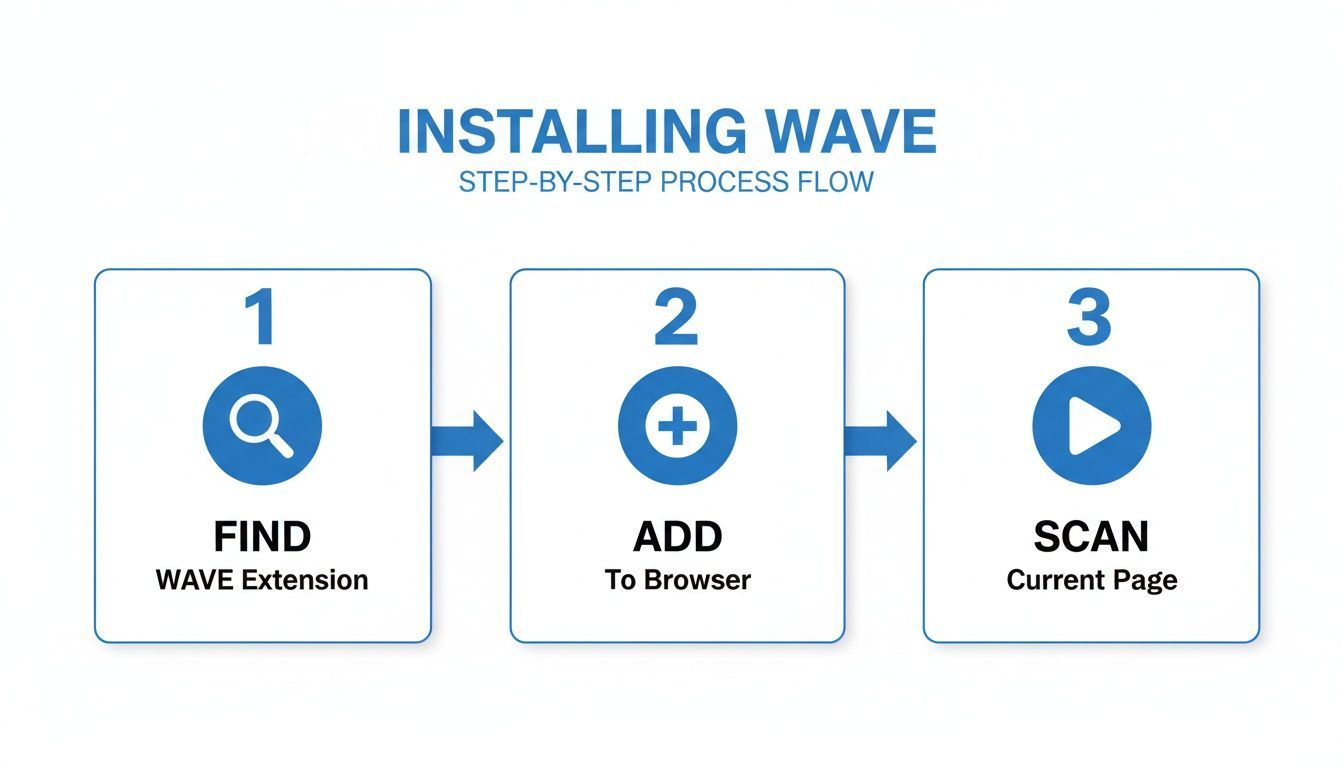
You can get the official extension directly from the Chrome Web Store. Ensure you're downloading the version published by WebAIM to guarantee its authenticity. Once you find it, click "Add to Chrome," and the browser will handle the installation.
A Quick Setup Tweak for Developers
Once installed, a small "W" icon will appear in your browser's toolbar. Before you dive in, there's a crucial setting I always enable, especially for testing locally.
- Right-click the WAVE icon and select "Manage extensions."
- Find the "Allow access to file URLs" option and turn it on.
This simple change allows you to run WAVE directly on HTML files saved on your computer, a lifesaver for catching issues before pushing code to a staging server.
Now that the tool is ready, let's see what it can do.
Running Your First Scan
This is where the magic happens. Navigate to any webpage you want to evaluate—perhaps a competitor's site, a complex product page, or your own blog.
To initiate the scan, you have a couple of options:
- Click the WAVE Icon: The easiest method is to simply click the "W" in your toolbar.
- Use a Keyboard Shortcut: For efficiency, use Ctrl+Shift+U (Windows) or Cmd+Shift+U (Mac) to launch it instantly.
The moment you do, WAVE springs into action. Instead of opening a new window, it injects a comprehensive sidebar directly into the page you're viewing.
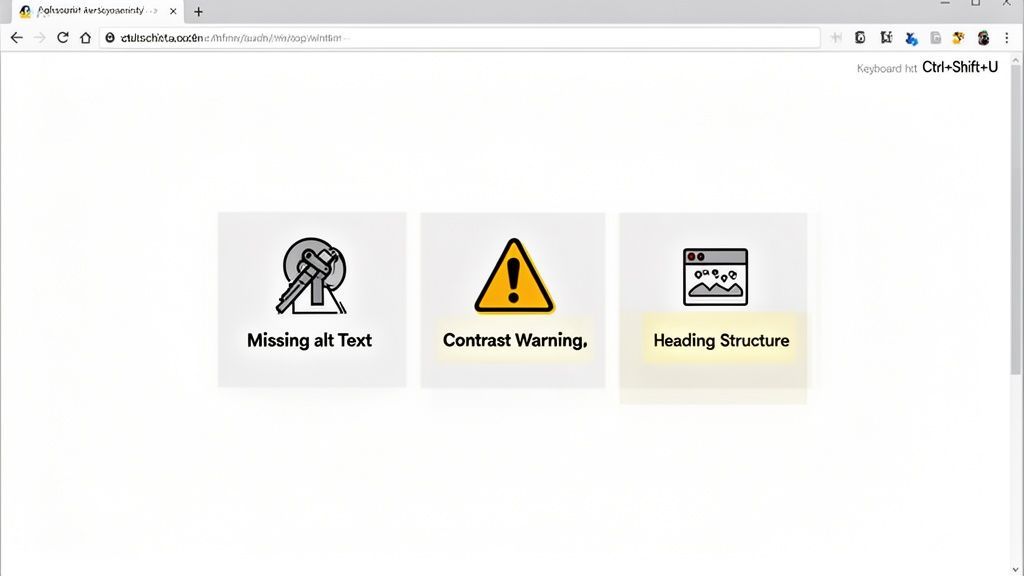
Your webpage will suddenly be covered in small icons. This isn't a bug! These icons pinpoint specific accessibility findings—errors, contrast issues, structural elements, and more—right on top of the elements they relate to.
This immediate, in-context feedback is what makes WAVE so powerful. You're not just reading a list of errors; you're seeing precisely where a missing form label or a low-contrast button lives on the page.
For individual page checks, WAVE is fantastic. When your goal is to monitor accessibility across an entire site or automate these checks into your development lifecycle, you'll benefit from a more robust platform. That's where a solution like our WebAbility.io website accessibility checker provides the continuous monitoring and deep reporting needed for enterprise-level compliance.
How to Read WAVE Reports and Prioritize Fixes
Once you run a scan, your page will light up with icons, and a summary panel will appear on the left. It can seem overwhelming at first, but learning to interpret this feedback is how you turn a simple audit into an actionable improvement plan.
Your first stop should always be the summary panel. It organizes all findings into six distinct categories, and understanding the difference is key to an effective workflow.
Decoding the WAVE Icon Categories
Not all icons signal an urgent issue. Some indicate definite accessibility failures, while others simply ask for a closer look and human judgment. My experience has shown that a systematic approach to these categories is the most efficient way to work.
Here’s how to differentiate them:
- Errors (Red): These are your highest priority. A red icon means WAVE has found a clear violation of WCAG guidelines, such as missing form labels or image links without alt text. These are not suggestions; they are barriers for your users.
- Contrast Errors (Red): A specific and common type of error, these icons flag text that lacks sufficient color contrast, making it difficult or impossible for users with low vision to read.
- Alerts (Yellow): Consider these a "heads-up." Alerts are potential issues that an automated tool can't definitively call a failure. For example, WAVE might flag a "click here" link for lacking context, but a human needs to confirm it. Investigate these before acting.
Think of it this way: an Error is a definite pothole that will stop a wheelchair. An Alert is a "Caution: Uneven Pavement" sign—it needs a manual check to see how serious it is.
Getting to this reporting stage is incredibly fast. The whole process is designed to get you from installation to insights in just a few clicks.
The other icons provide valuable context and confirm what's working correctly:
- Features (Green): These are the positives! WAVE uses green icons to show where accessibility features, like proper alt text, have been correctly implemented.
- Structural Elements (Purple): These icons mark up your page's architecture, including headings (H1-H6) and landmark regions (
<nav>,<main>). - ARIA (Blue): This category highlights where ARIA attributes are used. It doesn't judge their correctness—that often requires manual testing—but it shows you where they are present.
A Strategic Approach to Prioritizing Fixes
You have the report. Where do you begin? Prioritizing based on user impact is key. A long list of issues feels much more manageable with a clear order of operations.
I've seen teams launch a new e-commerce site and run the WAVE Evaluation Tool from WebAIM for the first time, only to be hit with 16 errors and 52 alerts. These are issues that could block 15% of users with disabilities from making a purchase. With ADA lawsuits exceeding 4,000 cases annually, catching these problems early is just smart business. Automated tools like WAVE can flag up to 110 types of issues you can fix right away. You can find more details about the tool on the Chrome Web Store.
Always start by tackling the Errors. These are the showstoppers.
Your game plan should look like this:
- Eliminate All Errors: Go through every single red icon—both general errors and contrast issues. These fixes deliver the biggest impact on your site's usability and compliance. They are non-negotiable.
- Investigate All Alerts: Once the red flags are gone, move on to the yellow ones. This is where you apply your expertise. Is that link text truly ambiguous? Is the heading order unconventional but still logical? Document your decision to either fix or leave it.
- Review the Structure: Finally, use the purple icons for a health check on your page's skeleton. Is there a single H1? Do headings flow logically? Are landmarks used to define regions? This is fundamental for screen reader navigation.
By following this hierarchy, you methodically improve the user experience for everyone. This approach turns a daunting report into a manageable workflow and forms the foundation of a solid wcag compliance checklist for any project.
Going Beyond the Basics: Pro Tips for Using WAVE
Once you’ve mastered basic scans, you're ready to unlock the true diagnostic power of the WAVE Web Accessibility Evaluation Tool. The initial error count is just the start. To truly understand a page's accessibility, you must dig into its more advanced features. This is where you go from finding problems to understanding their root cause.
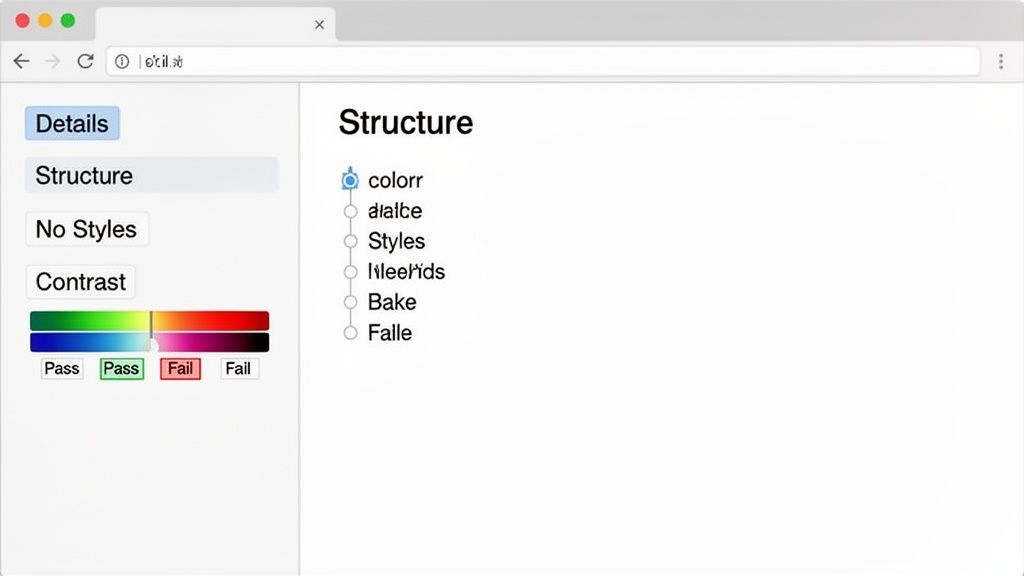
Most of this deep-dive work happens in the tabs within the left-hand sidebar. While the 'Summary' gives you high-level numbers, the real detective work is done in the 'Details,' 'Structure,' and 'Contrast' panels.
From Report to Root Cause with Details and Structure
The 'Details' tab is your best friend for investigating specific issues. When you click an icon in this list, the page instantly jumps to the corresponding element. No more scrolling and searching—it’s a direct line from the report to the code that needs attention.
Just as crucial is the 'Structure' tab. This feature gives you a clean, organized outline of your page's heading hierarchy (H1 through H6) and its landmark regions, like <nav>, <header>, and <main>.
Think of a logical heading structure as a table of contents for someone using a screen reader. It's how they scan the page and jump to the content they need. This tab reveals that structure instantly, making it painfully obvious if you've skipped heading levels or forgotten a key landmark that users depend on for navigation.
Using these two tabs in tandem is a game-changer. You can quickly spot a structural problem in the 'Structure' tab, then click over to 'Details' to pinpoint the exact element and get to work.
Uncovering What's Hidden with Special Views
At the bottom of the WAVE sidebar are a couple of tools I use in nearly every audit. They help reveal issues that a standard scan might not make obvious.
- No Styles View: Here’s a pro tip. Clicking 'No Styles' strips away all CSS, showing you the raw, unstyled content. This is incredibly useful because it reveals the actual reading order a screen reader will follow, which can differ dramatically from the visual layout. It's the ultimate source of truth for your content's flow.
- Contrast Panel: The main report flags contrast errors, but the dedicated 'Contrast' panel helps you fix them. It features color pickers that let you experiment with different foreground and background colors right in the browser. You can tweak them until you find a compliant combination, providing actionable feedback to designers.
A Note on Testing Dynamic Websites
Modern web design is highly interactive, with expanding menus, pop-up modals, and content that loads without a page refresh. Auditing these dynamic elements with the WAVE extension requires a bit of manual effort.
WAVE only scans the page's current state. Therefore, to test a pop-up form, you must first trigger the pop-up and then run the WAVE scan. This ensures the tool can "see" and analyze the new content.
While this works for spot-checking, it isn't a scalable solution for large, interactive sites. For that, you need a more robust process involving comprehensive automated accessibility testing to continuously monitor your site's compliance as it evolves.
Weaving WAVE Into Your Daily Workflow
Identifying accessibility problems with the WAVE extension for Chrome is a great first step, but the real impact comes from building processes that prevent these issues in the first place. The goal is to make accessibility a reflex, not an afterthought.
When accessibility is baked into your team's everyday tasks, it becomes a core part of your culture. The WAVE tool is so lightweight that it fits neatly into any stage of development, from initial design to final QA. This makes it an invaluable ally for creating inclusive products right from the start. Making WAVE a habit can seriously boost your team's efficiency, much like the best productivity tools for freelancers help streamline other professional tasks.
A Practical Game Plan for Your Team
Getting WAVE adopted across your team doesn't need to be a major overhaul. Everyone can play a small but critical part.
Designers: Use the 'Contrast' panel in WAVE during the mockup phase. Before code is written, you can ensure your color choices meet WCAG standards, eliminating one of the most common accessibility hurdles.
Developers: Make a quick WAVE scan part of your pre-commit checklist. It takes just five seconds and can catch glaring problems like missing ARIA labels or a jumbled heading structure before that code ever gets merged.
Project Managers: Build WAVE checks directly into your QA process. A simple rule can make a huge difference: no new feature or page goes live if it has any red-icon errors in its WAVE report.
A good workflow doesn't just add more tasks; it empowers your team with clear, manageable actions. By making WAVE a routine check-in, you shift everyone's mindset from fixing problems reactively to building inclusively from the ground up.
This approach builds an incredibly strong foundation for accessibility. In fact, by 2026, WAVE is already slated to become a mandatory tool for web teams at institutions like Boise State University. Its privacy-first design is a huge plus—since no data ever leaves your browser, it's perfect for auditing sensitive content on internal or password-protected sites. The extension is also incredibly flexible, letting you check local files or work in incognito mode with a quick settings change. And as your team's skills grow, WAVE’s automatic updates for standards like WCAG 2.2 make it a natural stepping stone to more comprehensive tools. You can see how it fits into modern workflows to get a better feel for its practical application.
Knowing When to Level Up Your Strategy
Manually checking pages with WAVE is, and always will be, an essential practice. Nothing beats it for quick, targeted audits of individual pages and components. But for large, constantly changing websites, spot-checking alone isn't enough to maintain compliance.
This is the point where you pair your manual efforts with an automated platform. Think of WAVE as your expert on the ground, perfect for immediate tactical audits. A dedicated website accessibility checker like WebAbility.io provides the strategic oversight needed to manage accessibility at scale.
Our platform offers features that manual tools can't: 24/7 site-wide scanning, real-time monitoring for regressions, and a centralized dashboard for all your reporting. This automated oversight ensures you stay compliant over the long haul and gives you a clear, documented history of your accessibility progress. By combining the hands-on precision of WAVE with the broad-scale power of WebAbility.io, you create a truly complete and sustainable accessibility program.
Common Questions About the WAVE Chrome Extension
Once you start using the WAVE extension for Chrome, you'll likely run into a few practical questions. As an expert in this field, I've heard them all. Understanding what the tool can—and can't—do is the first step toward using it effectively.
Can WAVE Check Password-Protected or Local Pages?
Absolutely, and this is one of its most significant strengths. All analysis performed by the WAVE extension happens entirely within your browser.
This means no data is ever sent to an external server. You can confidently run audits on anything from a staging environment behind a login to your company’s private intranet. It's completely secure.
For files on your own computer, you can check those too. Simply enable this feature in the extension's settings: right-click the WAVE icon, go to "Manage extensions," and toggle on "Allow access to file URLs." It’s a fantastic feature that empowers developers to fix accessibility bugs before code ever goes live.
What Is the Difference Between an Error and an Alert?
Understanding this distinction is crucial for interpreting a WAVE report correctly. The colors are not just for decoration; they guide your prioritization.
An Error, marked with a red icon, is a definitive failure to meet a WCAG requirement. These are non-negotiable. Think of an image with no alt text or a form field missing a label. These are clear barriers for users and should always be your top priority.
An Alert, marked with a yellow icon, flags a potential problem that requires human judgment. For example, WAVE might question a link that just says "click here," but you need to examine the surrounding context to decide if its purpose is truly ambiguous.
Think of it this way: Errors are broken rules you have to fix. Alerts are smart suggestions that require your expertise to confirm if they're a real problem.
Is the WAVE Extension Enough for Full WCAG Compliance?
In a word, no. While the WAVE extension is an incredibly powerful tool for identifying many accessibility issues, it is not a silver bullet for compliance.
Automated tools, including WAVE, can only detect a fraction of all possible accessibility issues. Most experts, myself included, agree they can identify somewhere between 30-40% of WCAG failures. The rest require manual testing.
True accessibility depends on a blended approach. It's essential to follow up automated scans with manual testing, such as navigating your site with only a keyboard or using a screen reader to test the user flow.
WAVE is perfect for quick spot-checks and providing developer feedback. But for maintaining compliance across an entire website over time, a more comprehensive system is needed.
By combining the immediate, page-level audits from the WAVE extension with a dedicated platform like WebAbility.io, you build a truly resilient accessibility program. WAVE helps you find and squash bugs on the spot, while our automated scanning and site-wide monitoring provide the framework to stay compliant for the long haul. Explore how WebAbility.io can elevate your accessibility strategy today.
Quick Questions
Tap to ask AI about this article