Type of assistive technology: 10 Key Types to Implement in 2026

Sidharth Nayyar
TL;DR: Understanding and implementing various types of assistive technology is no longer optional—it's essential for business growth, legal compliance (WCAG, ADA), and reaching a global market of over one billion people with disabilities. This guide breaks down 10 critical categories, from screen readers to AI-powered compliance automation, providing actionable steps for your team. Integrating solutions like WebAbility.io can streamline this process, boost your CRO, and create a truly inclusive user experience.
Creating a website that is accessible to everyone is a strategic business imperative, not just a good deed. With the global population of people with disabilities representing a market with $13 trillion in disposable income, ignoring accessibility means leaving significant revenue on the table. The key to unlocking this potential lies in understanding and embracing every type of assistive technology (AT) available. These tools are the bridges that connect users with diverse abilities to your digital content, products, and services.
This article moves beyond theory, offering a practical, E-E-A-T (Experience, Expertise, Authoritativeness, Trustworthiness) based roundup of the 10 most impactful types of assistive technology. We will detail what each one is, how to implement it, and the direct benefits for both your users and your bottom line. To truly unlock digital doors for everyone, understanding the diverse range of solutions available is key. For instance, exploring the 12 Essential Assistive Technology for ADHD Tools can highlight how specialized tools address unique cognitive needs, complementing the broader categories we'll cover.
Our goal is to provide clear, actionable insights for your digital agency, enterprise team, or small business. For each category, you will find plain-language definitions, real-world examples, and specific implementation tips. We'll also link to internal resources, like our screen reader testing guides and dyslexia-focused content, to deepen your team’s expertise. By the end of this guide, you will have a clear roadmap for not only achieving compliance with standards like WCAG and ADA but also for improving user experience and driving business growth through genuine inclusion.
1. Screen Readers and Text-to-Speech Technology
TL;DR: Screen readers are essential software for users with visual impairments, converting on-screen text and elements into speech or braille. Adhering to screen reader best practices not only achieves WCAG compliance but also improves site structure and usability for everyone, directly supporting better user experience and conversion rates.
Screen readers are a foundational type of assistive technology that translates digital content into synthesized speech or braille output. This software empowers blind and visually impaired users to interact with websites, applications, and operating systems by reading aloud everything from text content to interface elements like buttons, links, and form fields. Similarly, text-to-speech (TTS) tools read selected text aloud, offering support for individuals with dyslexia, cognitive disabilities, or those who simply prefer auditory learning.

From a development standpoint, creating a site that works well with screen readers means building a logical, well-structured user experience. Popular screen readers include the free, open-source NVDA, the professional-grade JAWS for Windows, and the native VoiceOver and TalkBack tools built into Apple and Android devices, respectively. Modern platforms also offer integrated TTS features, like the visitor-facing tool from WebAbility.io, which can increase engagement and time on page.
Practical Tips for Implementation and Testing
To ensure your digital properties are compatible, your team should focus on a few key areas. These practices have the added benefit of improving your site's overall quality and search engine optimization (SEO).
- Prioritize Semantic HTML: Use HTML5 elements like
<header>,<nav>,<main>, and<footer>correctly. This provides a clear, predictable structure that screen readers can easily interpret, allowing users to navigate efficiently. - Write Descriptive Alt Text: Every meaningful image needs alternative text that describes its content and purpose. Aim for around 150 characters to provide sufficient detail without being overly long.
- Implement ARIA for Complex UI: Use Accessible Rich Internet Applications (ARIA) attributes to define roles and properties for dynamic components like custom menus or sliders, making them understandable to assistive technologies.
- Include "Skip to Content" Links: These links allow screen reader users to bypass repetitive navigation headers and jump directly to the main content, saving time and reducing frustration.
By focusing on screen reader compatibility, you are fundamentally investing in a more logical and organized website. This benefits all users by creating a clearer information architecture and a more intuitive navigation flow, which are key drivers for user retention and conversion.
For a deeper understanding of how these tools interact with your site, it is crucial to perform regular audits. You can get started by conducting a comprehensive screen reader test to identify and fix critical accessibility barriers.
2. Keyboard Navigation and Motor Control Assistance
TL;DR: Full keyboard accessibility allows users with motor impairments to navigate and interact with a website using only a keyboard. By ensuring a logical tab order, visible focus states, and no keyboard traps, you meet a core WCAG requirement and create a more predictable, structured experience that improves usability for all visitors.
Keyboard navigation is another fundamental type of assistive technology, designed for individuals with motor disabilities, limited dexterity, or those who cannot use a mouse. It allows users to operate websites and applications entirely through keyboard inputs like the Tab key, arrow keys, and shortcuts. This includes features like sticky keys, which serialize keystrokes, and switch controls that map actions to one or more buttons.
For many users, keyboard-only access is not a preference but a necessity. Proper implementation ensures everyone can access menus, fill out forms, and use interactive elements without being forced to rely on a mouse. Well-known examples include built-in features like Microsoft Windows Sticky Keys and Apple's Switch Control, as well as third-party solutions such as WebAbility.io's comprehensive keyboard navigation widget, which standardizes controls across a site.
Practical Tips for Implementation and Testing
Ensuring your site is fully keyboard-operable is a non-negotiable part of accessibility. These practices are central to achieving compliance and building a robust user interface.
- Test Tab Order Systematically: Navigate your entire site using only the Tab key to move forward and Shift+Tab to move backward. The focus order must follow a logical path that mirrors the visual layout.
- Ensure Focus Indicators are Always Visible: The element that currently has keyboard focus must have a clear visual outline. This indicator should have a contrast ratio of at least 3:1 against the background.
- Avoid Keyboard Traps: A keyboard trap occurs when a user can tab into a component but cannot tab out of it. This is a critical accessibility failure that can completely block a user's progress.
- Provide Alternatives for Mouse-Dependent Actions: All functionality, including hover-triggered menus and drag-and-drop interfaces, must have a keyboard equivalent.
A website with perfect keyboard navigation is inherently well-structured. It forces developers to think logically about information flow and interactivity, resulting in a more organized and intuitive interface that benefits power users, mobile users, and assistive technology users alike.
Testing with tools like Dragon NaturallySpeaking can also reveal how voice control users, who rely on keyboard commands, interact with your interface. For a guided approach, consider using a free accessibility checker to quickly identify keyboard navigation issues like missing focus indicators or illogical tab orders.
3. Visual Enhancement Tools (Contrast, Color Adjustments, and Magnification)
TL;DR: Visual enhancement tools like high-contrast modes, color filters, and magnification allow users with low vision or color blindness to customize their viewing experience. Building a site that supports these adjustments not only meets key WCAG criteria but also creates a more readable and comfortable interface for a wider audience, which can improve user engagement and session duration.
Visual enhancement tools are a critical type of assistive technology designed to modify the visual presentation of digital content. These tools empower users with low vision, color blindness, and light sensitivity to adjust on-screen elements to meet their specific needs. Functions can include high-contrast modes, color inversion, font scaling, and full-page magnification, which directly address WCAG 2.1 guidelines for distinguishability and readability.
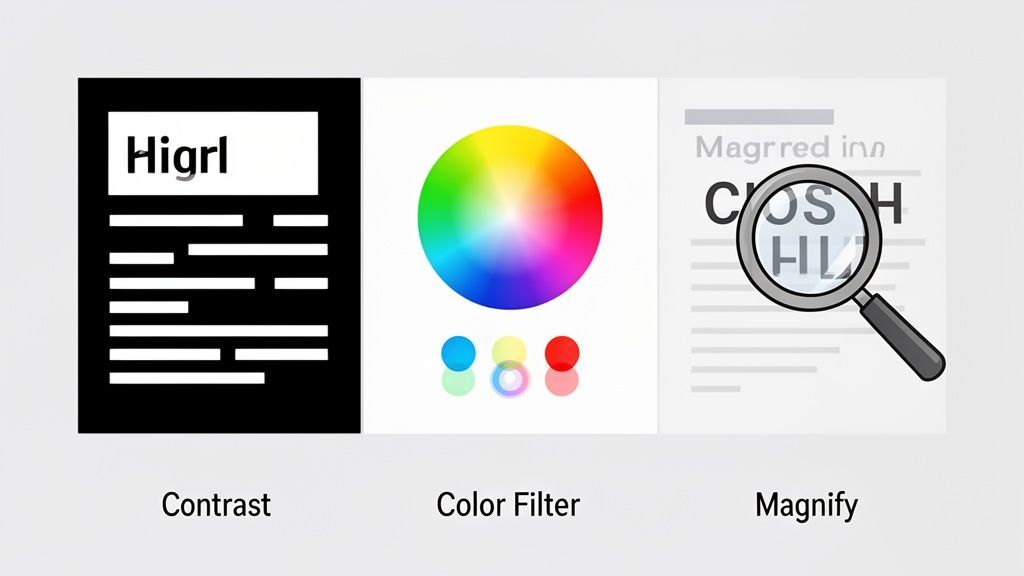
Many operating systems offer built-in solutions, such as Windows High Contrast Mode, macOS's "Increase Contrast," and Android's grayscale adjustments. Specialized software like ZoomText provides advanced magnification, while website-specific tools like the WebAbility.io widget offer integrated features for visitors to adjust contrast and color palettes directly. These tools work by overriding a site's default styling, making it essential for developers to create a robust and flexible front-end structure.
Practical Tips for Implementation and Testing
To ensure your website remains functional and legible when users apply visual enhancements, your development team should concentrate on the following practices. These steps also contribute to a cleaner, more adaptable design for all users.
- Validate Color Contrast: Test all text and UI element color combinations to ensure they meet a minimum contrast ratio of 4.5:1 (WCAG AA). Use tools like the WebAIM Contrast Checker for quick validation.
- Avoid Relying on Color Alone: Do not use color as the sole means of conveying information, such as indicating an error state. Supplement color cues with icons, text labels, or other visual indicators.
- Test for Reflow at High Zoom: Ensure your page layout correctly reflows without requiring horizontal scrolling when magnified up to 200%. Content should remain usable at a viewport width of 320 CSS pixels.
- Simulate Color Blindness: Use simulators like Coblis or Color Oracle to see how your design appears to users with different types of color vision deficiency and adjust your palettes accordingly.
A design that remains clear under high contrast and magnification is fundamentally a well-structured and readable design. This focus on visual clarity benefits everyone, especially users in low-light environments or those with tired eyes, leading to a better overall user experience and increased content consumption.
4. Dyslexia-Friendly Fonts and Reading Assistance
TL;DR: Specialized fonts and reading tools for users with dyslexia improve readability by reducing letter confusion through unique letterforms and increased spacing. Offering these options as a user-configurable setting not only supports neurodivergent users but can also improve reading comprehension and comfort for a wider audience, leading to better engagement.
Dyslexia-friendly fonts are a specific type of assistive technology designed to make text easier to process for individuals with dyslexia. These typefaces use features like unique letter shapes, weighted bottoms, and increased spacing between letters and words to prevent common reading errors such as flipping or swapping characters. This evidence-based approach helps reduce visual stress and cognitive load, improving reading speed and accuracy.
From a user experience standpoint, integrating these tools demonstrates a commitment to inclusive design that goes beyond basic compliance. Popular examples include the open-source OpenDyslexic, the research-backed Lexend from Google, and commercial options like Dyslexie. Web-based tools like WebAbility.io's accessibility widget can package these fonts as a toggle-on feature, making it simple for visitors to customize their reading experience without permanent site-wide changes. This level of personalization supports a more comfortable and effective interaction for many users.
Practical Tips for Implementation and Testing
To effectively support users with dyslexia, your team can implement several design and content strategies. These adjustments often improve readability for all visitors, making your content more accessible and engaging.
- Offer Font Choices: Integrate a user-facing control that allows visitors to switch to a dyslexia-friendly font like OpenDyslexic or Lexend. This provides direct support without altering the default design.
- Adjust Spacing: Provide options to increase letter spacing (kerning) by 15-20% and line height (leading) to 1.5-2.0 times the font size. This reduces text density and improves focus.
- Avoid Justified Text: Use left-aligned text exclusively. Justified alignment creates uneven word spacing, which can form distracting "rivers" of white space that disrupt reading flow.
- Manage Line Length: Keep lines of text between 50 and 75 characters. Shorter lines are easier for the eye to track from one to the next, reducing fatigue and improving comprehension.
By providing dyslexia-friendly reading options, you are investing in content clarity and user comfort. This focus on readability benefits everyone, especially on content-heavy pages, by making information easier to digest and retain, which directly supports user goals and site objectives.
For a deeper dive into how these technologies can be integrated, you can explore more about dyslexia and assistive technology to understand the impact on user experience and WCAG conformance.
5. Caption and Transcript Generation (Audio and Video Accessibility)
TL;DR: Captions and transcripts make audio/video content accessible to deaf and hard-of-hearing users while also improving engagement for all viewers. Adopting a workflow that includes AI-generated captions with human review meets WCAG standards and boosts SEO, user retention, and overall content value.
Captions and transcripts are a critical type of assistive technology that provides text-based equivalents for audio and video content. Closed captions (CC) display synchronized text on-screen, while transcripts offer a complete, readable text file of the entire audio track. This support is vital for users who are deaf or hard-of-hearing, but it also significantly benefits viewers in noisy environments, non-native speakers, and anyone who prefers to watch videos without sound.

The widespread adoption of this technology by platforms like YouTube and Netflix has set a high standard for user expectations. Services such as Rev.com, 3Play Media, and Otter.ai offer powerful solutions ranging from professional human-powered transcription to AI-driven automation. Modern tools, including the features found within WebAbility.io, can recommend captioning improvements as part of a broader video content accessibility strategy, making it easier for teams to manage compliance at scale.
Practical Tips for Implementation and Testing
To make your multimedia content fully accessible, focus on creating accurate and well-formatted text alternatives. A thoughtful approach to captions and transcripts also makes your video content searchable and more engaging.
- Use AI as a First Draft: Start with automated captioning tools like those from Zubtitle or YouTube to generate a baseline. Always follow up with human review to correct errors in spelling, punctuation, and timing.
- Provide Both Captions and Transcripts: Captions are for in-the-moment viewing, while separate transcript files allow users to search, scan, and review the content at their own pace.
- Include Non-Speech Information: Effective captions describe important sound effects and identify speakers (e.g., "[phone ringing]" or "Maria:"). This context is essential for understanding the full experience.
- Aim for 99% Accuracy: For critical content in fields like medicine, law, or education, achieving near-perfect accuracy is non-negotiable. This standard ensures no vital information is lost in translation.
By investing in high-quality captions and transcripts, you make your video content more discoverable to search engines and more useful to every visitor. This simple addition can dramatically increase watch time, improve comprehension, and expand your audience reach.
Regularly auditing your video content is key to maintaining accessibility. Performing an audio and video accessibility check can help you identify gaps in your current implementation and ensure your media is compliant and effective for all users.
6. Language and Translation Tools
TL;DR: On-site language and translation tools make digital content accessible to global audiences and multilingual users by providing real-time text conversion. Integrating these tools not only supports WCAG principles but also expands market reach, builds user trust, and can significantly improve conversion rates by speaking the customer's language.
Language and translation tools are a critical type of assistive technology that breaks down linguistic barriers, allowing users to consume content in their preferred language. These tools range from simple browser extensions to sophisticated, AI-powered widgets integrated directly into a website. For non-native speakers or individuals navigating a site in a foreign language, these features provide immediate clarity and comprehension, directly impacting their ability to find information, complete tasks, and make purchases.
From a business perspective, offering multilingual support is a powerful way to enter new markets and connect with a global customer base. Popular solutions include the widely adopted Google Translate, the high-quality neural translations of DeepL, and comprehensive website platforms like Weglot. Integrated widgets, such as the one from WebAbility.io, offer a seamless user experience by allowing visitors to switch languages without leaving the page, increasing engagement and reducing bounce rates.
Practical Tips for Implementation and Testing
To successfully implement language support, your team should focus on both the technology and the user experience. These practices ensure your translated content is effective, culturally appropriate, and optimized for search engines.
- Use
hreflangTags for SEO: Implementrel="alternate" hreflang="x"tags in your site's<head>to inform search engines about localized versions of your pages. This helps serve the correct language version to users in search results and avoids duplicate content issues. - Prioritize Prominent Language Selection: Place a language switcher in a highly visible and consistent location, such as the website's header or footer. This ensures users can easily find and use the feature.
- Persist User Language Preferences: Use cookies or local storage to remember a visitor's language choice. When they return to your site, it should automatically display in their selected language, creating a smoother, more personalized experience.
- Combine AI and Human Review: While machine translation is fast and scalable, use human translators to review and refine critical content like legal disclaimers, brand messaging, and medical information. This guards against inaccuracies that could damage trust or create liability.
Integrating robust translation capabilities is more than a technical task; it's a strategic decision to embrace inclusivity. By making your content accessible to a wider audience, you signal that you value every user, which builds brand loyalty and opens up new revenue streams that were previously out of reach.
7. Form Accessibility and Error Prevention
TL;DR: Accessible web forms are critical for usability and conversions, ensuring users with disabilities can input information and recover from errors. Proper labeling, clear validation, and intuitive navigation not only fulfill compliance requirements but also directly reduce user friction and boost form completion rates.
Form accessibility is a specialized area of digital design focused on making sure everyone, regardless of ability, can successfully fill out and submit web forms. This involves a set of practices that help assistive technologies, another crucial type of assistive technology, interpret and interact with form fields, labels, instructions, and error messages. For users with motor, cognitive, or visual impairments, an inaccessible form can be an impassable barrier, leading to abandoned carts, lost leads, and frustrated users.
Many leading platforms demonstrate excellent form design. The Gov.uk website sets a high standard for public-sector accessibility with its clear, simple forms. Similarly, e-commerce giants like Amazon and payment processors like Stripe have refined their checkout and payment forms to minimize errors and guide users smoothly through the process, setting a benchmark for commercial applications.
Practical Tips for Implementation and Testing
Building accessible forms requires a focus on structure, context, and feedback. These methods benefit all users by creating a more predictable and forgiving experience, which is especially important for complex transactions or data entry.
- Use Explicit Labels: Connect every form input with a
<label>element using theforattribute. This creates a clickable area and ensures screen readers announce the label when the user focuses on the input. - Indicate Required Fields Clearly: Use both a visual symbol, like an asterisk, and text to mark required fields (e.g., "required"). This provides redundant information that serves both visual users and those relying on screen readers.
- Provide Actionable Error Messages: When validation fails, display clear, specific error messages next to the corresponding field. Use
aria-describedbyto programmatically link the error message to the input so it's announced by assistive technology. - Implement Helpful Autocomplete: Use the
autocompleteattribute on common fields like name, email, and address. This allows browsers to auto-fill information, reducing physical typing effort and cognitive load for all users. - Ensure Keyboard Navigability: Confirm that users can move through the form from top to bottom using only the Tab key. The focus order must be logical and predictable, without trapping the user in any single element.
An accessible form is fundamentally a user-friendly form. By investing in clear labels, helpful error recovery, and keyboard support, you are removing ambiguity and friction from your most critical conversion points, leading to a better experience and stronger business outcomes.
To identify and resolve form-related barriers, conduct regular accessibility audits that include manual keyboard and screen reader testing. This hands-on approach is the most effective way to understand how different users experience your forms and where improvements are needed.
8. Mobile and Responsive Design Accessibility
TL;DR: With over 65% of web traffic originating from mobile devices, mobile accessibility is not an option but a necessity. Ensuring responsive designs function correctly for users with disabilities on all screen sizes directly supports modern WCAG 2.1 compliance and unlocks a massive user base, boosting engagement and conversions.
Mobile accessibility ensures that responsive websites and native applications are fully usable for people with disabilities across a wide spectrum of devices, from smartphones to tablets. It involves considering various input methods beyond a keyboard and mouse, focusing on touchscreen interactions, mobile screen reader support, and how layouts adapt to different viewport sizes. Given the dominance of mobile browsing, a mobile-first approach to accessibility is fundamental.
This type of assistive technology focus is popularized by the native features built into major mobile operating systems. Apple’s iOS provides robust tools like VoiceOver and Switch Control, while Google’s Android offers similar capabilities with TalkBack and Voice Control. Successful implementation is visible in major apps like Twitter and Facebook, which prioritize large touch targets and seamless responsive layouts. Progressive Web Apps (PWAs) are also designed to deliver a fully accessible, app-like experience directly through a browser.
Practical Tips for Implementation and Testing
To create a truly mobile-friendly and accessible experience, development teams must go beyond simple desktop emulation. These steps are crucial for reaching a broader audience and improving the overall quality of your digital product.
- Test on Actual Devices: Browser emulators are useful, but they cannot replicate the nuances of touch interaction or the behavior of native mobile screen readers. Regular testing on 2-3 popular iOS and Android devices is critical before launch.
- Ensure Sufficient Touch Target Size: All interactive elements like buttons and links should have a minimum touch target size of 44x44 CSS pixels. This helps users with motor impairments to interact with your site accurately and without frustration.
- Never Disable Pinch-to-Zoom: Avoid using
user-scalable=noin your viewport meta tag. Allowing users to zoom is a critical accessibility feature for individuals with low vision. - Provide Gesture Alternatives: Complex, multi-touch gestures can be impossible for some users. Always provide a simpler alternative, such as a visible on-screen button, for any action that relies on a specific gesture.
- Test with Mobile Screen Readers: Actively use VoiceOver on iOS and TalkBack on Android to navigate your site. This is the only way to understand how users with visual impairments experience your content on their primary devices.
A responsive, mobile-accessible design is the foundation of a modern, inclusive user experience. By building for small screens first, you inherently create a more focused, efficient, and usable interface that benefits every single visitor, regardless of ability or device. This directly contributes to higher satisfaction and better business outcomes.
9. ARIA and Semantic HTML Implementation
TL;DR: Semantic HTML and ARIA attributes give meaning and context to web content, making complex interactive elements understandable for assistive technologies. Correct implementation is not just a WCAG requirement; it's a fundamental practice for building robust, keyboard-navigable, and universally accessible user interfaces that support all users.
While not a user-facing tool, semantic HTML and Accessible Rich Internet Applications (ARIA) are a critical backend component of assistive technology compatibility. Semantic HTML5 elements like <nav>, <main>, and <button> provide a built-in, universally understood structure. ARIA supplements this by adding roles, states, and properties that describe the behavior of complex widgets like custom dropdowns, sliders, or tab panels, which are common in modern web applications.
For example, Gmail’s highly interactive interface relies on ARIA to make its email threads, menus, and chat functions navigable for screen reader users. By properly labeling components and updating their states (e.g., aria-expanded="true"), these applications ensure that users with disabilities can operate them efficiently. This behind-the-scenes structure is a key type of assistive technology enabler.
Practical Tips for Implementation and Testing
Integrating semantic HTML and ARIA correctly from the start prevents costly remediation later. Beyond specific implementation details, a foundational understanding of how to design software architecture ensures accessibility is integrated from the ground up, rather than added as an afterthought.
- Prioritize Native HTML: Always use a native HTML element if one exists for the job. For instance, use a
<button>element before creating a<div>and addingrole="button"with ARIA. This provides default keyboard accessibility and semantics. - Follow the First Rule of ARIA: The golden rule is "No ARIA is better than bad ARIA." Incorrect ARIA can create more confusion and barriers than having no ARIA at all.
- Use Landmark Regions: Structure your page with landmark roles like
<header>(banner),<nav>(navigation),<main>(main), and<footer>(contentinfo). This allows assistive technology users to quickly jump between major sections of a page. - Dynamically Update States: For interactive components, use JavaScript to update ARIA states and properties. For example, toggle the value of
aria-expandedbetweentrueandfalseon an accordion panel as the user interacts with it. - Validate and Test: Use automated tools to catch common ARIA errors, but always follow up with manual testing using actual screen readers like NVDA, JAWS, or VoiceOver to confirm the user experience is logical and intuitive.
Implementing ARIA and semantic HTML is about creating a predictable and reliable experience. When a user who relies on assistive technology encounters a custom-built component that behaves exactly as they expect, it builds trust and confidence in your platform.
10. Accessibility Monitoring and Compliance Automation
TL;DR: Automated accessibility monitoring tools provide continuous scanning to identify WCAG issues in real-time, helping organizations maintain compliance at scale. Integrating these platforms establishes a baseline for accessibility, improves team accountability, and supports a proactive approach to creating a better, more inclusive user experience.
While not a direct user-facing tool, accessibility monitoring and compliance automation software acts as a critical backend support system. This type of assistive technology helps organizations ensure their digital properties remain usable for people who rely on assistive devices. These platforms continuously scan websites and applications to detect accessibility barriers, track compliance with standards like WCAG and Section 508, and provide detailed reports for remediation. By automating the detection process, teams can manage accessibility proactively across large-scale digital ecosystems.
Advanced platforms like the end-to-end solution from WebAbility.io use AI to provide 24/7 scanning and compliance scoring, while developer-focused tools such as Axe DevTools integrate directly into the development workflow. Other well-known examples include the WAVE evaluation tool from WebAIM and enterprise-grade platforms like SiteImprove, which offer broad compliance monitoring. This technology is foundational for maintaining accessibility over time, especially as websites are frequently updated.
Practical Tips for Implementation and Testing
To effectively integrate automation, your team should treat it as the starting point for a comprehensive accessibility strategy, not the final word.
- Establish a Baseline: Use automated scanning as a first-pass check to catch common, low-hanging fruit. It's often said this approach follows an 80/20 rule, where automation finds about 20% of issues, and manual testing is needed for the other 80%.
- Implement Continuous Scanning: Set up scans to run at a high frequency, ideally daily or even 24/7. This ensures that new code deployments don't introduce regressions that break accessibility for users.
- Integrate with Project Management: Funnel identified issues directly into your team's existing workflows, such as Jira or Azure DevOps tickets. This creates accountability and ensures that fixes are prioritized and tracked.
- Review Dashboards Regularly: Hold weekly meetings with development and product teams to review compliance dashboards. Use the data to spot trends, prioritize fixes, and inform future product roadmap decisions.
Automation provides the data, but your team provides the action. By using compliance dashboards to drive conversations and prioritize remediation, you turn accessibility from a checkbox item into an integral part of your product development cycle. This commitment leads to a more stable, usable, and valuable digital experience for everyone.
Automated tools are an excellent starting point, but they must be paired with manual testing to achieve full compliance. For a detailed comparison, you can explore some of the top automated accessibility testing tools available today.
Top 10 Assistive Technology Types Comparison
| Item | Implementation complexity | Resource requirements | Expected outcomes | Ideal use cases | Key advantages |
|---|---|---|---|---|---|
| Screen Readers and Text-to-Speech Technology | Medium — requires semantic HTML, ARIA and integration with TTS engines | Low–Medium — content markup, TTS services, cross-reader testing | Audible and braille access; compliance with WCAG AA for text content | Public websites, educational content, documents, compliance-focused sites | Essential access for blind/low-vision users; multi-language support; low per-user cost |
| Keyboard Navigation and Motor Control Assistance | Medium — focus management and component keyboardization | Low — developer time, keyboard testing, occasional assistive hardware | Full keyboard operability and improved usability for motor-impaired users | Interactive web apps, forms, enterprise apps, power-user workflows | Enables users without mouse input; improves productivity and reduces RSI |
| Visual Enhancement Tools (Contrast, Color Adjustments, Magnification) | Medium — design variants, responsive magnification logic | Medium — UI themes, CSS, testing across conditions | Improved readability and distinguishability for low-vision and color-blind users | Content-heavy sites, aging audiences, high-glare environments | Reduces eye strain; benefits broad audience; configurable visual options |
| Dyslexia-Friendly Fonts and Reading Assistance | Low — font swaps, spacing controls, reading-mode toggles | Low — fonts, simple UI toggles, user testing with target users | Increased reading speed and comprehension for dyslexic and neurodivergent users | Educational content, long-form articles, publishing platforms | Low-cost improvement; measurable reading gains; non-stigmatizing option |
| Caption and Transcript Generation (Audio and Video) | Medium–High — captioning pipeline, syncing, live vs. pre-recorded workflows | Medium–High — AI captioning services plus human review for accuracy | Text alternatives for audio/video; better comprehension, SEO and searchability | Training videos, marketing media, live events, e-learning | Enables deaf/hard-of-hearing access; improves engagement and discoverability |
| Language and Translation Tools | Medium — API integration, locale handling, UI language preferences | Medium — NMT services, glossaries, human post-editing for critical content | Multilingual content access; broader international reach and conversions | Global product sites, support docs, marketplaces | Opens international markets; improves UX for non-native speakers |
| Form Accessibility and Error Prevention | Medium — semantic form markup, validation and ARIA for dynamic fields | Low–Medium — development time, validation tooling, usability testing | Lower abandonment, clearer error recovery, WCAG input assistance compliance | E-commerce checkout, registration, healthcare and financial forms | Reduces abandonment and support costs; increases conversions and accessibility |
| Mobile and Responsive Design Accessibility | Medium–High — responsive layouts, touch targets, mobile-specific behaviors | Medium — device testing, adaptive UI work, mobile screen reader validation | Accessible mobile experience; compliance across viewports; better mobile conversions | Mobile-first apps, PWAs, retail and on-the-go services | Covers majority of users; improves SEO and mobile conversions; voice control support |
| ARIA and Semantic HTML Implementation | Medium — requires developer expertise and careful application | Low–Medium — training, code changes, manual testing with AT | Proper interpretation by assistive tech; foundation for interactive accessibility | Complex JavaScript apps, dynamic components, single-page apps | Enables custom controls to be accessible; improves screen reader behavior and SEO |
| Accessibility Monitoring and Compliance Automation | Low–Medium — initial setup and CI/CD integration; ongoing tuning | Medium — subscription tools, integration effort, team workflows for remediation | Continuous detection and reporting; audit trails and compliance scoring | Enterprises, regulated sectors, large multi-site portfolios | Scales compliance, reduces audit time, provides actionable remediation guidance |
From Plan to Practice: Activating Your Accessibility Strategy
We've journeyed through a wide array of assistive technologies, moving from screen readers and keyboard navigation to mobile accessibility and compliance automation. Each type of assistive technology represents a distinct way people interact with the web, and understanding them is the first step toward building a truly universal digital experience. The core lesson is clear: accessibility is not a single feature but a fundamental principle of good design and development.
This exploration has revealed that supporting diverse user needs is not about accommodating a niche group. Instead, it's about robust engineering and thoughtful user experience design that benefits everyone. For example, clear semantic HTML for screen reader users also improves your site's SEO performance. Similarly, providing captions for video content serves users who are deaf or hard of hearing, as well as those watching in a noisy environment or with the sound off.
Key Insight: True accessibility moves beyond a checklist mentality. It involves building a deep empathy for users and integrating their needs into every stage of your product lifecycle, from initial design wireframes to post-launch monitoring. This creates a resilient digital asset that serves a larger audience and adapts more easily to future standards.
Turning Knowledge into Actionable Progress
The path forward involves creating a multi-layered accessibility strategy that combines foundational practices with modern tools. Your team's expertise in clean code and user-centric design is the bedrock. On top of this, automated solutions can provide the scale and consistency needed to maintain compliance across a complex digital property.
Here are the critical takeaways to focus on as you build your accessibility plan:
- Integrate, Don't Isolate: Weave accessibility into your existing workflows. Conduct accessibility reviews alongside your standard quality assurance testing. Discuss ARIA roles during development stand-ups, not as an afterthought.
- Embrace a Hybrid Approach: Your internal team's commitment to writing compliant code is essential. Augmenting their efforts with managed platforms and accessibility widgets provides immediate improvements and continuous monitoring, creating a powerful combination of proactive development and real-time support.
- Focus on the Human Element: Remember that behind every user agent and type of assistive technology is a person trying to accomplish a task. Your goal is to remove friction and create a smooth, intuitive journey for them. This focus on user experience is what separates basic compliance from genuine digital inclusion.
The Lasting Value of an Accessible Foundation
Committing to accessibility is a direct investment in your brand's reputation, market reach, and bottom line. An accessible website is more usable for all visitors, which often leads to higher engagement, better conversion rates, and increased customer loyalty. By systematically addressing the needs of users who rely on different types of assistive technology, you are future-proofing your digital presence and building a brand that is recognized for its integrity and inclusivity.
The journey doesn't end here. It begins with the first line of code you review, the first alt text you write, and the first accessibility report you analyze. By putting these principles into practice, you are not just meeting a legal standard; you are actively creating a more equitable and effective internet for everyone.
Ready to see how your website measures up and begin making immediate improvements? The WebAbility.io platform provides a clear, actionable roadmap to support every type of assistive technology discussed in this article. Get a comprehensive AI-powered scan and a customized plan to achieve your accessibility goals.
Quick Questions
Tap to ask AI about this article