Ada and Section 508: Key Differences for Accessibility

Sidharth Nayyar
TLDR: The Americans with Disabilities Act (ADA) and Section 508 both aim for digital accessibility but apply to different groups. The ADA is a broad civil rights law for public and commercial entities (businesses, non-profits, state/local governments). Section 508 is a specific federal law requiring U.S. government agencies and their contractors to make their technology accessible. While the ADA doesn't name a technical standard, courts use the Web Content Accessibility Guidelines (WCAG) as the benchmark. Section 508 explicitly requires WCAG 2.0 Level AA conformance.
When people talk about digital accessibility, two laws almost always come up: the Americans with Disabilities Act (ADA) and Section 508. It's easy to get them mixed up, but the core difference is simple: who they apply to.
The Americans with Disabilities Act (ADA) is a wide-reaching civil rights law that covers public and commercial organizations. Think businesses, non-profits, and state and local governments. On the other hand, Section 508 is a much narrower federal law that specifically targets U.S. government agencies and their contractors, requiring them to make their technology accessible.
Both are designed to fight discrimination based on disability, but they operate in completely different arenas. Knowing which one applies to you is the first step in making sure your digital assets are both inclusive and legally compliant.
Simplifying Digital Accessibility Laws
Getting a handle on these two foundational laws is crucial for building a solid accessibility strategy. While they share a common goal—equal access for everyone—their scope, how they're enforced, and their technical standards are worlds apart. Let's break down those differences.
Scope and Technical Standards: Where They Diverge
A major point of confusion for many is that the ADA itself doesn't actually lay out specific technical rules for websites. It was written before the web as we know it existed. However, over the years, U.S. courts and the Department of Justice have consistently pointed to the Web Content Accessibility Guidelines (WCAG) as the standard to meet. This has effectively made WCAG the unofficial, but essential, benchmark for ADA compliance.
Section 508, in contrast, is far more direct. The law was updated to specifically incorporate WCAG 2.0 Level AA as its official technical standard. This removes any guesswork for federal agencies and the vendors they work with, creating a clear and enforceable set of rules for their technology.
At-a-Glance Comparison: ADA vs. Section 508
To really see the differences side-by-side, it helps to put them in a table. This is a quick way to compare the fundamental distinctions between these two critical pieces of legislation.
| Aspect | Americans with Disabilities Act (ADA) | Section 508 |
|---|---|---|
| Primary Audience | Public accommodations (businesses), state & local governments | U.S. federal agencies and their contractors |
| Legal Basis | Civil rights law prohibiting discrimination | Federal procurement law within the Rehabilitation Act of 1973 |
| Technical Standard | No official standard, but WCAG is the accepted benchmark | Explicitly requires WCAG 2.0 Level AA conformance |
| Enforcement | Primarily through civil lawsuits and DOJ investigations | Internal agency complaints and federal procurement rules |
As you can see, the ADA is about broad civil rights in the public sphere, while Section 508 is tied directly to federal government operations and spending.
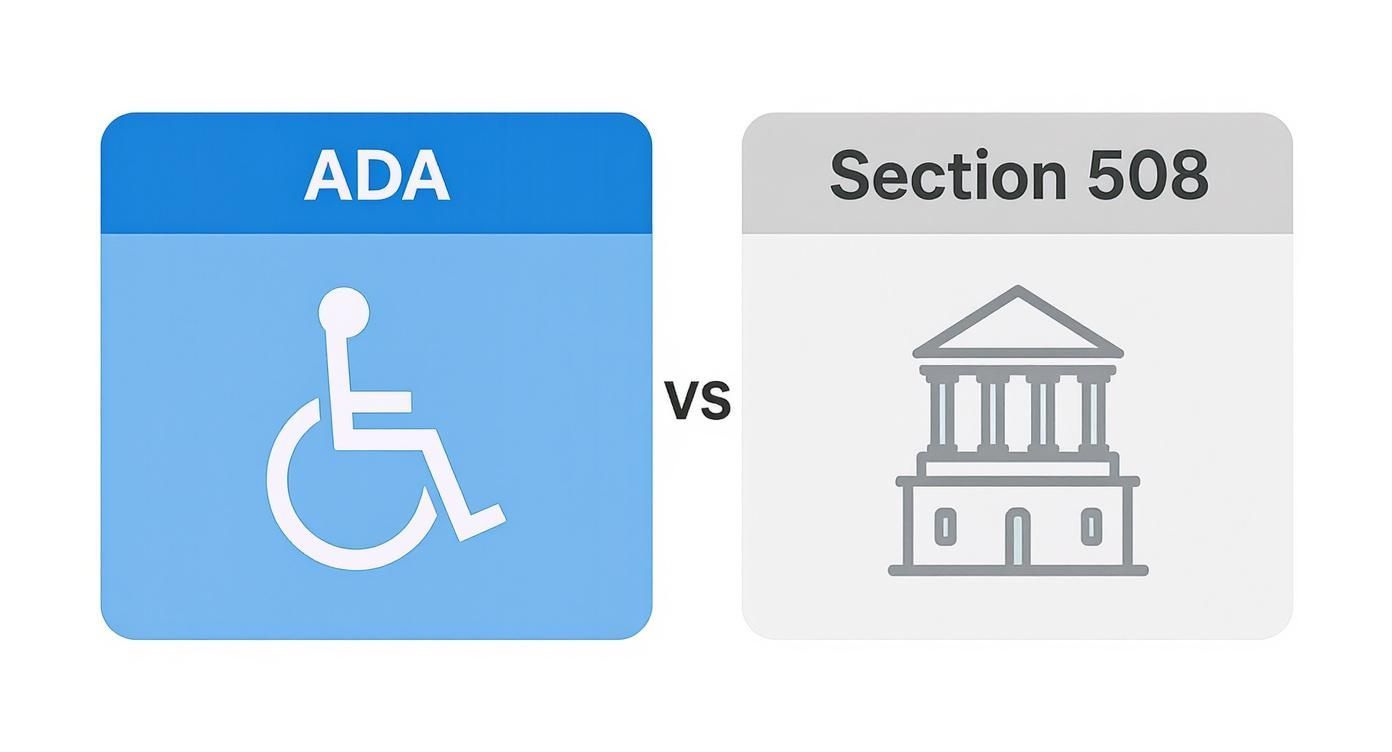
Ultimately, understanding the jurisdiction of each law is key. The ADA casts a wide net over most organizations that serve the public, while Section 508 is laser-focused on the federal government's own digital footprint.
Comparing the Legal Foundations and Scope
To really get a handle on the differences between ADA and Section 508, you have to go back to their roots. These two laws were born out of different needs and solve different problems, which is why their scope and application are so distinct. While both are about accessibility, their legal DNA dictates who has to listen and when.
The Americans with Disabilities Act (ADA), signed into law back in 1990, is a sweeping piece of civil rights legislation. Its mission is simple but powerful: to stop discrimination against people with disabilities in every corner of public life. Think of it like the civil rights laws that came before it, which tackled discrimination based on race, religion, or gender—the ADA does the same for disability.
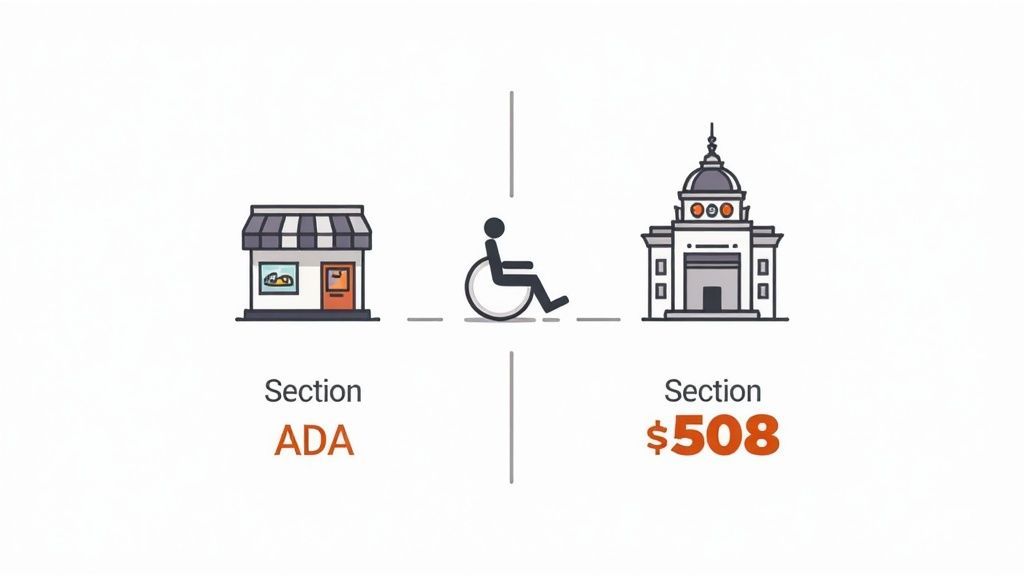
This broad-strokes approach is precisely why the ADA casts such a wide net, covering everything from employment and transportation to what matters most for us here: public accommodations.
The Broad Reach of the ADA
The ADA is broken down into different "Titles," and for digital accessibility, two are absolutely critical:
Title II: This one is aimed squarely at state and local governments. It mandates that all their services, programs, and activities must be accessible. That absolutely includes their websites, portals, and any digital tools they use to serve the public.
Title III: Here’s where most private businesses come in. Title III applies to "places of public accommodation," a term that both the courts and the Department of Justice have consistently said includes websites, mobile apps, and other online platforms.
Because the ADA's definition of "public accommodation" has been interpreted so broadly, its impact on the digital world is massive. If your business serves the public—whether you're a small online retailer or a large healthcare network—Title III almost certainly applies to you.
This wide application is why ADA compliance is a top-of-mind concern for countless private companies and non-profits all over the United States.
The Focused Mandate of Section 508
Section 508, on the other hand, has a much more laser-focused job. It isn't a standalone civil rights law; it’s actually an amendment to the Rehabilitation Act of 1973. When it was added in 1998, it was designed to solve a very specific problem: making sure the U.S. federal government wasn't buying, building, or using technology that people with disabilities couldn't access.
At its core, Section 508 is a federal procurement rule. It requires that all electronic and information technology (ICT) that federal agencies develop, purchase, maintain, or use must be accessible. This protects both federal employees with disabilities and any member of the public interacting with that federal technology.
This gives Section 508 a very clearly defined territory:
Federal Agencies: Every agency in the executive branch is on the hook.
Federal Contractors: If your company sells ICT products or services to the federal government, you're responsible for ensuring those deliverables meet Section 508 standards.
This draws a very clear line in the sand: The ADA is about ensuring civil rights for the general public, while Section 508 is about holding the federal government accountable for its own technology.
So, if you’re a software company, your public-facing website falls under the ADA, but the product you sell to a federal agency must comply with Section 508. Understanding the nuances of ADA and Section 508 is non-negotiable, and digging into a guide to website accessibility laws can provide even more clarity.
Breaking Down the Technical Requirements
While both ADA and Section 508 share the goal of digital inclusion, they get there through different technical paths. It's a critical distinction because it literally defines the compliance roadmap your organization needs to follow. Getting a handle on these technical differences is how you move from legal theory to practical, real-world implementation.
The Americans with Disabilities Act was written long before anyone was thinking about websites. As a result, it doesn't mention a specific technical standard. But that doesn't give businesses a free pass. For years, the Department of Justice and U.S. courts have consistently pointed to the Web Content Accessibility Guidelines (WCAG) as the benchmark for deciding if a website or app is accessible under the ADA.
Section 508, on the other hand, is far more direct. The law was updated in 2017 to explicitly mandate conformance with WCAG 2.0 Level AA. This clears up any confusion for federal agencies and their contractors, giving them a black-and-white set of technical rules for all their information and communication technology (ICT).
The Four Pillars of WCAG Explained
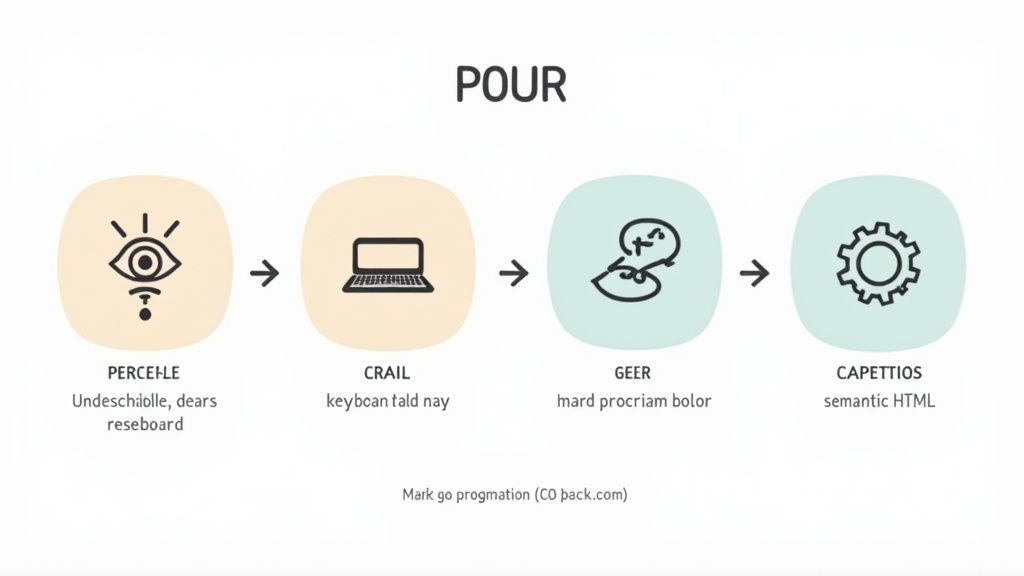
So, both roads lead back to WCAG. The entire framework is built on four core principles, easily remembered by the acronym POUR. Think of these as the foundation for making web content work for everyone, regardless of their ability.
Perceivable: Information has to be presented in a way that users can perceive it. It can't be hidden from all of their senses. A classic example is providing alt text for images, which allows a screen reader to describe the picture to someone who can't see it.
Operable: People have to be able to use the interface. It can't demand an action that a user is physically unable to perform. This is why ensuring a site works with just a keyboard is so important—it's essential for anyone with a motor disability who can't use a mouse.
Understandable: The content and the interface itself need to be clear and predictable. This means using plain language, providing straightforward instructions, and keeping navigation consistent from page to page.
Robust: Content needs to be built well enough to be interpreted reliably by all sorts of browsers and assistive technologies. This really comes down to writing clean, valid code (like HTML and CSS) so that screen readers and other tools can make sense of it.
These POUR principles aren’t just abstract concepts; they are the "why" behind every accessibility feature. From video captions (Perceivable) to keyboard navigation (Operable), every single technical fix ties directly back to one or more of these pillars.
Practical Examples in Action
Let's see how these principles actually show up in the features required by both ADA and Section 508:
| WCAG Principle | Technical Example | Why It Matters |
|---|---|---|
| Perceivable | Adding closed captions to videos | Ensures users who are deaf or hard of hearing can access the audio content. |
| Operable | Designing forms that can be navigated and submitted with only a keyboard | Lets users with motor impairments complete key tasks like checking out or contacting support. |
| Understandable | Using clear, descriptive labels for form fields | Prevents confusion and helps users with cognitive disabilities know what to enter, cutting down on errors. |
| Robust | Structuring content with proper heading tags (H1, H2, etc.) | Allows screen reader users to scan a page and grasp its layout, much like a sighted user skims headlines. |
Meeting these standards isn’t an accident; it takes a methodical approach. Great accessibility often starts with great design. When you bake in solid user experience design best practices from the very beginning, the technical side of things becomes much smoother.
And for organizations that need to prove their efforts are working, looking into Section 508 compliance testing software is a non-negotiable step in the process.
The commitment to these standards, especially at the federal level, is backed by serious money. The estimated annual baseline cost for federal agencies to keep their ICT accessible is around $1.3 billion. On top of that, the revised guidelines are projected to add another $182.4 million in yearly compliance costs. This investment truly highlights how seriously the federal government takes the technical side of Section 508.
Understanding Enforcement and Legal Risks
TLDR:The biggest difference between how the ADA and Section 508 are enforced boils down to who’s driving the action. ADA compliance is mostly pushed by civil lawsuits from individuals or advocacy groups, which often end in settlements and hefty legal bills. Section 508, on the other hand, is handled internally within the federal government through administrative complaints from employees or the public.
Getting the technical rules of ADA and Section 508 right is one thing, but understanding how they're enforced is where you see their real teeth. The consequences for falling short are quite different for each law, creating a very different risk profile for a private company versus a federal agency.
For most businesses, the fear of a lawsuit is what really drives ADA compliance. Any individual who can't use your website or app because of an accessibility barrier can sue, creating immediate and significant legal and financial pressure.
ADA Enforcement: Driven by Civil Litigation
The ADA gives individuals and disability rights organizations the power to take non-compliant businesses directly to court. This citizen-led enforcement is, by far, the most common way accessibility issues get resolved in the private sector.
When a lawsuit lands, it can go a few different ways:
Financial Settlements: The vast majority of cases end here. A business agrees to pay damages and, more importantly, fix its website. These settlements can be substantial, and they almost always cover the plaintiff's legal fees.
Injunctions: A court can issue an injunction, which is just a formal order forcing the company to fix its accessibility problems by a set deadline.
Legal Fees: This is often the biggest hit. The costs to defend a lawsuit can escalate quickly, often running into the tens or even hundreds of thousands of dollars, no matter how the case turns out.
The sheer volume of these lawsuits is what makes them such a powerful motivator. In 2023 alone, more than 8,000 digital accessibility lawsuits were filed in federal and state courts. This isn't a fluke; it's a consistent, high-stakes legal environment for businesses.
Beyond individual lawsuits, the Department of Justice (DOJ) can also step in to investigate widespread or systemic accessibility failures. While it's less common, a DOJ investigation can lead to a legally binding consent decree, forcing specific accessibility upgrades and putting the company under ongoing government monitoring.
Section 508 Enforcement: An Internal Affair
Section 508 enforcement is a completely different animal. Since it applies to the federal government itself, the process is primarily internal and administrative, not driven by lawsuits from the outside.
The main tool here is an administrative complaint. This lets a federal employee or a member of the public who hits an accessibility roadblock file a formal complaint directly with the agency responsible.
That complaint triggers an internal investigation, and the agency has to:
Acknowledge the complaint and look into the accessibility claim.
Figure out if a Section 508 violation actually happened.
If a violation is confirmed, the agency must create and implement a corrective action plan to get the technology into compliance.
You'll notice there’s no mention of big payouts. Unlike the ADA, this process rarely involves monetary damages for the person who filed the complaint. The goal is remediation—getting the agency to meet its legal obligations.
Contrasting the Risk Profiles
These different enforcement models create unique risk calculations for organizations. For a private e-commerce company, the biggest risk is a customer lawsuit that costs a fortune. For a federal contractor, the risk is losing a multi-million dollar contract because their product doesn't meet Section 508 standards.
Here's a quick breakdown of how the legal risks stack up:
| Aspect | ADA Risk Profile | Section 508 Risk Profile |
|---|---|---|
| Primary Driver | Civil lawsuits filed by the public | Internal administrative complaints |
| Main Consequence | Financial settlements, legal fees, injunctions | Corrective action plans, potential contract loss |
| Financial Impact | Unpredictable legal defense and settlement costs | Direct impact on federal revenue and contract eligibility |
| Reputational Damage | Negative publicity from public lawsuits | Damage to reputation as a reliable government vendor |
In the end, both paths lead to the same place: a mandate to fix accessibility barriers. The only reliable strategy is to be proactive about compliance. That’s how you avoid costly and damaging enforcement actions, whether they come from a courtroom or an internal agency review.
Here’s the bottom line: your compliance strategy depends entirely on who you are. If you're a private business, your focus is on the ADA. That means auditing your website against WCAG, creating a public accessibility policy, and training your team. But for federal agencies and their contractors, it’s all about Section 508—creating VPATs and baking accessibility directly into procurement and development.
Developing Your Compliance Strategy
Knowing the law is one thing; putting it into practice is another. A roadmap is essential, but there’s no one-size-fits-all strategy for ADA and Section 508. The right path depends entirely on your organization.
A private company’s journey to compliance looks very different from a federal contractor’s. You have to build a plan around the specific legal framework that governs your work. For most, that means starting with the Americans with Disabilities Act. For those in the federal space, Section 508 sets the rules.
A Roadmap for Private Businesses Under the ADA
For any private company, ADA conformance really comes down to adopting the Web Content Accessibility Guidelines (WCAG). The ADA doesn't hand you a technical checklist, so your strategy needs to be a structured, proactive plan to meet these globally recognized standards.
A solid ADA compliance plan usually breaks down into a few key steps:
Conduct a Thorough Accessibility Audit: First, you have to know where you stand. A comprehensive audit of your website and other digital properties against WCAG 2.1 AA will pinpoint the exact barriers that are keeping users with disabilities from accessing your content.
Develop an Accessibility Policy: Get a formal accessibility statement created and post it publicly. This document does two things: it signals your commitment to inclusion and gives users a way to report issues they encounter. Make sure it mentions the standard you're following (like WCAG 2.1 AA).
Train Your Teams: Accessibility isn’t a one-person job. Your designers, developers, and content creators all need to know how to build and maintain accessible experiences from the start. It’s a team sport.
Remediate and Monitor: Take what you learned from the audit and fix the problems. After that, put a system in place for ongoing monitoring. Your site is always changing, and accessibility needs to be a continuous practice, not just a one-off project.
The Federal Approach to Section 508 Compliance
If you're a federal agency or a company that sells to one, you’re playing by a much more prescriptive set of rules. Section 508 compliance isn't optional—it's a mandatory part of the federal procurement process. That makes it a critical business function for any government contractor.
An effective Section 508 strategy is built into the product lifecycle and procurement workflow. It requires meticulous documentation and a demonstrable commitment to meeting the specific technical standards outlined in the law.
The history of Section 508, enacted back in 1998, shows why this is so critical. A government report from 2012 found that only about 50% of federal agency components had even established a general policy for compliance. Worse, just 40% of agency components developing software had any process to ensure it was accessible. You can dig into the findings from the 2012 report on Section 508 implementation to see just how challenging the early days were.
For federal agencies and their vendors, a compliance strategy must include:
Creating a VPAT: The Voluntary Product Accessibility Template (VPAT) is non-negotiable. This is the standardized document where you detail exactly how your product or service measures up to Section 508 standards. A clear, accurate VPAT is absolutely essential for winning federal contracts.
Integrating Accessibility into Procurement: Federal procurement officers are required to check for Section 508 conformance. This means accessibility has to be a line item in RFPs and a key factor when they're deciding which vendor to choose.
Implementing Continuous Testing: Just like with the ADA, compliance is never "done." Federal technology has to be tested regularly to make sure it stays accessible through updates and maintenance cycles.
In the end, whether your work is guided by the ADA and Section 508, the most successful strategies come from treating accessibility as a core organizational value. It's an ongoing commitment to inclusivity that not only reduces legal risk but opens your digital doors to everyone.
Choosing the Right Accessibility Tools and Services
TLDR:Building a solid compliance program for ADA and Section 508 isn't about finding one perfect solution. It’s a strategic mix. Automated tools are fantastic for catching common coding errors fast. But for the tricky, user-experience issues, nothing beats a manual audit by a human expert. Most organizations get the best results by combining automated scanning, expert reviews, and managed services to create a compliance plan that actually works and lasts.
Figuring out the right accessibility solutions can feel overwhelming, but building a successful program for ADA and Section 508 compliance is well within reach if you have the right strategy. There's no magic bullet here. The best approach weaves together automated tools, expert manual audits, and professional services into a comprehensive, sustainable plan.
The first layer in most modern accessibility programs is a set of automated testing tools. These scanners crawl your website and quickly flag common, code-based WCAG violations—think missing image alt text or poor color contrast. They are perfect for continuous monitoring and catching problems as they pop up, giving developers instant feedback. To get a better sense of what's out there, check out our guide on accessibility tools for websites.
Balancing Automation with Human Expertise
As powerful as automated tools are, they have their limits. On average, they can only detect about 25-30% of all possible WCAG violations. Why? Because so many accessibility barriers depend on context and require human judgment to spot.
This is where manual audits by accessibility experts become absolutely essential. A trained professional can evaluate things software simply can't, like:
Keyboard Navigation Flow: Is the tab order logical for someone who can't use a mouse?
Screen Reader Experience: Does the content make sense when a screen reader reads it aloud?
Clarity of Instructions: Are forms and interactive elements easy to understand and use?
A smart strategy uses automation for wide-ranging, fast checks, but relies on manual audits for deep, nuanced insights. This dual approach ensures you’re covering both the technical rules and the real human experience of your digital properties.
The Role of Managed Accessibility Services
For many organizations, trying to run a full-scale accessibility program entirely in-house is a huge undertaking. This is where managed accessibility services and platforms can be a game-changer. These solutions typically combine automated scanning with expert support, offering a guided, structured path toward compliance.
The need for better tools and processes is especially evident in the federal government. A 2021-2022 government report found that nearly half (48%) of the most popular federal websites failed a basic accessibility test on at least one of their main pages. This really underscores the struggle to maintain compliance, even when the rules are crystal clear.
Ultimately, the best mix of tools and services comes down to your organization’s unique needs, resources, and commitment to long-term accessibility. As technology evolves, so does the discussion on how to best enhance accessibility testing tools for a more inclusive web.
Frequently Asked Questions About ADA and Section 508
Here's the bottom line: a typical private business only needs to worry about the ADA. Section 508 is for federal agencies. The only major exception is if you're a federal contractor; in that case, you have to meet Section 508 standards for government work and ensure your public website meets ADA requirements. The best path forward for handling the technical side of both is following WCAG 2.1 AA.
Let's dig into a few common questions that come up when untangling these two laws.
Can My Business Be Sued Under Both Laws?
For most private companies, the answer is no. You're generally subject to the ADA, while Section 508 applies only to U.S. federal agencies and their direct operations.
The situation gets more complex if your business is a federal contractor. If you provide technology or services to the government, you are contractually bound to meet Section 508 standards for those specific deliverables. In this scenario, your business has to wear two hats: ensuring your public-facing assets are ADA compliant while your federal-facing work meets Section 508.
If We Comply With WCAG, Are We Safe?
Meeting WCAG 2.1 Level AA is the single best action you can take to minimize legal risk under the ADA. It’s your strongest line of defense.
While the ADA itself doesn't explicitly name a technical standard, courts and the Department of Justice consistently point to WCAG as the definitive benchmark. No single action can offer 100% protection from litigation, but aligning with WCAG 2.1 AA demonstrates a serious, good-faith effort to provide an accessible experience.
In the legal world, WCAG has become the de facto standard for ADA compliance. Following these guidelines puts you in a powerful position to defend your accessibility practices if they are ever challenged.
What Is the Difference Between Section 508 and 504?
It’s easy to mix these up since both are part of the Rehabilitation Act of 1973. They simply cover different ground.
Section 504 is a wide-reaching civil rights law. It prohibits disability discrimination in any program or activity that receives federal funding.
Section 508 is much more targeted. It focuses specifically on making sure the electronic and information technology procured and used by the federal government is accessible.
Essentially, Section 504 is about ensuring broad access for any entity getting federal money, while Section 508 is about specific technology access within federal agencies themselves.
Ready to build an inclusive digital experience and ensure your organization meets its compliance goals? WebAbility.io provides an end-to-end accessibility platform to help you achieve and maintain compliance with ADA, Section 508, and WCAG standards. Start your free trial today.
Quick Questions
Tap to ask AI about this article