Your Guide to an Accessibility Widget for Website Use

Sidharth Nayyar
TL;DR: An accessibility widget for a website is a user-controlled toolkit that acts as an overlay on your site. It allows visitors with disabilities to instantly adjust settings like text size, color contrast, and keyboard navigation to suit their needs. While it's a quick and visible first step toward inclusivity and can help with some aspects of WCAG and ADA compliance, it's not a complete solution. A widget should be part of a broader strategy that also includes clean, accessible underlying code to ensure your site is truly usable for everyone and legally sound.
At its core, an accessibility widget for a website is a piece of software that adds a user-controlled interface to your site. This lets visitors adjust how they see and interact with your content on the fly. It functions as an overlay, offering on-demand tools like text resizing and contrast changes without messing with your website's underlying code.
A Quick Guide to Website Accessibility Widgets

An accessibility widget is essentially a toolkit that sits on top of your website, empowering users with disabilities to customize their experience in real-time. It’s all about providing quick, front-end adjustments for things like text size, color contrast, and keyboard navigation, adding an immediate layer of usability for your visitors.
Think of it like the adjustable settings in a car. Before driving, you adjust your seat, mirrors, and steering wheel to fit your specific needs and comfort. An accessibility widget does the same for your website, allowing a visitor to modify the site's presentation to meet their unique requirements.
The best part? This tool is usually added with just a single line of JavaScript code. It doesn't permanently change your website's structure; instead, it applies temporary modifications directly in the user's browser.
A widget acts as a powerful first step in making your digital presence more welcoming. It demonstrates a commitment to inclusivity by empowering users to tailor their interaction with your content instantly.
This approach brings a few immediate wins to the table:
Rapid Implementation: You can get basic accessibility features up and running on your site in minutes, not months.
User Empowerment: It puts visitors in the driver's seat, giving them direct control to overcome common visual and navigational barriers.
Visible Effort: The widget icon itself sends a clear signal to users that you're actively thinking about their needs.
Understanding How Accessibility Widgets Work
So, what’s really going on when you see one of those little accessibility icons on a website? Think of an accessibility widget as a special lens a visitor can place over your website. It doesn't change the website itself, but it changes how that specific person sees and interacts with it.
This "lens" is technically a JavaScript overlay—a layer of code that runs on top of your existing site. It gives visitors a control panel to make real-time adjustments, like boosting text size or changing color contrast, to fit their unique needs.
How Does It Actually Function?
Imagine you’re renting a furnished apartment. You can't knock down walls or repaint, but you can bring in your own lamps, rearrange the chairs, and add pillows to make the space comfortable for you. An accessibility widget works in a very similar way.
The widget acts as an overlay, running in the visitor's web browser. When someone clicks the widget icon and makes a selection—say, enabling a screen reader-friendly mode—the JavaScript code temporarily modifies the page's presentation for that user and that user only.
Critically, these changes don't touch your website's source code. The moment the visitor leaves or turns off the widget, the site goes right back to its original form for everyone else. This makes it a quick and low-impact way to add a layer of user-driven accessibility.
The Technical Nuts and Bolts
The process starts when a small piece of code, a script, is added to your website’s header or footer. This script is the trigger that loads the widget's interface for every person who visits your site. From there, the widget can make automatic improvements or wait for the user to select their preferred settings.
This diagram breaks down how the widget is structured, from the core JavaScript foundation to the temporary adjustments it allows users to make.
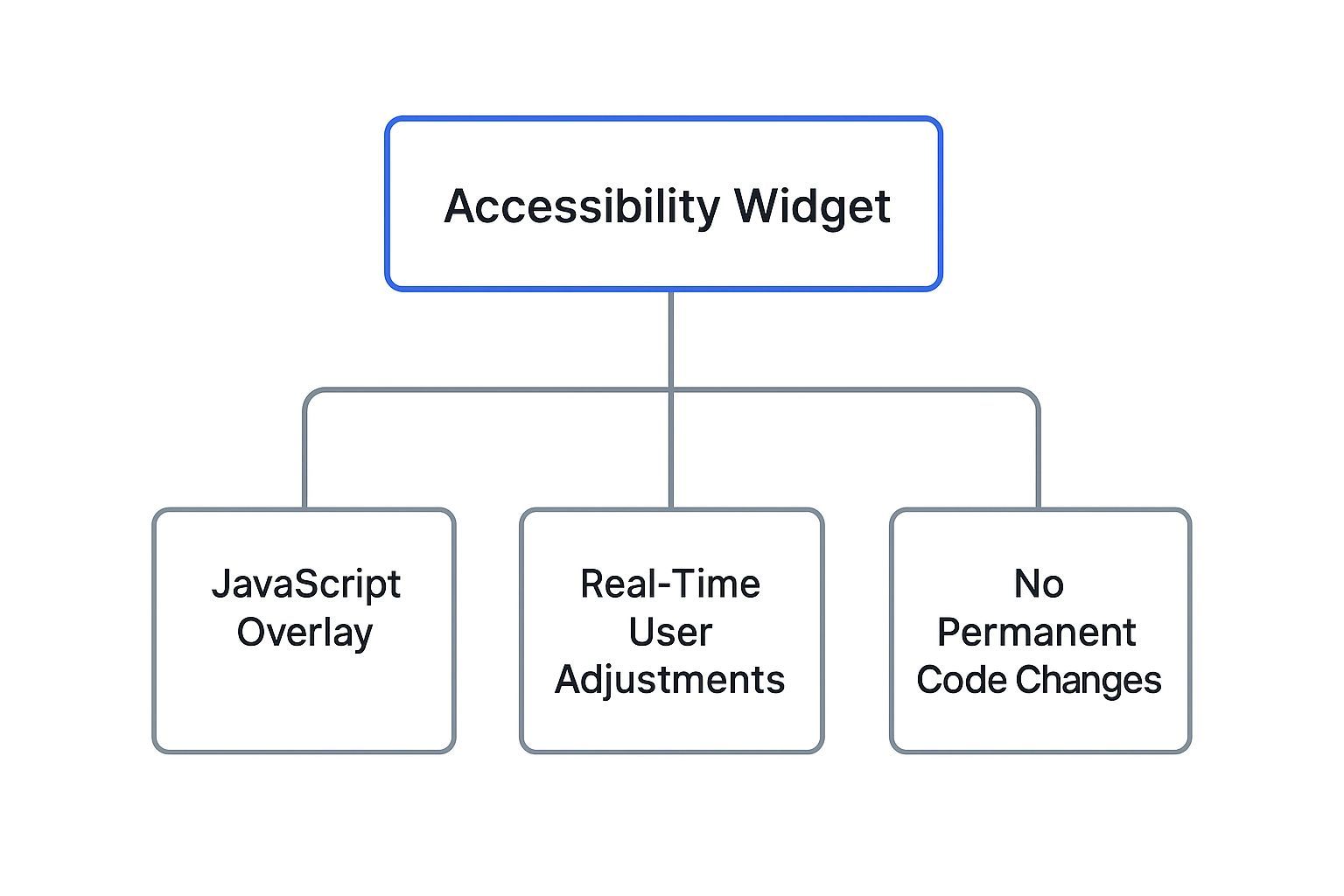
The main thing to remember is that the widget provides an interactive layer that sits on top of your site without permanently changing its underlying structure.
It's crucial to understand that while a widget addresses front-end usability issues, it doesn't fix deep-seated accessibility problems in your website's code. It's a powerful enhancement, not a complete replacement for accessible design practices.
This distinction is more important than ever. While 16% of the global population lives with a disability, a shocking 96% of the top million websites failed to meet basic WCAG standards in 2023. The average homepage has roughly 50 detectable accessibility errors, revealing a huge gap between what users need and what the web delivers.
For a deeper look into the mechanics of adding dynamic features to a site, it can be helpful to understand concepts like embedding interactive elements on a website. Grasping this context can clarify how tools like widgets integrate seamlessly with web pages.
Think of a website accessibility widget as a user-controlled toolkit that lets visitors adjust your site's content on the fly. Its key features tackle real-world barriers, offering screen reader compatibility and keyboard-only navigation for people with mobility and visual impairments. It also includes visual tweaks like text resizing, spacing controls, and different color contrast modes, which are a huge help for users with dyslexia or low vision. These tools solve specific problems, making your website genuinely usable for more people.
Exploring Core Features of Accessibility Widgets
So, what exactly does an accessibility widget do? It’s best to think of it as a Swiss Army knife for your website visitors. It packs a suite of specific tools designed to break down the common barriers that people with disabilities run into online. Once you understand what these core functions are, you'll see how a simple widget can empower people to mold your website to fit their exact needs.
These features generally fall into two buckets: tools that help people navigate and understand your content, and tools that let them adjust how your site looks. Both are absolutely essential for building a site that’s not just compliant, but truly inclusive. Let's dig into the most important features you'll find in any quality accessibility widget for a website.
This screenshot from Wikipedia’s page on web accessibility gives you a sense of the broader world of assistive technologies and strategies, which helps put the role of a widget into perspective.
The image really shows that these widgets are one piece of a much larger puzzle aimed at supporting a whole spectrum of user needs.
Navigation and Comprehension Tools
For anyone who can't use a mouse or has a significant visual impairment, just getting around a website can be a deeply frustrating experience. Widgets tackle these challenges head-on with tools that make interaction possible without needing a traditional point-and-click device.
Screen Reader Adjustments: This feature is all about making the page work seamlessly with screen reading software, which reads on-screen content out loud for blind or visually impaired users. It ensures that headings, links, and image descriptions are announced in a logical, coherent order, turning a visual layout into something that makes sense audibly.
Keyboard-Only Navigation: Many people with motor disabilities depend entirely on their keyboard to browse the web. This function highlights all the interactive parts of a page—links, buttons, forms—letting them "tab" through everything in a logical sequence and use the Enter key to select what they need.
These navigational aids are foundational. They give a baseline level of control back to users who interact with the web in a fundamentally different way.
Visual and Display Customizations
Visual impairments, color blindness, and even cognitive conditions like dyslexia can make reading typical web text incredibly difficult, if not impossible. A good widget provides a whole palette of visual adjustments to overcome these hurdles.
The point of these features isn't just to make a site look different. It's to make it fundamentally more readable and less straining for people with specific visual requirements.
To help you get a clearer picture, here’s a breakdown of the most common features you’ll find.
Key Features Inside a Website Accessibility Widget
| Feature | Functionality | Primary Beneficiary |
|---|---|---|
| Text & Spacing Controls | Increase/decrease font size, adjust letter and line spacing, or switch to dyslexia-friendly fonts. | Users with low vision, dyslexia, and cognitive disabilities. |
| Color & Contrast Modes | Switch to high-contrast (e.g., black on white), invert colors, or apply a grayscale filter. | Users with color blindness, low vision, and light sensitivity. |
| Screen Reader Mode | Optimizes the page structure for screen reading software to announce content logically. | Blind and visually impaired users. |
| Keyboard Navigation | Enables users to browse all interactive elements using only the Tab and Enter keys. | Users with motor impairments and those who cannot use a mouse. |
| Highlight Links & Headers | Visually emphasizes all clickable links and structural headings to make them stand out. | Users with visual and cognitive impairments who need help with focus. |
| Stop Animations | Pauses all moving content, like GIFs, videos, and carousels, which can be distracting or cause seizures. | Users with vestibular disorders, epilepsy, and attention deficit disorders. |
These visual tools are what turn a rigid webpage into a flexible, comfortable environment. Each one is a direct solution to a real problem, all working together to create a far more welcoming and functional experience for every single visitor.
TL;DR: Think of an accessibility widget as a critical first responder for your website. It’s a great first step toward meeting legal standards like the ADA and WCAG, showing you’re serious about usability. But remember, it’s not a complete legal shield—it quickly patches up common front-end issues, making it a vital part of a bigger compliance strategy, not the whole game plan.
Navigating Legal Compliance and WCAG Standards
For most business owners, the idea of web accessibility isn't just a "nice-to-have." It’s often driven by the very real and growing risk of a lawsuit. Figuring out where an accessibility widget for website implementation fits into this complicated legal puzzle is key to making a smart decision.
Laws all over the world are starting to demand that websites be accessible. In the U.S., the Americans with Disabilities Act (ADA) is the big one, and it's being enforced more than ever in the digital space. In 2022 alone, more than 3,200 federal lawsuits were filed because of inaccessible websites. Across the pond, Europe's European Accessibility Act (EAA) will kick in from June 2025, forcing a huge range of digital services to meet strict standards. You can explore the data on Themeisle.com to get a better sense of these trends.
This kind of legal pressure makes quick fixes tempting, but it's important to go in with your eyes open.
The Role of Widgets in WCAG and ADA Compliance
The Web Content Accessibility Guidelines (WCAG) are basically the rulebook for web accessibility that everyone looks to, and they act as the technical standard for laws like the ADA. An accessibility widget is built to tackle many of the common WCAG rules right on the front-end—things like poor color contrast, text that’s too small, or clunky keyboard navigation.
Just by adding a widget, you're making a clear, good-faith effort to help users with disabilities. That can be a huge point in your favor, showing that you’re not just ignoring the problem. But you have to be realistic about what it can and can't do.
A widget is a powerful tool for making immediate, user-facing improvements, but it's not a "get out of jail free" card. Real compliance comes from a deeper strategy that includes clean, accessible code right from the start.
Most widgets work as an overlay, which means they add a layer of accessibility on top of your site without actually changing the underlying code. This is a critical point, because lawsuits often dig into those deeper, structural code issues that a widget simply can't touch.
A Balanced Compliance Strategy
So, what's the right way to use a widget in your legal and accessibility game plan? You should see it as a fantastic and fast first move, but definitely not the last one. It instantly makes things better for many of your visitors while giving you the breathing room to work on the bigger, long-term fixes.
Here’s a simple way to break it down:
Immediate Action: The widget gets to work right away, fixing a lot of the low-hanging fruit and common accessibility problems.
Visible Commitment: It sends a clear signal to your users—and to regulators—that you're taking accessibility seriously.
Part of a Plan: For real protection, you need to pair the widget with regular code audits and bake accessible design into everything you do.
A solid approach starts with knowing exactly what the standards demand. For a step-by-step guide on what to look for, our WCAG compliance checklist breaks it all down, helping you make sure your website’s foundation is sound. At the end of the day, using a quality accessibility widget while committing to clean code is the smartest way to create a better experience for everyone and keep legal headaches at bay.
Choosing the right accessibility widget means cutting through the marketing noise. You need a tool that uses smart, AI-driven automation to actually fix accessibility problems, not just cover them up. It should be easy to install on your platform (like WordPress or Shopify), not drag down your site's speed, and let you customize it to match your brand. Most importantly, make sure it plays nice with the assistive technologies people already use and that the company offers solid customer support when you need it.
How to Choose the Right Accessibility Widget

With so many options out there, picking the right accessibility widget for a website can feel like a shot in the dark. A lot of them promise you’ll be instantly compliant with just one line of code, but the truth is a lot more complicated than that. To make the right call, you have to look past the sales pitch and find a tool that genuinely makes your site more usable for everyone without wrecking its performance.
Think of it this way: are you hiring a skilled contractor or a handyman who just papers over the cracks? A good widget is a strategic partner that intelligently fixes accessibility issues. A bad one just hides them, leaving you exposed and your visitors frustrated.
Evaluating Core Technology and Automation
The first thing to look at is how smart the widget's AI and automation really are. Does it actively scan, analyze, and repair accessibility issues behind the scenes? Or does it just slap a toolbar on your site and make users do all the work?
A truly AI-powered solution will automatically do things like add missing ARIA labels and correct structural code problems. This creates a solid, accessible foundation before a visitor even clicks the widget's icon.
You also need to consider how easily it installs and integrates. The best widgets offer simple plugins for major platforms like WordPress, Shopify, and other common content management systems. The setup should be straightforward enough that you don't need a developer on speed dial just to get it working.
Performance, Customization, and Support
Beyond the tech, a few practical things will make or break your experience with a widget.
Performance Impact: A widget should be lightweight. If it slows down your website's load time, you could be hurting your SEO and annoying visitors—which defeats the whole purpose.
Customization Options: You should be able to tweak the widget's icon, colors, and placement so it blends in seamlessly with your brand's look and feel.
Assistive Technology Compatibility: This is huge and often gets missed. The widget absolutely must work well with the screen readers people already use, like JAWS or NVDA. The goal is to make their experience better, not force them to learn a new, clunky interface. Understanding the full range of broader digital accessibility solutions can provide helpful context here.
Customer Support: When you hit a snag, you need a team that has your back. Check out the provider's reputation for support. Do they offer clear documentation, a responsive helpdesk, and real expert advice? Our comprehensive reviews of the top accessibility widgets can give you a head start in comparing different providers.
Choosing a widget is an investment in your brand's reputation and user trust. Focus on providers that are transparent about their capabilities and limitations, positioning their tool as part of a complete accessibility strategy.
The market for these tools is booming—it’s expected to hit $7 billion by 2033, with a 15% CAGR. This massive growth shows just how critical these tools have become for compliance, SEO, and simply reaching more people. By carefully weighing these key factors, you can pick a widget that serves both your business and, more importantly, all of your users.
Weighing The Benefits And Limitations Of Widgets
Here's the bottom line: An accessibility widget is a fantastic first step. It’s fast, affordable, and delivers immediate, tangible improvements for your users. But it's not a silver bullet.
Widgets can't repair deep-seated code problems, they can occasionally clash with other technologies, and some can slow your site down. Think of it as an essential tool in your accessibility toolbox, not the whole workshop.
To make an informed choice, you need to see both sides of the story. Widgets offer some really compelling advantages, particularly for organizations that need to show progress quickly. But they also have some real limitations you need to understand to avoid a false sense of security.
The biggest plus is just how fast they are. You can get a widget up and running on your site in minutes, instantly giving users a suite of front-end tools. This makes them a remarkably budget-friendly starting point for anyone new to web accessibility.
The Immediate Advantages
For many visitors, the features a widget provides are genuinely transformative. Someone with low vision can bump up the text size. A person with dyslexia can switch to a more readable font. Someone sensitive to motion can stop a flashy animation. These are real-time fixes that can make a huge difference in their ability to use your site.
Let's break down the key benefits:
Cost-Effectiveness: When you compare it to a full-scale website overhaul, a widget is an absolute bargain.
User Empowerment: It puts the visitor in the driver's seat, letting them customize the experience to fit their specific needs.
Rapid Deployment: Seriously, you can go from having zero accessibility features to offering a dozen in under an hour.
Understanding The Critical Limitations
Now, let’s flip the coin. Critics are right to point out that widgets are essentially an overlay—a layer of paint on top of your website's existing structure. They don't fix the core architectural issues that create the biggest barriers for users with disabilities.
A widget can make a wobbly table look better, but it can't fix the broken legs underneath. True accessibility requires building a solid foundation from the ground up, not just adding a decorative tablecloth.
This is a critical distinction. In fact, a 2024 report revealed that a staggering 25% of all digital accessibility lawsuits were filed against websites that had an accessibility widget installed. Why? Because the underlying code violations were still there, leaving the business legally vulnerable.
Furthermore, these overlays can sometimes interfere with the very assistive technologies they're meant to help, like the screen readers many blind users depend on. This can create new frustrations instead of solving old ones. They can also add extra code that bogs down your website, slowing page load times for everyone.
To help you visualize this, here’s a straightforward comparison:
Pros and Cons of Using an Accessibility Widget
| Pros (Benefits) | Cons (Limitations) |
|---|---|
| Quick to Install: Provides immediate front-end tools. | Doesn't Fix Core Code: Can't resolve underlying HTML/CSS issues. |
| Affordable: A low-cost entry point into accessibility. | Potential Legal Risk: Doesn't guarantee full legal compliance. |
| Empowers Users: Gives visitors control over their experience. | Compatibility Conflicts: May clash with screen readers or browsers. |
| Highly Visible: Shows a clear commitment to inclusivity. | Performance Impact: Can sometimes slow down your website. |
| Easy to Manage: Requires little technical expertise to add. | False Sense of Security: Can mask deeper, more serious problems. |
While widgets can absolutely improve the user experience, it's crucial to see them as a complementary tool, not a cure-all. You can learn more about how to beyond compliance by using free widgets to enhance UX to see how they fit into a bigger picture.
At the end of the day, a widget is at its best when it's part of a larger commitment to writing clean, accessible code from the start.
Here's a rewritten version of the section, crafted to sound like it's coming from a seasoned expert in web accessibility.
TL;DR: An accessibility widget is a fantastic first step, but it is not a complete solution for legal compliance. It's a great tool for improving front-end usability and showing a good-faith effort, but it can't fix deep-seated code issues—which are the source of most lawsuits. Think of a widget as part of a broader accessibility strategy that includes clean code and manual audits. Generally, they don't hurt SEO and can even help by making your site more usable for everyone.
Common Questions and Straight Answers
As we wrap things up, you probably still have a few questions rolling around in your head. Let's tackle some of the most common ones I hear about using an accessibility widget for website projects. My goal here is to give you direct, no-fluff answers so you can move forward with confidence.
Is an Accessibility Widget Enough to Be ADA Compliant?
In a word: no. A widget alone won't get you to full ADA or WCAG compliance. While it's a valuable tool that addresses many front-end issues and clearly demonstrates you’re trying, it simply can't fix problems buried deep in your website's code.
Here's an analogy I like to use: a widget is like adding a brand-new, perfectly-built ramp to a building's entrance. That’s a crucial and highly visible improvement, for sure. But it does nothing to fix the structural problems inside, like hallways that are too narrow for a wheelchair. Since lawsuits almost always target these deeper, code-level issues, you should see a widget as just one piece of the puzzle, not the whole solution.
An accessibility widget is a powerful first step in reducing your risk, but real legal protection comes from pairing it with fundamentally accessible design and regular code audits.
Will an Accessibility Widget Mess Up My SEO?
Not if you choose a good one. A well-designed, lightweight accessibility widget won't harm your SEO. In fact, by making your site easier for a wider range of people to use, it can actually give it a little boost. Search engines love websites that are user-friendly.
Think about the a few of the knock-on effects for SEO:
Better User Signals: When your site is easier to navigate, people stick around longer and are less likely to "bounce" right off. These are strong positive signals for search engines.
A Better Experience for Everyone: Features like clear navigation and readable text don't just help users with disabilities—they help all users, which Google definitely sees as a good thing.
The trick is to pick a reputable widget that’s built for performance and doesn't drag down your site's loading speed.
What’s the Typical Cost for an Accessibility Widget?
The cost of an accessibility widget for website use is all over the map. You can find some basic versions with limited features for free, but the more advanced, AI-driven solutions almost always run on a subscription model.
Pricing is usually tiered and depends on things like your monthly website traffic, how many pages you have, and the level of automation and support you need. You can expect to find monthly plans starting around $40 and going up to several hundred dollars, depending on the provider and the size of your operation.
Ready to make your website truly accessible for everyone? WebAbility.io provides an AI-powered widget and a complete compliance platform to help you reduce legal risk and create a better user experience. Start your free trial today and see the difference. Learn more at https://www.webability.io.
Quick Questions
Tap to ask AI about this article