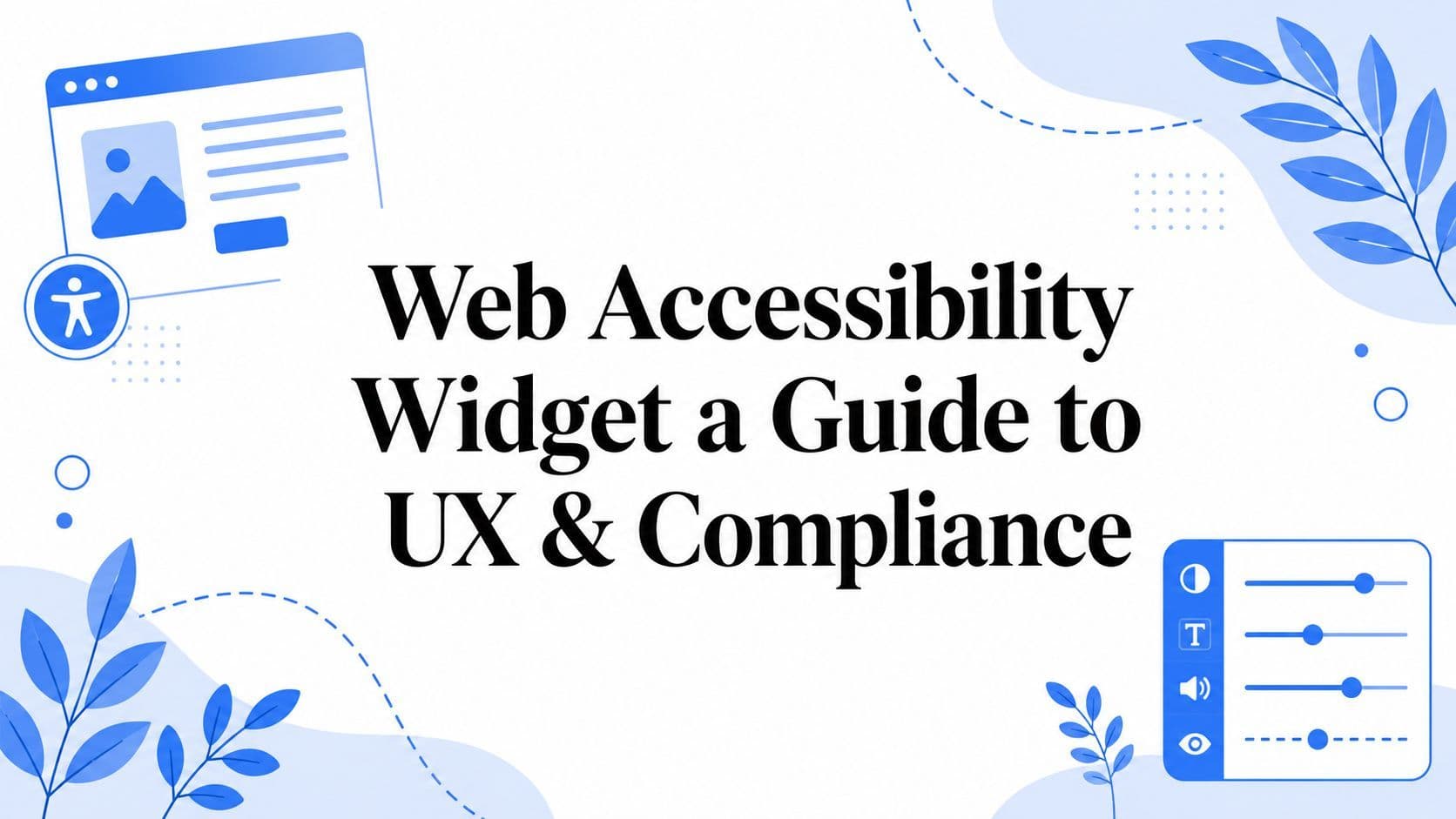
Web Accessibility Widget a Guide to UX & Compliance

Sidharth Nayyar
You may be in that familiar spot where the website looks polished, the brand is strong, and the customer journey feels complete, yet one question keeps coming up. Can every visitor use it comfortably?
That's where a web accessibility widget becomes useful. Not as a magic switch, and not as a replacement for accessibility work behind the scenes, but as a practical way to give people immediate control over how they experience your site. For many teams, that's the missing piece between good intentions and visible action.
TLDR Your Guide to Accessibility Widgets
A web accessibility widget is a user-facing tool that lets visitors adjust the website experience to fit their needs. Common options include text resizing, contrast changes, keyboard support, reading aids, and translation. These controls help people personalize the interface without waiting for a full redesign.
Widgets matter because accessibility is both a user experience issue and an ongoing compliance process. A visitor who needs larger text or stronger contrast benefits right away from a flexible toolbar. At the same time, your team can use the widget as one layer within a broader accessibility program that also includes scanning, reporting, testing, and code improvements.
The most practical way to think about a widget is this. It gives users immediate choice, while your accessibility workflow handles the deeper structural work that supports long-term conformance goals such as WCAG and ADA efforts. If you need a quick refresher on the broader topic, this web accessibility guide is a helpful starting point.
A strong accessibility program serves two audiences at once. The visitor who needs help right now, and the internal team responsible for lasting improvements.
Why Every Website Needs an Accessibility Focus
A lot of site owners start with the right intent. They invest in design, improve page speed, write better copy, and streamline conversion paths. Then they watch a real person struggle to read a paragraph, tab through a form, or understand where keyboard focus has landed. That moment changes the conversation.
Accessibility stops being a checklist item and becomes a usability issue for real people.

The gap is much larger than most teams expect
Accessibility problems aren't limited to a few outdated websites. They are widespread across the modern web. WebAIM-derived reporting in 2025 found that 94.8% of the world's top one million homepages had detectable WCAG failures, with researchers finding over 50 million distinct accessibility errors across those pages, averaging about 51 errors per page.
That matters for one simple reason. If accessibility issues are this common, many organizations are trying to solve the same problem at the same time. Teams want a practical way to improve the visitor experience now, even while deeper remediation work continues in the background.
Accessibility supports business goals and user trust
When people can adjust a site to meet their needs, they stay oriented, complete tasks more easily, and feel that the brand considered them from the start. That applies to online stores, healthcare portals, university sites, SaaS dashboards, and local service businesses alike.
A web accessibility widget helps create that first layer of support. It gives visitors visible controls they can use on their own terms.
Here are a few common situations where that matters:
- Low-vision browsing: A visitor needs larger text and better contrast to read product details.
- Keyboard-only navigation: A user needs clear focus states and tab-friendly movement through menus and forms.
- Reading support: Someone benefits from text-to-speech, spacing changes, or a calmer reading view.
Accessibility is often easier to understand when you stop thinking about standards first and start thinking about friction. Where does a visitor slow down, get lost, or give up?
Why widgets enter the conversation early
For many organizations, a widget is the first visible accessibility improvement they can deploy without rebuilding templates or changing every content workflow at once. That makes it especially useful for growing teams, agencies managing multiple client sites, and enterprises coordinating across departments.
The value isn't only technical. It's operational. A widget gives users immediate options while signaling that accessibility is an active priority.
How a Web Accessibility Widget Works
Users first encounter the button. They click an icon on the screen, a panel opens, and they can change how the site looks or behaves. Behind that simple interaction is a fairly straightforward model.
A web accessibility widget usually works as a client-side JavaScript layer. It loads in the browser, reads the page, and applies interface changes in real time. One clear explanation from Aten Design Group's guide to accessibility widgets notes that accessibility widgets are typically implemented as client-side JavaScript overlays that scan page markup and modify CSS at runtime, and because the source HTML usually remains unchanged, they can improve user experience instantly without requiring permanent changes to the codebase.
Think of it as a personal toolkit
Each visitor brings different needs. One person wants bigger text. Another needs higher contrast. Someone else wants reduced motion or easier keyboard navigation. The widget acts like a personal toolkit each user can open and configure for themselves.
That matters because accessibility isn't one single mode. It's a set of preferences, supports, and interaction patterns.
A simple way to picture the process:
- The script loads with the page. It becomes available without forcing a redesign of the entire site.
- The widget presents controls. Users choose the settings that help them read, use the site, or focus.
- The page updates in real time. Styles and interface behaviors change immediately in the browser.
What changes and what doesn't
Often, readers get confused. If a widget changes the page, does that mean the website itself has been permanently fixed?
Usually, no. The immediate changes happen at runtime in the user's browser. That's why the experience can improve quickly and non-destructively. The original source code often remains as it was until your team updates it directly.
That's also why many organizations use the widget and remediation together. The widget handles the experience layer. Development, QA, and content teams handle the structural layer.
| Layer | What it does |
|---|---|
| User-facing widget | Gives visitors live controls such as text size, contrast, and navigation aids |
| Backend remediation | Improves underlying markup, labels, forms, headings, media handling, and interaction patterns |
If you're evaluating how this works in practice across scanning, reporting, and remediation workflows, how WebAbility.io ensures compliance shows one example of the platform approach.
Why this model is attractive to teams
It fits real-world operations. Marketing teams can launch a support layer without waiting for a full rebuild. Agencies can roll out a consistent experience across client sites. Product teams can improve usability while planning deeper fixes in sprints.
That combination makes the web accessibility widget a practical tool for mature programs and for teams just getting started.
Practical rule: Use the widget to give users control today. Use audits, testing, and development work to improve the foundation over time.
Key Features That Empower Every User
Feature lists often sound technical until you connect them to an actual visitor need. A strong widget isn't just a panel full of toggles. It's a set of supports that helps different people interact with the same site in different ways.

Visual adjustments that improve reading comfort
Many visitors need more control over presentation before they can comfortably read a page.
- Text size controls: Useful when default body copy feels too small or too dense.
- Spacing adjustments: Changes to line height or letter spacing can make paragraphs easier to track.
- Contrast modes: High contrast, dark mode, or lighter visual settings can reduce strain depending on the user and environment.
- Color filters: Some people benefit from desaturation or calmer palettes that reduce visual noise.
These are simple controls, but they can make a page far more usable in the moment.
Navigation tools that reduce effort
Some visitors don't use a mouse consistently. Others need stronger visual cues to stay oriented on the page. Navigation-focused tools can help bridge that gap.
A modern widget may support:
- Keyboard navigation enhancements: Making it easier to move through links, menus, buttons, and form controls.
- Focus highlighting: Showing clearly where the active element is as the user tabs through the page.
- Pause or stop motion: Helpful when animations, sliders, or autoplay elements become distracting.
- Cursor and reading guides: Useful for people who want stronger visual tracking while reading or selecting content.
Here's a short product demo that shows how this kind of support can be presented clearly for site visitors.
Reading and comprehension support
Accessibility isn't only about vision and navigation. Cognitive load matters too. Some people benefit from tools that make content easier to process.
Examples include:
- Text-to-speech: Lets users listen instead of read.
- Dyslexia-friendly fonts: Can support readability preferences for some visitors.
- Reading masks or highlights: Help users focus on one section of text at a time.
- Translation options: Useful for multilingual audiences who need more than the default page language.
These features are especially valuable on content-heavy pages, support centers, policy pages, and educational resources.
Screen reader compatibility matters most when it respects user preference
One of the most important shifts in newer accessibility tools is how they approach screen reader users. Instead of trying to replace native assistive technology, stronger platforms aim to support it. A recent discussion of modern widget design explains that advanced widgets focus on ensuring the underlying code is properly structured for screen-reader users, adding value without disrupting the user's preferred assistive technology, as described in this screen reader and widget discussion.
That distinction is important. People who rely on assistive technology already have workflows that work for them. The right widget should fit into that reality, not fight it.
The most helpful accessibility features are the ones that give users more control without asking them to relearn how they browse the web.
What a complete feature set looks like
When you're reviewing options, look for a tool that balances user controls with broader accessibility operations. For example, WebAbility.io offers an accessibility widget with user-facing features such as screen reader compatibility, keyboard navigation, contrast modes, text scaling, dyslexia-friendly fonts, text-to-speech, translation, and personal profiles as part of a larger accessibility platform.
A broad feature set doesn't help only one audience. It supports visitors with different reading preferences, mobility patterns, language needs, and sensory requirements across the same website session.
The Role of Widgets in a Full Compliance Strategy
The most effective accessibility programs don't rely on a single tactic. They combine immediate visitor support with ongoing improvements to code, content, and workflows.
That's where the web accessibility widget fits best. It gives users controls they can use right away, while the larger program handles auditing, remediation, documentation, and verification.

Compliance grows from layers, not shortcuts
A useful way to think about compliance is in layers.
The first layer is visible to the public. It includes the accessibility interface, user controls, and the signals that your team is actively supporting different needs. The second layer is operational. It includes scanning, issue tracking, developer fixes, manual review, and content governance.
That layered approach matches the reality of the web. Recite Me notes that a widget alone doesn't make a website fully compliant with WCAG, EAA, ADA, or similar standards, and the same reference highlights that in a recent audit only 10.47% of sites were fully accessible, reinforcing the need for structural work alongside user-facing support in a review of accessibility widget compliance limits.
What a mature accessibility workflow includes
A solid program often combines several activities at once:
- User controls on the live site: The widget helps visitors tailor the experience immediately.
- Automated scanning: Teams catch recurring patterns and content issues faster.
- Manual testing: Human review validates real interaction paths.
- Remediation planning: Developers and content owners fix underlying barriers in the source.
- Reporting and governance: Documentation helps teams track progress and coordinate responsibility.
For enterprise organizations, this is usually the difference between an isolated feature and an actual accessibility process. This guide for enterprise accessibility teams is relevant if you're building that process across multiple stakeholders.
Why documentation and consistency matter
Accessibility work is ongoing because websites keep changing. New landing pages launch. Product teams add components. Editors upload media. Forms evolve. A widget helps keep support visible to users, but the larger compliance journey depends on repeatable systems.
That's why platforms with dashboards, historical reporting, and issue tracking are valuable. They help teams move from one-time setup to continuous management.
Good accessibility work is easier to defend and easier to sustain when the organization can show what it monitors, what it fixes, and how it follows up.
Choosing the Right Web Accessibility Widget
Not all widgets are built for the same job. Some focus only on a narrow toolbar experience. Others sit inside a larger accessibility platform with monitoring, reporting, and workflow support.
The right choice depends on whether you want a simple add-on or a tool that supports a broader accessibility program.

What to prioritize
When evaluating a web accessibility widget, start with capabilities that help both users and internal teams.
- User personalization: Look for controls that cover reading, contrast, navigation, and language preferences.
- Ongoing maintenance: The product should evolve with standards and browser behavior.
- Reporting and audit trails: Teams need visibility into what is being tracked and improved.
- Multi-site management: Important for agencies, school systems, franchises, and enterprise teams.
- Integration with remediation work: The widget should fit into a larger accessibility workflow, not sit apart from it.
A quick comparison mindset
This isn't about flashy claims. It's about operational fit.
| What you're evaluating | Basic widget | Accessibility platform |
|---|---|---|
| User controls | Limited set | Broader personalization options |
| Monitoring | Minimal or none | Ongoing scans and status visibility |
| Reporting | Little documentation | Audit trails and structured reporting |
| Team workflow | Isolated setup | Supports governance and remediation |
| Long-term value | Short-term UI help | Part of a repeatable compliance process |
Legal risk is reduced by program quality
One useful filter is whether the vendor helps you demonstrate an ongoing accessibility effort. Independent coverage notes that 25% of accessibility lawsuits in 2024 referenced overlays, which highlights why organizations should prioritize comprehensive platforms with reporting and audit trails in a discussion of overlay-related lawsuit trends.
That doesn't mean a website should avoid user-facing tools. It means the smarter path is to choose a solution that supports documentation, remediation, and continuous improvement.
If you're comparing vendors and approaches, this resource can help you compare accessibility solutions.
Questions worth asking before you buy
A short shortlist conversation can save a lot of confusion later.
- Can users create personalized experiences easily?
- Does the tool support your developers and compliance stakeholders, not just site visitors?
- Can your team monitor changes over time?
- Is there a clear workflow for surfacing and resolving issues?
- Does the product fit your CMS, ecommerce platform, or multi-site environment?
A strong accessibility purchase should make life easier for both your visitors and your team.
If you're evaluating platforms, WebAbility.io is one option to review. It combines a user-facing accessibility widget with scanning, monitoring, reporting, and workflow tools, which can help organizations support visitors immediately while managing ongoing accessibility improvements.
Quick Questions
Tap to ask AI about this article