The Ultimate Accessibility Site Audit Checklist for 2026: 10 Critical Checks

Sidharth Nayyar
TL;DR: Performing a comprehensive accessibility site audit is crucial for legal compliance, expanding your market reach to the $13 trillion disability economy, and improving user experience for everyone. This site audit checklist breaks down the process into 10 manageable, critical checks covering automated scanning, manual testing, and legal documentation. By following these steps—from WCAG 2.1 AA validation and keyboard navigation testing to form accessibility and screen reader compatibility—you can build an inclusive digital presence. Tools like WebAbility.io's automated scanner and AI-powered remediation can accelerate this process, providing a clear path to sustained compliance.
Ready to build a website that works for everyone? Creating an inclusive digital experience isn't just a compliance task; it's a strategic business decision that unlocks new audiences and strengthens your brand. However, knowing where to start can be overwhelming. A structured accessibility audit is your roadmap to identifying and fixing barriers that prevent users with disabilities from engaging with your content. This guide provides a detailed, actionable site audit checklist designed for agencies, development teams, and business owners. We'll move beyond generic advice to provide specific, practical steps for each checkpoint, ensuring you can systematically improve your website's accessibility and meet internationally recognized standards like WCAG 2.1 AA.
By following this checklist, you will gain a clear framework for evaluating your site's current state and creating a prioritized remediation plan. Each step is designed to be a self-contained audit, covering critical areas from technical implementation to user experience testing. Understanding the core principles of accessibility in website design is fundamental to effectively utilizing this comprehensive audit checklist. From here, you will learn how to verify WCAG conformance, test keyboard and screen reader navigation, assess color contrast, and ensure your forms and media are accessible to all users. Let’s dive into the essential checks that will transform your website into a more inclusive and effective platform.
1. WCAG 2.1 Conformance Level Validation
TL;DR: Start your accessibility audit by validating your site against the Web Content Accessibility Guidelines (WCAG) 2.1, specifically targeting Level AA conformance. This is the global standard for legal compliance and inclusive design, and it forms the essential foundation of any comprehensive site audit checklist.
What It Is
WCAG 2.1 Conformance Level Validation is the systematic process of checking your web content against the internationally recognized standards for web accessibility. Published by the World Wide Web Consortium (W3C), these guidelines provide a clear framework for making your site more usable for people with disabilities. The guidelines are organized under four principles: Perceivable, Operable, Understandable, and Robust (POUR).
Each guideline has testable success criteria, which are assigned one of three conformance levels:
- Level A: The most basic level of accessibility.
- Level AA: The industry-standard target for most organizations, offering a strong level of accessibility and often cited in legal requirements like the ADA and Section 508.
- Level AAA: The highest level, often applied to specific parts of a site rather than the entire property due to its stringent requirements.
Why It's a Critical First Step
Validating against WCAG 2.1 Level AA is the cornerstone of any effective site audit. It provides a measurable, objective benchmark for your accessibility efforts. This process isn't just about avoiding lawsuits; it's about fundamentally improving the user experience for everyone and expanding your market reach to include the estimated 1.3 billion people worldwide with significant disabilities.
For example, government agencies must meet WCAG 2.1 AA for Section 508 compliance, while enterprise SaaS platforms adopt it to serve a diverse customer base and meet procurement requirements.
Actionable Tips for Implementation
- Set Level AA as Your Baseline: Aim for full WCAG 2.1 Level AA conformance across your entire site. This is the most widely adopted standard and provides a strong defense against accessibility litigation.
- Prioritize High-Impact Issues: Use a combination of automated tools and manual testing to identify failures. Focus first on remediating issues that block critical user journeys, such as checkout processes or form submissions.
- Document Everything: Maintain a detailed record of your audit findings, remediation steps, and validation results. This documentation, often called a a Voluntary Product Accessibility Template (VPAT), is crucial for demonstrating due diligence and compliance.
- Integrate Continuous Monitoring: Accessibility is not a one-time project. Use a platform like WebAbility.io to monitor your site continuously, catching new issues as code is deployed. To get a deeper understanding of the guidelines, you can learn more about what WCAG compliance entails on WebAbility.io.
2. Keyboard Navigation & Focus Management Audit
TL;DR: Ensure your entire website is fully operable using only a keyboard. This audit checks for logical tab order, clearly visible focus indicators, and functional "skip links," which are fundamental for users with motor disabilities and essential for a comprehensive site audit checklist.
What It Is
A Keyboard Navigation and Focus Management Audit is the process of testing whether all interactive elements on your website can be accessed and operated without a mouse. This includes links, buttons, form fields, and dynamic components like menus or modals. The audit evaluates if the navigation sequence (or "tab order") is logical and if there is always a visible indicator showing which element is currently selected (the "focus").
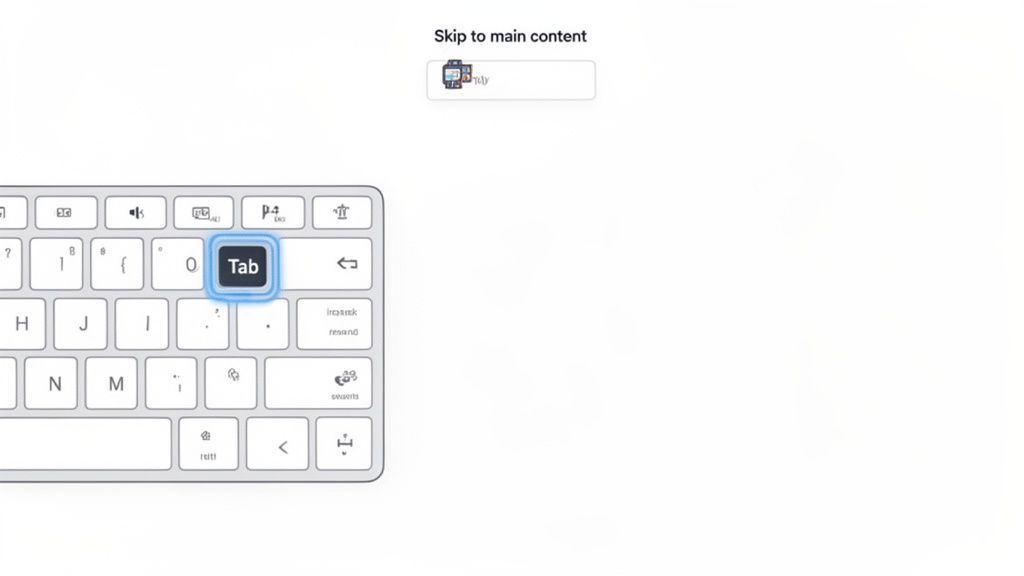
This practice is mandated by WCAG 2.1 guideline 2.1 (Keyboard Accessible) and is critical for users who cannot operate a pointer device. It also forms the navigational foundation for screen reader users, who rely on the keyboard to move through content. Proper focus management ensures users never get "trapped" in a component and can always see where they are on the page.
Why It's a Critical Next Step
After validating WCAG conformance, a dedicated keyboard audit is crucial because it directly impacts operability, one of the four core principles of accessibility. A site that fails this test is unusable for a significant portion of users, including those with motor impairments, temporary injuries, or "power users" who prefer keyboard shortcuts.
For example, government websites must meet stringent keyboard accessibility requirements under Section 508. Likewise, enterprise dashboards and financial platforms prioritize keyboard-only workflows to enhance efficiency and security for their user base. Failing to provide this functionality not only excludes users but also introduces significant legal and compliance risks.
Actionable Tips for Implementation
- Test with Core Keys: Navigate your entire site using only the Tab (move forward), Shift+Tab (move backward), Enter (activate links/buttons), Spacebar (check/uncheck boxes), and arrow keys (interact with components like dropdowns).
- Implement Visible Focus Indicators: Ensure every interactive element has a clear, visible outline when it receives keyboard focus. This outline should have a contrast ratio of at least 3:1 against the background.
- Add "Skip to Main Content" Links: Place a "skip link" as the first focusable element on each page. This allows keyboard users to bypass repetitive navigation headers and jump directly to the primary content area.
- Manage Focus in Dynamic Components: For modals, pop-ups, or flyout menus, ensure keyboard focus is trapped within the component while it is active and properly returned to the original trigger element when closed.
3. Color Contrast & Visual Accessibility Assessment
TL;DR: Audit all text and interactive elements to ensure they meet WCAG's minimum color contrast ratios (4.5:1 for normal text, 3:1 for large text). Strong contrast is fundamental for readability, benefiting users with low vision, color blindness, and anyone viewing your site in various lighting conditions.
What It Is
A Color Contrast & Visual Accessibility Assessment is the process of measuring the difference in perceived luminance, or brightness, between foreground text (or graphics) and its background. This evaluation ensures content is legible for everyone, especially individuals with moderate low vision or color vision deficiencies. It is a core requirement of the WCAG 2.1 "Distinguishable" guideline.
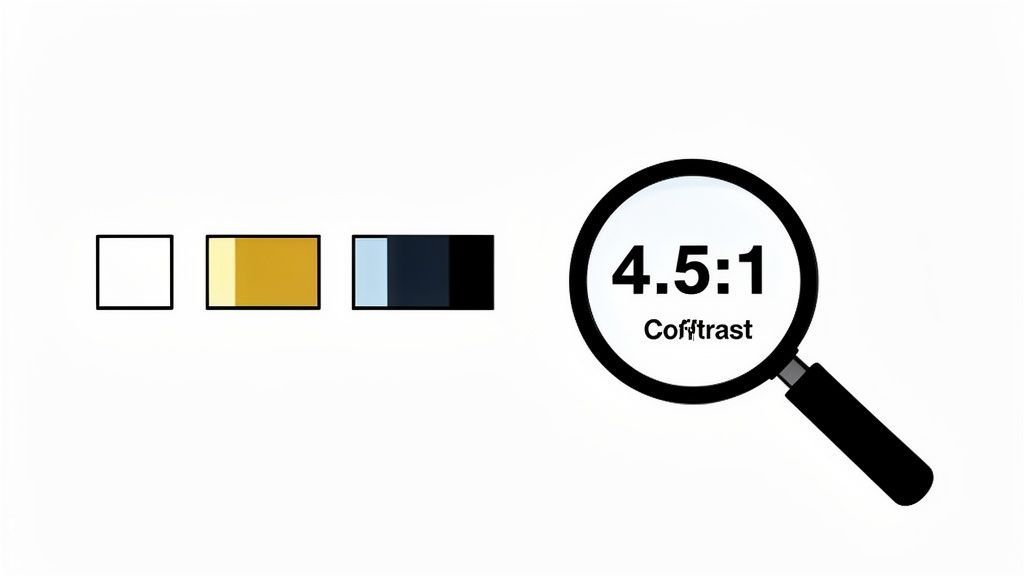
The key success criteria are:
- AA Level (Minimum Contrast): A contrast ratio of at least 4.5:1 for normal-sized text and 3:1 for large text (18pt/24px or 14pt/19px bold).
- Non-text Contrast: User interface components and graphical objects must have a contrast ratio of at least 3:1 against adjacent colors.
- Use of Color: Color must not be the only method used to convey information, indicate an action, or distinguish a visual element.
Why It's a Critical Part of Your Audit
Poor contrast is one of the most common and easily fixed accessibility failures, yet it creates significant barriers. Failing to meet contrast standards makes your site difficult or impossible to use for a large segment of the population, leading to user frustration and abandonment. For a complete site audit checklist, this step is non-negotiable.
For instance, a SaaS dashboard with low-contrast graphs is unusable for financial analysts with color blindness, while an e-commerce site with light grey text on a white background can lose sales from users struggling to read product descriptions. Addressing contrast directly improves usability, brand perception, and conversion rates.
Actionable Tips for Implementation
- Use a Contrast Checker: Employ automated tools like WebAbility.io's free color contrast checker for quick verification of hex codes during design and development.
- Test All States: Validate contrast not just on default elements but also for hover, focus, active, and disabled states. A link might be compliant by default but fail when a user hovers over it.
- Provide Alternatives to Color: Ensure that information conveyed by color (like error states in a form) is also available through text, icons, or other visual cues. For example, add an "X" icon next to a red-outlined input field.
- Offer High-Contrast Modes: For complex interfaces or applications, consider implementing a high-contrast or dark mode theme as a user preference. This empowers users to choose the viewing experience that works best for them. For a deeper dive, you can learn more about implementing accessible color contrast on WebAbility.io.
4. Alternative Text (Alt Text) & Image Accessibility Verification
TL;DR: Verify that all meaningful images on your site have descriptive alternative text (alt text). This simple but crucial check ensures that screen reader users can understand visual content, making it a non-negotiable part of any thorough site audit checklist.
What It Is
Alternative Text & Image Accessibility Verification is the process of auditing all visual elements like images, icons, and charts to ensure they have appropriate text descriptions. This "alt text" serves a critical function: it describes the content and purpose of an image to users who cannot see it, such as individuals using screen readers or anyone browsing with images turned off.
The audit distinguishes between different types of images:
- Informative Images: These convey important information and require concise, descriptive alt text.
- Decorative Images: These are purely for aesthetic purposes and should have an empty alt attribute (
alt="") so screen readers can ignore them. - Complex Images: Such as graphs or diagrams, these may need a longer description provided on the page or via a linked resource.
Why It's a Critical Step
Properly implemented alt text is a fundamental requirement of WCAG 2.1 (Guideline 1.1 Text Alternatives) and a cornerstone of an accessible web. Without it, entire sections of your content can become incomprehensible to users with visual impairments. This check is essential for ensuring an equitable user experience and preventing critical information gaps.
For example, on an e-commerce site, missing alt text on product images prevents a blind user from knowing what they are buying. On a news site, an image without a description leaves out crucial context from a story. Verifying alt text is a direct and impactful way to make your site more inclusive.
Actionable Tips for Implementation
- Be Concise and Descriptive: For informative images, write alt text that clearly conveys the image's content and purpose in under 125 characters. Avoid starting with "Image of..." as screen readers announce it's an image.
- Handle Decorative Images Correctly: Mark purely decorative visuals with an empty alt attribute (
alt=""). This prevents screen readers from announcing unhelpful file names and cluttering the user experience. - Use AI for Scale: For sites with thousands of images, manually writing alt text is impractical. Use a tool with an AI alt text generator, like WebAbility.io, to rapidly create accurate, context-aware descriptions for product catalogs or large media libraries.
- Test with a Screen Reader: The ultimate test is to listen to your alt text with a screen reader like JAWS, NVDA, or VoiceOver. Does the description make sense in the context of the surrounding content? Is it helpful and accurate?
5. Heading Structure & Content Hierarchy Audit
TL;DR: Verify that your heading tags (H1-H6) create a logical, hierarchical outline of your page content without skipping levels. A proper heading structure is crucial for screen reader navigation and is a fundamental element of any thorough site audit checklist.
What It Is
A Heading Structure & Content Hierarchy Audit is the process of examining how heading tags (H1, H2, H3, etc.) are used to organize content on a webpage. This isn't about visual styling; it's about ensuring headings are used semantically to create a logical and navigable document outline. For screen reader users, this structure is their primary method for quickly scanning a page and jumping to relevant sections, much like a sighted user would scan visual headlines.
A correct hierarchy means there is only one H1 for the main page title, and subsequent heading levels are nested logically without skipping (e.g., an H2 is followed by an H3, not an H4). This audit confirms that the document's structure is as clear and organized as a table of contents.
Why It's a Critical Step
A well-organized heading structure is a pillar of both accessibility and SEO, making it an essential part of your site audit. It directly addresses WCAG 2.1 guideline 1.3.1 (Info and Relationships) by ensuring the page's structure can be programmatically determined. For users of assistive technologies, this creates an efficient navigation experience, allowing them to bypass irrelevant content and find information quickly.
For example, on a documentation site with complex articles, a proper heading hierarchy allows a developer to jump directly from a main H2 section like "API Endpoints" to an H3 subsection like "Authentication" without reading through everything in between. It improves usability for everyone and signals a well-structured page to search engines.
Actionable Tips for Implementation
- Use Only One H1 Per Page: The
<h1>tag should be reserved for the unique, primary title of the page. It sets the context for all other content. - Never Skip Heading Levels: Maintain a logical sequence. Do not jump from an
<h2>to an<h4>. If you need a subsection, use an<h3>. - Use Headings for Structure, Not Styling: Avoid using heading tags simply to make text bigger or bolder. Use CSS for visual styling and reserve heading tags for creating a genuine content outline.
- Ensure Headings Are Descriptive: Each heading should accurately and concisely describe the content in the section that follows it.
- Test with a Screen Reader: Use a screen reader like NVDA or VoiceOver to navigate your page using only the headings. This is the best way to confirm if your structure is logical and easy to follow.
6. Form Accessibility & Error Handling Review
TL;DR: Thoroughly audit your forms, from labels and input fields to validation and error messages. Inaccessible forms are one of the most common and critical barriers online, directly impacting conversions, registrations, and user engagement.
What It Is
A Form Accessibility & Error Handling Review is a comprehensive evaluation of every form on your site to ensure it can be easily understood, navigated, and completed by all users, including those using assistive technologies. This process involves checking the technical implementation of form controls, the clarity of instructions, and the effectiveness of error recovery mechanisms.
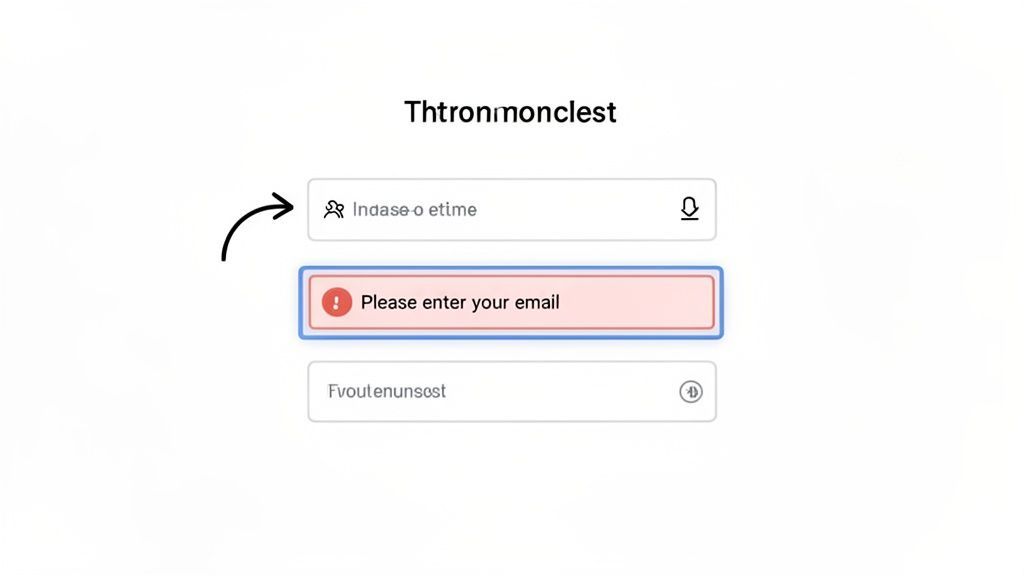
The audit focuses on key WCAG principles related to input assistance, such as ensuring every input field has a programmatically associated label, required fields are clearly marked, and error messages are specific, easy to locate, and provide guidance for correction.
Why It's a Critical Step
Forms are the primary way users interact with a site to achieve a goal, whether it’s making a purchase, signing up for a service, or contacting support. An inaccessible form creates a dead end, frustrating users and leading to abandonment. For an e-commerce platform, this means lost sales; for a SaaS company, it means failed registrations.
By focusing on form accessibility as a distinct item in your site audit checklist, you address one of the highest-impact areas for both compliance and user experience. Government agencies, for instance, must ensure their application forms are fully accessible to meet Section 508 requirements, enabling all citizens to access critical services.
Actionable Tips for Implementation
- Ensure Proper Labeling: Associate every form input with a
<label>element using theforattribute that matches the input'sid. This is the most robust method for screen readers to announce the purpose of each field. - Provide Clear Error Messages: When validation fails, display an explicit, actionable error message directly adjacent to the problematic field. Use
aria-describedbyto programmatically link the error message to the input so it's announced by screen readers. - Test Keyboard and Screen Reader Navigation: Navigate through your entire form using only the Tab key to ensure a logical focus order. Then, use a screen reader to verify that all labels, instructions, required field indicators, and error messages are announced correctly.
- Implement Autocomplete Attributes: For forms collecting user information (name, address, email), use
autocompleteattributes. This helps users with cognitive and motor disabilities by allowing the browser to autofill fields, reducing typing and potential errors.
7. Screen Reader Compatibility & ARIA Implementation Testing
TL;DR: Manually test your site with major screen readers (JAWS, NVDA, VoiceOver) and validate your ARIA implementation. This ensures that dynamic components and custom widgets are correctly communicated to users of assistive technologies, a crucial part of any modern site audit checklist.
What It Is
Screen Reader and ARIA (Accessible Rich Internet Applications) testing is the manual process of navigating your website using assistive technology to verify that content, structure, and interactive elements are conveyed accurately. It involves checking if semantic HTML is used correctly and whether ARIA roles, states, and properties are properly implemented to bridge gaps where native HTML falls short.
This type of audit goes beyond automated scans to evaluate the real-world user experience for people who are blind or have low vision. It ensures that complex components like custom dropdowns, sliders, or tab panels in single-page applications are not only functional but also understandable when accessed without a mouse or screen.
Why It's a Critical Step
Automated tools can't fully replicate the human experience of using a screen reader. Manual testing is essential for discovering issues related to logical navigation order, announcement of dynamic content changes, and the usability of complex interactive widgets. Without this validation, a site that appears accessible might be completely unusable for screen reader users.
For example, an enterprise dashboard with live data updates requires ARIA live regions to announce changes. Similarly, an accessible component library built for a React application must use WAI-ARIA authoring practices to ensure its custom elements are properly defined for assistive technologies.
Actionable Tips for Implementation
- Prioritize Semantic HTML: Always use native HTML5 elements like
<nav>,<main>,<button>, and<article>before resorting to ARIA. Semantic HTML has built-in accessibility that requires no extra work. - Use ARIA Purposefully: Apply ARIA attributes only when a component's role, state, or property cannot be conveyed with native HTML. Overusing ARIA can create more noise and confusion for users.
- Test with Real Screen Readers: Validate your implementation by testing with the most common screen readers: JAWS (Windows), NVDA (Windows), and VoiceOver (macOS/iOS). Do not rely solely on browser extensions or simulators.
- Implement ARIA Live Regions: For dynamic content like form error messages, live chat updates, or stock tickers, use
aria-liveregions to ensure changes are announced to users without them losing their place on the page. You can discover more techniques by learning how to do a proper screen reader test on WebAbility.io.
8. Mobile & Responsive Design Accessibility Assessment
TL;DR: With over 60% of web traffic originating from mobile devices, your site audit checklist must prioritize mobile accessibility. This involves verifying that your responsive design functions flawlessly for users with disabilities on smartphones and tablets, focusing on touch targets, screen reader compatibility, and zoom functionality.
What It Is
A Mobile & Responsive Design Accessibility Assessment is the process of evaluating your website's usability and conformance with accessibility standards across various screen sizes and devices. It goes beyond simply checking if the layout reflows; it ensures that all interactive elements are usable, content is readable, and assistive technologies like mobile screen readers function correctly in both portrait and landscape modes.
This assessment specifically tests for mobile-centric challenges, including:
- Touch Target Size: Are buttons and links large enough to be accurately tapped by users with motor impairments?
- Viewport Configuration: Is the site set up to scale correctly and allow users to zoom?
- Orientation Support: Does the site remain functional when a device is rotated?
- Mobile Screen Reader Compatibility: How does the site perform with iOS VoiceOver and Android TalkBack?
Why It's a Critical Step
Neglecting mobile accessibility means alienating a majority of your audience. A site that is perfectly accessible on a desktop can be unusable on a mobile device if touch targets are too small, text cannot be resized, or horizontal scrolling is required after zooming. This is a critical component of any modern site audit checklist.
For example, a mobile banking app must use adequately sized touch targets (e.g., 44x44px) to prevent users from making costly errors. Similarly, healthcare platforms providing telemedicine services must ensure their mobile interface is fully accessible to serve all patients, regardless of ability.
Actionable Tips for Implementation
- Enforce Minimum Target Size: Ensure all interactive elements meet the WCAG 2.5.5 guideline of at least 44x44 CSS pixels. This is crucial for users with limited motor dexterity.
- Test with Real Devices: Automated tools can't replicate the mobile experience. Manually test your site using both iOS with VoiceOver and Android with TalkBack to identify real-world usability issues.
- Support Robust Zoom Functionality: Users must be able to zoom in up to 200% without breaking the layout or losing access to content and functionality. This is a common failure point in responsive designs.
- Validate Viewport Configuration: Use the correct meta tag to ensure proper scaling and prevent disabling user zoom:
<meta name="viewport" content="width=device-width, initial-scale=1">. - Check Both Orientations: Verify that your site is fully functional and readable in both portrait and landscape modes, as some users mount their devices in a fixed orientation.
9. Legal Compliance & Audit Trail Documentation
TL;DR: Go beyond one-time fixes by establishing a comprehensive audit trail. Systematically document your accessibility efforts, remediation actions, and conformance status to demonstrate due diligence and protect your organization against legal risk.
What It Is
Legal Compliance and Audit Trail Documentation is the process of creating and maintaining a detailed, continuous record of your website’s accessibility journey. This involves more than just a final report; it's a living history of all audits, identified issues, remediation steps taken, and validation checks performed. It serves as tangible proof of your commitment to adhering to standards like WCAG 2.1 AA, ADA, Section 508, and EN 301 549.
This documentation often includes:
- Time-stamped audit reports: Showing the state of your site at regular intervals.
- Remediation logs: Detailing who fixed what, when, and how.
- Compliance statements: Formal declarations of your accessibility policies and conformance levels.
- Executive summaries: High-level overviews for leadership and legal teams.
Why It's a Critical Part of Your Audit
While finding and fixing issues is crucial, proving your efforts is equally important from a legal and governance perspective. A well-maintained audit trail is your primary defense in the event of a legal challenge, showing a good-faith effort to provide an accessible experience. It shifts the narrative from a single point-in-time snapshot to an ongoing, proactive program of improvement.
For example, enterprise companies use these records for internal risk management, while government agencies rely on them to demonstrate Section 508 compliance. Digital agencies can also leverage this documentation as a value-added deliverable for clients, showcasing progress and accountability. This is a key component of a robust site audit checklist.
Actionable Tips for Implementation
- Centralize Your Records: Use a dashboard or platform to maintain a single source of truth for all compliance activities. This prevents scattered documents and ensures a consistent historical record.
- Document Every Remediation: For every issue fixed, log the date, the developer responsible, and a brief description of the change. This creates a clear and defensible log of your actions.
- Generate Regular Compliance Reports: Schedule quarterly or annual report generation to formally document your conformance status. This creates a historical trend line that demonstrates continuous improvement.
- Create High-Level Summaries: Distill detailed technical reports into concise executive summaries for legal counsel and leadership. These should highlight key achievements, risk levels, and progress over time.
10. Video & Multimedia Content Accessibility Verification
TL;DR: Ensure all video and audio content on your site is accessible to users with hearing or visual impairments by providing accurate synchronized captions, full transcripts, and audio descriptions. This is a non-negotiable part of a modern site audit checklist and is critical for both compliance and inclusive user engagement.
What It Is
Video & Multimedia Content Accessibility Verification is the process of auditing all non-text content, such as videos and audio clips, to ensure it is perceivable by all users. This involves checking for several key components that provide alternative ways to access the information presented visually or audibly.
The core elements of this verification include:
- Closed Captions (CC): Synchronized, on-screen text that displays spoken dialogue and other important sounds.
- Transcripts: A complete text version of all spoken words and important non-verbal sounds in the media.
- Audio Descriptions: A separate audio track that narrates important visual information, such as actions, characters, and scene changes, that a person who is blind or has low vision would otherwise miss.
Why It's a Critical Part of Your Audit
As video becomes a dominant form of online content, failing to make it accessible excludes a significant portion of your audience and exposes you to legal risk. For deaf or hard-of-hearing users, captions and transcripts are essential for understanding content. For blind or low-vision users, audio descriptions are the only way to grasp critical visual context.
Online education platforms, for example, must provide captions and transcripts to comply with Section 508 and ensure all students can access course materials. Similarly, enterprise training videos require these features to meet internal accessibility standards and serve a diverse workforce. This step in your site audit checklist ensures your most engaging content reaches everyone.
Actionable Tips for Implementation
- Provide Synchronized, Accurate Captions: Auto-generated captions are a starting point but often contain errors. Use a professional service or manually edit captions to ensure they are at least 99% accurate and perfectly timed with the audio.
- Include Speaker Identification: For videos with multiple speakers, add identifiers in the captions (e.g., "[Maria]:") to provide clarity and context for the conversation.
- Offer Full Transcripts: Always provide a complete, static text transcript for all audio and video content. This benefits users who are deaf-blind and rely on refreshable braille displays, and it also improves SEO.
- Add Audio Descriptions: For videos where visual information is key to understanding the content (e.g., a product demo), create and provide an audio description track that narrates these visual elements.
- Test Media Player Accessibility: Ensure your video player can be fully operated with a keyboard and is compatible with screen readers. Users must be able to play, pause, and adjust volume and caption settings without a mouse.
10-Point Site Accessibility Audit Comparison
| Item | Implementation complexity | Resource requirements | Expected outcomes | Ideal use cases | Key advantages |
|---|---|---|---|---|---|
| WCAG 2.1 Conformance Level Validation | High — automated + manual verification | Moderate–High — audit tools, accessibility experts, continuous monitoring | Measurable compliance score, reduced legal risk | Enterprises, government sites, organizations seeking legal compliance | International standard, clear targets, broad coverage |
| Keyboard Navigation & Focus Management Audit | Medium — manual testing and focus adjustments | Low–Medium — testers, developer time for focus management | Full keyboard operability, improved navigation for non-pointer users | Dashboards, SPAs, government and enterprise sites | High UX impact, relatively low cost, essential for motor-impaired users |
| Color Contrast & Visual Accessibility Assessment | Low–Medium — automated checks + some manual verification | Low — contrast tools, designer time | Readable text, WCAG contrast compliance across UI states | E-commerce, SaaS UIs, branding-heavy sites | Objective metric, quick wins, improves readability and brand credibility |
| Alternative Text & Image Accessibility Verification | Low–Medium — automation + human review | Low–Medium — AI tools, content editors | Descriptive alt text for images, better screen reader experience and SEO | E-commerce catalogs, publishers, large media sites | Scales with AI, improves inclusivity and SEO |
| Heading Structure & Content Hierarchy Audit | Low — semantic checks and editorial fixes | Low — content/editor review, minor dev updates | Logical document outline, faster screen reader navigation | Blogs, documentation sites, content-heavy pages | Improves navigation and SEO, easy/low-cost fixes |
| Form Accessibility & Error Handling Review | Medium — label, validation, and error flow fixes | Medium — developers, QA, UX writing | Clear, accessible forms; reduced abandonment and support calls | Checkout, registration, application forms | Improves conversions and user success, critical for transactional flows |
| Screen Reader Compatibility & ARIA Implementation Testing | High — deep testing across readers and ARIA patterns | High — screen reader tools, skilled developers, multiple platforms | Accurate assistive-technology behavior, reliable dynamic content announcements | SPAs, interactive widgets, complex enterprise apps | Enables screen reader users, improves code semantics and maintainability |
| Mobile & Responsive Design Accessibility Assessment | Medium — device and touch-target testing | Medium–High — multiple devices, mobile screen readers | Accessible mobile experiences, preserved functionality on small screens | Mobile-first sites, apps, e-commerce on mobile | Addresses majority traffic, provides competitive advantage on mobile |
| Legal Compliance & Audit Trail Documentation | Medium — reporting and process setup | Medium — compliance tools, governance processes, recordkeeping | Audit-ready reports and historical evidence of remediation | Regulated organizations, enterprises, public sector | Demonstrates good-faith efforts, supports legal and governance needs |
| Video & Multimedia Content Accessibility Verification | Medium–High — captions, transcripts, audio descriptions | High — captioning/transcription services, media specialists | Accessible multimedia, higher engagement, legal compliance | Education platforms, training, marketing/video-heavy sites | Expands reach, improves SEO, required for legal compliance |
Turning Your Audit into Actionable Progress
You've now navigated the comprehensive site audit checklist, a detailed roadmap designed to uncover the accessibility barriers that can exclude users from your digital space. From validating WCAG 2.1 AA conformance to testing with screen readers and ensuring keyboard navigability, each step is a crucial piece of a larger puzzle. This process isn't just about ticking boxes; it's about fundamentally understanding how real people with diverse abilities interact with your website.
The true measure of a successful audit, however, is not the report you generate but the action you take. The findings from your checklist are the catalyst for meaningful change, transforming your website from a collection of potential obstacles into an inclusive, welcoming environment for everyone. This transition from audit to action is where your commitment to digital equity truly comes to life.
From Findings to Fixes: Prioritizing Remediation
With a completed audit, you likely have a list of issues ranging from minor to critical. The key to making progress without becoming overwhelmed is strategic prioritization. Not all issues carry the same weight, and a structured approach ensures you tackle the most significant barriers first.
- Prioritize by Impact and Severity: Start with issues that create a complete barrier for users. A form that cannot be submitted via keyboard or an inaccessible checkout process on an e-commerce site are critical-level blockers. These should be your top priority as they prevent users from completing core tasks.
- Focus on High-Traffic Areas: Analyze your website analytics. Where do your users spend the most time? Your homepage, primary service pages, contact forms, and login portals are high-value areas. Resolving accessibility issues on these pages delivers the most immediate benefit to the largest segment of your audience.
- Consider Legal and Compliance Risk: Certain violations, particularly those related to WCAG 2.1 Level A and AA criteria, carry higher legal risks. Prioritizing these fixes helps protect your organization while simultaneously improving the user experience for individuals with disabilities.
Key Insight: Effective remediation is a blend of user-centric empathy and data-driven strategy. Address the most painful user journeys first to deliver maximum impact and demonstrate a tangible commitment to inclusivity.
Integrating Accessibility into Your Workflow
A one-time audit is a snapshot in time. To achieve lasting compliance and a genuinely inclusive digital presence, accessibility must become an integral part of your entire development lifecycle. This proactive approach prevents new barriers from being introduced and makes accessibility a shared responsibility rather than an afterthought.
Integrating accessibility into your workflow is similar to adopting other quality assurance protocols. For comprehensive insights on ensuring quality and driving business outcomes through testing, consider the broader implications of strategic QA testing. By embedding accessibility checks into design reviews, development sprints, and pre-launch testing, you create a culture where building inclusive products is the default standard.
Ultimately, this site audit checklist is your starting point on a continuous journey. By turning its insights into a structured, prioritized action plan, you do more than just fix bugs. You build trust, expand your market reach, and create a digital experience that respects and serves every user, regardless of their abilities.
Ready to move from a manual site audit checklist to a streamlined, automated accessibility solution? WebAbility.io provides 24/7 automated scanning, AI-powered remediation guidance, and detailed compliance reporting to help you maintain a fully accessible website. Transform your one-time audit into an ongoing commitment to digital equity by visiting WebAbility.io today.
Quick Questions
Tap to ask AI about this article