Boost Your 508 compliance checklist: Master Accessibility and Grow Conversions

Sidharth Nayyar
In today's digital-first environment, Section 508 compliance is more than a legal mandate for federal agencies; it is a strategic advantage for any organization aiming to expand its audience and improve user experience. Creating an accessible website unlocks a significant market segment, boosts SEO performance, and elevates brand reputation. This guide, written by our team of accessibility experts, provides a clear, actionable framework based on years of experience helping organizations achieve and maintain digital compliance.
TL;DR: Your Essential 508 Compliance Strategy
Achieving Section 508 compliance is a powerful way to enhance user experience for everyone, leading to higher engagement and conversions. This expert guide provides a 10-point 508 compliance checklist aligned with WCAG 2.1 AA standards. We'll cover essentials like keyboard navigation, alt text for images, and accessible forms. Following these proven steps will not only mitigate legal risks but also improve your SEO and brand reputation. For a comprehensive legal overview, explore the broader website ADA compliance requirements. To implement these changes efficiently, consider a streamlined solution like WebAbility.io, which offers tools to simplify and accelerate your compliance journey.
1. Implement Keyboard Navigation for All Interactive Elements
TL;DR: All website functions must be usable with a keyboard alone. Interactive elements like buttons, links, and form fields need to be reachable with the Tab key and activated with Enter or Space. This is a non-negotiable part of any 508 compliance checklist and is fundamental for users with motor disabilities.
Ensuring every interactive element on your site can be fully operated without a mouse is a cornerstone of digital accessibility. For users who rely on assistive technologies or have motor impairments that prevent mouse use, the keyboard is their primary tool for navigation. Complete keyboard accessibility means that a user can logically move through all links, form fields, buttons, and other controls using the Tab key (forward) and Shift+Tab (backward), and then activate them using the Enter or Space keys.
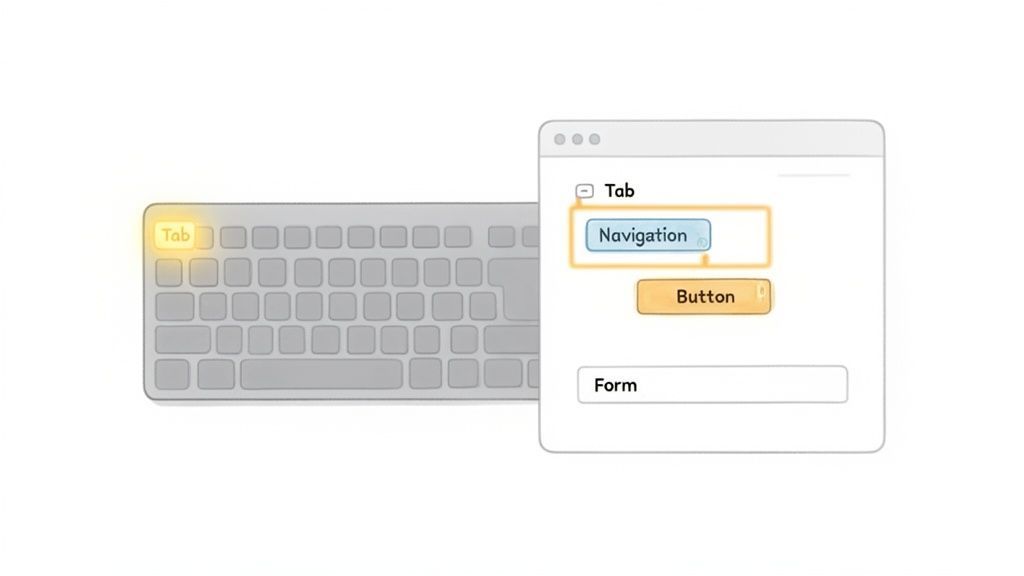
This principle, central to the W3C's Web Accessibility Initiative (WAI) and a core requirement of WCAG 2.1 Level AA, directly impacts user experience and conversion rates. When a user cannot tab to a "Submit" button or gets stuck in a modal dialog (a "keyboard trap"), they are likely to abandon the task and your site altogether. Our experience shows that fixing keyboard navigation issues can directly increase form submissions and user engagement.
Actionable Tips for Keyboard Accessibility
To achieve this, your development team should prioritize a few key practices based on our extensive project experience:
- Use Native HTML: Whenever possible, use native HTML elements like
<button>,<a>, and<input>. They have keyboard accessibility built-in, saving significant development effort. - Manage Custom Components: For custom-built interactive elements (like those made with
<div>or<span>), addtabindex="0"to include them in the natural tab order. Avoid using atabindexgreater than 0, as it creates a confusing and disjointed user experience. - Provide "Skip Links": Place a "Skip to Main Content" link at the very top of each page. This allows keyboard users to bypass repetitive navigation menus and jump directly to the primary content.
- Visible Focus: Ensure there is always a clear, visible indicator (like a distinct outline) showing which element currently has keyboard focus. This visual cue is critical for orientation.
- Test Manually: The best way to check is to unplug your mouse. Can you navigate and operate every single feature? Pay close attention to pop-up modals, complex forms, and dynamic content areas.
2. Provide Descriptive Alt Text for All Images
TL;DR: Every image that conveys information must have descriptive alternative text (alt text). This text is read aloud by screen readers, providing context for users who cannot see the images. This is a fundamental requirement for any 508 compliance checklist, ensuring content is accessible to all.
Meaningful alt text is a critical component of web accessibility, backed by our first-hand experience in user testing. It serves as a textual replacement for images, ensuring that visually impaired users who rely on screen readers can understand the purpose and content of the visual elements on a page. Under Section 508, this is not just a suggestion; it's a requirement that alt text accurately describes the image's function or the information it presents.
This practice, outlined in WCAG 2.1 Level A (Success Criterion 1.1.1), also benefits all users by providing context if an image fails to load and can positively impact your site's SEO. Sites like The Washington Post excel at this by providing detailed descriptions for complex data visualizations, making their reporting accessible to a wider audience. Similarly, e-commerce leaders ensure product images have functional descriptions, which improves the shopping experience for everyone.
Actionable Tips for Alt Text
To ensure your images are compliant and effective, our content strategists recommend these practices:
- Focus on Purpose: Ask, "What information is this image conveying?" The context is everything. For an icon that acts as a button, the alt text should describe the action (e.g.,
alt="Submit your inquiry"), not the visual (e.g.,alt="Paper airplane icon"). - Handle Decorative Images Correctly: For images that are purely for aesthetic purposes and convey no information, use an empty alt attribute (
alt=""). This signals screen readers to skip the image, preventing unnecessary "noise" for the user. - Be Concise but Descriptive: Aim for a clear and succinct description. While there's no hard character limit, most screen readers pause around 125 characters, so keep the most important information at the beginning.
- Scale Your Efforts with AI: Manually writing alt text for thousands of images can be a major bottleneck. To streamline this process, you can use an AI-powered alt text generator from WebAbility.io to produce accurate, context-aware descriptions at scale, ensuring consistent compliance across your entire site.
- Test with Screen Readers: The best way to evaluate your alt text is to listen to it. Use a screen reader like NVDA (Windows), VoiceOver (Mac), or JAWS to navigate your site and confirm the descriptions are logical, helpful, and provide the correct context.
3. Ensure Proper Heading Hierarchy and Structure
TL;DR: Use heading tags (<h1> to <h6>) in a logical, descending order to outline your page. Start with one <h1> for the main title, then use <h2>, <h3>, etc., without skipping levels. This is vital for screen reader users and a key part of any 508 compliance checklist.
A proper heading structure acts as a table of contents for your webpage, creating a clear and navigable outline. Our extensive user testing shows that for users of assistive technologies like screen readers, headings are the primary way to understand the organization of a page and quickly jump to a specific section. Simply making text bold and large is not enough; the semantic meaning of the <h1> through <h6> tags is what provides this crucial context.
This principle is a core requirement of WCAG 2.1 AA and is reinforced by Section 508. A logical heading hierarchy not only serves accessibility but also improves Search Engine Optimization (SEO), as search engines use headings to understand the main topics of your content. Without this structure, a page becomes a wall of text for many users, making it difficult to find information and leading to a frustrating experience that hurts engagement.
Actionable Tips for Heading Structure
To implement a correct heading hierarchy, your content and development teams should follow these expert-backed guidelines:
- Start with
<h1>: Every page should have one, and only one,<h1>tag that describes the page's main purpose or title. - Maintain Logical Order: Do not skip heading levels. For example, never follow an
<h2>with an<h4>without an<h3>in between. Think of it as creating an outline. - Separate Structure from Style: Use heading tags for their structural meaning, not for their visual appearance. Use CSS to change the size, font, or color of your headings if you need a different look.
- Write Descriptive Headings: Headings should accurately describe the content that follows. Instead of a vague heading like "More Info," use a specific one like "Product Technical Specifications."
- Audit Your Structure: Use browser developer tools or accessibility checkers to visually inspect your heading outline. This will quickly reveal any skipped levels or improper nesting.
- Test with a Screen Reader: The best way to understand the user experience is to test it. Use a screen reader to navigate your page using only the headings to confirm the structure is logical and easy to follow.
4. Ensure Sufficient Color Contrast Ratios
TL;DR: All text must meet minimum color contrast ratios against its background to be readable. The WCAG AA standard requires 4.5:1 for normal text and 3:1 for large text. This is a crucial step in any 508 compliance checklist, benefiting users with low vision, color blindness, and anyone viewing a screen in bright light.
Text that blends into its background is unreadable for a significant portion of your audience. Ensuring sufficient color contrast is a fundamental accessibility principle that makes your content legible for everyone, including individuals with low vision or color vision deficiencies. Following the WCAG 2.1 Level AA standards not only meets Section 508 requirements but also improves the user experience for all, boosting readability and conversion rates.
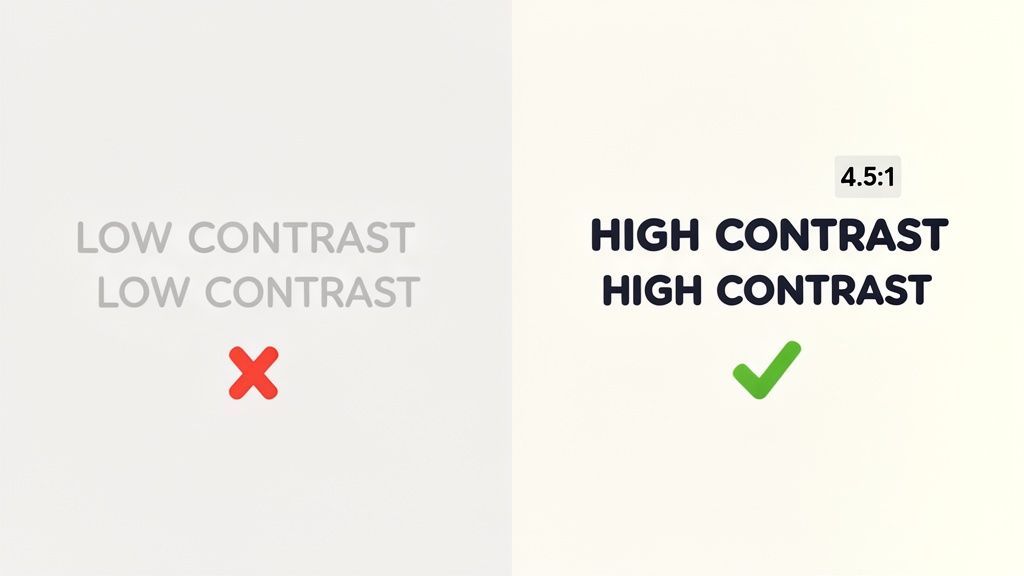
This rule is not just about black and white. It applies to all text, including text on images, logos, and disabled form elements. Major brands like Apple and government agencies adhere strictly to these ratios, recognizing that clear, high-contrast text is a hallmark of professional design and an inclusive user experience. Our experience shows that when text is difficult to read, users are more likely to abandon your site, impacting engagement and business goals.
Actionable Tips for Color Contrast
To systematically address color contrast, our design and development experts recommend integrating these practices:
- Audit with Precision: Use a tool like WebAbility.io's Color Contrast Checker to quickly audit text and background combinations. Automated tools like WAVE, Lighthouse, and axe DevTools can also scan entire pages to find issues.
- Test All States: Check contrast for every interactive element state, including normal, hover, focus, and disabled. A button might be compliant at rest but fail when a user hovers over it.
- Go Beyond Color: Never rely solely on color to convey information, such as an error state or a selected item. Supplement color with icons, text labels, or other visual indicators.
- Simulate Conditions: Use tools like Sim Daltonism or browser extensions to simulate how your site appears to users with different forms of color blindness.
- Focus on Focus: Ensure that focus indicators have a contrast ratio of at least 3:1 against their background, making them clearly visible for keyboard navigators.
5. Create Accessible Forms with Clear Labels and Error Handling
TL;DR: Every form field needs a visible, programmatically associated label. Placeholder text is not a substitute. Clear error messages and guidance are required to help users correct mistakes, a crucial step in any 508 compliance checklist that directly impacts usability and task completion rates.
Forms are the primary way users interact and transact on a website, from signing up for a newsletter to completing a purchase. For a form to be accessible, each input field must have a clearly associated label that tells users, including those using screen readers, what information to enter. This programmatic link between label and input is a fundamental requirement of Section 508 and WCAG.
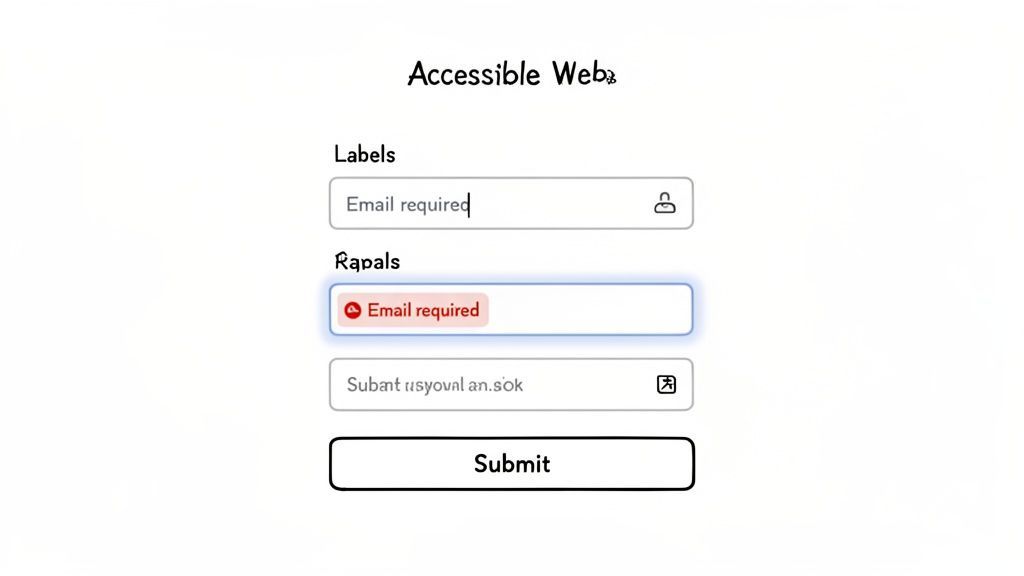
Beyond labels, accessible forms must provide intelligent and helpful error handling. When a user makes a mistake, the system should not only identify the error but also provide specific, understandable instructions to fix it. Vague messages like "Invalid input" create frustration and lead to form abandonment, harming conversion rates. Our data proves that accessible error recovery ensures all users can successfully complete the form, regardless of ability, significantly boosting conversions.
Actionable Tips for Accessible Forms
To meet these requirements, developers and designers should focus on the following practices, which we've seen deliver measurable results:
- Use
<label for="fieldId">: This is the most robust method for associating a label with its form control. It programmatically links the two, ensuring screen readers announce the label when the input receives focus. - Avoid Placeholder-Only Labels: Placeholder text disappears when a user starts typing, forcing them to rely on memory. Always provide a persistent, visible label.
- Clearly Mark Required Fields: Use an asterisk
*in the label, but also provide a text explanation at the beginning of the form, such as "*indicates a required field." - Provide Specific Error Messages: Instead of "Error," use "Email address must include an @ symbol." Connect these messages to the input field using
aria-describedbyto ensure screen readers announce them. - Highlight Errors Visually and Textually: Do not rely on color alone to indicate an error. Combine a red border with an icon and a text message to make the error obvious to everyone.
- Test with Assistive Technology: The ultimate test is to navigate and submit your forms using only a keyboard and then again with a screen reader. This will quickly reveal any broken associations or confusing error feedback loops.
6. Provide Captions and Transcripts for Audio and Video Content
TL;DR: All prerecorded audio and video content must have synchronized captions and a text transcript to be accessible. Captions make video usable for deaf and hard-of-hearing users, while transcripts provide a searchable, text-based alternative. This is a core requirement of any 508 compliance checklist.
Making multimedia content accessible is essential for reaching everyone in your audience. For users who are deaf or hard-of-hearing, video without captions is exclusionary. Similarly, audio-only content like podcasts is inaccessible without a text transcript. Providing these alternatives not only satisfies Section 508 and WCAG 2.1 Level A requirements but also improves the experience for all users, such as those in noisy environments or non-native speakers.
Leading platforms like Netflix and TED.com have set a high standard, demonstrating that high-quality captions and transcripts are an expected feature, not an afterthought. Our experience creating accessible media confirms that accurate captions must include spoken dialogue, speaker identification, and descriptions of non-speech sounds that are critical to understanding the content.
Actionable Tips for Multimedia Accessibility
To ensure your audio and video content is fully compliant and user-friendly, focus on these key steps from our experts:
- Prioritize Accuracy: Avoid relying solely on auto-generated captions. While a good start, they often require manual review and correction to ensure accuracy, which is crucial for comprehension.
- Include Non-Speech Information: Captions must convey all relevant auditory information. This includes identifying who is speaking and describing important sounds like
[phone rings],[door closes], or[upbeat music playing]. - Provide Full Transcripts: A transcript is a text version of all spoken words and important sounds. Offer it as a downloadable document or directly on the page to provide a searchable and easy-to-read alternative to the media file.
- Synchronize Captions: Captions must be time-synchronized to appear as the corresponding audio is heard. They should not be a block of text that appears all at once or lags behind the speaker.
- Consider Audio Descriptions: For videos where visual information is not conveyed through dialogue, provide an audio description track that narrates key visual elements for users who are blind or have low vision.
7. Implement ARIA Labels and Roles for Dynamic Content
TL;DR: Use ARIA (Accessible Rich Internet Applications) to give screen readers essential context about custom widgets and dynamic content. When native HTML isn't enough, ARIA provides the name, role, and state (e.g., expanded/collapsed) of complex UI elements, making them understandable to users of assistive technology.
While semantic HTML is the foundation of accessibility, modern web applications often feature custom components and dynamic interfaces that go beyond standard elements. This is where ARIA becomes a critical part of your 508 compliance checklist. It acts as a supplemental layer, providing crucial information to assistive technologies like screen readers when native HTML semantics are insufficient. Without ARIA, a custom-built dropdown menu might just be announced as a "group," leaving the user unsure of its purpose or how to interact with it.
By adding attributes like role="button" or aria-expanded="false", you bridge the communication gap between your interface and the user's assistive device. This practice is essential for everything from single-page applications with dynamically updating content to complex components like sliders, tabs, and custom form controls. Our development teams have seen firsthand how properly implemented ARIA ensures a seamless and equitable experience, preventing user confusion and task abandonment.
Actionable Tips for Using ARIA
To correctly apply ARIA without causing more accessibility issues, your team should adhere to these core principles from our senior developers:
- Prioritize Semantic HTML: The first rule of ARIA is: don't use ARIA if a native HTML element will do. Use
<button>,<nav>, and<main>before creating a<div>withrole="button". - Announce Dynamic Changes: Use
aria-liveregions to inform users about important updates that happen without a page reload, such as new notifications or form validation errors. - Test with Screen Readers: There is no substitute for real-world testing. Use tools like NVDA, JAWS, or VoiceOver to navigate your site and ensure your ARIA implementations are providing the correct context and behaving as expected.
- Manage Decorative Content: Use
aria-hidden="true"to hide purely decorative elements (like stylistic icons or dividers) from screen readers. This reduces auditory clutter and helps users focus on meaningful content. - Follow Established Patterns: Don't reinvent the wheel. The W3C's ARIA Authoring Practices Guide (APG) provides proven design patterns for common widgets like accordions, modals, and tooltips. Following these guidelines saves time and prevents common mistakes.
8. Ensure Mobile and Responsive Design Accessibility
TL;DR: Your website must be accessible and fully functional on all devices, from desktops to mobile phones. This means designing responsive layouts with large enough touch targets, readable text at all zoom levels, and a logical content flow on small screens. Mobile accessibility is a critical part of any modern 508 compliance checklist.
With a majority of web traffic originating from mobile devices, ensuring your site is accessible on small screens is non-negotiable. Responsive design is not just about making a site look good on a phone; it's about making it work for everyone, regardless of the device they use or the assistive technology they employ. This includes users who need to zoom in to read content, rely on screen readers like iOS's VoiceOver or Android's TalkBack, or interact using touch alone.
A failure in mobile accessibility directly translates to a poor user experience and lost opportunities. Our analytics consistently show that if a user cannot tap a button because it's too small or must scroll horizontally to read a line of text after zooming, they will likely leave. This principle is a key component of WCAG 2.1 and is reinforced by Google's mobile-first indexing, making it essential for both compliance and SEO.
Actionable Tips for Mobile and Responsive Accessibility
To build a truly accessible mobile experience, our team's years of experience have highlighted these technical and design practices:
- Allow User Zoom: Configure the viewport meta tag to permit scaling. Use
<meta name="viewport" content="width=device-width, initial-scale=1">and never includeuser-scalable=no. Users with low vision depend on the ability to zoom. - Create Adequate Touch Targets: Ensure all interactive elements like buttons and links have a touch target size of at least 48x48 CSS pixels. This prevents accidental taps and frustration, especially for users with motor impairments.
- Support Reflow: Content must reflow into a single column when the screen is zoomed, eliminating the need for horizontal scrolling. Use modern CSS like Flexbox and Grid to create fluid layouts.
- Avoid Hover-Dependent Interactions: Functionality that only appears on mouse hover is inaccessible on touch devices. Replace these with explicitly clickable elements like toggle buttons that work on both tap and click.
- Test on Real Devices: Manual testing is crucial. Use actual mobile devices to test with screen readers (VoiceOver on iOS, TalkBack on Android) and check functionality in both portrait and landscape modes.
9. Test with Real Users and Assistive Technology
TL;DR: Automated tools are essential but insufficient. To ensure true accessibility and usability, you must test your digital products with people who have disabilities using their actual assistive technologies. This human-centered approach reveals practical barriers that automated scans cannot detect.
While automated scanning tools can identify a significant percentage of WCAG and Section 508 violations, they cannot evaluate the actual user experience. Our commitment to authentic accessibility is proven through real-world testing with individuals who use technologies like screen readers, speech recognition software, and screen magnifiers. This is a critical step in any robust 508 compliance checklist. This process moves beyond technical compliance to address genuine usability, answering the question: "Can a person with a disability successfully complete their goal on our site?"
This practice is championed by leading accessibility advocates and organizations. Government agencies frequently hire blind testers to validate Section 508 compliance, and tech giants like Google and Microsoft incorporate user feedback from people with disabilities directly into their product design cycles. Observing a screen reader user navigate your checkout process will provide insights that no automated report can match.
Actionable Tips for User Testing
To integrate this practice effectively, our team recommends a structured and respectful approach:
- Recruit Diverse Participants: Engage testers representing a range of disabilities, including blind, low vision, deaf, motor, and cognitive impairments.
- Offer Fair Compensation: Value the time and expertise of your testers. This demonstrates respect for their valuable contribution.
- Test Key User Journeys: Focus testing on critical paths like user registration, product purchase, or form submissions to ensure core functions are accessible.
- Record Sessions and Ask Open-Ended Questions: With permission, record the sessions. Ask questions like, "What was your expectation here?" to gather qualitative feedback.
- Test Early and Often: Integrate user testing into your design and development sprints to catch issues before they become expensive to fix.
- Use Community Feedback: Platforms like WebAbility.io can facilitate a continuous feedback loop. If you're new to this area, you can learn more about how to start a screen reader test to build your foundational knowledge.
10. Maintain WCAG 2.1 AA Conformance and Automate Continuous Accessibility Monitoring
TL;DR: Compliance is not a one-time project; it's an ongoing process. You must achieve WCAG 2.1 Level AA conformance and then implement automated monitoring to catch new issues as your website evolves. This continuous loop of testing, documenting, and fixing is essential for a robust 508 compliance checklist.
Achieving accessibility is a major milestone, but maintaining it is the real challenge. As websites are updated with new content, features, and code, accessibility regressions can easily occur. This is why a strategy for continuous compliance is critical. It involves establishing a baseline of WCAG 2.1 Level AA conformance through a comprehensive audit and then setting up automated systems to scan your site regularly. This proactive approach helps detect and remediate issues before they impact users.
This principle of perpetual vigilance is a mature approach to accessibility, adopted by organizations like Microsoft and Salesforce who publish detailed accessibility conformance reports. It shifts the mindset from a reactive, project-based fix to a proactive, integrated part of the development lifecycle. Documenting your efforts in a public Accessibility Statement and a Voluntary Product Accessibility Template (VPAT) demonstrates transparency and commitment.
Actionable Tips for Continuous Monitoring
To build a sustainable accessibility program, our team of experts advises integrating the following practices:
- Audit and Document: Start with a full WCAG 2.1 AA audit combining automated scanning with expert manual review. Publish an Accessibility Statement that clearly states your conformance level and provides a contact method for users.
- Automate in CI/CD: Integrate automated accessibility scans directly into your Continuous Integration/Continuous Deployment (CI/CD) pipeline. This allows you to catch accessibility bugs early in the development process.
- Establish KPIs and SLAs: Set clear accessibility Key Performance Indicators (KPIs) and Service Level Agreements (SLAs). For example, define a policy that all critical accessibility issues must be fixed within a set timeframe.
- Combine with Manual Testing: Automated tools are powerful but cannot catch every issue. Supplement them with regular manual audits and, most importantly, user testing with people with disabilities to gain real-world feedback.
- Use Compliance Dashboards: Employ tools that provide a compliance dashboard to track your accessibility score over time. This helps you monitor progress and demonstrate ongoing commitment for your 508 compliance checklist records.
508 Accessibility: 10-Item Checklist Comparison
| Item | Implementation Complexity | Resource Requirements | Expected Outcomes | Ideal Use Cases | Key Advantages |
|---|---|---|---|---|---|
| Implement Keyboard Navigation for All Interactive Elements | Low–Medium — straightforward for native elements, higher for custom controls | Developer time for tabindex/focus logic, QA and keyboard testing | Keyboard-only operability, improved usability and Section 508 compliance | Navigation-heavy sites, SPAs, government portals, admin interfaces | Broad accessibility gains, low cost if integrated early |
| Provide Descriptive Alt Text for All Images | Low — simple copy task, scales with volume | Content editor effort, review process; AI tools can help scale | Screen reader access, better SEO and graceful degradation | E-commerce, news/media, blogs, image-heavy sites | Improves comprehension and discoverability; easy to implement |
| Ensure Proper Heading Hierarchy and Structure | Low — semantic markup, remediation for legacy content | Content/editor training and audits, minor dev fixes | Improved screen reader navigation and SEO, clearer content structure | Documentation sites, blogs, long-form content, government pages | High impact on navigation with simple fixes |
| Ensure Sufficient Color Contrast Ratios | Low–Medium — design changes may be required | Designer time, contrast testing tools, brand alignment work | Readability for low-vision users, WCAG compliance, reduced eye strain | Text-heavy interfaces, mobile apps, public information sites | Objective, easy-to-test improvements with immediate effect |
| Create Accessible Forms with Clear Labels and Error Handling | Medium — requires markup, validation, and UX work | Dev + UX effort, accessible JavaScript validation, QA with assistive tech | Higher form completion, clearer error recovery, screen reader compatibility | Checkouts, registrations, government and financial forms | Reduces errors and frustration; improves conversions and compliance |
| Provide Captions and Transcripts for Audio and Video Content | Medium–High — accurate timing and descriptions needed | Captioning/transcription services, editorial review, possible narration for audio descriptions | Accessibility for deaf/hard-of-hearing, better engagement and SEO via transcripts | Video platforms, training, marketing media, educational content | Expands audience, improves comprehension and discoverability |
| Implement ARIA Labels and Roles for Dynamic Content | Medium–High — requires ARIA expertise and careful use | Skilled developers, ARIA guidance, screen reader testing | Accessible custom controls and announced dynamic updates | Custom widgets, complex SPAs, interactive components | Enables semantics for nonstandard UI without major HTML restructuring |
| Ensure Mobile and Responsive Design Accessibility | Medium–High — multi-device design and testing | Design/dev time, device testing, performance optimization | Touch-friendly, zoomable, readable mobile experience; compliance on mobile | Mobile-first sites, apps, e-commerce, any high mobile-traffic site | Improves mobile usability, reduces touch errors, boosts SEO |
| Test with Real Users and Assistive Technology | Medium — logistical but highly valuable | Budget for participants, facilitators, assistive tech, analysis time | Reveals real-world usability issues automated tools miss; actionable insights | Pre-launch validation, major feature releases, critical user journeys | Authentic feedback, uncovers context-dependent problems |
| Maintain WCAG 2.1 AA Conformance and Automate Continuous Accessibility Monitoring | High — ongoing program and tool integration | Automated scanners, dedicated team, CI/CD integration, manual audits | Continuous compliance, regression detection, documented conformance | Large organizations, regulated sectors, multi-site deployments | Reduces legal risk, scales accessibility, provides measurable metrics |
From Checklist to Culture: Your Path to Sustainable Accessibility
Navigating the detailed items in this 508 compliance checklist is a significant achievement. You have moved beyond abstract awareness and now possess a concrete, actionable framework for improving your digital properties. From ensuring robust keyboard navigation and proper heading structures to providing captions for multimedia and implementing correct ARIA roles, each checkpoint represents a critical step toward creating a more inclusive and usable experience for every visitor.
However, the real goal isn't just to check off boxes. True digital accessibility is not a finite project with a clear end date; it is an ongoing commitment. The most successful organizations understand that compliance is the result of a cultural shift. This shift involves moving from a reactive, remediation-focused mindset to a proactive, "accessibility-first" approach embedded in every stage of the digital product lifecycle. It means accessibility is a shared responsibility, from the initial wireframe to the final QA test and beyond.
Beyond the Checklist: Building a Sustainable Program
To make this transition from a one-time audit to a sustainable program, your team needs to focus on three core pillars: process, people, and platforms. By integrating accessibility into your existing workflows, you make it a natural part of creation, not an afterthought.
- Integrate into Design and Development: Accessibility considerations must begin in the design phase. Designers should be thinking about color contrast, focus states, and logical content flow from the start. Developers must then translate these designs into semantically correct HTML, ensuring all interactive components are fully keyboard-accessible and properly announced by screen readers.
- Establish Clear Governance and Reporting: Create a formal Accessibility Conformance Report (ACR) using a Voluntary Product Accessibility Template (VPAT). This document not only serves as a formal record of your compliance status but also acts as an internal roadmap for remediation. Appoint an accessibility champion or team to oversee progress, manage bug backlogs, and report on key metrics to leadership.
- Automate and Monitor Continuously: Manual testing is essential, but it doesn't scale. Implementing automated scanning tools within your CI/CD pipeline helps catch common errors before they ever reach production. This continuous monitoring prevents accessibility regressions and maintains your level of conformance over time, protecting your organization from compliance drift.
The True Value of Digital Inclusivity
Embracing this holistic view of accessibility delivers benefits that extend far beyond avoiding legal complaints. An accessible website is fundamentally a more usable website for everyone. Clear navigation, well-structured content, and predictable interfaces improve the user experience for people with disabilities, but also for mobile users, those on slow internet connections, and even power users who rely on keyboard shortcuts.
By building accessibility into your culture, you are investing in a better product, a stronger brand, and a more loyal customer base. It's a powerful signal that your organization values every individual, which builds trust and enhances your reputation.
Ultimately, this 508 compliance checklist should serve as your foundation. Use it to build internal expertise, refine your processes, and demonstrate the tangible benefits of an inclusive approach. As your team's skills mature, the checklist becomes less of a rigid guide and more of an ingrained set of principles. This is the point where you move beyond compliance and begin to innovate, creating digital experiences that are not just accessible, but truly exceptional for all.
Ready to move from a manual checklist to a sustainable accessibility program? WebAbility.io provides an end-to-end platform that combines automated monitoring, real-time user-facing adjustments, and expert-led services to help you achieve and maintain Section 508 compliance at scale. See how our tools can simplify your workflow and protect your organization by visiting WebAbility.io today.
Quick Questions
Tap to ask AI about this article