Accessibility Audit Website: Expert Steps for WCAG Compliance

Sidharth Nayyar
TLDR
Kick off your accessibility audit website with a three-phase flow: Scope, Scan, and Fix.
Focus on the top 70% of pages driving traffic, core user journeys, and high-risk components.
Combine automated scanners (axe, Pa11y, Lighthouse) with manual testing using assistive tech.
Map every finding to WCAG or Section 508 and prioritize by real user impact vs. developer effort.
Use clear dashboards, trend reports, and governance roles to sustain continuous monitoring and prevent regressions.
Leverage dynamic reporting templates and executive buy-in to keep teams aligned and accessible.
If you’re pressed for time or just need a quick refresher on running a website accessibility audit, this snapshot covers the essentials in one sweep. We’re looking at three core phases—Scope, Scan, and Fix—each tied to specific goals, deliverables, and recommended tools.
Scope sets the boundaries for which pages and user flows matter most.
Scan runs automated checks to uncover widespread issues and build a prioritized backlog.
Fix hands off prioritized findings for code, template, and style updates that remove barriers.
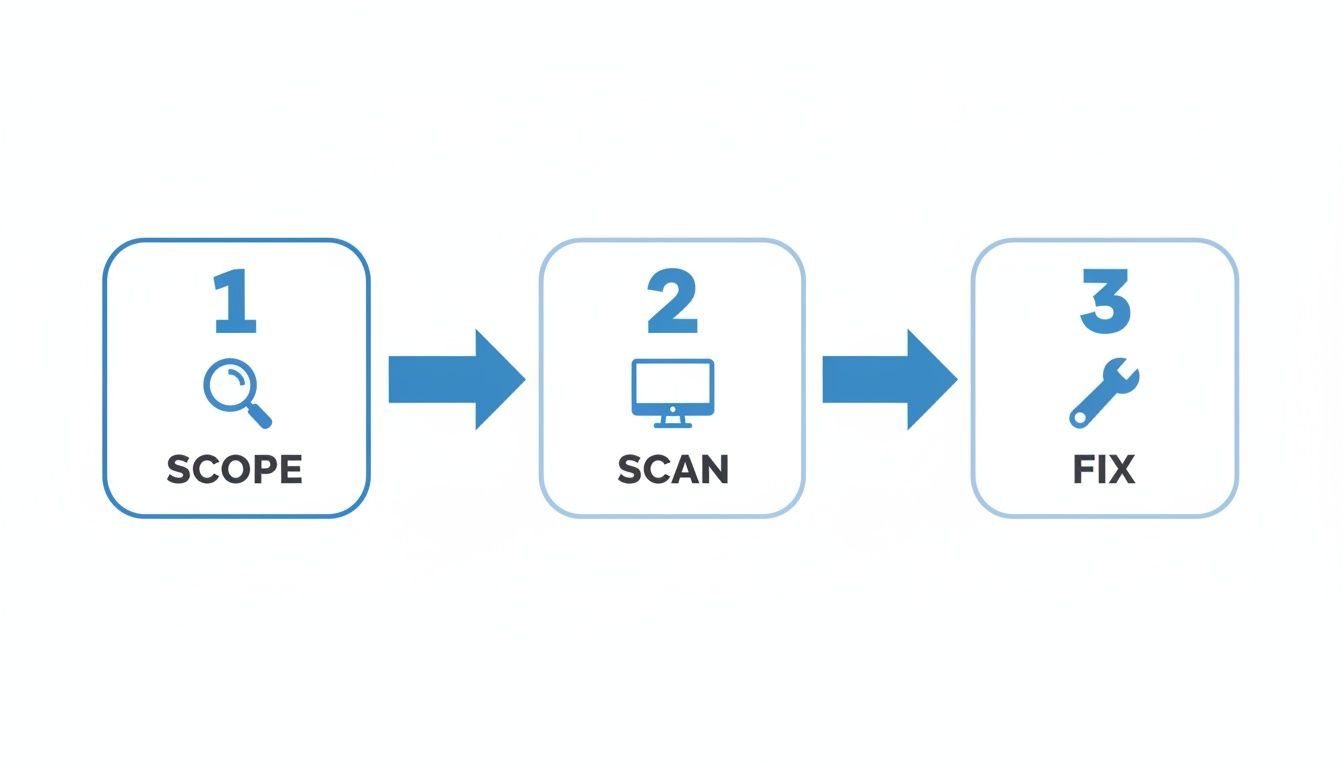
Below is a concise overview of each phase, its main objective, and a go-to tool to kick things off.
Accessibility Audit Website Steps
The table below summarizes each phase, its primary objective, and a key tool to get you started.
| Phase | Objective | Key Tool |
|---|---|---|
| Scope | Define audit boundaries and goals | Stakeholder Workshop |
| Scan | Run automated checks across pages | Axe DevTools |
| Fix | Implement remediations | Code Review |
Having this quick-reference guide helps everyone stay aligned with goals and tool choices as you move through the audit.
Key Takeaway
A focused, three-part audit flow keeps the team centered on real user impact, preventing scope creep and ensuring smooth handoffs from planning through remediation.
Next Steps
Dive into planning to nail down your audit scope around critical user journeys.
Schedule an early automated scan to catch broad issues before they pile up.
Map your findings to WCAG/Section 508 criteria so manual testing can zero in on high-risk areas.
Bookmark this overview as your audit compass, then jump into the detailed sections for templates, workflows, and continuous monitoring.
Planning And Scoping Your Accessibility Audit
TLDR
Tie your audit goals directly to the business outcomes that matter most.
Focus on the 70% of pages driving the bulk of traffic and conversions.
Bring together QA experts, front-end engineers, UX designers, and an accessibility specialist.
Lay out budgets, timelines, and a clear roadmap to avoid surprises.
Starting without a defined scope is a fast track to overshooting your budget and overwhelming the team. Let’s hone in on what matters and unite stakeholders around a common plan.
At a mid-sized media company, the initial audit zeroed in on signup and article pages. That slice accounted for 85% of their support tickets. By tackling label fixes and keyboard traps first, they scored quick wins and built momentum.
Identify High Priority Pages
Use analytics and user feedback to pinpoint your biggest pain points. Look for:
Pages with high monthly visits and conversion rates.
Areas with legal or brand reputation risks.
Complex forms or media components that frequently break.
Prioritize core user journeys before expanding to every template. This approach maximizes impact early on.
Build A Cross Functional Team
Pull together specialists who own each piece of the puzzle:
QA engineer to log and retest issues.
Front-end developer to estimate remediation effort.
UX designer to refine interactions and labeling.
Accessibility expert to validate WCAG/Section 508 mapping.
Including all voices from the start prevents siloed fixes and speeds up approvals.
A shared Kanban board and regular stand-ups keep progress transparent and on schedule.
Align Stakeholders Early
Host a brief workshop or demo to lock in scope and expectations. Share a concise one-pager outlining objectives, budget, and deliverables. Early feedback often uncovers low-value pages you can drop.
One nonprofit’s 30-minute session cut 25% of proposed pages, freeing up a week of dev time for high-impact donation and volunteer flows.
Prevent Scope Creep
Draft a lean project charter that lists in-scope deliverables and clearly calls out what’s out. Schedule bi-weekly check-ins to confirm priorities haven’t shifted.
Clear charters correlate with 40% fewer mid-project change requests.
Defining boundaries up front keeps your audit focused, efficient, and cost-effective.
Set Budget And Timeline
Realistic estimates are your best defense against delays. Consider this framework:
Two weeks for core flow testing.
One sprint dedicated to batch remediation.
A final week for stakeholder review and reporting.
Adjust based on your team’s capacity and tool costs. Don’t forget to budget for external audit licenses or training.
| Scope Tier | Focus Area | Resource Estimate |
|---|---|---|
| Minimal | Signup and checkout flows | 40 developer hours |
| Standard | Top three user journeys | 80 developer hours |
| Comprehensive | All key pages and templates | 150 developer hours |
Tiered options help sponsors choose based on ROI and expand coverage later.
Collect Initial Baseline Metrics
Snapshot where you stand before testing. Pull reports from Google Analytics and any existing a11y dashboards. Break down error counts by category—contrast failures, missing labels, etc.
A nonprofit uncovered 120 contrast issues platform-wide. Having that baseline in your charter sets clear expectations and guides where manual testing should focus.
Create A Communications Plan
Agree on a reporting cadence—weekly email updates or bi-weekly demos. Use a simple chart to compare planned vs. actual effort alongside scan results. A color-coded dashboard makes blockers immediately visible.
Consistent communication keeps sponsors engaged and ensures your audit maintains traction from kickoff through final delivery.
Solid scoping and planning lay the groundwork for an accessibility audit that delivers measurable, lasting impact.
Run Automated Scans For Accessibility
When you set up automated scanners properly, they can sweep through dozens of pages in minutes, flagging issues you’d otherwise miss until late in your audit. But choosing the right tool and tuning it to your needs makes all the difference.
I’ve seen teams drown in false positives when rules aren’t aligned to project goals—and that noise often buries the real barriers.
axe brings a solid rule base and flexible integrations.
Pa11y shines when you need a lightweight, scriptable option.
Lighthouse gives quick performance and accessibility snapshots out of the box.
Open-source scanners can be molded to your framework.
Commercial platforms layer on dashboards, trend reports, and role-based access for deeper insight.
By matching rule sets to WCAG 2.1 AA or Section 508 requirements, you get consistent results across teams. Filtering out low-impact alerts keeps developers focused on the barriers that block real users.
Choosing The Right Scanner
Think beyond just “does it run?” Look at language support, ease of integration, and community activity. If your site is built in React or Vue, test JavaScript compatibility early. Preview output formats—HTML, JSON or PDF—to ensure they slot neatly into your reporting workflow.
Configuring Scan Rules
Tailor your rule groups to reflect your compliance roadmap. For example, disable contrast checks in your first pass if you’re planning a deeper visual review later. Grouping similar failures means triage often comes down to tweaking a single template instead of wrestling with hundreds of alerts.
Filtering rules strategically can cut issue volume by 30% without hiding real problems.
Schedule scans in your CI pipeline so regressions pop up before code ever lands in production. Tie each run to pull requests and require a clean report before merging new features.
That chart breaks down errors across a 1,000,000–page crawl. With 50,960,288 distinct failures—an average of 51 per home page—it’s a stark reminder of how widespread WCAG gaps remain. Learn more about these findings on WebAIM.
Integrating Scans Into CI Pipelines
Running automated checks nightly or weekly surfaces trends that slip through manual reviews. I like to fail builds if errors jump by more than 10%, catching surprises before they reach staging.
Schedule nightly scans for new deployments.
Archive results in version control to build an audit trail.
Alert stakeholders via email or Slack when fresh issues appear.
Turning scanner output into prioritized tickets keeps momentum high and teams engaged.
Generating Trend Reports
Trend reports are your best friend for proving progress. Plot form-field errors over time to spot regression spikes. Export data as CSV or JSON for deeper analysis.
Chart error categories by severity to highlight persistent issues.
Compare week-over-week scans to confirm fixes.
Flag sudden increases for immediate investigation.
Trend analysis helped one retail team reduce contrast failures by 60% in just three sprints.
Prevent Audit Fatigue
Nobody wins when scans overwhelm developers. Focus on fixable issues first:
Exclude color contrast if a manual design review is on the calendar.
Suppress ARIA-related warnings until your specialist tackles WAI-ARIA patterns.
Rotate in deep-scan rules monthly, while running quick health checks daily.
Zero false positives in your daily pipeline builds trust with the development team.
Filtering Low Impact Errors
Before kicking off a full audit, drop trivial alerts so your scan stays lean. For example:
Omit contrast checks when vetting core form functionality.
Exclude image warnings if you’re planning a separate alt-text review.
Turning Scan Outputs Into Action
Automated scans only move the needle when you link results to your backlog. I map errors to page templates so teams can batch-fix with a single pull request. Assign severity based on real user impact—not just rule counts.
Case Study
A fintech startup wired their axe results into Jira. They cleared 120 form-label issues in two days and watched manual testing time shrink by 50%.
“Automated scans reduce audit fatigue by highlighting fixable issues first.”
You might also hook these scans into code reviews for instant feedback. Learn more about automated accessibility testing in our detailed guide on WebAbility.io.
Conduct Manual Testing With Assistive Tech
Manual testing uncovers real-world barriers that automated tools don’t catch. Keyboard navigation glitches or screen reader misinterpretations often slip through scanners. Getting hands-on reveals these hidden challenges.
Think about everyday journeys—signing up, completing a purchase, or jumping into a video. These scenarios simulate actual user behavior and highlight where people can get stuck.
Filling out sign-up forms and testing focus order and error messages
Updating the shopping cart and completing checkout with just a keyboard
Playing videos, checking for captions or transcript availability
Moving between headings and links when browsing content
Interacting with modals or expanding menus
Navigating login and password resets using keyboard commands
Craft Test Journeys
Start by charting your main user paths. Break each path into clear tasks, expected results, and any keyboard or screen reader interactions.
Define where each scenario begins and ends
List the elements users must reach—buttons, fields, links
Include conditional steps, such as optional form inputs
Watch out for focus traps in custom dropdowns or sliders
Mapping these error paths often uncovers ARIA misuse or missing focus logic. For instance, a poorly coded dropdown can lock keyboard focus and block users.
Analyze Keyboard Navigation
Move through your site without a mouse. Test Tab order, skip links, and focus outlines to spot dead ends or unsupported controls.
Confirm focus outlines are visible on every interactive element
Check skip-to-content links appear and jump correctly
Ensure custom widgets respond to standard key events
Use Screen Readers
Run your scripts with NVDA, VoiceOver, and JAWS. Covering multiple tools reveals variations in speech output.
Keep playback speed consistent for realistic testing
Pause to compare spoken cues against on-screen labels
Log any unexpected announcements or missing context
A recent report found an average of 297 automated accessibility issues per page in Q4 2024, revealing a growing gap in web inclusivity. Learn more about these findings on the Digital Accessibility Index. This chart underscores how automated scans alone leave critical barriers untackled.
Recruit Participants
Invite people with diverse disabilities to validate your findings. Their real-world feedback exposes nuances that scripts can’t.
Collaborate with advocacy organizations to find participants
Provide clear task instructions and feedback guidelines
Host moderated sessions to watch interactions in real time
Offer compensation and ensure your testing platform is accessible
“Testing with real users transforms audit reports into actionable insights,” says an accessibility specialist.
Ask open-ended questions during sessions, like “What did you expect to happen next?” to capture authentic reactions.
Translate Observations
Turn your observational notes into clear bug reports. A consistent format speeds developer fixes and cuts down back-and-forth.
Give each observation a unique ID
Describe context, steps to reproduce, and the expected result
Link findings to relevant WCAG criteria or Section 508 standards
Attach screenshots or audio clips for extra clarity
Grouping similar issues helps your team fix root causes. If several forms lack labels, updating the shared form component is smarter than patching each field.
Prioritize Manual Findings
Once you’ve collected observations, rank them by severity and frequency. A simple matrix helps you tackle the biggest blockers first.
Blockers: prevent core tasks like checkout
Critical: cause confusion or lost information
Minor: cosmetic issues or non-blocking warnings
Check out our guide on running effective screen reader tests for more details: Learn more about screen reader testing in our article
Closing your manual testing phase with clear, prioritized reports ensures your audit reflects actual user struggles. Paired with automated scans, this hands-on work shapes a solid remediation strategy—and keeps accessibility front and center as you build. Start small. Iterate often.
Map And Prioritize Accessibility Findings
TLDR
Connect each issue to relevant WCAG criteria or Section 508 rules
Gauge severity by real user impact and frequency
Estimate developer hours and rank items by ROI
Run a cross-functional workshop to bucket issues into high, medium, and low priorities
Keep a living roadmap that shifts as sprints close gaps
You’ll often finish your automated scans and manual audits with hundreds of accessibility tickets. Mapping and prioritization stops teams from feeling buried and keeps everyone zeroed in on the biggest roadblocks.
Understanding Impact And Effort
Start by tagging each finding with the exact WCAG success criterion or Section 508 requirement it violates. This makes sure fixes close real compliance gaps.
Estimate the developer time for each component. For instance, updating form labels might take 2 hours, while rebuilding a custom navigation menu could run around 8 hours.
Assign severity based on how users are affected and how often the issue appears:
Blocker: completely blocks critical actions like checkout or form submission
Critical: hides or confuses key content
Moderate: degrades the experience but still lets users complete tasks
Minor: purely visual or cosmetic glitches
A recent survey of 1,570 digital professionals showed 54.3% felt confident their sites met WCAG standards—up from 41.7% in 2024 and 30.4% in 2022. Independent audits paint a different picture. Read the full Applause 2025 A11y Digital Quality Report for deeper insights.
This clarity lets you tune out noise and focus on the fixes that deliver the biggest boost to real users.
Workshop Prioritization Example
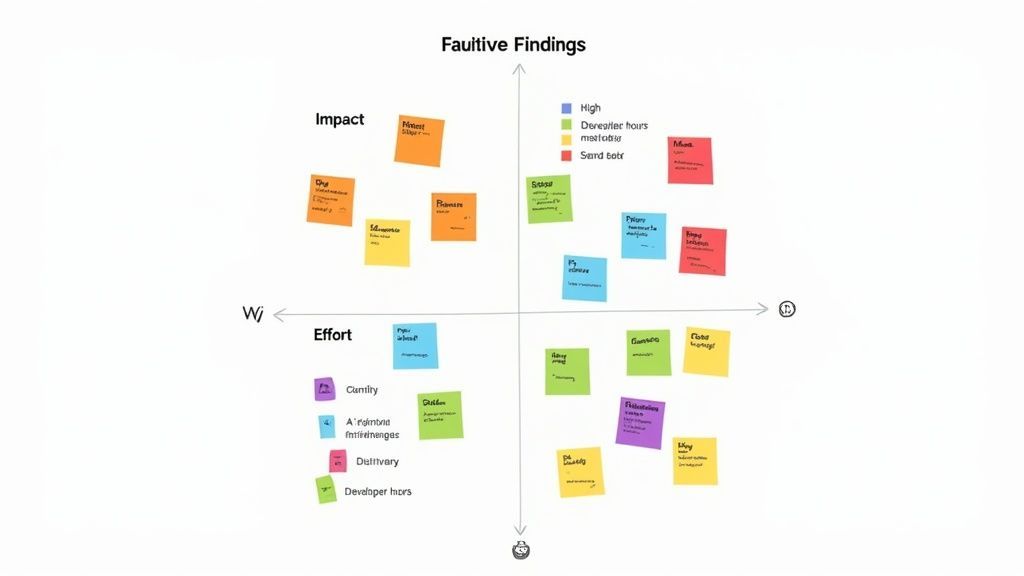
Bring together developers, UX designers, content authors, and accessibility leads for a two-hour breakout session. Lay out a simple impact-vs-effort grid on the wall.
Pin issues to the matrix using sticky notes
Tackle high-impact, low-effort items first
Debate and vote on medium-impact or complex fixes
Mark low-priority issues for a later sprint
Effective workshops can cut prioritization time by 50% and boost team alignment
One e-commerce team used this exact method to clear 20+ critical cart errors in a single sprint.
Building A Living Roadmap
After the workshop, transform your grid into a dynamic roadmap. Make sure it includes:
Assigned developers, sprint owners, and deadlines
Rolling status indicators: planned, in progress, verified
Flags for trade-offs when new features compete for capacity
Monthly checkpoints to rebalance priorities
| Priority | Action Item | Estimated Hours | Sprint |
|---|---|---|---|
| High | Fix login form labels | 4 | 1 |
| Medium | Update image alt tags | 6 | 2 |
| Low | Adjust link colors | 3 | 5 |
Use tags to batch fixes by template or component. That way, making a single pull request can clear multiple pages at once.
Best Practices for Tagging Fixes
Group issues by template or component to streamline code changes
Add metadata like browser and device for targeted testing
Filter your backlog by tags to focus each sprint
This tagging strategy helped one media team consolidate 45 button issues into a single PR.
Keep everything transparent by linking roadmap items back to their original audit IDs.
The image below shows self-reported compliance confidence over time:
These numbers highlight the gap between perceived compliance and the reality audits uncover. Use objective metrics to guide your remediation roadmap and turn static findings into a living, breathing plan that adapts as work completes and new challenges emerge.
Create Reports And Monitor Accessibility
Turning audit data into something everyone can act on is half the battle. Clear, actionable reports build trust and keep teams moving forward. Below is a quick glance at what you’ll need:
Use templates to map raw findings into digestible formats.
Track error counts, coverage percentages, and sprint progress at a glance.
Mix scheduled scans with manual spot checks and user feedback loops.
Define governance roles and bake accessibility checks into your release gates.
Leverage cost estimates and remediation dashboards to set budgets and align teams.
For a deep dive, see our accessibility conformance report.
These steps help stakeholders see wins, spot trouble quickly, and stay invested.
Report Templates And Dashboards
Good reporting depends on structure. These core templates keep everyone on the same page:
Error Log Template: Tracks ID, page URL, violation details, WCAG reference, and current status.
Remediation Dashboard: Live bars compare open issues to resolved ones.
Cost Estimate Sheet: Matches developer hours with rate per hour to calculate total spend.
Trend Chart: Plots error counts over sprints to catch regressions fast.
For instance, charting weekly contrast failures can reveal spikes right after a design refresh. One retailer shaved 45% off those failures in just two sprints by sharing a live dashboard with designers and developers.
Link each report back to your issue tracker so fixes never slip through the cracks. Clean visuals also help non-technical stakeholders digest progress without wading through CSVs.
“Dynamic dashboards saved us 4 hours per week on reporting,” says a QA Lead.
Issues get assigned faster thanks to real-time updates.
Cross-team visibility ensures nobody is left in the dark.
Automated alerts replace manual status-check emails.
| Report Type | Static Spreadsheet | Live Dashboard |
|---|---|---|
| Update Frequency | Manual weekly | Real-time |
| Visibility | Limited to holders | Accessible to all |
| Effort | High | Low after setup |
Continuous Monitoring Workflow
Accessibility isn’t a one-off project—it’s a habit. Here’s how to keep it alive:
Schedule automated scans daily or weekly as part of your CI/CD pipeline.
Perform manual spot checks on a handful of pages each sprint.
Invite feedback through in-app bug reports or short surveys.
Review scan trends and user feedback to reshuffle priorities continuously.
Consistent monitoring catches regressions early and prevents last-minute rollbacks.
A nonprofit added a quick survey prompt post-launch and cut accessibility bugs by 30% year over year. When a high-severity issue pops up, automated alerts ping the assigned owner before the next release.
Track these core metrics in a simple dashboard:
MTTD (Mean Time To Detect): Time from scan to issue assignment.
MTTR (Mean Time To Remediate): Time from assignment to resolution.
User satisfaction scores after each deployment.
In one public sector team, combining alerts with manual checks dropped MTTD from 48 to 6 hours.
Governance And Ownership Strategies
Clear roles make all the difference. Assign these champions to sustain momentum:
Accessibility Owner reviews dashboards and assigns fixes.
Sprint Gatekeeper ensures no release moves forward without accessibility sign-off.
UX Champion validates that design tweaks meet interaction and visual standards.
Executive Sponsor secures budget and removes roadblocks.
Integrate an accessibility conformance check into your release gate process and formalize results with a detailed accessibility conformance report.
| Role | Responsibility | Tools |
|---|---|---|
| Accessibility Owner | Reviews dashboards, assigns fixes | Jira, Slack |
| Sprint Gatekeeper | Blocks releases lacking accessibility pass | CI/CD, GitHub |
| UX Champion | Approves visual and interaction fixes | Figma, InVision |
| Executive Sponsor | Allocates budget and resources | Excel, Reporting |
Hold regular reviews—monthly check-ins and quarterly retrospectives—so you spot resource gaps early. Celebrate small wins: zero critical issues in a sprint deserves a shout-out. Those moments fuel the drive to keep accessibility front and center.
FAQ
TLDR
Clarify your goal and match tools to your WCAG targets.
Engage users with disabilities through ethical recruitment and clear consent.
Leverage free scanners plus manual spot checks to stay within budget.
Set up recurring checks, designate ownership, and build accessibility into every release.
How To Pick The Right Mix Of Tools For Your Accessibility Audit Website
A balanced toolkit combines automated scanners with manual testing to catch both code-level and real-world issues. Start with free utilities like axe DevTools and Pa11y to flag common markup errors. Then layer in assistive-tech scripts—think keyboard navigation and screen-reader simulations—to uncover barriers that scanners alone can’t reveal.
Coverage that aligns with WCAG 2.1 AA rules.
Exportable reports (HTML, JSON, PDF) that slide right into your workflow.
Hooks for CI pipelines and issue trackers to create tickets automatically.
“Combining automated scans with hands-on testing revealed issues we’d otherwise miss,” says a UX lead.
Planning Ethical Involvement
Partner with disability advocacy groups to find participants. Offer transparent task instructions, fair compensation, and privacy safeguards. Mix moderated sessions with self-guided tests to respect different comfort levels.
In one case, a nonprofit worked with a local advocacy group to recruit six users, uncovering 20 unique insights over a two-day period.
Auditing On A Tight Budget
You don’t need a big budget for an effective audit. Focus on your most-viewed pages using analytics filters. Run free scanners first, then dive into manual checks on critical workflows. Community forums and GitHub repos often share remediation snippets you can adapt.
Map core journeys and record any blockers.
Scan top pages automatically and review the results.
Conduct targeted manual tests on essential user paths.
Key Takeaway: Prioritizing high-impact pages cuts both time and cost.
Sustaining Compliance Over Time
Turn accessibility into a habit by integrating checks into your CI/CD pipeline. Schedule weekly automated scans and sprint-based reviews. Appoint a dedicated accessibility owner to sign off at each release.
| Metric | Goal |
|---|---|
| MTTD | Under 8 Hours |
| MTTR | Under 48 Hours |
| Regression Rate Drop | 20% per Quarter |
Regular governance prevents drift and keeps momentum. Host quarterly workshops to onboard new team members and refresh best practices. Close the loop with user feedback to catch emerging issues fast.
Ready to streamline your accessibility audit website process? Try WebAbility.io for custom continuous scanning, reporting, and dashboards that keep you compliant. WebAbility.io
Quick Questions
Tap to ask AI about this article